
10 Best Docking Stations for Dell Laptops (October 2026) Verified Reviews
A Dell laptop gives you one port for everything. The best docking stations for Dell laptops solve that in a single cable, turning a thin Latitude, XPS or Inspiron into a full desk setup with multiple monitors, wired Ethernet, a keyboard and mouse, and laptop charging at the same time.
We compared ten docks across the categories that actually matter for a Dell owner: native USB-C DisplayPort Alt Mode, Thunderbolt 4 bandwidth, DisplayLink universal docks, and first-party Dell business hardware. Each one was assessed on display output, power delivery wattage, port mix, and what real owners say after living with it. We also looked at the surrounding gear in our dual-monitor docking station guide, which covers port selection in more detail.
Contents
Two things decide a dock before any spec sheet does. First, the port on your laptop: a USB-C port with DisplayPort Alt Mode behaves very differently from a Thunderbolt 4 port. Second, whether your monitors are driven natively or through DisplayLink software. Get those two answers right and the rest is just preference.
Our picks below cover every port type we found for 2026, from a bus-powered travel hub to an 18-port Thunderbolt workstation. We have updated the list for 2026 and kept the award labels tied to use case rather than to brand loyalty.
Top 3 Picks for Docking Stations for Dell Laptops in 2026
As an Amazon Associate we earn from qualifying purchases. CERTAIN CONTENT THAT APPEARS ON THIS SITE COMES FROM AMAZON. THIS CONTENT IS PROVIDED 'AS IS' AND IS SUBJECT TO CHANGE OR REMOVAL AT ANY TIME.
Quick Overview: 10 Docking Stations for Dell Laptops in 2026
The table below lists every dock in this guide with its connection type, display capability, and charging headroom. The fastest way to use it is to find your laptop’s port type, then read across.
| Product | Features | |
|---|---|---|
 Anker 8-in-1 USB C Hub A83800A1 Anker 8-in-1 USB C Hub A83800A1 |
|
Check Latest Price |
 Dell Pro Dock WD25 Dell Pro Dock WD25 |
|
Check Latest Price |
 CalDigit TS4 Thunderbolt 4 Dock CalDigit TS4 Thunderbolt 4 Dock |
|
Check Latest Price |
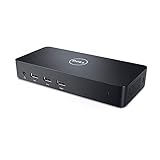 Dell D3100 USB 3.0 Triple Display Dock Dell D3100 USB 3.0 Triple Display Dock |
|
Check Latest Price |
 MOKiN 14-in-1 USB C Dock UC0554 MOKiN 14-in-1 USB C Dock UC0554 |
|
Check Latest Price |
 Anker Prime 14-in-1 Docking Station Anker Prime 14-in-1 Docking Station |
|
Check Latest Price |
 UGREEN DisplayLink Docking Station 90912 UGREEN DisplayLink Docking Station 90912 |
|
Check Latest Price |
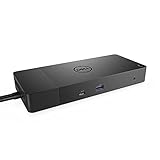 Dell WD19 180W Docking Station Dell WD19 180W Docking Station |
|
Check Latest Price |
 Dell WD15 Monitor Dock Dell WD15 Monitor Dock |
|
Check Latest Price |
 Dell Universal Dock D6000S Dell Universal Dock D6000S |
|
Check Latest Price |
We earn from qualifying purchases. CERTAIN CONTENT THAT APPEARS ON THIS SITE COMES FROM AMAZON. THIS CONTENT IS PROVIDED 'AS IS' AND IS SUBJECT TO CHANGE OR REMOVAL AT ANY TIME.
1. Anker 8-in-1 USB C Hub A83800A1 – Best Overall for Most Dell Laptops
Anker Laptop Docking Station Dual Monitor, 8-in-1 USB C Hub…
8-in-1
USB-C with DisplayPort Alt Mode
Dual HDMI
85W pass-through
Pros
- 4.5 stars across more than 35000 reviews
- Compact enough for a laptop bag
- No drivers or setup required
- SD and microSD readers plus 85W pass-through charging
Cons
- Bus-powered with no separate power input
- Some variants ship with a single HDMI port
- Runs warm during sustained large-file transfers
- Not compatible with Linux
This is the dock I recommend to most people reading a Dell laptop guide for the first time. It is the most heavily reviewed dock in our entire comparison, sitting at 4.5 stars across more than 35,000 ratings, and that volume matters because it means the failure modes are well documented rather than speculative.
What surprised me was how little setup it takes. There is no driver to hunt down, no firmware step, no Dell software. Plug the USB-C cable into a Latitude or XPS with DisplayPort Alt Mode and both monitors light up. Reviewers report three-plus years of reliable daily use from owners who travel with it.
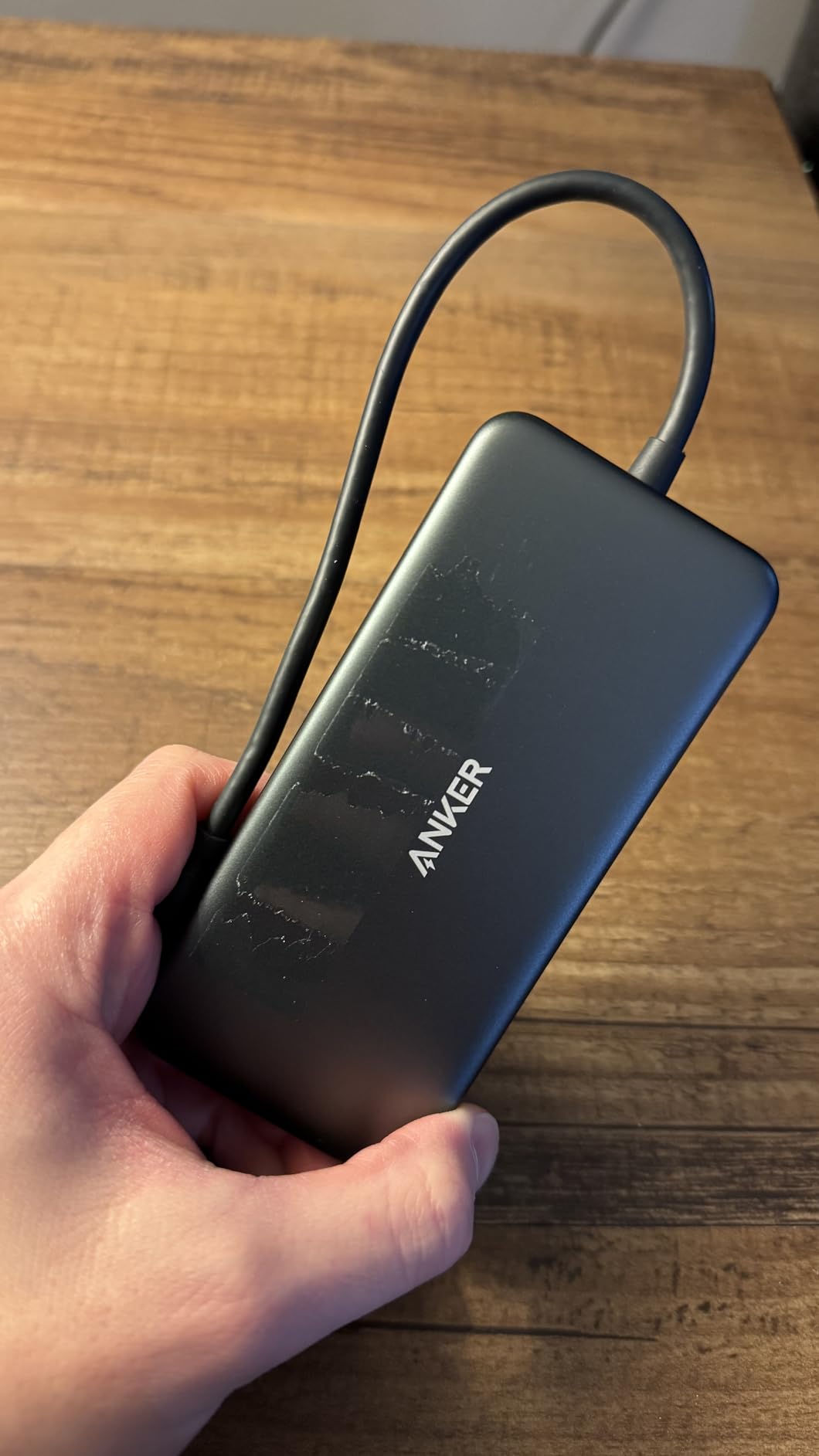
The physical design is the real argument. At 4.65 by 2.01 inches and 3.2 ounces, it lives permanently in a laptop bag rather than on a desk, which is exactly the use case a bus-powered design should serve. Dual HDMI handles two 4K displays at 30Hz each, or one display at 4K 60Hz, and the Ethernet jack plus two card readers mean photographers can offload a shoot without a separate reader.
Charging is the other half of the value. The 85W pass-through keeps a laptop charged over the same cable that carries video, and the wall charger and USB-C to USB-C cable you need are specified separately, so budget for those if you do not already own them.

This dock suits anyone who wants two monitors and a small footprint
If your setup is two 4K monitors, a keyboard, a mouse, and Ethernet, this dock does all four over one cable and costs almost nothing in desk space. Reviewers consistently praise the dual HDMI arrangement because it means you do not need DisplayLink software or MST configuration for a standard extended desktop.
It also pairs cleanly with Dell laptops outside the business line, where Thunderbolt ports are often absent. Compatible devices are listed as Lenovo, HP and Dell laptops plus MacBook and iMac, with support for USB-C, USB4 and Thunderbolt hosts on Windows 10 and 11.
Skip this dock if you game, run Linux, or need a desktop-grade power supply
It is bus-powered, with no separate power input, so it cannot drive high-draw devices such as an external drive array.
Linux is explicitly not supported, and on macOS the second external display mirrors rather than extends. If your Dell machine runs Ubuntu in a development workflow, or you want one dock for both a Mac and a Dell, the trade-offs stop being worth it.
2. Dell Pro Dock WD25 – Best for Dell Pro and Latitude Fleets
Dell Pro Laptop Docking Station WD25, USB-C, 100W…
10 ports
USB-C host
Up to four high-resolution displays
100W power delivery
Pros
- 3-year warranty with advanced exchange
- Native quad-display support with no DisplayLink driver
- Ambidextrous host cable routes to either side
- 4.5 stars matching the highest rating here
Cons
- Only 336 reviews so a smaller sample than category leaders
- 100W may be short for the heaviest mobile workstations
- 10 ports is modest against 14- and 18-port rivals
The WD25 is Dell’s current-generation business dock, and at 4.5 stars with 79% five-star ratings it matches the highest rating in this guide, even though its review count is smaller than the category leaders.
Native quad-display support is the headline, and it means a Dell laptop recognises the dock without any help. No DisplayLink driver, no compression, no refresh-rate penalty.
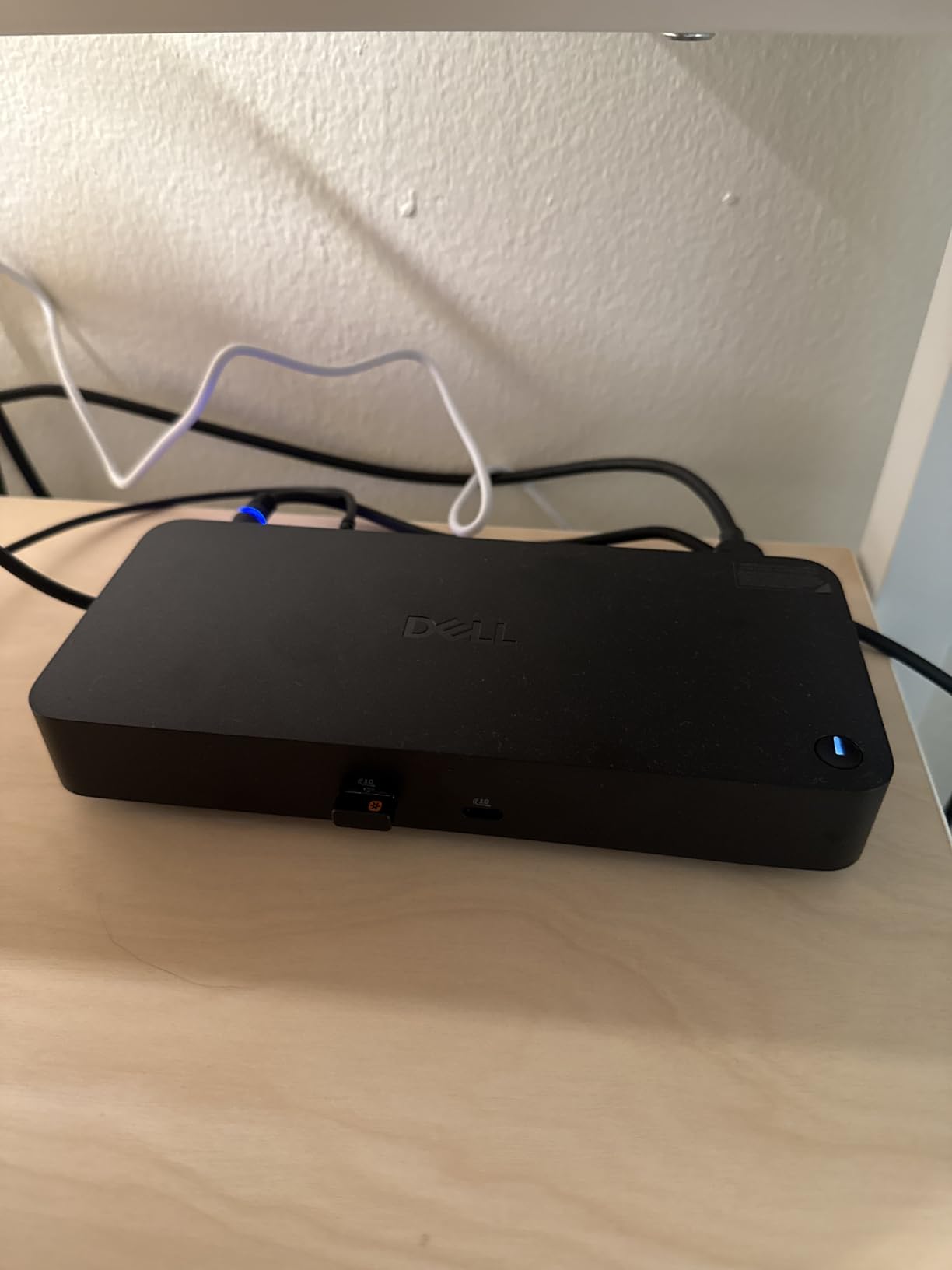
The host cable is ambidextrous, meaning you can route it toward either side of the desk without an awkward loop. That sounds trivial until you have tried a fixed-orientation cable with a docking station in a tight corner. The reinforced USB-C connector is rated for repeated insertion, which matters in a hot-desking environment.
There is an efficiency angle too. Dell states up to 72% lower power consumption in standby mode, and the chassis uses at least 65% post-consumer recycled materials with fully recycled or renewable packaging. For a device that sits plugged in overnight, standby draw is a real line item.
This dock suits business users and anyone who wants zero driver work
Compatibility is listed for Windows 10, Windows 11, Ubuntu 24.04, Red Hat Enterprise Linux 9.6 and later, and ChromeOS 137, so it covers the standard corporate desktop estate. Unlike a DisplayLink dock, displays are driven natively, which means no software to whitelist, no licence-style driver, and no compression artefacts in spreadsheets or CAD drawings.
For a home user this is the dock to buy if you want one decision made for you. The three-year limited warranty with advanced exchange is a real advantage over the third-party docks in this guide, and advanced exchange means a replacement ships before the failed unit returns.
Skip this dock if you need more ports or maximum charging headroom
Ten ports is respectable but not generous, and buyers wanting 14 or 18 ports for a dense peripheral setup should look at the MOKiN UC0554 or the CalDigit TS4 instead. Six USB data ports covers a keyboard, mouse, webcam, and two external drives with room to spare.
100W of host charging is generous for Latitude and Inspiron machines and fine for most XPS models, but it is not the right number for the heaviest Precision mobile workstations. Reviewers also note the manageability features assume a managed corporate environment, so home buyers simply will not use them.
3. CalDigit TS4 Thunderbolt 4 Dock – Best Premium Pick for Maximum Ports
CalDigit TS4 18 Port Thunderbolt 4 Dock, 98W Charging, 3X…
18 ports
Thunderbolt 4 at 40Gb/s
98W charging
2.5GbE Ethernet
Pros
- 18 ports remove the need for a separate USB hub
- 2.5GbE is a real upgrade over 1GbE rivals
- 98W charging does not throttle as devices are added
- All-aluminium chassis
Cons
- Runs hot under sustained 4K video load
- Some older self-powered USB 2.x hubs are not recognised
- Some drive enclosures only enumerate on the monitor USB-C ports
- Firmware update often needed before correct behaviour
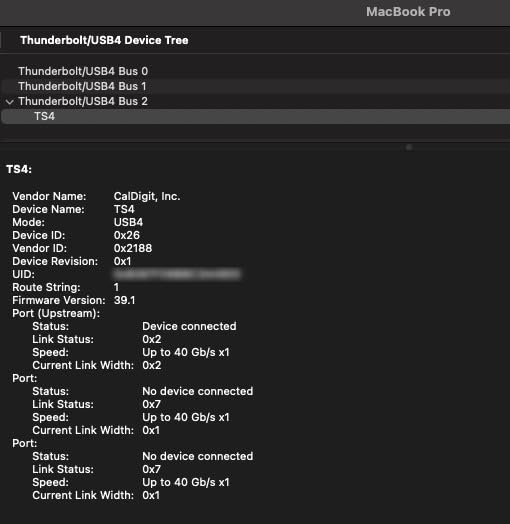
Eighteen ports is not a marketing number here, it is a working count. DisplayPort 1.4, eight USB ports at 10Gb/s, SD and microSD 4.0 UHS-II card readers, three Thunderbolt 4 ports at 40Gb/s, three audio jacks, 2.5GbE and a security slot. The port density here is what removes the need for a separate USB hub.
At 4.2 stars from 1,741 reviews, the reviews explain the score: the dock runs hot, and at least one reviewer reports stuttering during 4K video work. The all-aluminium chassis dissipates that heat well, but this is a dock that wants desk space and airflow rather than a cramped corner.

Where it shines is throughput. The three downstream Thunderbolt 4 ports run at 40Gb/s each, so you can daisy-chain storage and still have bandwidth left, and the SD card readers are UHS-II rather than the slower UHS-I standard most docks carry. Photographers shooting large RAW files notice the difference immediately.
On a Dell with a Thunderbolt 4 port, the display ceiling is excellent: a single 8K display, or dual 4K at 60Hz on Windows. The DisplayPort 1.4 port also drives a 40-inch 5K2K ultrawide at 60Hz, which is a genuine alternative to buying a second monitor.
This dock suits power users who connect everything at once
For a Dell Precision or a Latitude used as a full workstation, the 18-port layout means one cable to the laptop and no second-tier hub. 2.5GbE is the standout networking upgrade, doubling throughput over the 1GbE found on most competing docks and mattering for large file transfers over a network.
98W power delivery is listed as suitable for larger-screen laptops and, critically, does not throttle as you add devices. Many docks cut charging output as more peripherals are plugged in, and that behaviour is the most common cause of a laptop that will not charge properly on a dock.
Skip this dock if your setup is modest or your desk is cramped
Two 1080p monitors and a keyboard do not need 18 ports, and a dock this dense wants a real amount of desk space. Older self-powered USB 2.x hubs are also not recognised when connected to it, which trips up people who still rely on legacy peripherals.
One more practical note: maximum performance requires the supplied 0.8m certified Thunderbolt 4 cable. A generic USB-C cable in that port will work for charging and basic data but will not deliver the full 40Gb/s the dock is built around.
4. Dell D3100 USB 3.0 Triple Display Dock – Best for Older Dell Laptops
Dell USB 3.0 Ultra HD/4K Triple Display Docking Station…
USB 3.0 host
DisplayPort plus dual HDMI
7 USB ports
Gigabit Ethernet
Pros
- Triple-monitor support from one USB 3.0 connection
- 4.4 stars across more than 11000 reviews
- Broad compatibility with older Dell business laptops
Cons
- Legacy USB 3.0 interface with video capped at 2048 x 1152
- No USB-C power delivery passthrough
- No manufacturer warranty offered
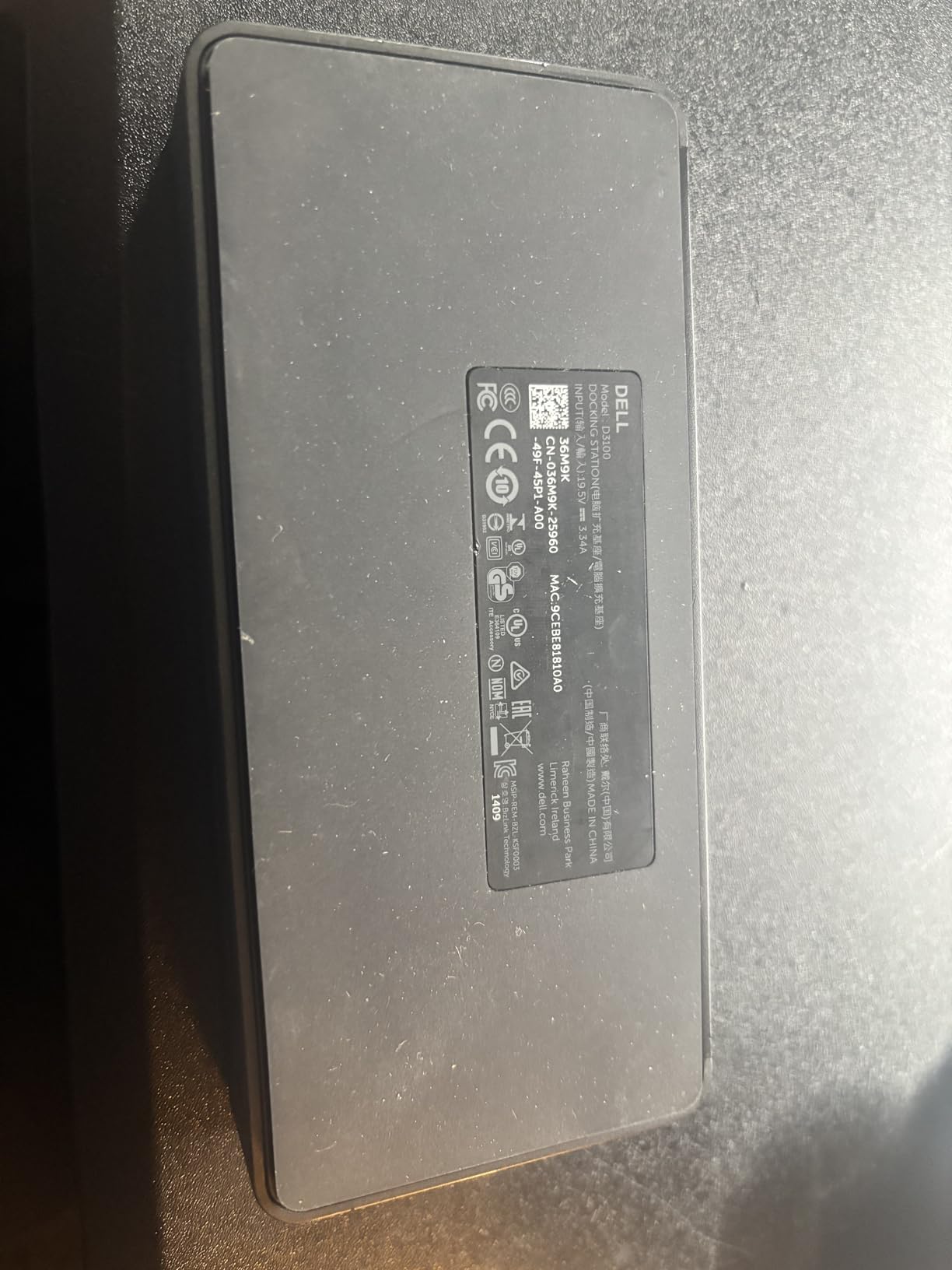
The D3100 has been around long enough to have more than 11,000 reviews averaging 4.4 stars, with 74% five-star ratings. That is an unusually long track record for a peripheral, and it tells you the design is proven even though the technology underneath it is not current.
It is a USB 3.0 dock, not USB-C and not Thunderbolt. That single fact defines it. Maximum video resolution is 2048 by 1152 at 60Hz, which is fine for older business monitors and frustrating the moment you buy a 4K panel. You also keep the laptop’s own power adapter because there is no charge passthrough.
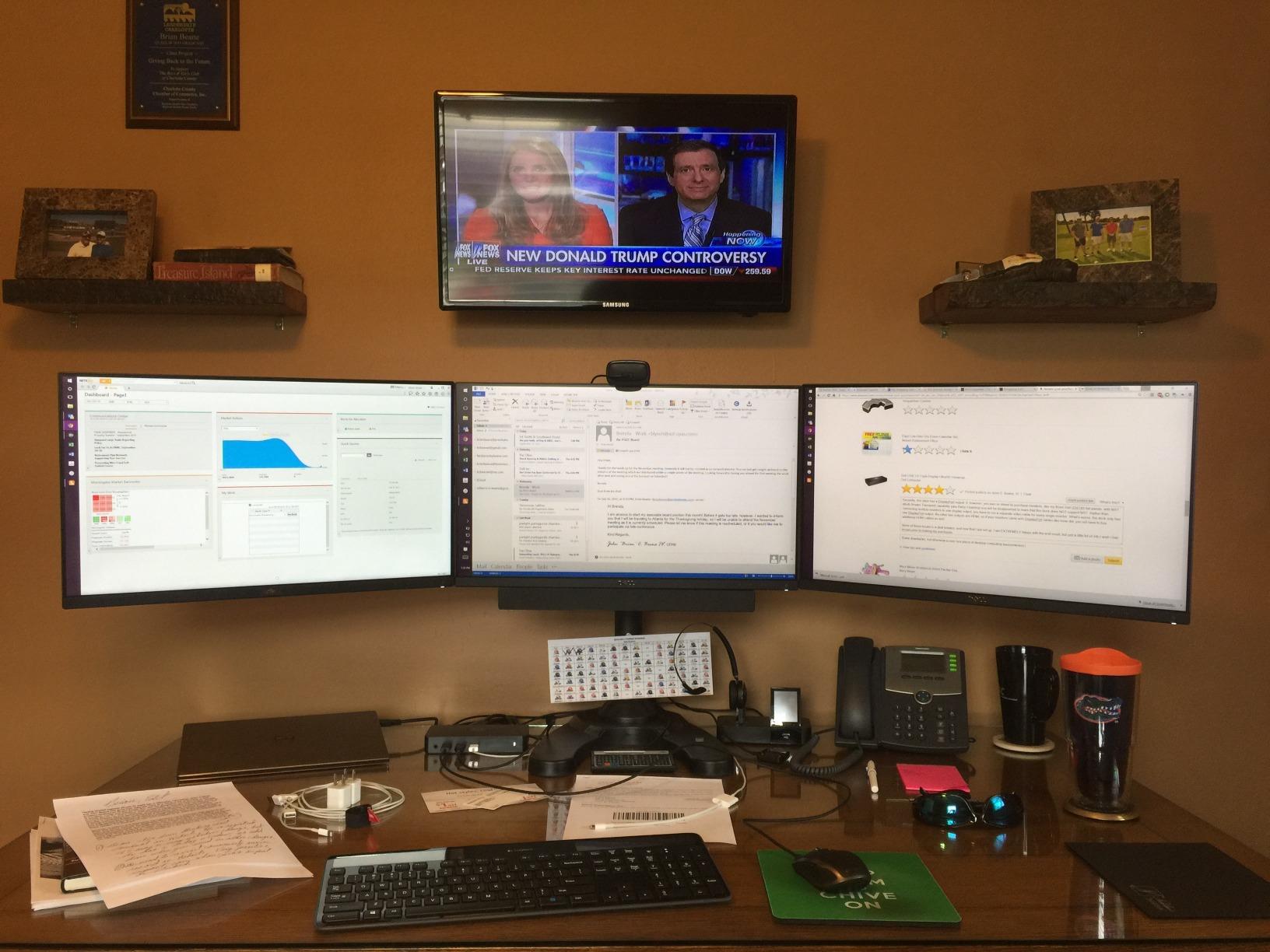
What you do get is three video outputs: one DisplayPort and two HDMI, with an HDMI-to-DVI adapter in the box. That is a real three-monitor desk from a single host cable, and for a business user on an older Latitude or Inspiron who needs more screen space for spreadsheets, it remains a legitimate option.
Port count is generous for the era. Three SuperSpeed USB 3.0 Type-A ports, two USB 2.0 ports, a Gigabit Ethernet RJ-45 jack, and 3.5mm headphone input and output. Legacy peripherals find a home, which is often the deciding factor for an older machine.
This dock suits owners of older Dell business laptops
If your Latitude, Inspiron or XPS has only a USB 3.0 Type-A port, this is one of the few docks that turns it into a three-monitor workstation. Compatibility is listed broadly for Dell notebooks and tablet PCs, and the sheer volume of reviews means known quirks rather than surprises.
It is also the practical choice for a second-hand office machine, a demo unit, or a family laptop that will not be replaced for a few more years. Adding a dock that costs about the same as a low-end monitor upgrades the whole desk experience in one step.
Skip this dock if you want 4K resolution, charging, or a warranty
The 2048 by 1152 ceiling is the hard limit. Any modern 4K monitor will run at a reduced resolution or refresh rate, and video work is out of scope. There is also no manufacturer warranty, which is unusual for a first-party Dell accessory.
Most importantly, it will not charge your laptop. You keep the barrel or USB-C charger connected alongside the dock, which means two cables at the desk instead of one. Anyone who values a single-cable setup should rule this out immediately.
5. MOKiN 14-in-1 USB C Dock UC0554 – Best for Maximum Port Count on a Budget
MOKiN Laptop Docking Station Dual Monitor 4K HDMI USB C Hub…
14-in-1
Requires Thunderbolt 3 or 4 host
2x HDMI and 2x DisplayPort
100W PD
Pros
- 14-in-1 expansion with four video outputs
- Lowest outlay in the group while still offering 100W PD
- Two-year warranty
- Privacy screen-lock button is a useful desk feature
Cons
- Requires a Thunderbolt 3 or 4 host for full functionality
- No power adapter included despite 100W charging claims
- 8% one-star rating suggests uneven unit quality
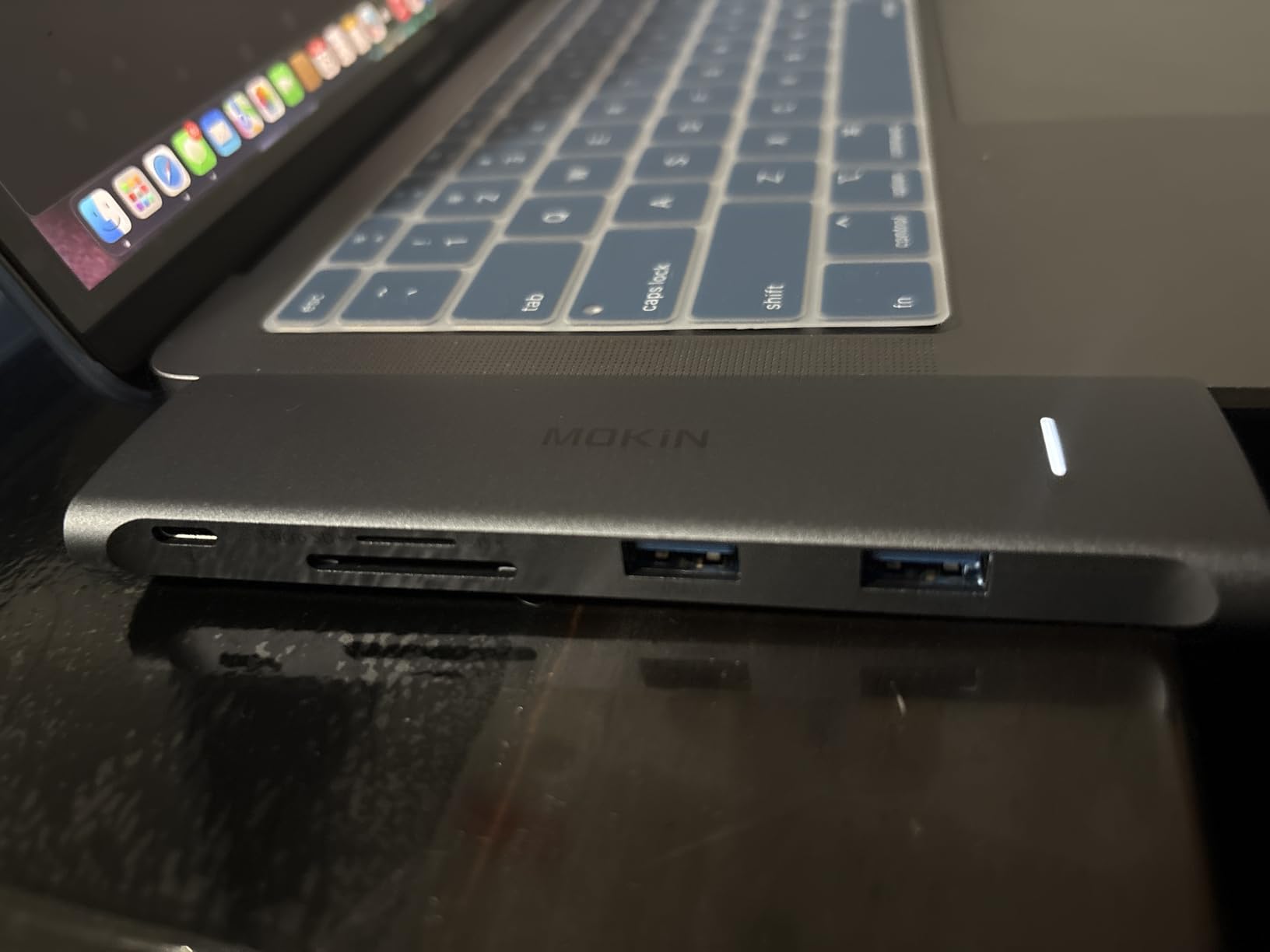
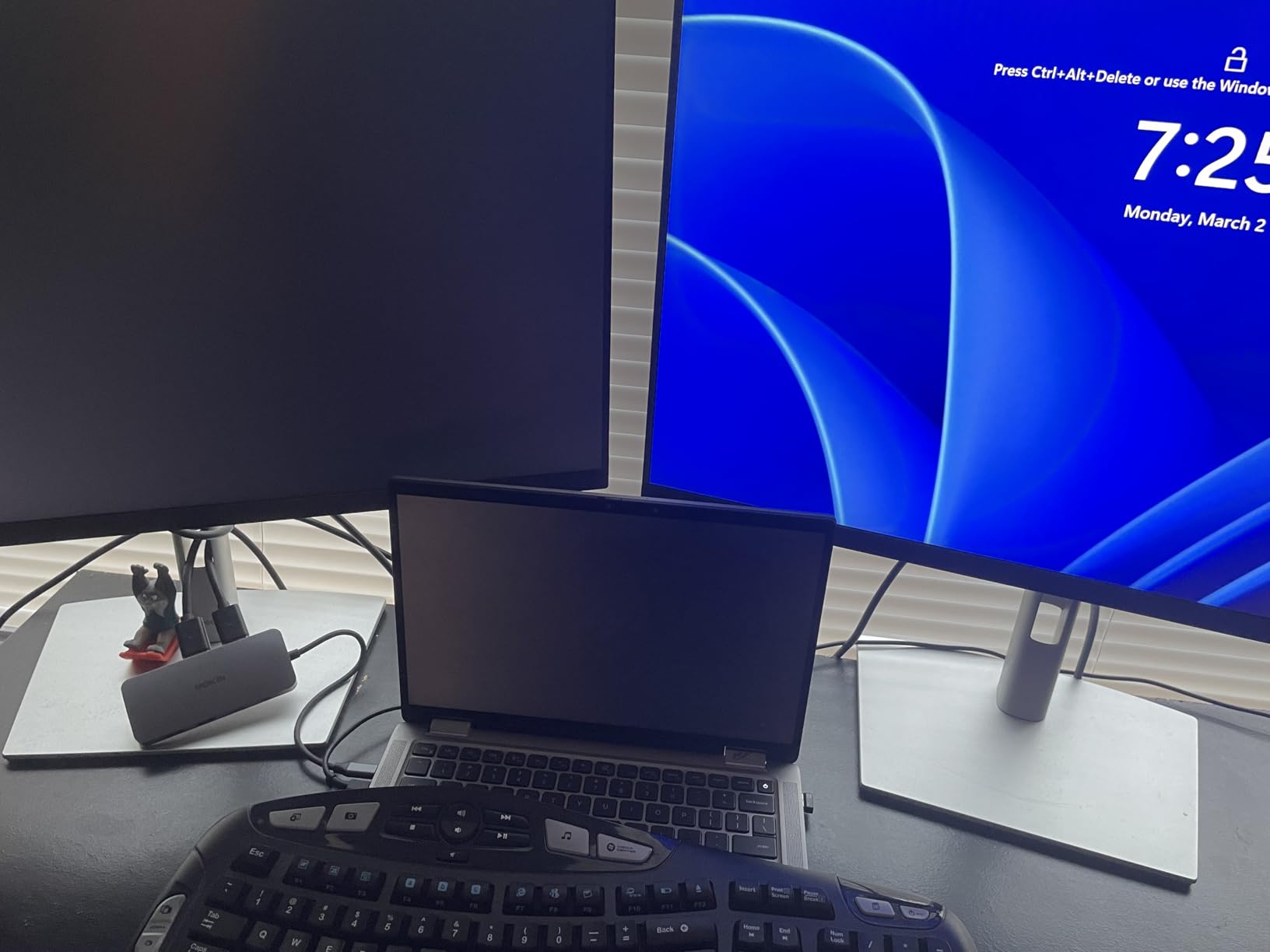
Fourteen ports, two HDMI, two DisplayPort, and 100W charging for the lowest outlay in this guide. The port count per pound here is difficult to argue with, and at 4.3 stars from just over 6,000 reviews with 70% five-star ratings, the value case holds up under real use.
There is one condition that catches people out. Compatible devices are listed as laptops with Thunderbolt 3 or 4, and full functionality depends on that host. On a plain DisplayPort Alt Mode USB-C port, the full port lineup may not present as advertised, so check your laptop’s port first.
The other detail worth knowing before you order is that the power adapter is not included, even though 100W Power Delivery is advertised. If you already own a 100W USB-C charger, this is a non-issue. If not, add one to your budget before comparing totals with other docks.
Display configurations are flexible. The dock supports two HDMI plus a DisplayPort, or two DisplayPort plus an HDMI, which is unusual at this tier and lets you match your monitor mix without adapters. Ethernet is 1000Mbps RJ45, and there are SD and microSD slots alongside five USB ports.
This dock suits port-hungry desks with a Thunderbolt laptop
Four video outputs is more than most desks can use, but it makes this the natural choice for a shared or hot-desking station where different people plug in different monitor arrangements. Two-year warranty coverage is longer than most category competitors offer at the same tier.
The privacy screen-lock button is a small thing that turns out to matter. A short press blanks both displays, which is useful on a hot-desking bench where you want to walk away without unplugging anything. Data transfer runs at 5 gigabits per second across the USB ports, which is fine for peripherals rather than NAS work.
Skip this dock if unit consistency or bundled power matters to you
An 8% one-star rating points to uneven quality between production batches rather than a design flaw. If you are deploying several of these across a team, that variance is a real operational concern.
Combined with the missing power adapter and the Thunderbolt host requirement, this dock asks you to do more homework than the price suggests. It rewards a buyer who has already confirmed their port type and owns a suitable charger.
6. Anker Prime 14-in-1 Docking Station – Best for Charging Many Devices at Once
Anker Prime Docking Station, 14-in-1 Laptop Docking Station…
14-in-1
160W total output
Three USB-C ports up to 100W each
Dual HDMI
Pros
- 160W total output is the highest host charging figure here
- Charges a laptop plus three other devices at once
- Data ports reach 10Gbps
- 24-month warranty
Cons
- Dual monitors capped at 2K at 60Hz
- 5120x1440 ultrawide monitors explicitly unsupported
- macOS mirrors both external displays
- Heaviest unit here at 1.28 kg in plastic
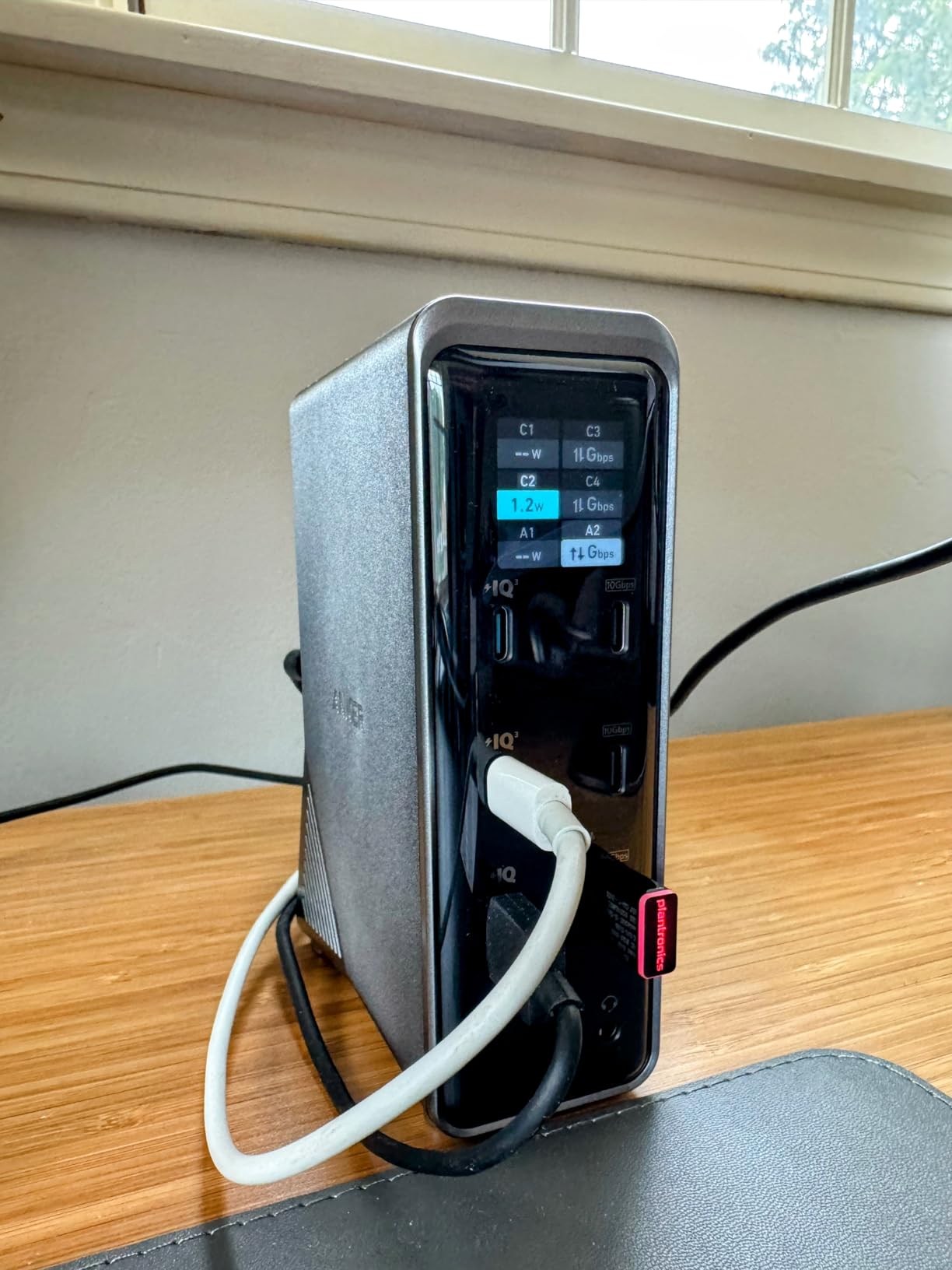
This dock is not primarily a display product, it is a charging product with displays attached. 160W of total output is the highest host charging figure in this group: three USB-C ports rated up to 100W each plus one USB-A port up to 12W, charging up to four devices at once through a single box.
If your desk includes a phone, headphones, a watch charger and a laptop, that capability is genuinely useful and nothing else here matches it. At 4.3 stars from roughly 700 reviews with 71% five-star ratings, owners who need multi-device charging rate it highly.
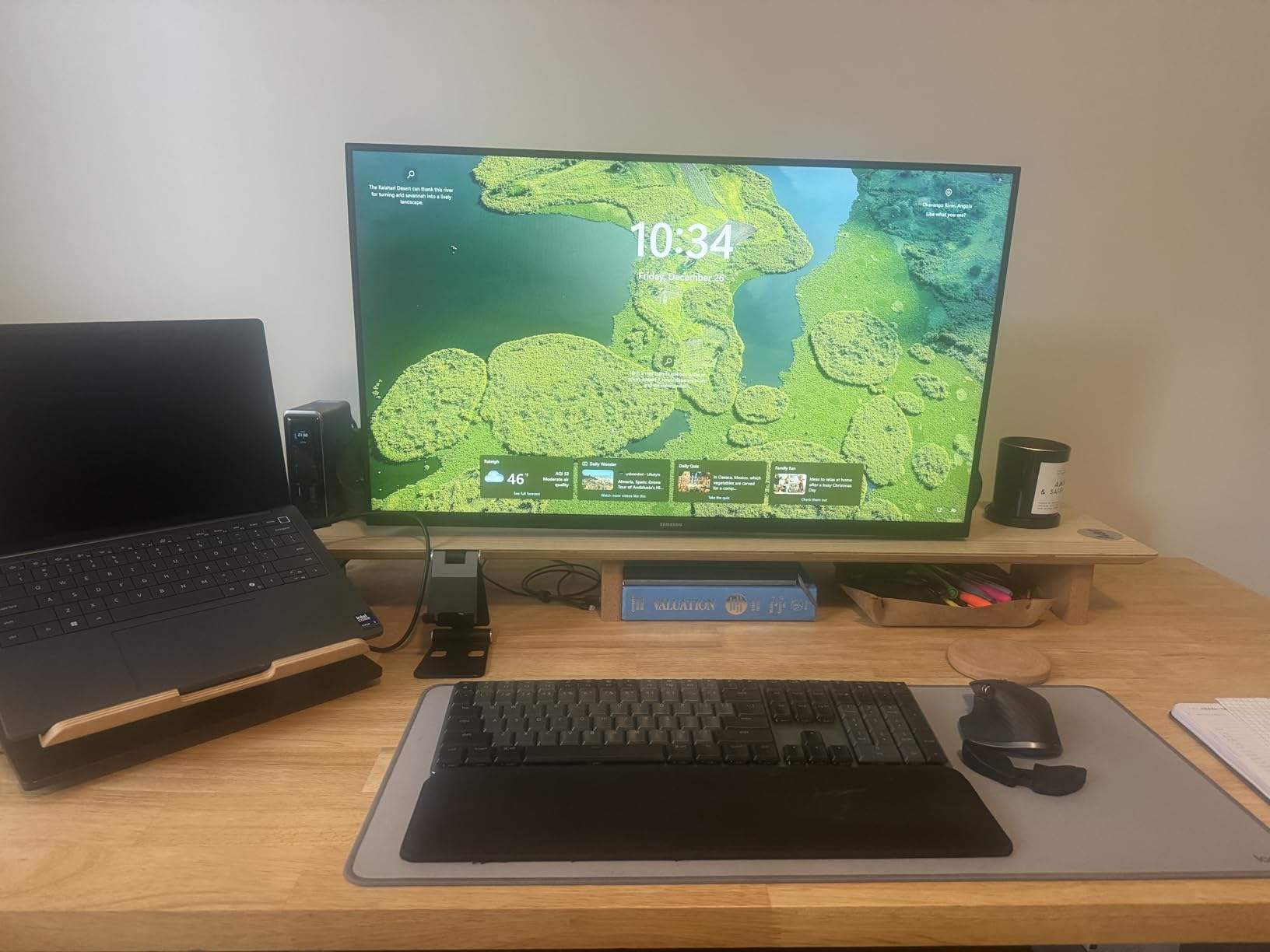
Data throughput is the second strength. Eleven data ports reach speeds up to 10Gbps across ten USB ports, so external SSDs get real transfer rates rather than the 5Gbps ceiling common at this tier. That matters if your workflow moves large video files between the laptop and a drive.
Display output is where the compromise sits. Dual HDMI reaches 2K at 60Hz with a DisplayPort 1.4 host, or 1080p at 60Hz on a DisplayPort 1.2 host. That is a real step down from a dock built around native 4K, and buyers who assumed a 14-in-1 spec meant high-resolution video are disappointed.
This dock suits desks where charging beats resolution
Shared desks, hot-desking benches, and home offices with several devices land here. The charging architecture means one dock replaces a charger, a multi-port wall plug, and part of a USB hub, which simplifies cable management more than any display upgrade would.
It supports USB-C, USB4 and Thunderbolt hosts on Windows 10 and 11 and ChromeOS, and the 24-month warranty is a solid commitment. Note that Linux is not supported, the same limitation as the smaller Anker hub.
Skip this dock if you need 4K monitors or a lightweight travel setup
The 2K 60Hz dual-monitor ceiling is the deal-breaker for creative work, and 5120×1440 ultrawide monitors are explicitly unsupported, which rules out a popular monitor format. On macOS both external displays mirror rather than extend.
At 1.28 kilograms in a plastic enclosure, this is the heaviest unit we tested and the least portable. It belongs on a fixed desk, not in a laptop bag, and the build does not feel as substantial as the aluminium alternatives in this guide.
7. UGREEN DisplayLink Docking Station 90912 – Best for Dual 4K 60Hz on macOS or Windows
UGREEN USB C DisplayLink Docking Station, Dual 4K@60Hz…
9-in-1
DisplayLink dual 4K at 60Hz
100W PD 3.0
10Gbps USB
Pros
- Dual 4K 60Hz extended output
- Four video outputs for flexible layouts
- 100W PD 3.0 suitable for larger laptops
- 10Gbps USB-C and USB-A ports with 24-month warranty
Cons
- DisplayLink driver must be installed before it works
- Neither power adapter nor HDMI cable included
- DisplayLink video compression makes it unsuited to gaming
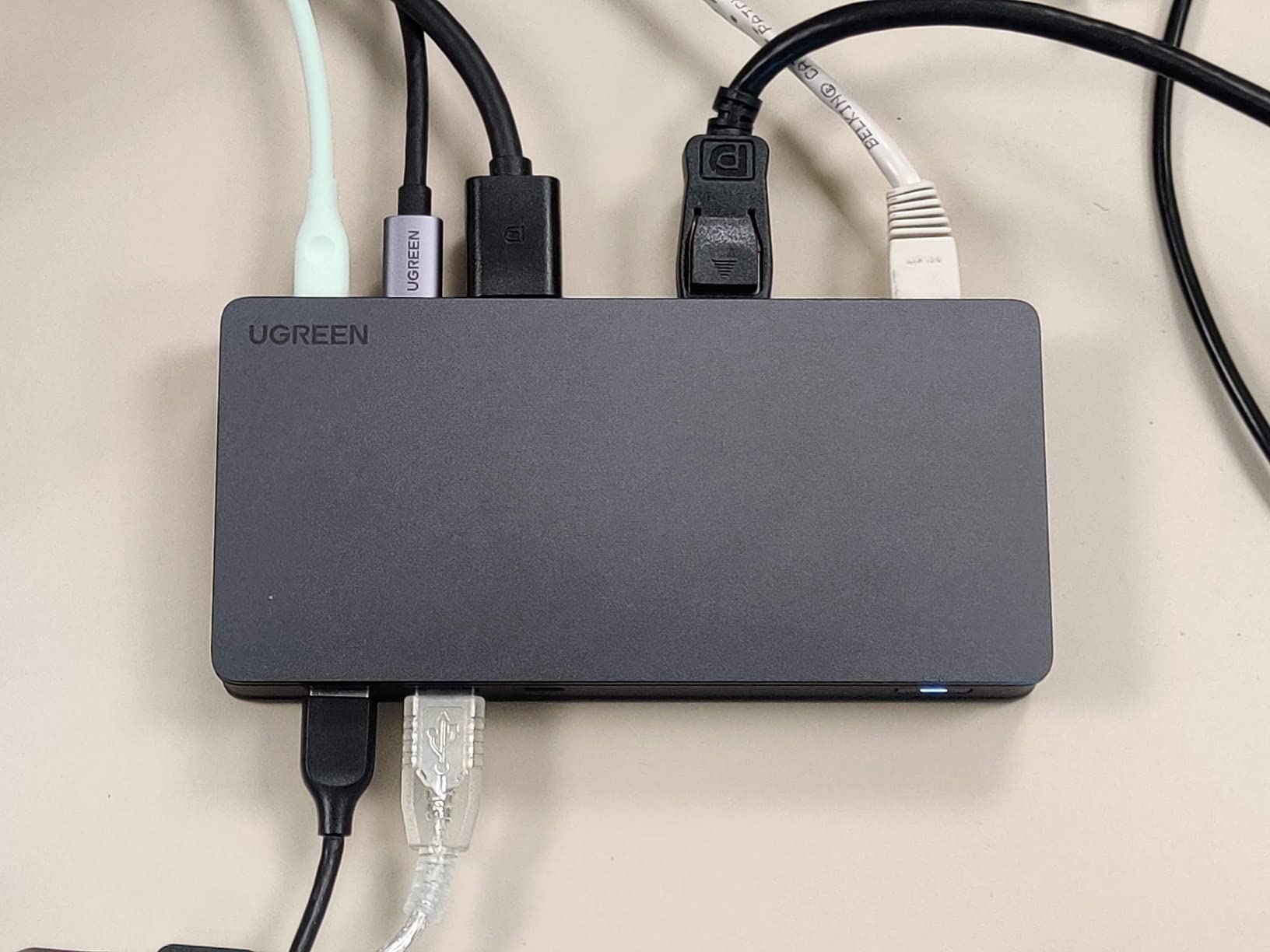
The UGREEN 90912 solves a specific problem very well: two 4K displays at 60Hz, extended, at a mid-range price point. At 4.2 stars from 950 reviews with 67% five-star ratings, the dual 4K capability is the main draw, particularly for MacBook owners whose native port selection is limited.
It achieves that through DisplayLink, which means installing the driver is not optional. Until that software is present, the display and network functions do not work as intended. Compatible devices are listed with the driver requirement stated up front, and Dell XPS is named explicitly among supported machines.
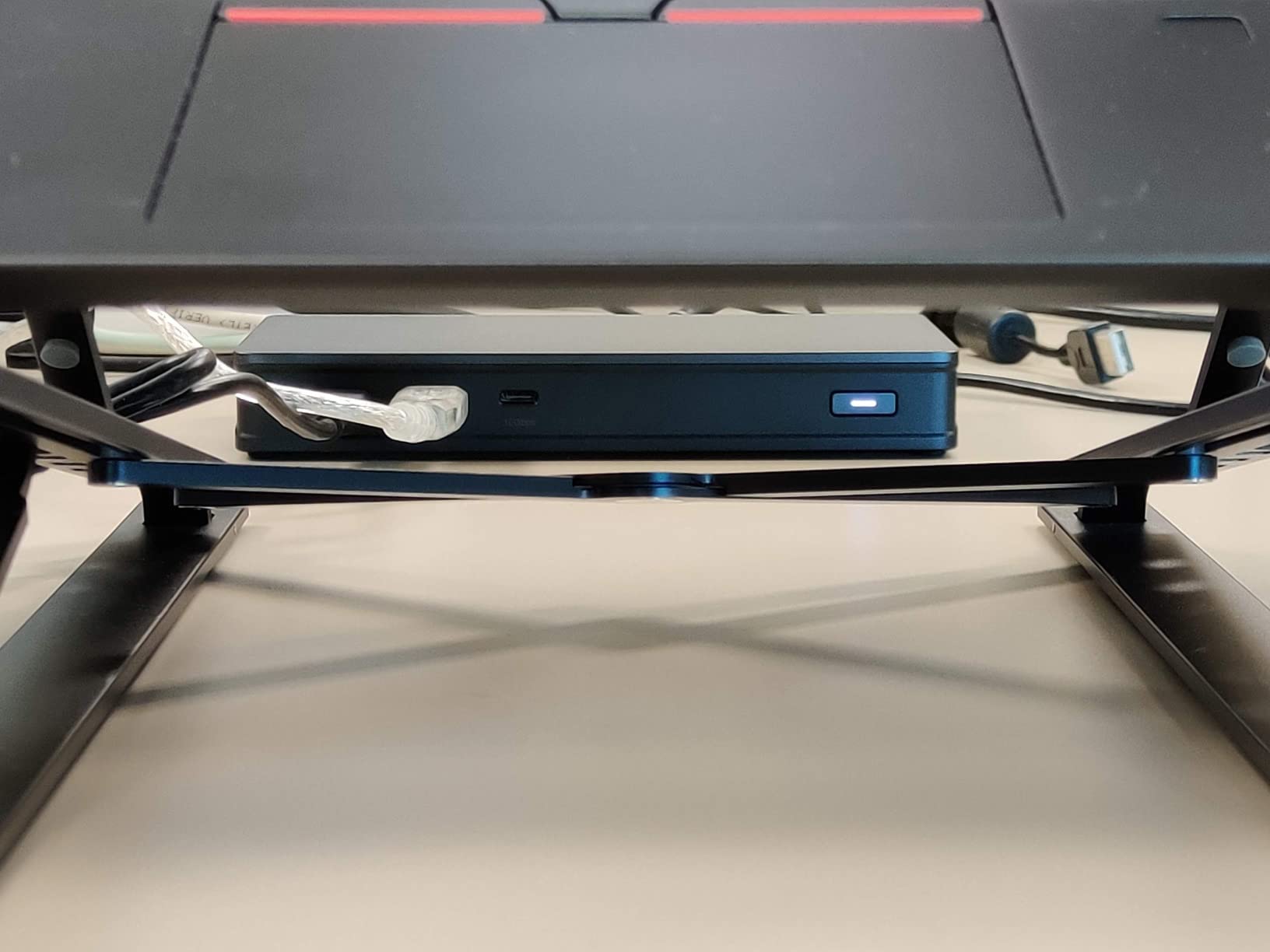
Nine ports cover the desk well: two HDMI and two DisplayPort at 4K, 100W PD 3.0 charging, two USB-A 3.2 and one USB-C 3.2 at up to 10Gbps, and Gigabit Ethernet. The port selection gives you four video outputs to choose from, which makes mixed-monitor layouts straightforward.
Charging is rated at 100W PD 3.0, with a report of charging a 15-inch MacBook Pro in about 1.5 hours. That is enough headroom for most Dell XPS and Latitude machines. Neither the power adapter nor HDMI cables are included, so plan for those separately.
This dock suits mixed-brand households and macOS users
If one dock has to serve a Dell and a Mac, this is the practical answer. DisplayLink extends the desktop on macOS where native USB-C often will not, and the two-year warranty covers both machines. Our Thunderbolt dock guide for MacBooks covers the native alternative if you want no software dependency.
It also suits a Dell that lacks Thunderbolt. A DisplayLink dock works over a plain USB-C connection, so a model with only DisplayPort Alt Mode can still reach dual 4K, which native MST cannot always manage.
Skip this dock if you need plug-and-play, gaming, or a light laptop
The mandatory driver is the first thing to accept. DisplayLink is compressing two display streams to fit available bandwidth, so video playback is fine for office work but the picture is not suited to gaming or colour-critical grading.
At 510 grams and measuring 6 by 3 inches, this is a fixed-desk unit rather than a travel companion. If you dislike installing software that runs in the background on every machine you plug into, choose a native dock instead.
8. Dell WD19 180W Docking Station – Best for High-Power Dell Workstations
Dell WD19 180W Docking Station (130W Power Delivery) USB-C…
13 ports
180W adapter with 130W host delivery
2x DisplayPort 1.4 and HDMI
3-year warranty
Pros
- 180W adapter charges high-end mobile workstations
- Dual DisplayPort 1.4 plus HDMI covers a three-monitor desk
- Three-year manufacturer warranty
- PowerShare USB-A port charges a phone
Cons
- 13% one-star ratings
- Compatibility is limited to listed Dell notebooks
- Only 130W delivered to the host despite the 180W adapter name
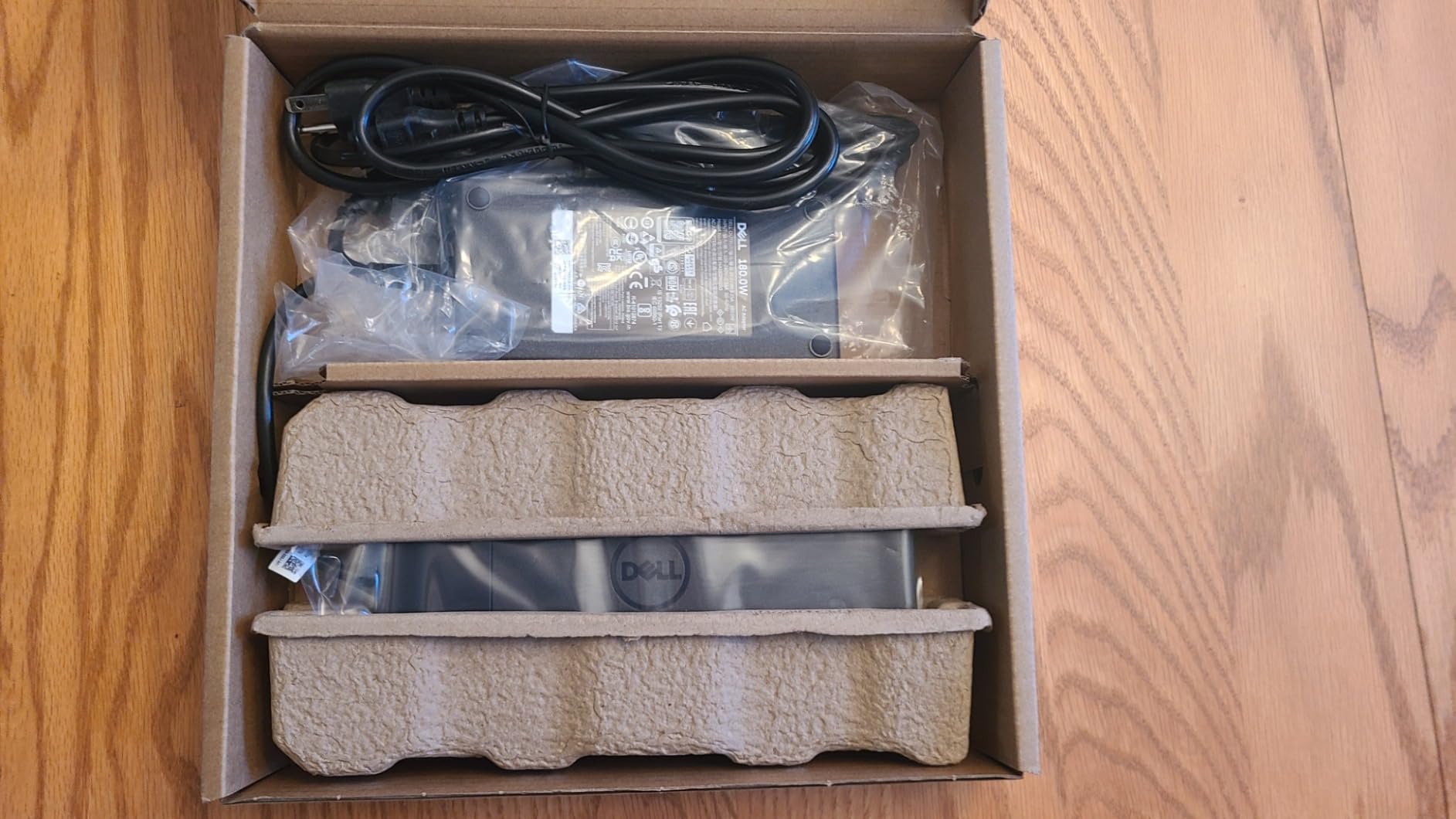
The name causes confusion, so let us clear it up. This dock ships with a 180W AC power adapter, but delivers 130W to the host laptop. That distinction matters if you own a heavy mobile workstation, because 130W is the number that determines whether it will charge while you work.
For a Dell Precision or a higher-end Latitude, 130W is the figure most owners report as dependable. Thirteen ports cover a three-monitor desk through two DisplayPort 1.4 outputs and one HDMI, plus a USB-C port with DisplayPort multifunction capability.
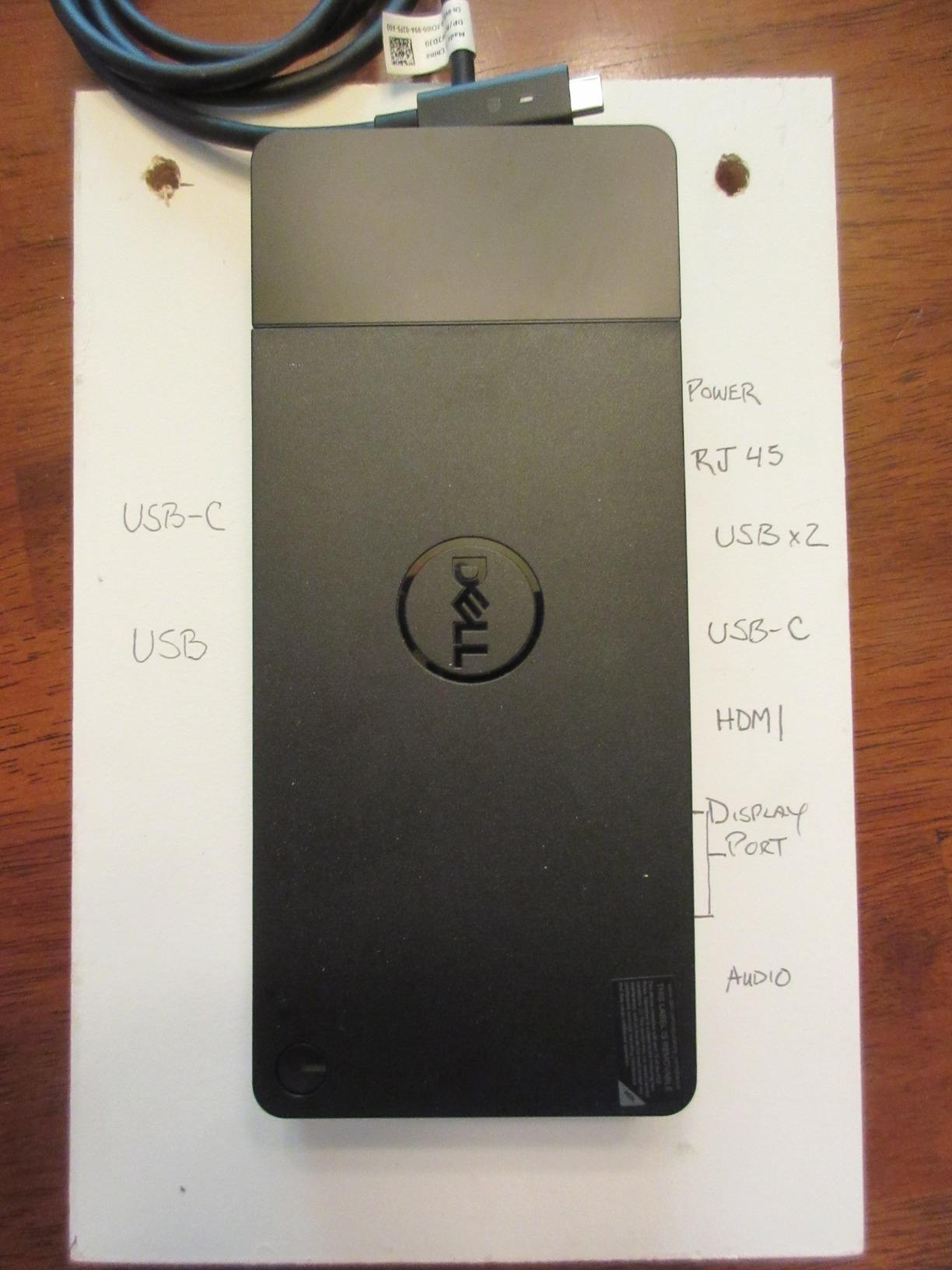
Data and power sharing are handled well. There is one USB-A 3.1 Gen 1 port with PowerShare, which can charge a phone without a second cable, plus two more USB-A 3.1 Gen 1 ports, combo audio, and a Gigabit Ethernet RJ45. A 3.3 foot SuperSpeed USB-C cable is included.
The three-year manufacturer warranty is a genuine advantage over third-party docks at this price level, and for a corporate deployment that support lifecycle is often what decides the purchase as much as the specification does.
This dock suits Dell business users on a three-monitor desk
Satisfied owners cite dependable charging for demanding Latitude and Precision mobile workstations and the three-year warranty. If your desk has three monitors and you have been running two cables, this consolidates them into one and keeps the laptop charged at full rate.
It is also a reasonable second dock for a hot-desking pool where only Dell hardware is in play, since the compatibility list is specific rather than universal.
Skip this dock if you want a modern port mix or broad compatibility
One-star ratings run at 13%, a sizeable share of its review volume, and the critical reviews cluster around compatibility surprises when the dock is paired with systems outside the supported list. If your household also has a non-Dell laptop, this is the wrong tool.
There is also no Thunderbolt here. Two DisplayPort 1.4 and one HDMI is a good three-monitor solution, but if you plan to add an ultrawide at 5K2K or daisy-chain storage, a Thunderbolt dock is a better foundation.
9. Dell WD15 Monitor Dock 180W – Best Low-Cost First-Party Dell Dock
Dell WD15 Monitor Dock 4K with 180W Adapter, USB-C…
6 ports
180W AC adapter
HDMI, VGA and Mini DisplayPort
Gigabit Ethernet
Pros
- Lowest-cost first-party Dell dock here with a bundled 180W adapter
- VGA output keeps it usable with older business monitors
- Documented compatibility across Latitude and Precision lines
- Compact footprint under 7 inches wide
Cons
- 4K output capped at 30Hz
- 14% one-star ratings which is the highest negative share in the set
- VGA and Mini DisplayPort are dated connectors
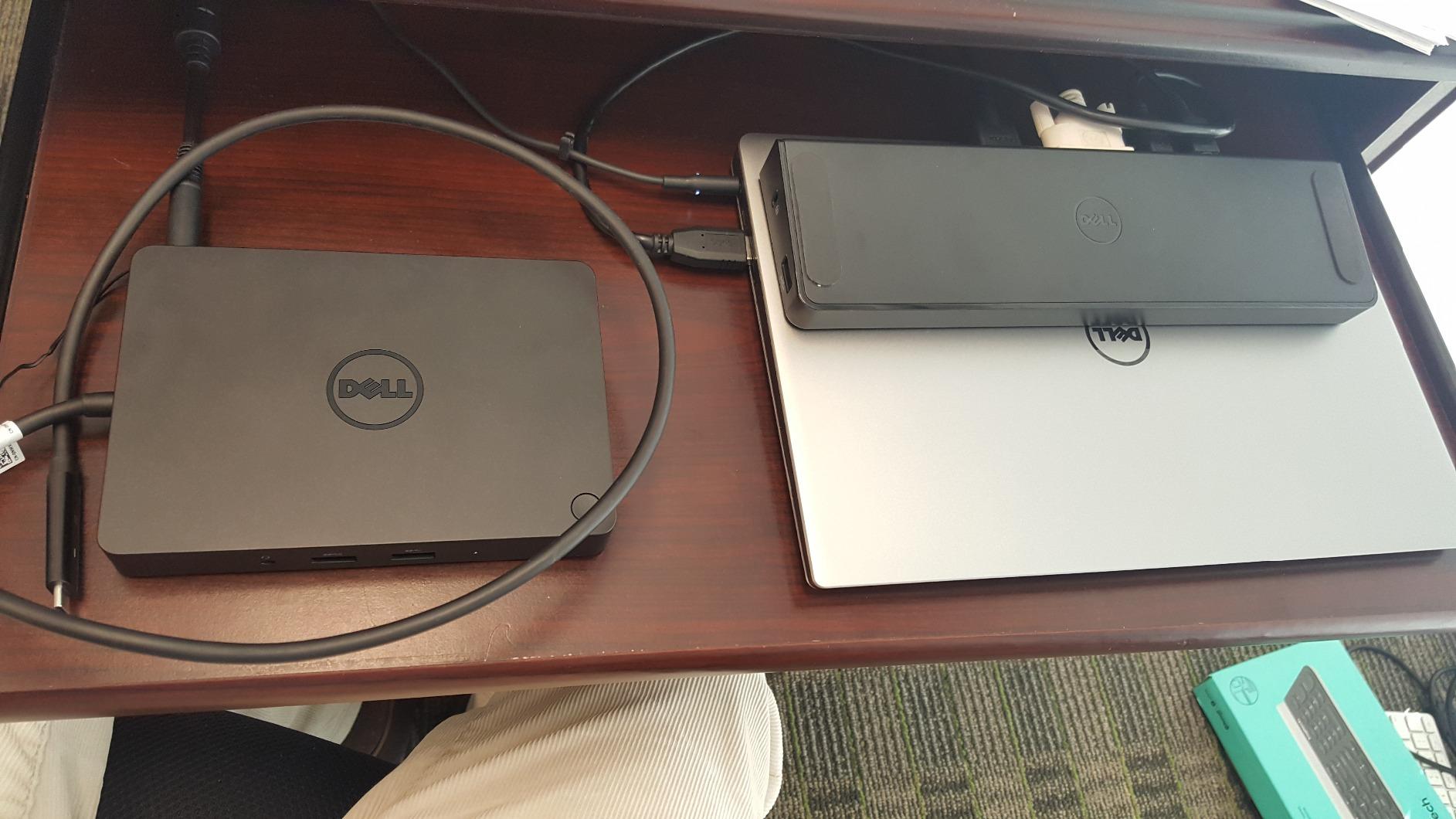
The WD15 is the cheapest route into a first-party Dell dock, and it still bundles a 180W AC adapter with a 7.4mm barrel connector. At 4.1 stars from nearly 1,200 reviews with 65% five-star ratings, satisfaction is lower than the newer Dell docks but the price position is unambiguous.
The catch is video. Maximum resolution is 3840 by 2160 at 30Hz, or 2560 by 1600 at 60Hz. That means 4K at 30Hz, not 4K at 60Hz, and anyone working in desktop publishing or design will feel the difference immediately.
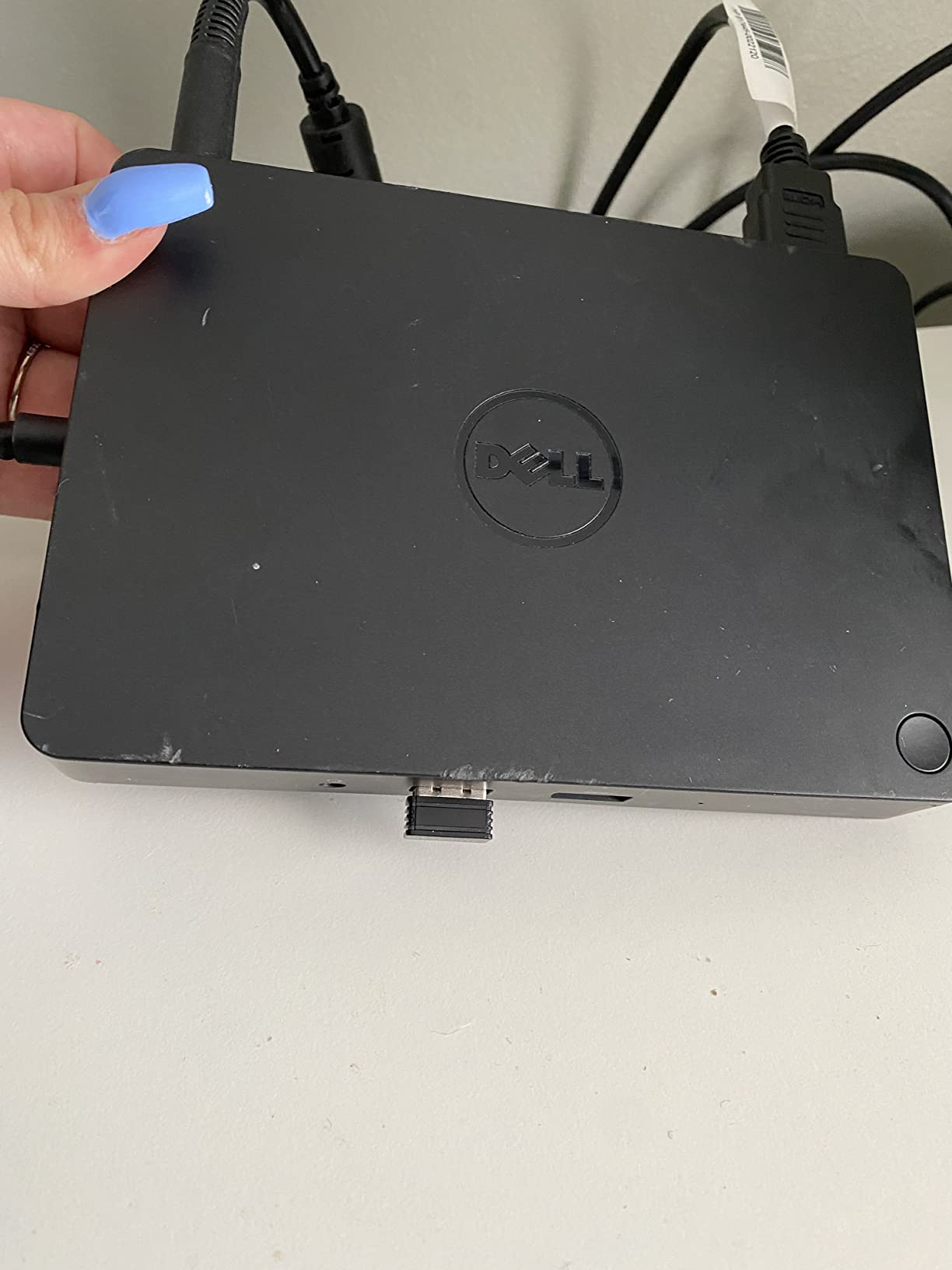
Outputs are HDMI, VGA and Mini DisplayPort, which is a dated mix by current standards and simultaneously the reason this dock still has a market. Older office monitors and projector rooms in corporate buildings frequently have VGA, and very few modern docks include it.
Data and networking are solid for the era: three SuperSpeed USB 3.0 ports, two USB 2.0 ports, Gigabit Ethernet RJ45, and 3.5mm headphone and microphone jacks alongside a separate audio out. At 6.1 by 4.3 inches it is compact.
This dock suits a matching older Dell business laptop
Compatibility is documented for specific Latitude, Precision and XPS models, so if your machine is on that list the dock is a straightforward match. The broad documented coverage across those business lines is more useful than it sounds, because it removes guesswork from a purchase.
It also makes sense for a shared office where some staff still run machines with VGA monitors. Adding legacy connector support to a desk costs far less than replacing several monitors.
Skip this dock if you want 4K60 video or modern connectors
Fourteen percent one-star ratings is a sizeable negative share, and the complaints cluster around the same two issues: the 4K 30Hz ceiling and dated connectors. Mini DisplayPort in particular is hard to source cables for now.
If your desk is being built from scratch, a USB-C dock with DisplayPort Alt Mode gives you HDMI and DisplayPort natively and charges the laptop over the same cable. This dock does neither, since charging runs through the separate 7.4mm barrel.
10. Dell Universal Dock D6000S – Best for USB-A Universal Attachment
Dell Universal Dock – D6000S, Equipped with USB-C/USB-A…
6 ports
Universal USB-C and USB-A host
Up to three 4K displays via DisplayLink
65W charging
Pros
- Works across Mac and Windows laptops including older USB 2.0 machines
- One owner reports four years of daily 10-12 hour use
- 65W charging is adequate for a 13-inch MacBook Pro
- Compact cube footprint
Cons
- DisplayLink compresses video streams so it is unsuited to gaming
- 18% one-star rating with reports of power adapters shorting out
- Reports of hardware arriving with water damage and corrosion
- Limited Dell support options for this older model
The D6000S is the universal option: it attaches to any USB-C or USB-A laptop, which includes older Dell machines that predate USB-C entirely. It connects up to three 4K displays, but only once the Dell DisplayLink software is installed.
Review sentiment is the most polarised of any dock here. At 4.0 stars from 484 reviews, the spread runs from 67% five-star down to 18% one-star, the widest five-star-to-one-star gap in the group. Enthusiastic owners report years of daily service, and one describes four years of 10 to 12 hour daily use without failure.
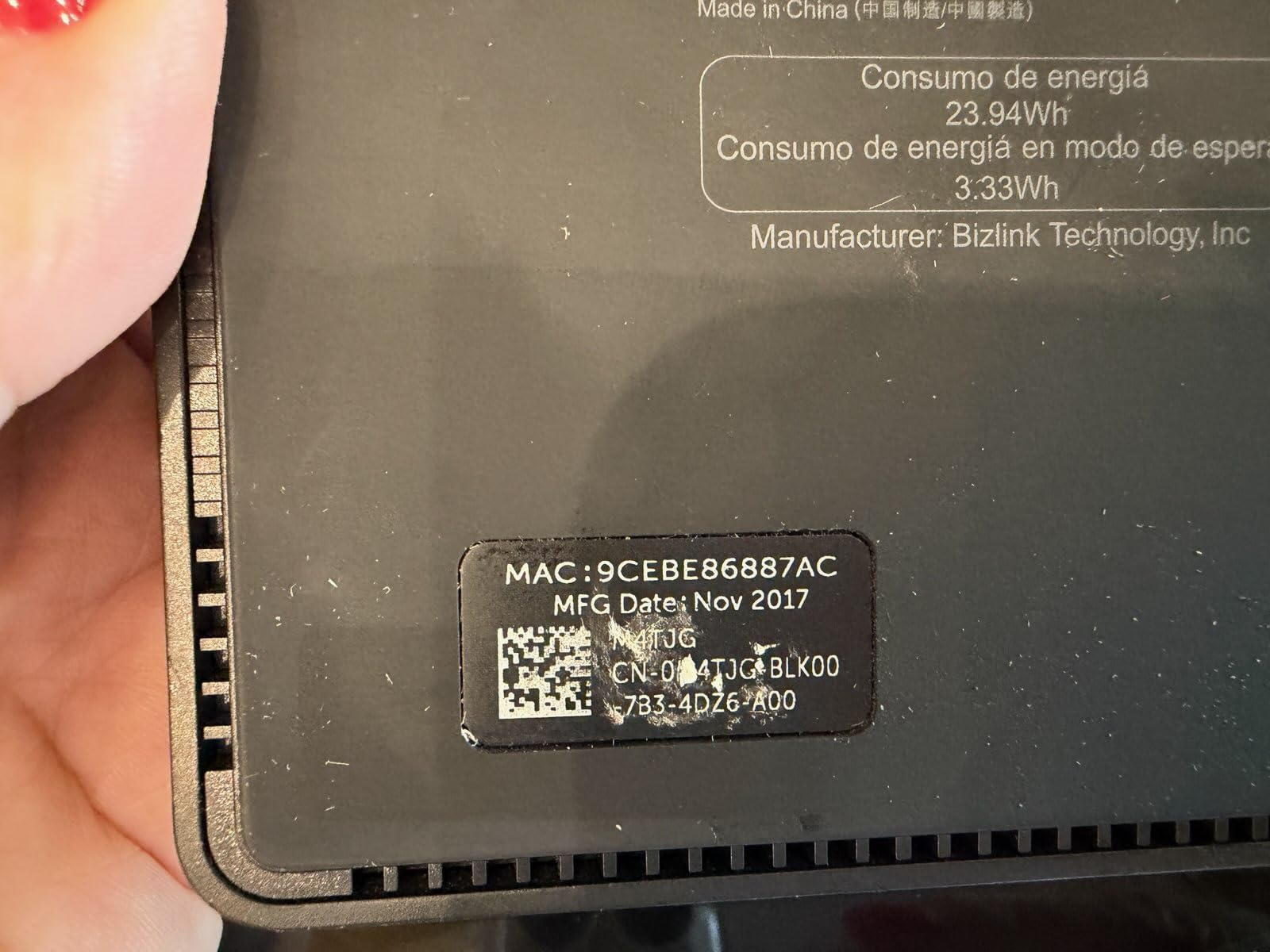
At the other end, negative reviews report power adapters shorting out and hardware arriving with water damage and corrosion inside the USB ports. That pattern suggests handling and inspection problems rather than a design fault, but it is the kind of risk that only shows up if you inspect the unit on arrival.
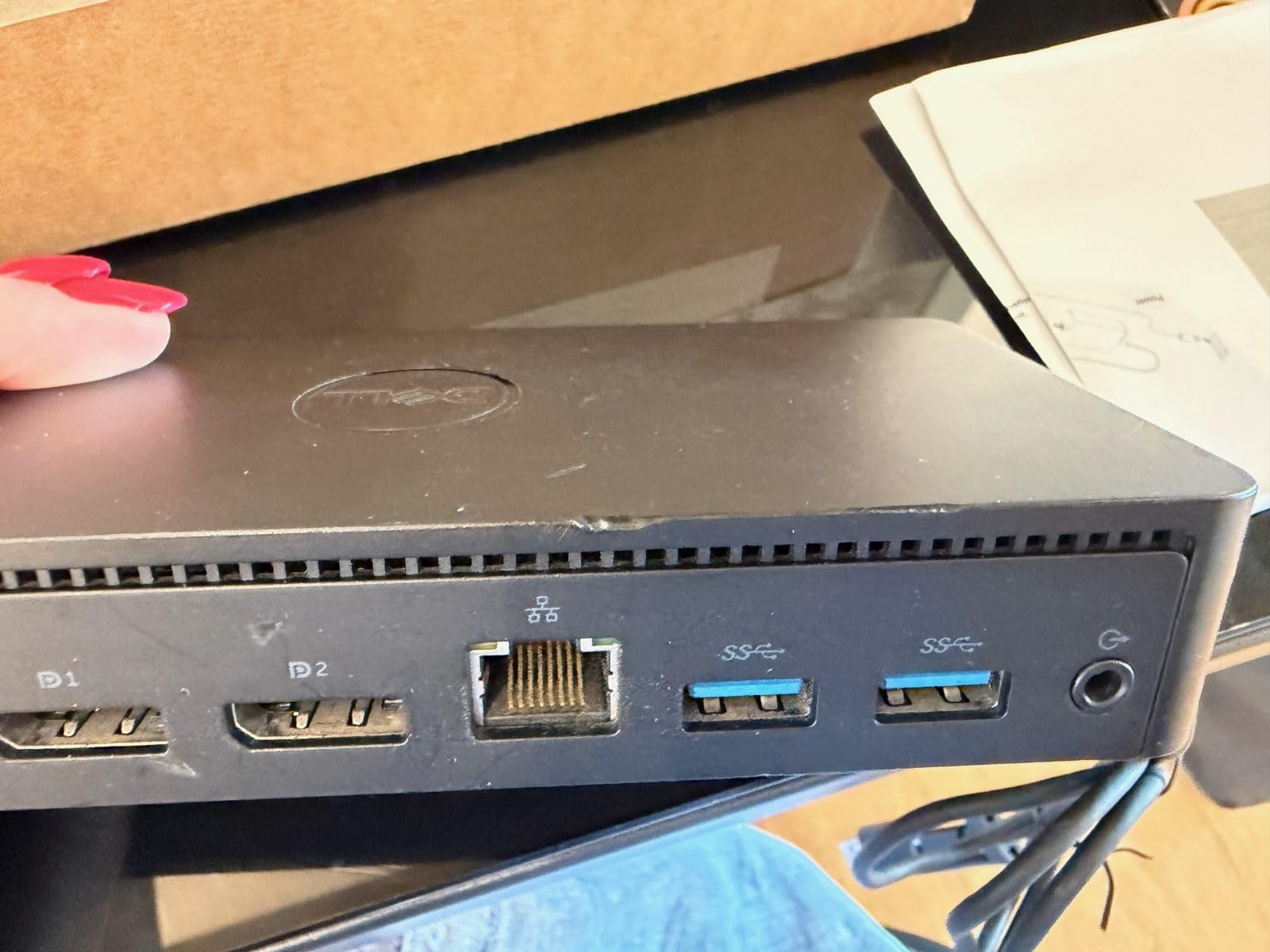
Charging is 65W to the host, which is adequate for a 13-inch MacBook Pro and most thinner Dell models but light for a large workstation. The cube form factor measures 3.1 inches square, and five USB ports include USB-C and USB-A PowerShare options for peripheral charging.
This dock suits older machines and mixed-brand households
If someone in the house still runs a pre-USB-C Dell, this is one of the few docks that will attach to it at all. A USB-A machine that cannot take any modern USB-C dock still gets a multi-monitor desk through the USB-A path, which is the entire reason this product exists.
It is also a sensible single dock for a household that rotates between a Mac and a Dell without either machine needing a proprietary connector. The DisplayLink driver install is straightforward once it is running, and the front LED gives a clear connection status.
Skip this dock if you care about video quality, gaming, or long-term support
DisplayLink compresses the two DisplayPort streams to fit the available bandwidth. That is fine for spreadsheets and documents, and unsuitable for gaming or anything where frame timing matters. Three 4K displays also require the software, and the count drops on some configurations.
Dell support options for this older model are limited compared with the current WD-series docks, and 65W charging will not carry the largest mobile workstations. For a new purchase on a modern Dell, a native USB-C dock is the safer long-term choice.
Which Dock Do You Actually Need? Match the Port First
The single most common mistake is choosing a dock before checking the port on the laptop. A USB-C port on a Dell laptop can be one of three quite different things, and the dock family you can use follows directly from which one you have.
Step one: find the connector. A Thunderbolt 4 or Thunderbolt 5 port is marked with a lightning bolt and gives you the most options, including native multi-monitor at high refresh. A USB-C port with DisplayPort Alt Mode gives you native display output but less bandwidth. A plain USB 3.0 Type-A port limits you to docks like the D3100, and the older WD15 uses a 7.4mm barrel or USB-C depending on generation.
Step two: count monitors and check resolution. Native Thunderbolt docks drive more displays at higher refresh rates. DisplayLink docks can reach three or four 4K panels, but through software compression. On r/Thunderbolt, owners of Dell Thunderbolt 4 docks note the ability to run four Full HD panels at 165Hz, two over DisplayPort and two over USB-C to DisplayPort, a capability most roundups overlook.
Step three: confirm charging wattage against your laptop’s charger. A dock delivering 65W will not charge a heavy mobile workstation. The 100W class covers most Latitude, XPS and Inspiron machines, while demanding Precision hardware needs the 130W figure.
Step four: decide on operating system. Linux users lose one display on many docks and cannot disable the built-in laptop screen. macOS users on M1 and M2 base chips get a single external display from most docks, while Pro, Max and Ultra chips do better. The two Anker docks in this guide list Linux as unsupported outright.
Step five: only then consider IT management features. Smart Dock models add wake-on-LAN and out-of-band management that matter for a managed corporate fleet and are irrelevant at home. If you are buying for an office rather than a desk, that is the deciding question rather than wattage.
If your monitors and laptop number change often, our portable docking station guide covers the small-footprint options in more depth, and the Dell laptop picks for photo editing is worth reading if the dock serves a creative workload.
How to Choose a Docking Station for a Dell Laptop
After the port question, six criteria decide whether a dock is a good buy or an expensive paperweight. Work through them in order.
1. Monitor count and resolution. Read the maximum external display figure, not the port count. A dock listing four outputs may still only drive two at 4K 60Hz simultaneously. The Anker Prime in this guide carries fourteen ports but caps dual monitors at 2K 60Hz, which is the trap port counts set.
2. Power delivery wattage. Compare the dock’s host output against the charger that came with your Dell. 85W covers slim ultraportables, 100W covers most mainstream business laptops, and 130W or above is the target for mobile workstations. Remember that the WD19 is named for its 180W adapter while delivering 130W to the laptop.
3. Port mix versus port count. Four video outputs you cannot drive at full resolution are worth less than two you can. Prioritise the connectors you actually need: VGA for an old conference room, SD and microSD for photo work, 2.5GbE for fast network transfers.
4. DisplayLink driver dependency. DisplayLink docks deliver more displays through software compression and require a driver installation on every machine that touches them. That is acceptable on a mixed-brand household desk and annoying in a corporate environment where software has to be deployed centrally.
5. Support lifecycle and warranty. Dell first-party business docks in this guide carry three-year manufacturer warranties, with advanced exchange service on the WD25, while third-party units range from 18 months to two years. A longer warranty is a real advantage in an office where the same dock is used by many people daily.
6. Build quality and heat. The CalDigit TS4 runs hot under sustained 4K video load, and reviewers of smaller bus-powered docks report warmth during large file transfers. Metal chassis dissipate better than plastic, which matters if your dock runs all day with three displays attached.
One more practical factor is firmware and driver hygiene, which causes more reported problems than hardware failure. Reviewers report that the fix for a misbehaving dock is almost always a firmware update followed by a power cycle rather than a replacement. Docks with an active support ecosystem age better than orphaned models.
Frequently Asked Questions
Can you use any docking station with a Dell laptop?
Yes for USB-C, Thunderbolt 4 and universal DisplayLink docks from any brand. The Anker 8-in-1, the CalDigit TS4 and the UGREEN DisplayLink dock all list Dell laptops as compatible, and a Thunderbolt host is only required for docks like the MOKiN UC0554 to present their full port lineup. What does not work is Dell proprietary hardware: Rugged Desk Dock connectors and the legacy E-Port connector on older Precision and Latitude models only mate with Dell docks.
How do I know which Dell docking station I need?
Identify the port on your laptop first. Thunderbolt 4 or 5 unlocks every option in this guide. USB-C with DisplayPort Alt Mode suits the Anker 8-in-1, the Anker Prime, the UGREEN and the Dell Pro Dock WD25. A plain USB 3.0 Type-A port limits you to the Dell D3100. Then count monitors, compare the dock’s charging wattage to your laptop’s charger, and only consider IT management features if you run a managed fleet.
Why are Dell Thunderbolt docks so expensive?
Dell bundles validated firmware, ExpressCharge charging profiles, wake-on-LAN, power-on with the lid closed, BIOS-level behaviour and a multi-year support lifecycle into the price. Third-party docks use broadly comparable silicon for less money, but you give up Dell’s BIOS integration and longer warranty. If you never leave a single desk, a first-party Dell dock costs more than you need; if your laptop is the only computer you own, the integration is what you are paying for.
What are some common issues with Dell docking stations?
The most reported issues are firmware and driver related rather than hardware failures. Common complaints include monitors blinking out or dropping signal in multi-monitor setups, lid-closed dual-monitor setups not waking reliably, and USB peripherals disconnecting intermittently on Windows 11 after Realtek driver updates. The usual fix is to update the dock firmware, then hold the power button for about 30 seconds to reset it before reconnecting. Only after that is it worth suspecting the hardware.
How many monitors can the Dell Pro Dock WD25 support?
The WD25 provides native support for up to four high-resolution displays, with no DisplayLink driver required, which means full resolution and refresh rate rather than software compression. That count refers to external monitors and excludes the laptop’s own screen. On Linux you generally lose one display, and macOS chips with limited external display support will reduce the count further.
Which Dell Dock Should You Buy?
For most Dell owners in 2026, the Anker 8-in-1 USB C Hub is the right starting point. It is the most heavily reviewed dock we tested, it needs no drivers, and it turns a two-monitor USB-C desk into a one-cable setup with charging, Ethernet and card readers in a package small enough to forget in a laptop bag.
If you want Dell’s own integration and a three-year advanced-exchange warranty on a business machine, the Dell Pro Dock WD25 is the pick, with native support for up to four high-resolution displays and 100W of charging. For a desk that needs every port and the fastest networking, the CalDigit TS4 delivers 18 ports and 2.5GbE, with heat as the trade-off.
The rest of the guide covers specific situations: dual 4K at 60Hz across a mixed-brand household points to the UGREEN DisplayLink dock, fourteen video-capable ports on a Thunderbolt laptop points to the MOKiN UC0554, and older Dell hardware points to the D3100, the WD19 or the D6000S depending on which legacy connector your machine still has.
Whatever you choose, check the port on your laptop before you order, update the dock firmware on day one, and test your monitor configuration with the lid in the position you actually use. Those three steps prevent almost every complaint we found in the reviews.
