
8 Best KVM Switchs for Dual Monitors Steups (October 2026) Latest Reviews
Two computers, two monitors, one keyboard and one mouse. That is the whole problem, and it is why the best KVM switches for dual monitor setups have become one of those small purchases that quietly changes how a desk feels every day. A KVM switch reroutes both video signals and all your USB peripherals in a single press, so you stop unplugging four cables every evening.
Two variables decide the purchase, and almost nothing else matters. The first is full-time EDID emulation, which is the difference between a switch that keeps your windows exactly where you left them and one that makes your operating system renegotiate your display every single time. The second is the resolution and refresh ceiling, which has to sit above what your monitors can actually drive. Get either one wrong and a perfectly good KVM will feel broken.
Contents
I compared the eight dual-monitor KVM switches below across port topology, video bandwidth, USB hub behaviour, EDID handling and switching method. Most of them share a hardware platform with cosmetic differences, so the honest differentiators are narrower than the spec sheets suggest: whether the unit carries a DisplayPort and an HDMI output at the same time, whether it feeds EDID full-time, and whether the refresh ceiling clears your gaming monitor. Where the data does not support a strong claim, I have said so.
Last updated for 2026. Every rating and review count below is taken from the live listing, and every specification comes from the manufacturer data attached to that listing.
Top 3 Picks for KVM Switch Picks for Dual Monitors in 2026
The three picks below cover the widest range of real dual-monitor desks. The first is the strongest all-rounder for high-refresh work and gaming PCs, the second is the value pick for anyone driving 8K or 4K at 120Hz over HDMI, and the third is the one with adaptive EDID and the largest review base in the group.

TJCXELE DisplayPort KVM 4K@144Hz
- 4K@144Hz over DisplayPort 1.4
- 4 shared USB 3.0 ports
- Extended and Copy modes
- Panel button plus wired desktop controller

VPFET 8K HDMI KVM 4K@120Hz
- 8K@60Hz and 4K@120Hz over HDMI
- 4 USB 3.0 ports at 5Gbps
- Mirrored and extended desktop modes
- Works on Windows Mac Linux and Unix

Hearvo DisplayPort KVM with Adaptive EDID
- 8K@60Hz and 4K@120Hz
- Adaptive EDID for stable transmission
- 3 USB 3.0 ports
- Extended and mirror modes
As an Amazon Associate we earn from qualifying purchases. CERTAIN CONTENT THAT APPEARS ON THIS SITE COMES FROM AMAZON. THIS CONTENT IS PROVIDED 'AS IS' AND IS SUBJECT TO CHANGE OR REMOVAL AT ANY TIME.
Best KVM Switchs for Dual Monitors Steups (October 2026)
| Product | Features | |
|---|---|---|
| TJCXELE DisplayPort KVM 4K@144Hz |
|
Check Latest Price |
| VPFET 8K HDMI KVM Switch |
|
Check Latest Price |
| Hearvo DisplayPort KVM with Adaptive EDID |
|
Check Latest Price |
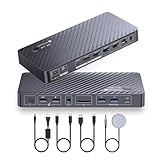 AV Access iDock P10 KVM Dock 65W AV Access iDock P10 KVM Dock 65W |
|
Check Latest Price |
 CMSTEDCD Compact DisplayPort KVM CMSTEDCD Compact DisplayPort KVM |
|
Check Latest Price |
 DXchip 3-Computer 2-Monitor DisplayPort KVM DXchip 3-Computer 2-Monitor DisplayPort KVM |
|
Check Latest Price |
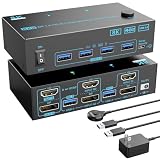 DXchip DisplayPort 1.4 and HDMI 2.1 KVM DXchip DisplayPort 1.4 and HDMI 2.1 KVM |
|
Check Latest Price |
 Ouluoa 4K@60Hz HDMI KVM with EDID copy Ouluoa 4K@60Hz HDMI KVM with EDID copy |
|
Check Latest Price |
We earn from qualifying purchases. CERTAIN CONTENT THAT APPEARS ON THIS SITE COMES FROM AMAZON. THIS CONTENT IS PROVIDED 'AS IS' AND IS SUBJECT TO CHANGE OR REMOVAL AT ANY TIME.
1. TJCXELE DisplayPort KVM Switch – Best Overall for 144Hz Work and Gaming PCs
Displayport KVM Switch 2 Monitors 2 Computers 4K@144Hz…
DisplayPort 1.4
4K@144Hz
4 shared USB 3.0 devices
Extended and Copy modes
Pros
- Sharp 4K@144Hz output with stable flicker-free switching
- Four USB 3.0 ports handle keyboards mice and printers reliably
- Straightforward setup and a clean desk when the wired remote is used
- Aluminum housing feels solid
Cons
- No keyboard hotkey switching
- DisplayPort cables are not included
- Each source PC needs two DisplayPort outputs
- Larger housing makes cable management awkward
This is the switch I would put on a desk shared by a work PC and a gaming PC. The headline spec is 3840×2160 at 144Hz over DisplayPort 1.4, with backward compatibility to DisplayPort 1.2, and reviewers consistently report a sharp image with stable switching rather than the dropouts that plague cheaper units. Video bandwidth is listed at 48Gbps, which is what makes 4K at 144Hz possible on both screens at once.
The extended and copy modes both work, so you can run a proper two-screen desktop on one machine and mirror for a presentation on the other. Each computer needs two DisplayPort cables and one USB cable, and the box supplies two USB 3.0 cables but no video cables. That detail catches people out, so budget for four DisplayPort cables if you do not already own them.
Switching happens from the front-panel button or the included wired desktop controller, which you can tape under the desk. Keyboard hotkeys are not supported, so there is no roll-over-a-second-key trick. In practice most owners use the remote, which is the better method anyway because you do not have to reach behind the monitor stack.
Our guide to USB-C docks for multi-monitor setups covers the other half of this problem, because a lot of people who buy a dual-monitor KVM also own a laptop they dock on arrival. If you are running a laptop as one of the two machines, read that before buying a bare switch, since the docking path and the switching path are different products.
How the refresh ceiling holds up in daily use
Owners describe the picture as crisp at 4K@144Hz with no visible lag on switching, which is the result you want from a display chain that is running at its limit. The 4 x USB 3.0 ports are specified at 5Gbps and are backward compatible with USB 2.0, so keyboards, mice, a printer and an external drive all move between machines with the video.
One reviewer note worth carrying into your buying decision is that the unit is larger than the compact metal boxes in this group, and cable routing around it takes a little planning. If your desk space is tight, that matters more than it sounds.
Who should skip it
If your source machines are laptops with only USB-C video output, this switch is the wrong shape, because it assumes two DisplayPort outputs per computer. It is also the wrong choice if you rely on keyboard hotkeys to change machines, since no hotkey switching is supported on this unit. Mac and PC desks are fine on the video side, as long as the desktop has two DisplayPort outputs.
If you want one box to handle a laptop, a desktop and a pile of dock ports, look at the AV Access iDock P10 further down. If you want HDMI rather than DisplayPort, the VPFET pick covers 8K and 4K at 120Hz instead.
2. VPFET 8K HDMI KVM Switch – Best Value for 8K and 4K at 120Hz
8K HDMI KVM Switch 2 Monitors 2 Computers, USB 3.0 Dual…
HDMI dual monitor
8K@60Hz and 4K@120Hz
4 USB 3.0 ports
Extended and mirrored modes
Pros
- Installs with no extra software
- Stable connection with no lag or signal loss
- Four shared USB 3.0 ports work with keyboards mice and wireless receivers
- Wired remote lets the unit stay tucked away
Cons
- No keyboard hotkey switching
- Host computer needs two HDMI outputs
- Passive adapters will not pass video through
- External 12V adapter is needed for high-draw USB devices
This is the one to buy when your monitors are HDMI and you want headroom above 4K at 60Hz. It is specified for up to 8K@60Hz and 4K@120Hz, and the USB side is four 3.0 ports at up to 5Gbps, backward compatible with USB 2.0. The same 5.91 by 2.56 by 1.42 inch footprint as several units in this group keeps it tidy behind a monitor.
The 406 reviews here give this switch more real-world history than anything else on the list except the Hearvo model, and the pattern in that history is consistent: quick installation, clean signal, smooth switching. Mirrored and extended desktop modes are both supported, which matters if one of your two machines is a laptop that you also want to plug a projector into.
Compatibility is broader here than on most of the DisplayPort units in this group, with Windows, Mac OS, Linux and Unix all listed. That is the pick to consider if one of your two machines runs Linux, where DisplayPort support can be patchier than HDMI depending on the graphics stack.
What the caveats actually mean for you
The two meaningful limitations are both about cabling rather than performance. First, the host computer needs two HDMI outputs, so a laptop with a single HDMI port cannot drive both monitors through this switch. Second, passive adapters and standard conversion cables will not pass video through the unit, so if your setup depends on an adapter, this is the wrong box.
The bundled 12V power adapter is required for power-hungry USB devices, which is a fair trade for stable operation with external drives. Keyboard hotkeys are not supported here either, so plan on using the wired remote that ships in the box.
Who should skip it
Skip this if your monitors are DisplayPort only, or if your source machine is a laptop with a single video output. It is also the wrong choice for a high-refresh gaming desk that needs 4K above 120Hz, since the HDMI ceiling here is 4K@120Hz. For mixed DisplayPort and HDMI monitors, the DXchip 2-in 2-out model handles both input types on one unit.
3. Hearvo DisplayPort KVM Switch – Best for 8K Output and Adaptive EDID
Hearvo DisplayPort KVM Switch 2 Monitors 2 Computers…
Adaptive EDID
8K@60Hz and 4K@120Hz
3 USB 3.0 ports
Extended and copy modes
Pros
- Detected by the computer with no extra software
- Fast and stable switching with no noticeable lag
- Sharp 8K@60Hz and 4K image quality
- Front-facing USB ports make accessories easy to plug in
Cons
- No audio pass-through so a separate audio switch is needed
- Switching can take roughly four to six seconds
- Keyboard hotkeys are not supported
- Some wireless keyboard and mouse combinations do not pass through
This is the only unit in the group that names adaptive EDID directly in its technical description, and on a SERP where EDID is the most repeated buyer concern, that is not a small detail. The switch feeds display identity data to keep the picture stable rather than letting the computer renegotiate on every switch. With 819 reviews behind it, the volume of real installs is the biggest in this roundup.
Video capability is 8K@60Hz and 4K@120Hz, backward compatible with 2K@144Hz and 1080p, and both extended mode and copy mode are supported. The three USB 3.0 ports sit on the front face, which is a small ergonomic win when you are plugging a receiver dongle in the dark. Housing is aluminum and it draws 5 watts on a 5-volt supply.
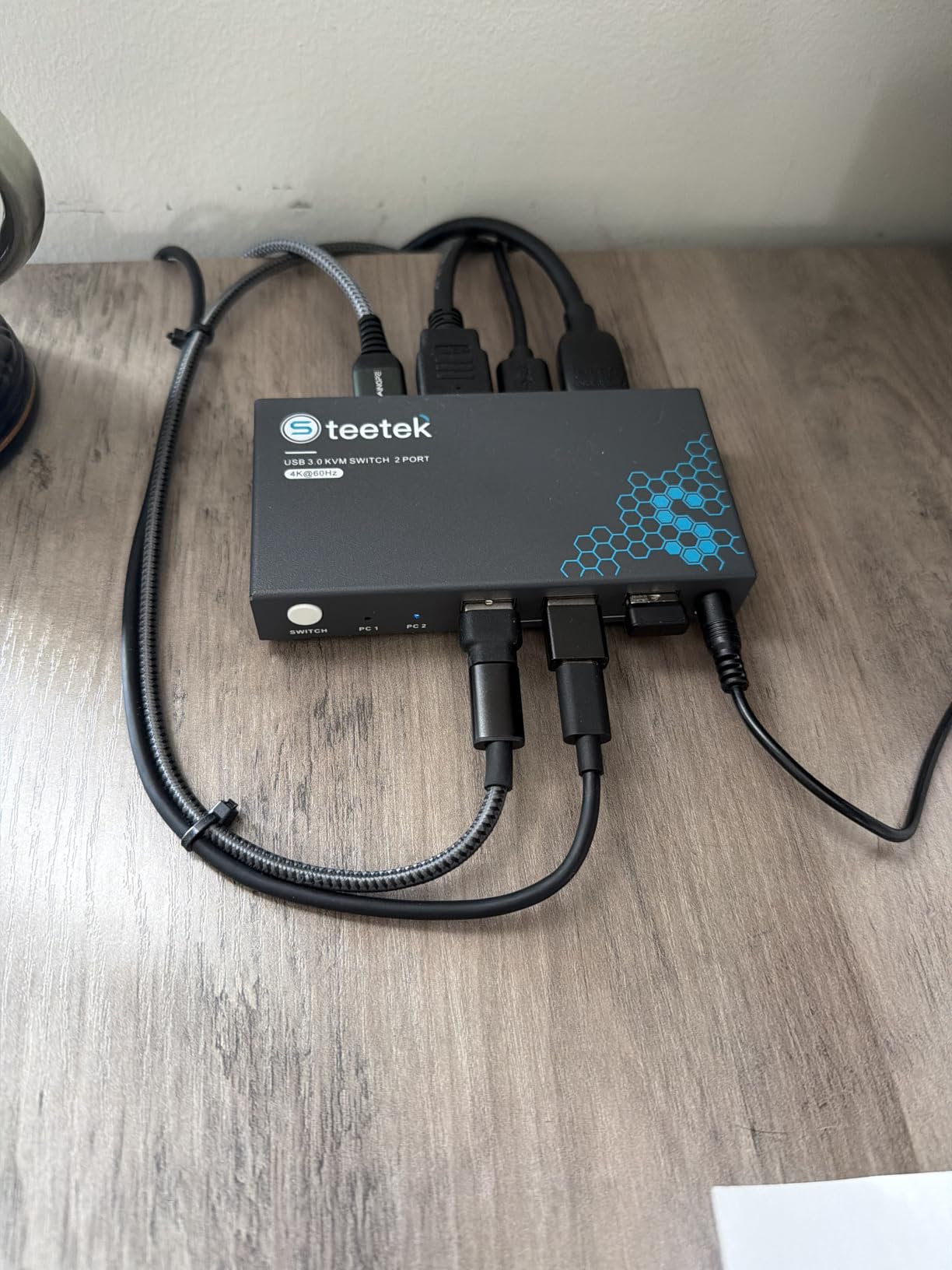
The honest read on the 4.1 average is that the criticisms cluster around omissions rather than failures. There is no audio pass-through, so a separate audio switch is needed if you move speakers between machines. Several owners also report a changeover of roughly four to six seconds, which is noticeable in a fast work rhythm.
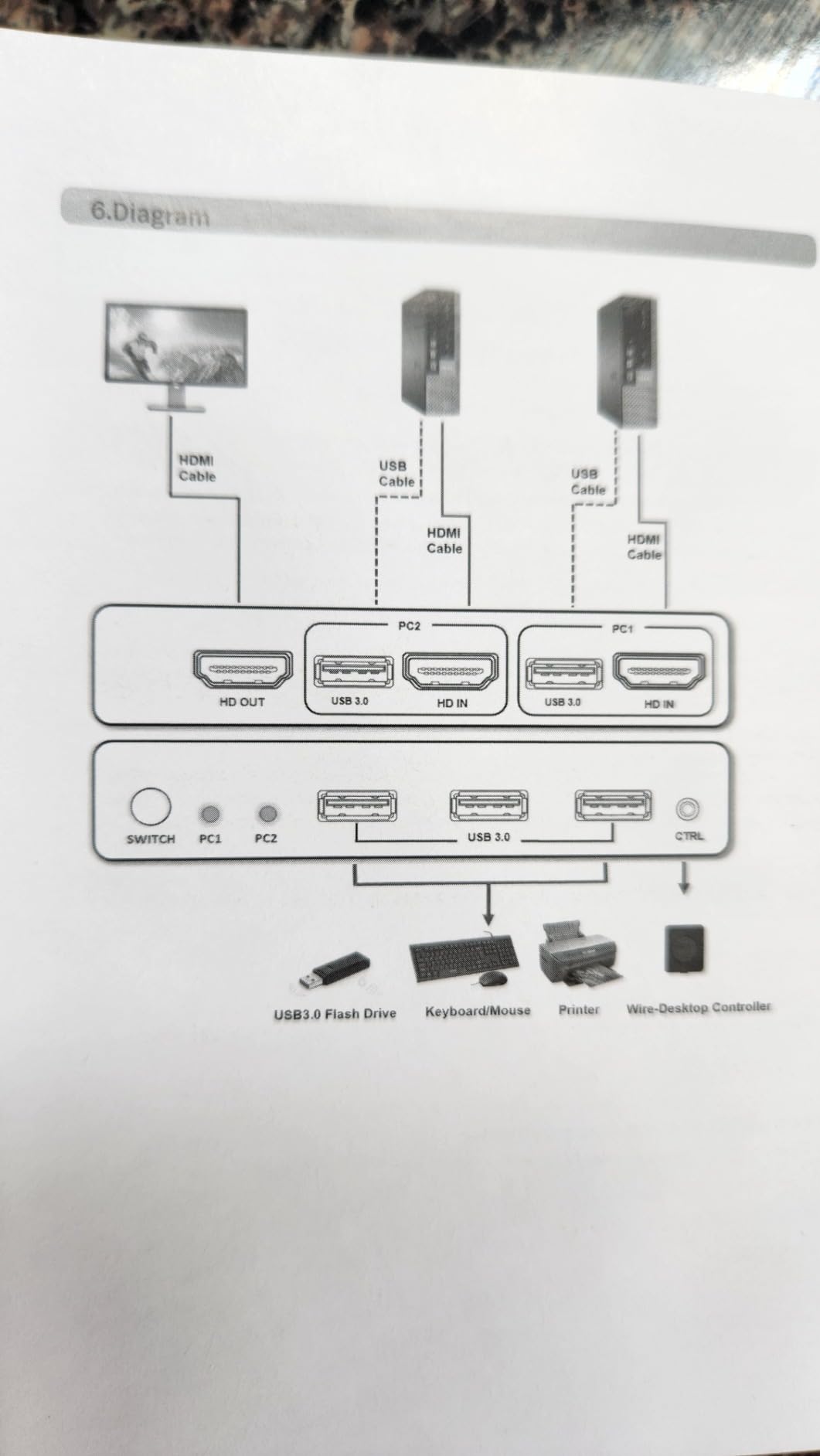
Whether adaptive EDID is enough for your workflow
Adaptive EDID handles the case where the computer needs to be told what the monitor can do at the moment you switch. It is a different mechanism from the persistent EDID copy used by the Ouluoa model, and in practice reviewers on this unit report a stable image and a working extended desktop without their display settings rearranging themselves.
If your workflow depends on window layouts staying pixel-identical between two machines, test this before you commit. The unit is specified as requiring DisplayPort 1.4 standard cables, and keyboard hotkeys are not supported.
Who should skip it
Skip this switch if you move audio between your two machines and do not want a second box on the desk. It is also a poor match for a desk with a 4K@144Hz requirement, since the ceiling here is 4K@120Hz. Wireless peripherals are another caution, because some combinations do not pass through cleanly.
4. AV Access iDock P10 KVM Docking Station – Best for a USB-C Laptop and a Desktop
AV Access iDock P10 KVM Docking Station 2 Monitors 2 PC…
USB-C and HDMI inputs
4K@60Hz and 1440p@144Hz
65W charging
EDID emulation and hardware wake-up
Pros
- Combines video USB GbE SD and audio in one unit
- EDID emulation and hardware wake-up for fast clean switching
- 65W charging keeps a single-cable laptop setup simple
- Supports 1080p@240Hz output
Cons
- macOS supports mirrored output only
- Desktop PC must be wired with HDMI in DP in and USB-C to A
- Higher cost than a basic two-port KVM switch
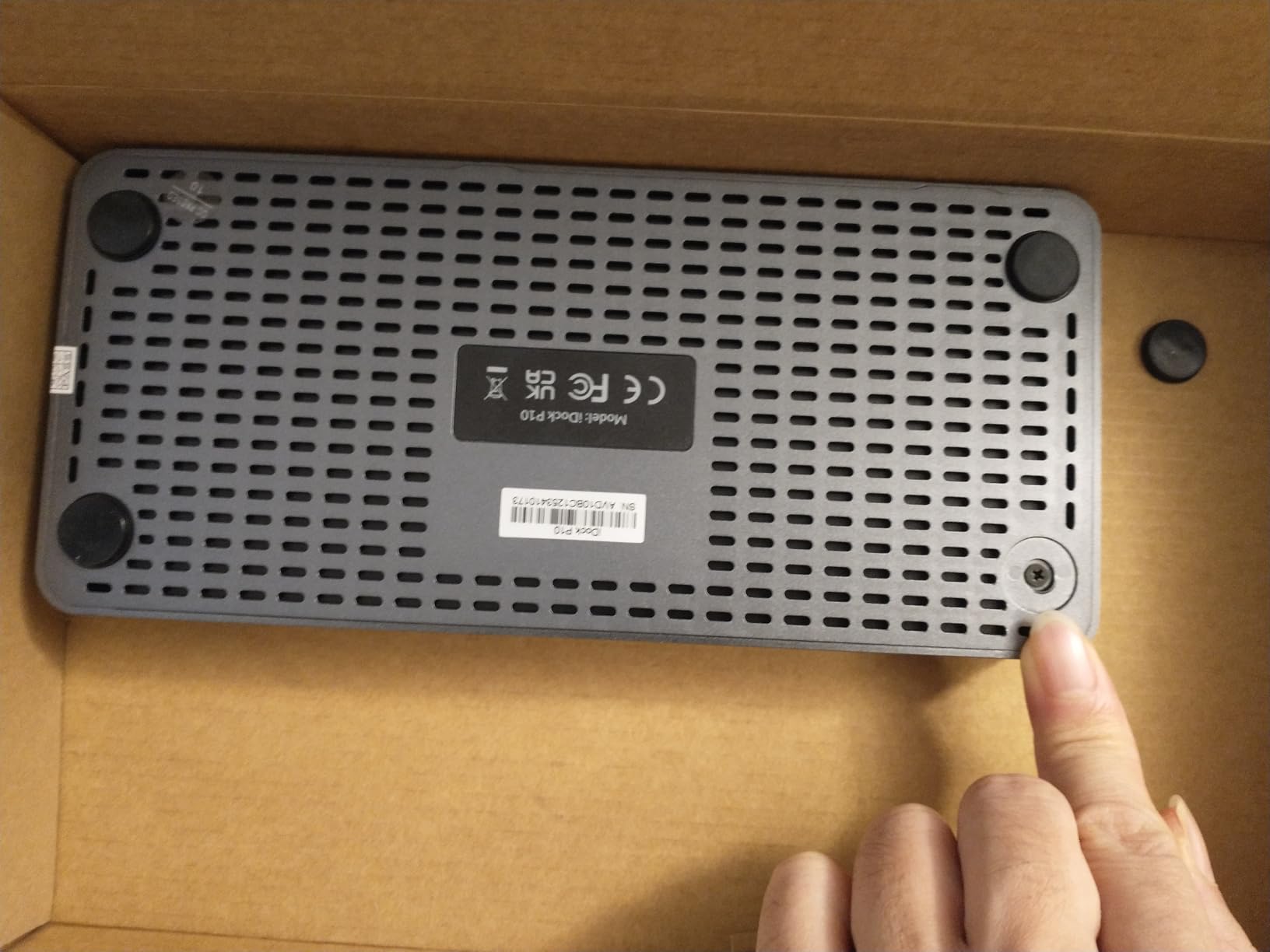
This is a different product category from the seven bare switches around it, and that is exactly why it is here. The iDock P10 controls a USB-C laptop and a desktop PC with one keyboard, one mouse and two monitors, while also acting as a ten-port dock with USB 3.0 and 2.0 ports, a USB-C data port, an SD card reader, a 3.5mm headset jack and Gigabit LAN.
Video output is specified at up to 4K@60Hz, 1440p@144Hz and 1080p@240Hz. That 1440p@144Hz ceiling makes it a genuinely viable high-refresh option, which is rarer than it should be among USB-C docks. Up to 65W of USB-C charging is delivered to the laptop, and the unit carries 120 watt-hours in its power figures.
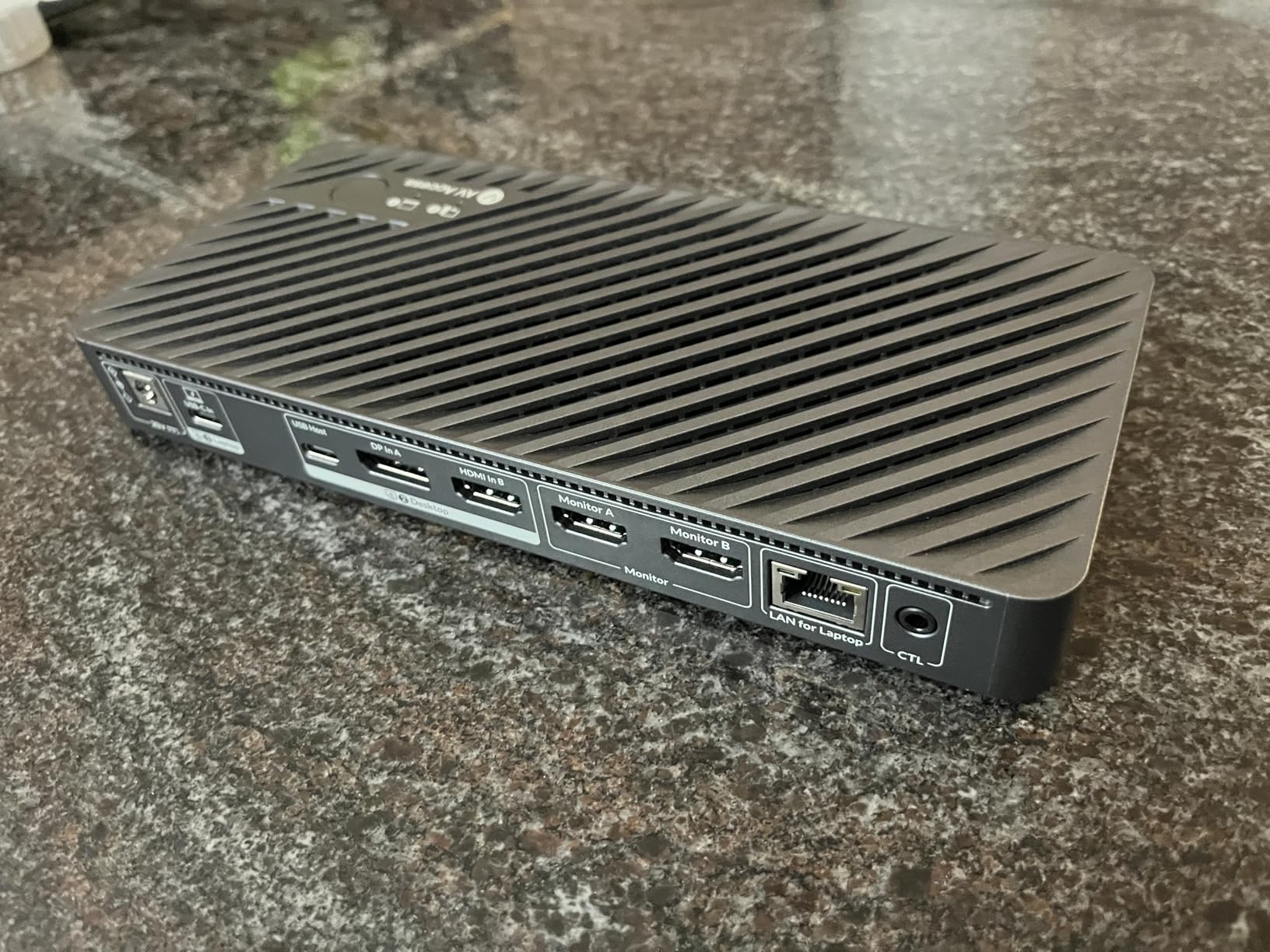
EDID emulation and hardware wake-up are both listed, and owners specifically mention instant switching without flicker. The footprint is 8.66 by 3.94 by 0.99 inches, so it sits flat on the desk rather than tucking behind a monitor. If you are still shopping for a dock rather than a switch, our USB-C laptop dock roundup sets out the wider field.
What EDID emulation and hardware wake-up do for you
EDID emulation means the dock keeps presenting a display identity to the laptop, so the window layout survives the switch instead of collapsing to a default arrangement. Hardware wake-up means the target machine is already told to expect a display, which is why owners report switching that feels immediate rather than waiting on a handshake.
The 1440p@144Hz and 1080p@240Hz ceilings are the numbers to check against your monitors. Note the 4K ceiling is 60Hz, so this is not the unit for a 4K high-refresh desk.
Who should skip it
The macOS limitation is real and worth knowing before you buy: mirrored output only, no extended desktop. That makes it a poor fit for a Mac and PC desk where you want two separate screens. The desktop PC also has to be wired with HDMI in, DisplayPort in and the USB-C to A cable, which is more cable management than a bare switch asks of you.
If you only need to switch video and a keyboard, the rest of this list is cheaper and simpler. If you also need Ethernet, card reader and charging from one box, nothing else here replaces it.
5. CMSTEDCD 8K DisplayPort KVM Switch – Best Compact 4K@144Hz Option
8K DisplayPort KVM Switch 2 Monitors 2 Computers, 4K@144Hz…
DisplayPort 1.4
4K@144Hz
4 USB 3.0 ports at 5Gbps
Wired desktop controller included
Pros
- Plug and play with no drivers required
- Fast one-touch switching from the front button or remote
- Crisp 4K@144Hz image quality over DisplayPort
- Compact metal build at 0.28 kg
Cons
- No keyboard hotkey switching
- DisplayPort cables are not included
- Source PC must have two DisplayPort outputs
- Short DisplayPort cables are recommended to avoid black screens
This is the smallest unit in the group at 0.28 kg and 5.91 by 2.56 by 1.42 inches, and it carries the same 4K@144Hz ceiling as the larger DisplayPort switch above. Video bandwidth is listed at 48Gbps, four USB 3.0 ports run at 5Gbps, and extended and clone display modes are both supported. The rating here is 4.8 from 26 reviews, so read it as a strong signal on a very small sample rather than a settled verdict.
The review base of 26 is small, so treat that rating as a signal rather than a verdict. What those reviews agree on is installation simplicity, stable connections and sharp 4K image quality, with owners liking the wired remote and the tidy desk it creates.
One detail deserves attention before you buy: short DisplayPort cables within 3.3 feet are recommended to avoid black-screen issues. That is an unusual caveat to see in a manual, and it is the kind of detail that saves an afternoon of debugging. A two-year manufacturer warranty is included, which is the longest on offer here.
How this compares to the larger DisplayPort switch
Functionally the two DisplayPort 4K@144Hz units are close. This one is physically smaller and carries a two-year warranty, while the larger unit has a longer review history. If desk depth is the constraint, the footprint is the deciding factor rather than the video specs.
Both require two DisplayPort outputs per source PC, and neither includes DisplayPort cables in the box. Package contents here are the KVM switch, wired desktop controller, two USB 3.0 cables, a 12V DC adapter and a manual.
Who should skip it
Skip this if you want hotkey switching, or if your source machines are HDMI or USB-C only. It is also the wrong pick for anyone planning to grow to more than two computers. With 26 reviews behind it, it carries the thinnest evidence base in this roundup, so pair it with a clear return policy from the seller.
6. DXchip 8K DisplayPort KVM Switch – Best for Three Computers
8K/4K Displayport 1.4 KVM Switch 2 Monitors 3 Computers Dual…
3 computers and 2 monitors
8K@30Hz and 4K@144Hz
4 USB 3.0 devices
1.5m wired remote
Pros
- Works out of the box with no setup hassles
- Three-computer capacity in a compact unit
- LED indicators make the active source obvious
- Separate power switch re-scans the signal
Cons
- Some users report random flickering or intermittent signal loss
- DP to HDMI adapter support is unreliable
- Some video outputs have failed after about a year
- Each PC needs two DP outputs plus a USB connection
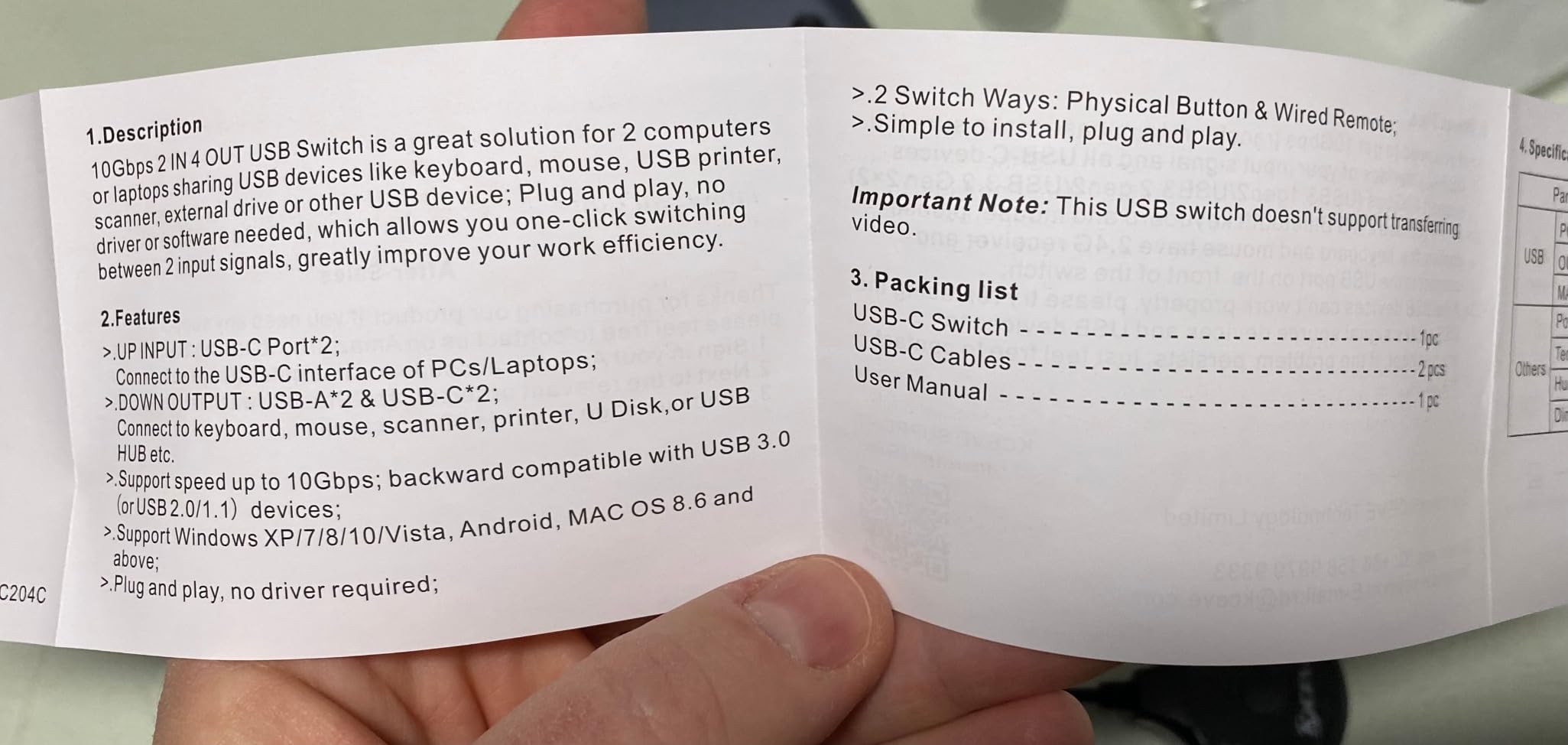
Every other switch here is a two-computer unit, which makes this one unusual. It shares two DisplayPort monitors and four USB 3.0 devices across three computers, with support for 8K at 30Hz and 4K at 144Hz. Compatibility is listed broadly across laptops, desktops, a game console, a single-board computer and a DVR on Windows, Mac OS and Chrome OS.
Switching happens from the physical front-panel button or a 1.5m wired remote, and LED indicators show which computer is live. There is also a separate power switch used to re-scan the signal, which is a practical addition when a source has been asleep and the KVM has not noticed.
The reliability reports are worth reading carefully, because they are the reason this is not higher on the list. Owners mention random flickering, intermittent signal loss and unreliable DP to HDMI adapter behaviour, and a small number report video output failing after about a year of use. The 4.2 average across 97 reviews balances a lot of genuine praise for the three-computer capability against those reports.
Whether three computers is worth the trade-off
If you genuinely run three machines, there is no comparable alternative on this list, and that capability is the entire argument for it. Each PC needs two DisplayPort cables plus a USB connection, so the cable count is the highest of any unit here. Confirm your sources have those outputs before you commit.
If you only have two computers and might add a third later, buy a two-computer unit instead. The added port count is not worth a category of flicker complaints, and the warranty on this model is one year.
Who should skip it
Skip this switch if reliability over years matters more than the third input, and if your setup depends on DisplayPort to HDMI adapters, which are described as unreliable on this model. It is also unsuitable for mixed DisplayPort and HDMI monitor banks, because both outputs are DisplayPort.
7. DXchip DisplayPort 1.4 and HDMI 2.1 KVM Switch – Best for Mixed DisplayPort and HDMI Monitors
KVM Switch 2 Monitors 2 Computers 8K Displayport 1.4 and…
2-in 2-out DisplayPort 1.4 and HDMI 2.1
8K@60Hz and 4K@144Hz
4 USB 3.0 ports
Panel button plus 1.5m remote
Pros
- Handles one DisplayPort monitor and one HDMI monitor together
- Sharp 8K and 4K image with a stable signal
- Metal housing feels high quality and compact
- Works across Windows Mac OS Linux and Unix
Cons
- Does not switch audio so a separate switch is needed
- HDMI input only reaches the HDMI output
- Cable management around the unit is awkward
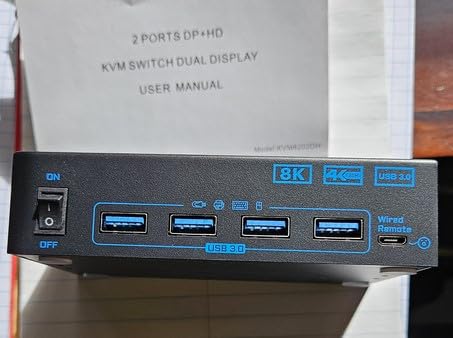
This is the unit that answers the most common mixed-port question. It is a 2-in, 2-out design with DisplayPort 1.4 and HDMI 2.1 outputs, rated up to 8K@60Hz and 4K@144Hz, with four USB 3.0 ports at 5Gbps for keyboards, mice, scanners, printers, cameras and drives. Compatibility is listed for a game console, PCs, laptops and TV boxes across Windows, Mac OS, Linux and Unix.
Owners highlight exactly the use case this topology exists for: one machine with HDMI and another with DisplayPort, or a monitor bank that mixes both. Switching works from the panel button or a 1.5m wired remote, and there is an external 12V power port plus a dedicated power switch for signal re-recognition. Extend and duplicate modes are selected with Windows+P after connecting.
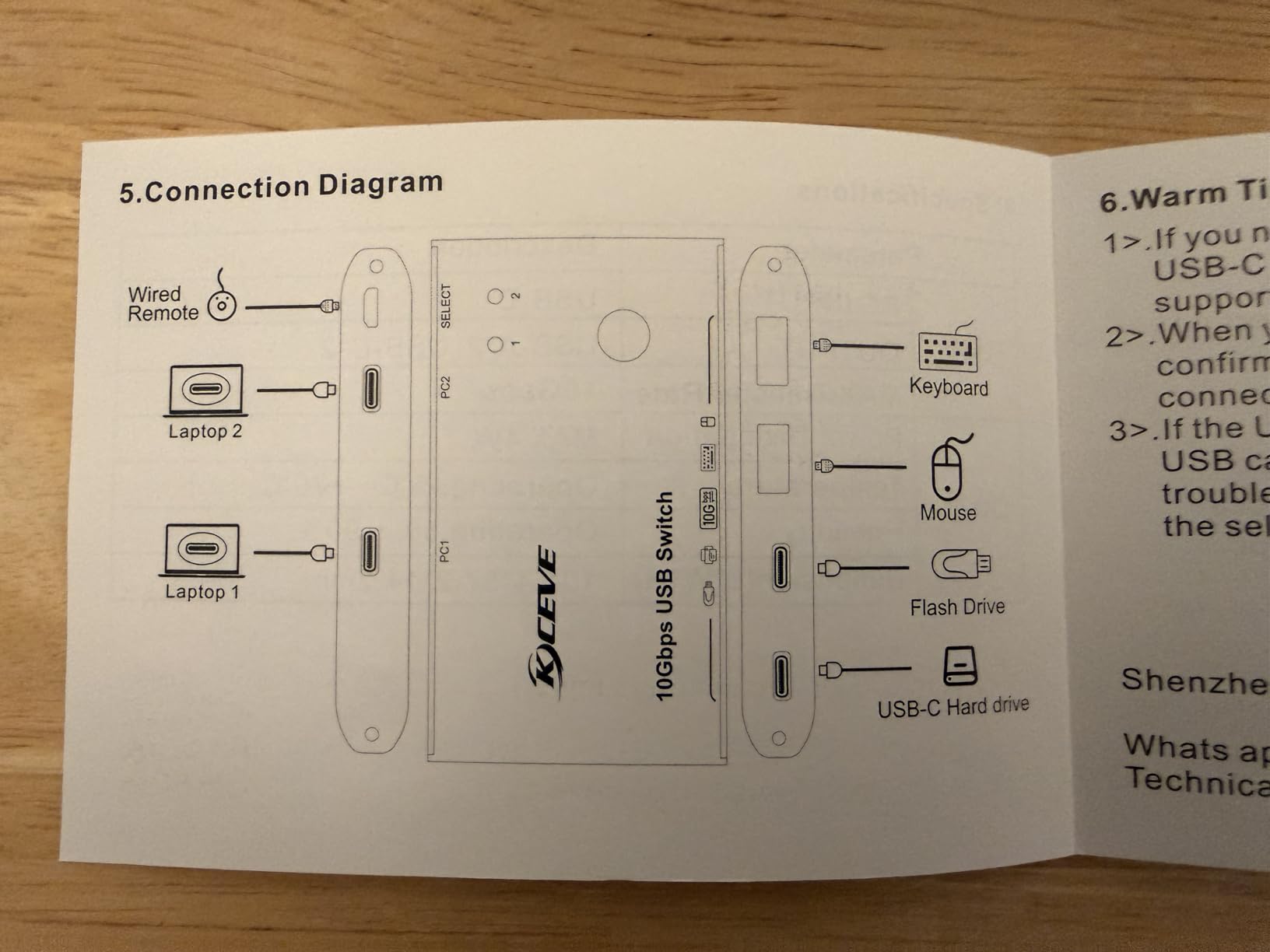
The limitation to understand is the one nobody advertises: HDMI input only reaches the HDMI output, not the DisplayPort output. So your two monitors need to match the two output types, but your two computers do not have to. That is a meaningfully narrower constraint than a converter would impose, and it is worth checking your monitor inputs before buying.
When a mixed-port unit beats two separate switches
The argument for this design is fewer boxes and one button. A separate switch per monitor means two presses and two remotes every time you change machines, and a small chance the two signals change over at slightly different moments. One unit with a single push button removes both problems.
Audio is not carried, so speakers and headphones need their own switching. At 1.32 pounds with a 5.91 by 3.94 by 1.97 inch footprint, it is a bit chunky, and several owners mention awkward cable routing around it.
Who should skip it
Skip this if both your monitors are DisplayPort, because then the HDMI output is dead weight and the pure DisplayPort units are better suited. It is also wrong for a desk that needs audio to follow the switch. And if your machines are both HDMI, the VPFET pick does the same job with a higher refresh ceiling for 4K.
8. Ouluoa 4K@60Hz HDMI KVM Switch – Budget Pick with Smart EDID Copy
Ouluoa KVM Switch Dual Monitor 2 Computers 2 Monitors…
Native 4K@60Hz
Extended and mirror modes
4 USB 3.0 ports
Smart EDID copy
Pros
- Very easy plug-and-play installation with no drivers
- Near-instant switching between a laptop and a desktop
- Sharp 4K@60Hz across both screens
- EDID copy keeps desktop windows from rearranging
Cons
- Only HDMI outputs so DisplayPort-only machines need adapters
- Supports 4K@60Hz rather than high-refresh 4K modes
- Bulky 12V power adapter on a crowded power strip
The 4.9 rating here is the highest in the roundup, though it rests on 40 reviews, so read it as an excellent signal on a small sample. What those owners consistently describe is a very easy driverless installation, near-instant switching between a work laptop and a gaming desktop, sharp 4K@60Hz on both screens and reliable USB sharing across four ports.
The unit is 3.94 by 1.97 by 2.36 inches, which makes it one of the smaller boxes here, and it works driverless on Windows, macOS and Linux. Smart EDID copy is listed as the mechanism that prevents window rearrangement on switching, and extended and mirror modes are both supported.
The honest constraint is the refresh ceiling. Native 4K@60Hz is fine for productivity and general office work, and it is the least expensive route to two screens here. It is not enough for a high-refresh gaming desk, and there is no path to 4K above 60Hz on this unit.
What EDID copy buys you day to day
EDID copy stores the display identity and replays it on every switch, so your two machines see the same virtual screen arrangement each time. Owners single this out as the feature that removes the most day-to-day friction, because nothing gets dragged back into place after you change machines.
Compared with the adaptive EDID in the Hearvo unit, copy is the more conservative approach. It suits desks where both machines are configured identically, which is the normal work PC plus gaming PC arrangement. A one-year manufacturer warranty is included.
Who should skip it
Skip this if either machine is DisplayPort only, since the outputs are HDMI and you would be relying on adapters. It is also the wrong choice for a 4K high-refresh desk. The bulky 12V power supply is a minor irritation on a crowded power strip, and worth checking before you commit to a mounting spot.
How to Choose a KVM Switch for Dual Monitors in 2026
Choose a dual-monitor KVM by checking six things in order: EDID handling, resolution and refresh ceiling, port topology, extended mode support, switch versus docking station, and operating system compatibility. Get the first two right and the rest are preferences.
The six-step decision list
First, confirm the switch feeds EDID full-time. If the listing does not mention EDID in any form, assume it does not, because the failure mode is subtle and permanent. Second, check the resolution and refresh ceiling against your monitors rather than matching them, so you have headroom. Third, match the port topology to your actual monitors, whether that is dual DisplayPort, dual HDMI or one of each. Fourth, verify extended mode, because mirrored output is not a dual-monitor desktop. Fifth, decide whether you need a bare switch or a docking station. Sixth, check that both your operating systems are supported.
What EDID emulation is and why it breaks
EDID is the identity block a monitor sends to the computer describing its make, model, native resolution and supported refresh rates. Without help, a KVM switch only passes that data through when a computer is switched to, which means the second machine is negotiating a display it cannot see. The result is the behaviour people complain about most: a display configuration dialog opening on every switch, windows sliding to the wrong screen, or a resolution dropping to something the monitor does not actually run.
Full-time EDID emulation fixes this by having the switch present stored identity data to every connected computer on every video channel at all times, so both machines always believe the monitors are attached. Users across PC-building and tech-support communities describe this as the single most important technical requirement in this category, and it is a fair summary. Two units in this roundup name it explicitly, the AV Access iDock P10 with EDID emulation and hardware wake-up, and the Ouluoa model with smart EDID copy. The Hearvo unit lists adaptive EDID, which targets the same problem through a different mechanism.
How to verify a switch has it: look for EDID in the technical specifications rather than the marketing copy, and check whether the claim covers all video channels or only one. A claim that covers a single port is not enough for a dual-monitor setup.
Why 4K on its own is an incomplete spec
Every product in this roundup advertises some form of 4K, which makes the term useless for comparison on its own. The number that matters is resolution paired with refresh rate, because bandwidth is what limits both. A switch rated 4K@60Hz will not drive a 1440p 144 Hz monitor at its rated speed, and one rated 4K@120Hz will not do 4K@144Hz.
Match the ceiling to the highest mode you actually run. If your monitors are 1440p 144 Hz, you need a switch that lists at least 4K@144Hz, because that bandwidth figure covers 1440p at 144 Hz with room to spare. Units here range from 4K@60Hz up to 8K@60Hz and 4K@144Hz, and the AV Access dock adds 1440p@144Hz and 1080p@240Hz specifically for high-refresh users.
Port topology: dual DisplayPort, dual HDMI, or one of each
Each computer needs two video outputs of its own, one per monitor, which is the single most common reason a KVM purchase fails on arrival. Count them on the back of each machine before you order. A desktop with a discrete GPU normally has three DisplayPort outputs and one HDMI, but a laptop may have only one HDMI and one USB-C that requires a dock.
Mixed topologies exist and they solve a real problem. The DXchip 2-in 2-out unit carries one DisplayPort 1.4 and one HDMI 2.1 output, which is the answer when one monitor is DisplayPort and the other is HDMI. Be aware that on that model the HDMI input only reaches the HDMI output, so the monitors must match the output types even though the computers do not have to.
Most of the units here are DisplayPort only, two are HDMI only, and one takes USB-C plus HDMI plus DisplayPort. A USB-C input on a bare switch usually does not carry laptop charging, which is the point at which you should move up to a docking station instead of adding adapters.
Bare KVM switch or KVM docking station
A bare KVM switch reroutes video, USB and audio. A KVM docking station does the same thing and adds the ports a laptop would otherwise need, including Gigabit LAN, an SD card reader, a headset jack and power delivery. If one of your two machines is a laptop that you connect with a single USB-C cable, the docking station category is usually fewer cables overall, not more.
The AV Access iDock P10 is the only true dock in this list, with up to 65W of USB-C charging and a ten-port all-in-one layout. It costs more than a bare switch, which is the trade for not carrying a separate dock. If both your machines are desktops, a bare switch is the cleaner answer. Our roundup of USB-C docks for multi-monitor setups covers the dock side in more detail.
Extended versus duplicated display
Extended mode gives each monitor its own desktop space, which is what makes a dual-monitor KVM worth owning. Duplicated or mirror mode shows the same image on both screens, which is useful for a projector or a second display for a colleague. Every unit in this roundup supports extended mode, and all of them also support mirror mode. Confirm this on the listing rather than assuming, because a switch that only mirrors leaves you with one usable desktop.
Why monitors flicker or lose resolution when you switch
If a monitor flickers after switching, the fault is usually the switch rather than the cable. A widely reported case in a PC-building forum described a KVM that began flickering on both monitors after about a year of daily use, with the flicker stopping immediately when the same cables were plugged directly into the computers. That test is the fastest way to isolate the problem: bypass the KVM, and if the picture is clean, the switch is the issue.
Four causes account for most cases. First, an underpowered or missing external power adapter, which is why the units with 12V DC adapters here use one rather than bus power. Second, DisplayPort link training failing over a cable that is too long, which is why one unit in this list recommends cables within 3.3 feet. Third, EDID that is not fed continuously, which causes the resolution to drop after a switch. Fourth, a weak wireless receiver on a shared USB port, which is worth checking by swapping to a wired peripheral.
If the resolution is dropping rather than flickering, treat it as an EDID problem first and a bandwidth problem second. Confirm the switch lists EDID support, then confirm the ceiling exceeds the mode your monitor is running. If both check out, the remaining suspect is the cable, and certified DisplayPort 1.4 cables are the fix.
When a KVM switch is overkill
If both of your monitors have at least two inputs each, you do not need a KVM at all. You can plug each computer into both monitors and press the input button on the panel. That approach costs nothing and has no bandwidth ceiling, but it means two button presses per switch and it does not move your keyboard, mouse, printer or webcam.
A KVM earns its place when a monitor has a single input, when you have more peripherals than free USB ports, or when you want the desk to stay tidy with one remote. It is also the only realistic option for sharing a webcam or headset between two machines, which is where multi-machine streaming and remote work setups land. If you are building that kind of rig, our hardware video encoders for dual PC setups guide covers the other half of the signal chain.
Desk layout matters as much as the electronics here, and monitor placement, cable routing and under-desk controller mounting all change which switch is practical in your room. Our gaming desk setup roundup covers the physical side if you are rebuilding the desk as well as the switching.
Frequently Asked Questions
What is the best KVM switch for a dual monitor setup?
The best switch depends on your monitors rather than on the switch itself. For a high-refresh desk, the TJCXELE DisplayPort unit rated to 4K@144Hz is the strongest all-rounder. For HDMI monitors, the VPFET model rated to 8K@60Hz and 4K@120Hz covers the widest range. For a USB-C laptop plus a desktop, the AV Access iDock P10 adds dock ports and 65W charging.
What kind of KVM switch supports dual monitors?
A dual-monitor KVM has two video outputs per connected computer, typically dual DisplayPort, dual HDMI, or one DisplayPort plus one HDMI, and it must support extended rather than mirrored output. Each source PC also needs its own matching video outputs, so count them on each machine before buying. Anything labelled single monitor cannot drive two screens.
Can I use a KVM switch with dual monitors?
Yes, provided the switch has two video outputs per computer and your monitors are connected to the switch rather than to each computer. Both computers need matching video outputs, since a computer with only one HDMI port cannot feed two screens through a KVM. A single-monitor KVM cannot drive two displays no matter how it is cabled.
Is there a KVM switch that has two display ports?
Most dual-monitor KVM switches use two DisplayPort outputs per computer, and several in our roundup do exactly that at up to 4K@144Hz. If you need one DisplayPort and one HDMI monitor on the same unit, look for a 2-in 2-out model that carries both. Check that the HDMI input reaches the HDMI output, because some units do not convert between the two.
What is the best KVM switch for two computers and two monitors?
For two computers and two monitors, the deciding factors are full-time EDID emulation and a resolution and refresh ceiling above your monitors’ specification. The TJCXELE DisplayPort switch at 4K@144Hz fits a work and gaming PC pair, and the Ouluoa HDMI model at 4K@60Hz covers productivity desks. If one machine is a USB-C laptop, a KVM docking station is the better shape.
How do I know which KVM switch to buy?
Work through six checks. Confirm the switch feeds EDID full-time across all video channels. Check the resolution and refresh ceiling exceeds your monitors’ spec. Match the port topology to your actual monitors. Verify extended mode support. Decide between a bare switch and a docking station. Finally, confirm both your operating systems are supported.
The Best KVM Switch for Dual Monitor Setups in 2026
The best KVM switches for dual monitor setups come down to two numbers and one habit. If you drive 1440p or 4K at high refresh, the TJCXELE DisplayPort switch at 4K@144Hz is the pick to beat, with four shared USB 3.0 ports and both extended and copy modes. If your monitors are HDMI and you want headroom, the VPFET model covers 8K@60Hz and 4K@120Hz on the largest review base here at 406.
Match the port topology to your actual screens rather than the spec sheet, and confirm the switch feeds EDID full-time before anything else. Above all, check that each source computer has two video outputs of the right type, because that is the mistake that returns a switch.
Use the picks above to shortlist, then check the live listing for current specifications and pricing before you commit.
