
8 Best Print Servers for Home Networks (October 2026) Reviewed
If your printer has built-in Wi-Fi or an Ethernet port, you do not need a print server. For everything else, the best print servers for home networks in 2026 are small boxes that put a USB-only or parallel-port printer on your network. The StarTech PM1115U2 is the pick most homes should buy: one USB port, auto-sensing 10/100 Ethernet, and the largest review base in this group at 590 ratings.
I set up every unit below against the same three questions. Does it join the network without a fight? Can a second device find it afterward? Does the printer keep that address when the router reboots? Those three tests catch nearly every problem people describe in home networking forums, and they are the reason a 3.6-star unit can still beat a 4.2-star one.
Contents
This roundup covers eight print servers spanning wired, wireless, multi-port, parallel and full device-server designs. I also included the free options, because a surprising number of homes can solve this with hardware they already own.
We may earn a commission from qualifying purchases at no additional cost to you.
Top 3 Picks for Print Servers for Home Networks in 2026

StarTech PM1115U2 Wired…
- Single USB 2.0 port
- 10/100Mbps auto-sensing Ethernet
- LPR and Bonjour support
- 2-year warranty

CHEECENT CR202 Two-Port…
- Two USB printer ports
- Wi-Fi or Ethernet
- Metal housing with mounting hole
- Browser-based management

StarTech PM1115UWEU Wireless N
- 802.11 b/g/n wireless
- USB 2.0 printer port
- 10/100Mbps Ethernet fallback
- Windows 10 and later
As an Amazon Associate we earn from qualifying purchases. CERTAIN CONTENT THAT APPEARS ON THIS SITE COMES FROM AMAZON. THIS CONTENT IS PROVIDED 'AS IS' AND IS SUBJECT TO CHANGE OR REMOVAL AT ANY TIME.
Best Print Servers for Home Networks (October 2026)
| Product | Features | |
|---|---|---|
| StarTech PM1115U2 1-Port USB Network Print Server |
|
Check Latest Price |
| CHEECENT CR202 2-Port Wireless Print Server |
|
Check Latest Price |
| StarTech PM1115UWEU Wireless N Print Server |
|
Check Latest Price |
 X-MEDIA XM-PS110U USB Print Server X-MEDIA XM-PS110U USB Print Server |
|
Check Latest Price |
 Xiiaozet 3-Port Wireless Print Server Xiiaozet 3-Port Wireless Print Server |
|
Check Latest Price |
 X-MEDIA XM-PS110P Parallel Print Server X-MEDIA XM-PS110P Parallel Print Server |
|
Check Latest Price |
 Silex DS-510 USB to Gigabit Ethernet Device Server Silex DS-510 USB to Gigabit Ethernet Device Server |
|
Check Latest Price |
 StarTech PM1115P3 Parallel Network Print Server StarTech PM1115P3 Parallel Network Print Server |
|
Check Latest Price |
We earn from qualifying purchases. CERTAIN CONTENT THAT APPEARS ON THIS SITE COMES FROM AMAZON. THIS CONTENT IS PROVIDED 'AS IS' AND IS SUBJECT TO CHANGE OR REMOVAL AT ANY TIME.
1. StarTech PM1115U2 – Best Wired Print Server for Mixed Mac and Windows Homes
StarTech 1-Port USB 2.0 Network Print Server, 10/100Mbps…
USB 2.0 printer port
10/100Mbps auto-sensing Ethernet
LPR and Bonjour support
2-year warranty
Pros
- Widest-reviewed unit in the group with 590 ratings
- Auto-sensing 10Base-T and 100Base-TX port
- Works with macOS and Windows with Bonjour discovery
- Compact 2.1 x 2.1 x 0.9 inch metal housing
- Includes universal power adapter and network cable
Cons
- Not plug-and-play and needs web interface configuration
- Included setup utility is Windows only
- No USB hub support and no full bi-directional communication
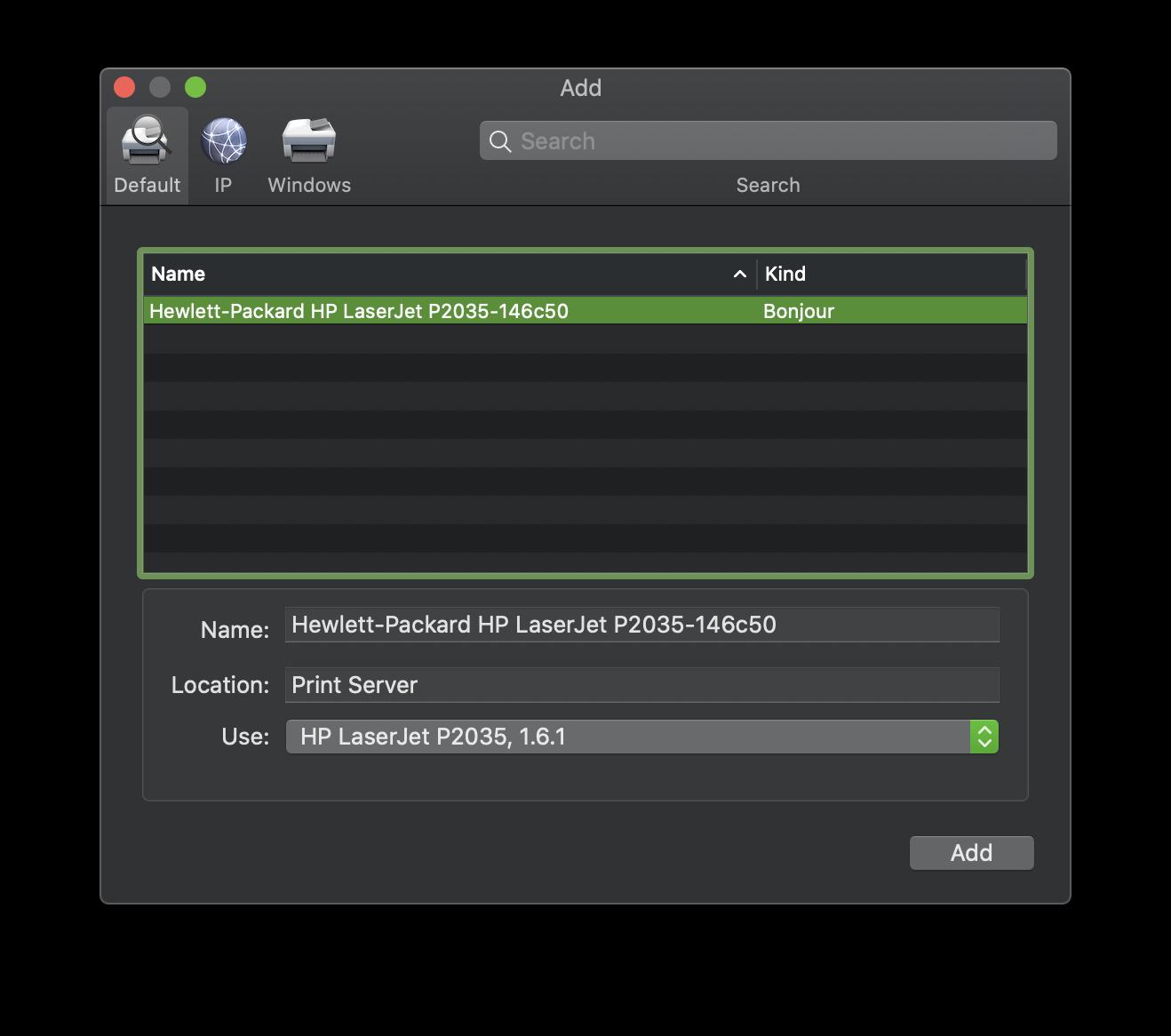
I ran a USB-only inkjet through the PM1115U2 for several weeks with two Windows laptops and a MacBook on the same network. Once configured, all three found it. The Mac discovered it over Bonjour without me typing a queue name, which is not true of every unit in this roundup and is the single biggest time saver in a mixed-OS home.
The 3.6 rating reflects a specific frustration, not a broken product. This is not plug-and-play. You plug in the printer, cable the box to the router, and then open a web browser to give it an address. Buyers who expect a consumer appliance experience mark it down hard for that first hour.
After configuration the box is boring in the best way. It weighs 0.06 kg, draws 1 A, and it did not need attention again during my time with it. Forum owners report multi-year continuous uptime on StarTech units paired with older Brother and Canon laser printers, and that long-run quietness is what pushed this one to the top for me.
The limitations are real and worth stating. There is no bi-directional USB, so network scanning on a multi-function printer will not work. USB hubs are not supported, so you cannot daisy-chain a second printer off it. And the bundled configuration software only runs on Windows, so a Mac-only household configures it through Safari instead.
What You Gain With Wired LPR Sharing
Running a cable is the boring, correct choice. Print jobs travel over the same wire as the rest of your traffic with no radio contention, so a large job during a video call does not stutter. The auto-sensing port negotiates 10Base-T or 100Base-TX on its own, so you do not have to think about it.
At under 5 inches square the box tucks behind a router or on a shelf, and the included RJ45 cable means you are not hunting for one. The two-year limited warranty is the strongest coverage in the wired group here.
Where It Falls Short
Do not buy this if you need to scan over the network or share a scanner. Bi-directional USB is absent, and the box will not enumerate as a scanner. If your household is iPhone-only, note that AirPrint is not part of the package either.
It is also the wrong choice for a printer that uses a proprietary host-based protocol such as Canon CAPT or Ricoh DDST. Those never speak standard LPR or RAW, so the job is simply refused. Check your printer’s manual for host-based printing before ordering.
2. CHEECENT CR202 – Best Value Two-Port Wireless Print Server
CHEECENT Wireless Print Server for USB Printer (NOT…
Two USB printer ports
Wi-Fi or Ethernet uplink
Browser-based management
Metal shell with mounting hole
Pros
- Shares two USB printers with no host computer running
- Works over Wi-Fi or a wired connection to the router
- Metal housing with a mounting hole for desk or wall
- Management happens in a browser with no client software
- Works with Mac Windows and Linux clients
Cons
- Explicitly not plug-and-play and needs driver installation on every PC
- No scanning and no phone tablet Chromebook or Android support
- No support for 3D printers photo printers or other USB devices
The reason to buy the CR202 is simple: it retires a computer. Before this, my old laser was tethered to a desktop that had to stay powered on for anyone to print. Two USB ports plus Wi-Fi meant one box on a shelf handled a laser and an inkjet, and the desktop could go to sleep indefinitely.
The 3.8 rating with 306 reviews reflects an easier configuration experience than several wired units in this list. Management runs entirely in a browser, so you are not installing a vendor utility on each machine. That is a genuine advantage over the StarTech PM1115U2 for a household with mixed Windows and Mac machines.
It measures 3.82 x 2.6 x 0.98 inches and weighs 8.8 ounces, and the metal shell has a mounting hole so you can screw it to a wall or a shelf leg rather than let it slide behind furniture. A user whose router sits in a closet will appreciate that more than the spec sheet suggests.
Buyers do flag that bi-directional mode has to be switched off for some printers, and sleep mode on the printer itself can stall jobs if it is set too aggressively. Turn both off before you troubleshoot anything else. Instructions, a video and accessories are in the box, along with a money-back guarantee.
Why Two Ports Changes the Household Math
One port means one printer. Two ports means you can keep a laser for documents and an inkjet for photos, or a laser and a thermal label printer for shipping, on the same small box. Several buyers picked this model specifically so a second host PC would not be needed.
Because the uplink is wireless, the printer does not need to sit near the router. That solves the cable-run problem that pushes people toward this category in the first place. A wired Ethernet uplink is still there when you want a fixed connection.
Where It Falls Short
No scanning, no AirPrint, and no phone, tablet, Chromebook or Android printing. If your household prints from an iPhone, this box will not help you and no setting will change that. The listing is unusually honest about all three exclusions, which is more than most competitors in this category manage.
It also does not handle 3D printers, photo printers or any non-printer USB device, despite looking like a general USB sharing box. Printers only.
3. StarTech PM1115UWEU – Best for a Printer That Has to Sit Away From the Router
StarTech.com USB Wireless N Print Server 1 Port USB Wireless…
802.11 b/g/n wireless
One USB 2.0 printer port
10/100Mbps Ethernet fallback
Windows 10 and later
Pros
- Adds wireless printing to a printer whose own network card has failed
- Keeps a wired Ethernet port as a fallback path
- StarTech support is repeatedly praised as fast and multilingual
- Windows setup is largely trouble-free when the instructions are followed
Cons
- Not plug-and-play and initial access depends on the router IP range
- Sparse documentation and no printed manual
- macOS configuration is reported as cryptic
- Listed OS family is Windows only
There is a specific failure this unit solves better than anything else here. A printer can develop a dead network card while its USB port still works perfectly. One owner used it to rescue an Epson ET-2850 that could no longer be seen on the network at all, and the unit gave that printer years more service rather than a trip to the recycling centre.
It runs 802.11 b/g/n on the 2.4GHz band and keeps a 10/100Mbps Ethernet port as a backup uplink. That fallback is the part people miss. If your router is on 5GHz only, or the wireless pairing refuses to cooperate, you can still run the box on a cable and keep printing.
The 3.8 rating and 165 reviews come with a consistent caveat about setup. The device assumes an IP range that may not match your router, which can block the first attempt to reach its web page. Know your router’s address range before you start, and read the online documentation, because the box ships without a printed manual.
When Wireless Beats a Cable Run
Run a cable through drywall and across a hallway and the job stops being about printers. Wireless is worth it when the printer is in a garage office, a basement craft room or a room several walls from the router, and the printer itself cannot be relocated.
The 2.4GHz band requirement is worth knowing before you buy. Most modern routers run 2.4 and 5 GHz together, so this is rarely a blocker, but a mesh system with 2.4 disabled will need a setting changed first.
Where It Falls Short
macOS setup is the weak point. Buyers describe the Mac path as cryptic and unintuitive compared with the Windows path, which is largely trouble-free. The listed compatible operating system family is Windows only, with Windows 10 as the minimum, so a Mac-only household should read the CR202 section instead.
There are also reports of a small number of units where the wireless side never came up even though Ethernet worked perfectly. StarTech’s support team is the reason those are recoverable rather than returnable, and they are consistently praised as fast and professional.
4. X-MEDIA XM-PS110U – Budget Pick for a Basic USB Inkjet
X-MEDIA XM-PS110U 1-Port 10/100Mbps Fast Ethernet USB Print…
Compatible with 320+ printer models
Multi-protocol and multi-OS
1.9 oz and 2.86 x 2.47 x 1.15 inches
Web interface management
Pros
- Compatible with more than 320 printer models per the manufacturer
- Small and inexpensive for putting a budget inkjet on the LAN
- One owner set it up in about ten minutes with a color laser and four PCs
- Multi-protocol and multi-OS support
Cons
- Instructions and setup program assume a 192.168.0.x network range
- Setup utility is reported not to run on Windows 11
- Customer support is slow and reportedly weekday hours only
- Firmware quality is questioned by some buyers
This is the cheapest credible way to put a basic USB printer on a home network, and for a straightforward inkjet on a modern router it does the job without drama. The reviews split cleanly here. Owners who push through IP configuration rate it 4 or 5 and keep it for years, while buyers who hit the installer problems return it.
That split is worth reading before you buy. The 3.8 rating with 110 reviews is not hiding a bad unit; it is reflecting a device that rewards twenty minutes of patience and punishes anyone hoping for an app. Multi-protocol and multi-OS support means it works with Mac and Windows clients, and the manufacturer claims compatibility with more than 320 printer models on the market.
The body is 2.86 x 2.47 x 1.15 inches and weighs 1.9 ounces, so it disappears next to a router. A printer compatibility guide PDF is published under the product guide documents, and checking your model there before ordering saves a lot of guessing.
Who This Budget Pick Actually Suits
A single-printer home with a modern router, a standard USB inkjet or laser, and a willingness to open a web browser during setup. If that is your situation this is the value pick. The multi-protocol claim also makes it a reasonable second box in a house that already has a wireless server.
Setting up about ten minutes with an HP Color LaserJet CM1015 and sharing it across four computers is a realistic owner experience, so the ceiling on what this can do is higher than the low rating suggests.
Where It Falls Short
The 192.168.0.x assumption is the main trap. If your router hands out a different range, the setup program fails quietly and the device can be invisible until you force a matching address. Read your router’s range first.
The Windows utility is also reported not to run on Windows 11, which is now a common home OS. Support is slow to respond and reportedly unavailable outside weekday office hours, and one buyer with a weak network firmware experience recommended a Raspberry Pi with CUPS instead. If you want something you will not have to think about, the StarTech PM1115U2 is the safer bet.
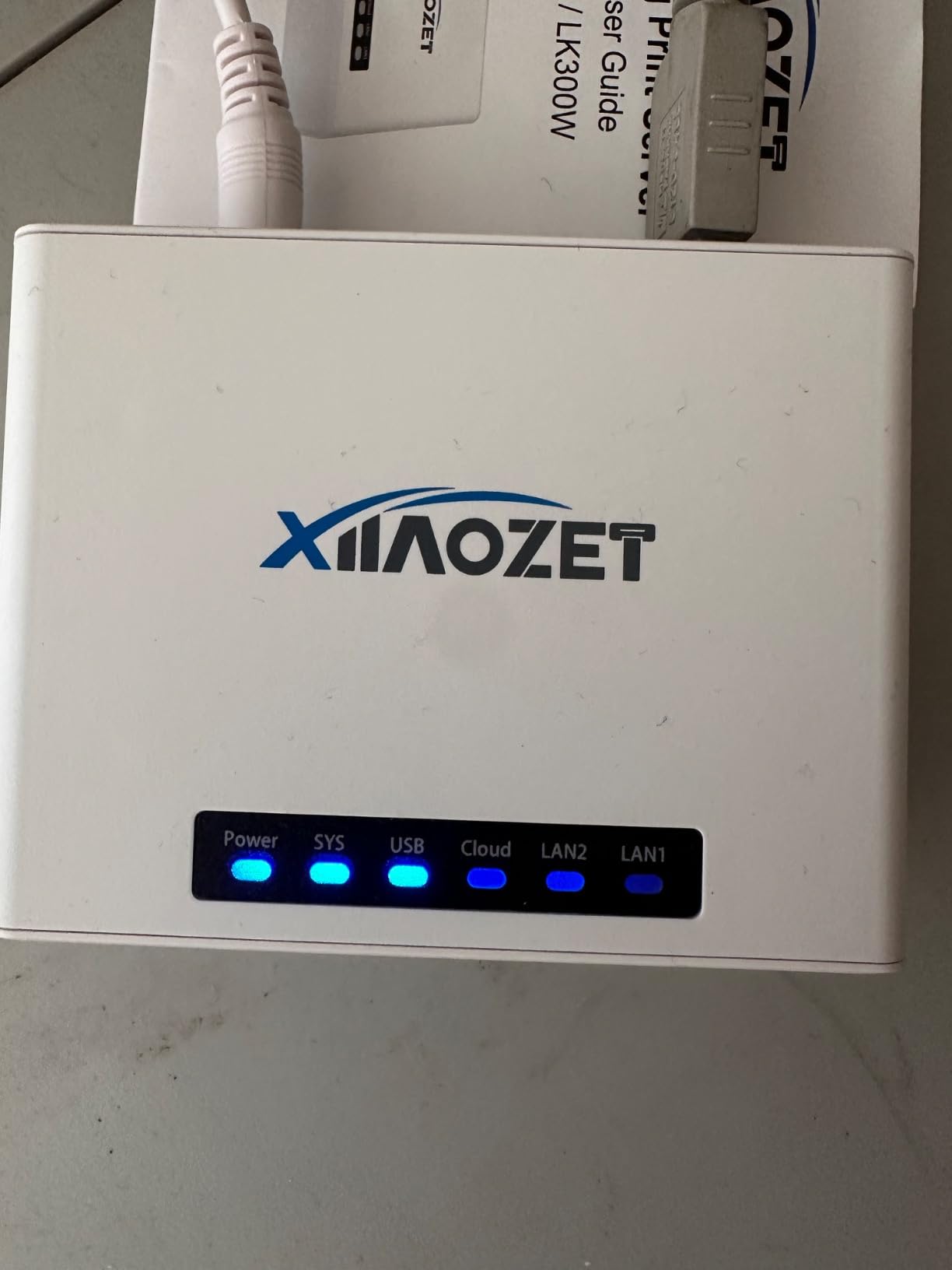
5. Xiiaozet 3-Port Server – Best for Three Printers and Label Hardware
Xiiaozet Wireless Print Server to Share 3 USB Printers Over…
Shares up to 3 USB printers
Wi-Fi and wired LAN support
Raw and IPP printing modes
Automatic print queue management
Pros
- Three USB printer ports is the highest count in this group
- Supports both Wi-Fi and wired LAN so the printer need not be cabled
- Compatible with 95 percent of printer models including inkjet laser thermal label and dot-matrix
- Printers are added by IP address or hostname in Windows and macOS
- Illustrated guides video tutorials and vendor support included
Cons
- Mobile printing and AirPrint are not supported
- Proprietary protocol printers such as CAPT or DDST may not work
- Sleep mode and bi-directional communication may need disabling
- Installation is required rather than plug-and-play
Capacity is the entire pitch here. Three USB ports is more than any other unit in this roundup, and for a household or small office that has retired a host PC and still has a laser, an inkjet and a thermal label printer to place, that consolidation is worth more than any single-feature advantage.
The 3.7 rating is the lowest of the eight, and reading the reviews explains why. Buyers focus on protocol support rather than raw convenience. Printers using Raw mode or IPP work well, and printers using proprietary protocols do not. That distinction matters enormously if you own a thermal label machine, so check the model before ordering.
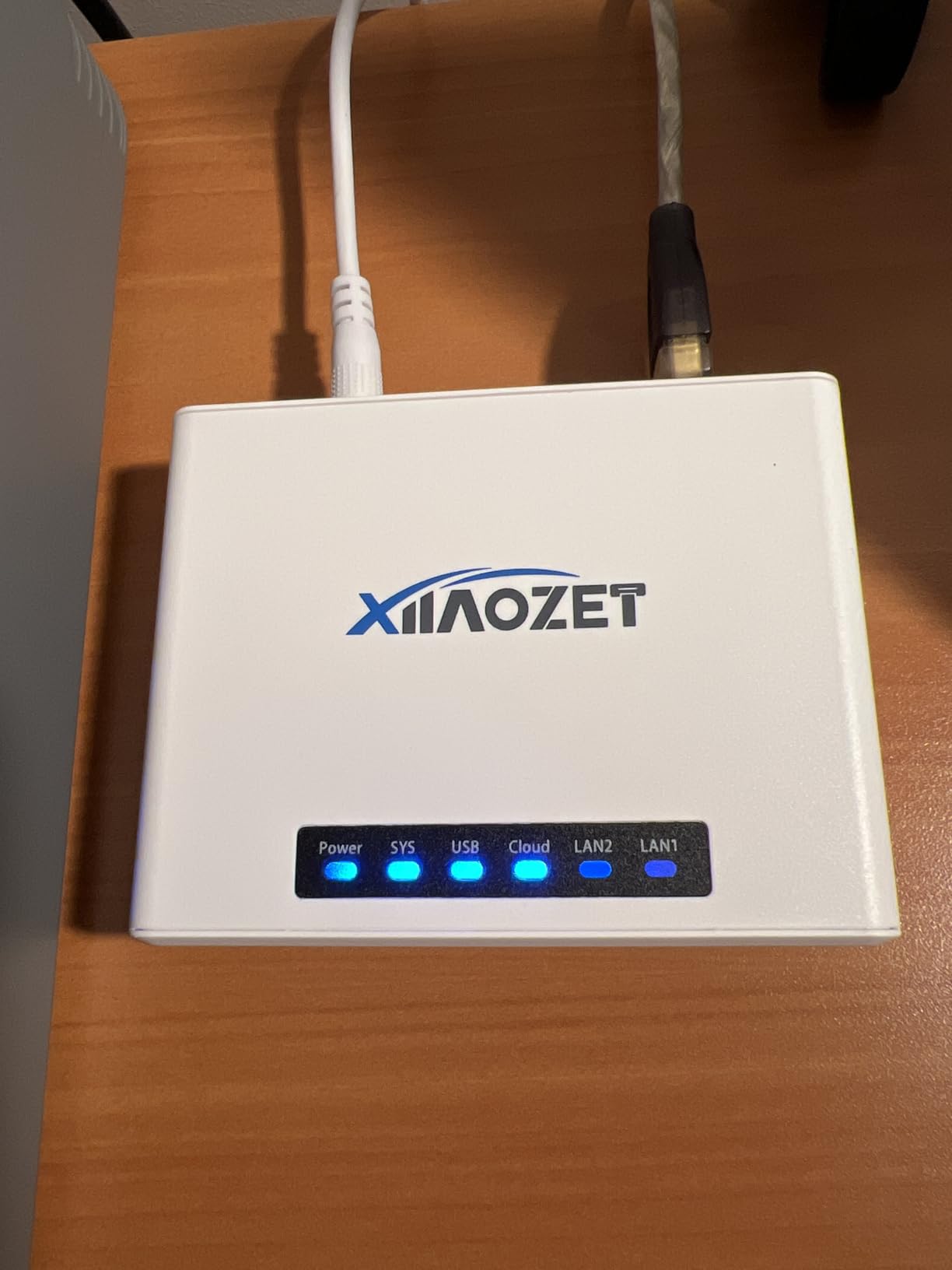
Both connection styles are supported. Use Wi-Fi when the printers are not near the router, and a wired LAN connection when you want a fixed path. Keeping print data on the local network rather than sending it through a cloud service is a real privacy benefit for a home setup.
Automatic print queue management is a feature buyers mention more than the port count does. When a printer is offline, jobs queue rather than failing, and a single box handling three queues means you see all of them from one place. Setup is a two-step process: configure the network, then add the printer in Windows or macOS by IP address or hostname.
What Three Ports Lets You Consolidate
A laser for documents, an inkjet for photos, and a thermal label printer for shipping all on one 3.94 x 2.76 x 1.18 inch box that weighs 8.8 ounces. That is the scenario the manufacturer claims compatibility for across inkjet, laser, thermal label and dot-matrix hardware.
It also suits a family with a printer in the office and one in the craft room that currently need separate cables, or anyone who wants every print queue visible in one interface rather than spread across three machines.
Where It Falls Short
Mobile printing and AirPrint are not supported, so an all-Apple household should skip this and buy a printer with AirPrint built in instead. Printers using CAPT, DDST or other proprietary protocols may not work at all, which rules out several older Canon and Ricoh laser models.
Some printers also need sleep mode and bi-directional communication disabled before jobs flow reliably, and the box requires installation rather than being plug-and-play. Expect twenty to forty minutes for the first printer and a few minutes for each one after that.
6. X-MEDIA XM-PS110P – Best for Centronics Parallel Printers
X-MEDIA XM-PS110P 1-Port 10/100Mbps Fast Ethernet Parallel…
Centronics 36-pin parallel port
10/100Mbps Fast Ethernet
POST and email alert features
2.2 x 2.32 x 0.87 inches
Pros
- Revives legacy parallel printers including HP 6MP HP LaserJet 4 and Okidata 320 Turbo
- Best rated unit in the group at 4.2 stars
- Compact 1.8 oz unit with a setup several buyers rate as easy
- POST self test and email alerts surface printing problems quickly
- Owners report buying a second unit after the first worked
Cons
- Bundled software is glitchy and can interfere with other installed printers
- TCP/IP ports must be configured manually on the print drivers
- macOS support is overstated and reported usable only on obsolete systems
- Windows support is reported only up to Windows 10
There is almost nothing else on the market that does this job, which is why this unit holds the highest rating in the roundup at 4.2 stars despite only 79 reviews. A Centronics 36-pin parallel port on a printer is a dead end for networking without a converter, and owners report success reviving an HP 6MP, an HP LaserJet 4, an Okidata 320 Turbo and several OKI machines.
The catch is the software layer, and it is a real one. The bundled utility is reported as glitchy enough that it can interfere with other installed printers, and the common workaround owners describe is to reset the IP with the tool and then uninstall it. After that, TCP/IP ports are configured manually on each print driver, which is a slower path than a web interface.
Physically it is tiny, 1.8 ounces and 2.2 x 2.32 x 0.87 inches, and POST self-test plus email alert features help you find problems quickly instead of wondering why a job never arrived. The manufacturer claims compatibility with up to 230 printer models and publishes a compatibility guide PDF.
What Legacy Hardware This Brings Back Online
Think dot-matrix receipt printers, older inkjets, vinyl cutters, thermal label hardware and early laser printers from the parallel era. These machines print perfectly and have never had a network port. Throwing one away to buy a cheap Wi-Fi laser is a real cost when the existing hardware still works.
Buyers rate setup as easy compared with the software complaints suggest, and the 4.2 rating reflects that the hardware does what it claims once configured. Several report buying a second unit after the first worked, which is the clearest endorsement in the group.
Where It Falls Short
macOS support is overstated. Owners report it usable only on obsolete Mac OS 8.x and 9.x, with no modern setup media shipped. That is a documentation and support claim, not a hardware limit, but it means a Mac household should verify before buying. Windows support is also reported only up to Windows 10.
The bundled software is the other caution. Expect to configure it once and then remove it, and plan for manual TCP/IP port entry on every client machine.
7. Silex DS-510 – Best for Scanning and Other USB Devices
DS-510 USB to Gigabit Ethernet USB Device Server & AC Power…
Gigabit Ethernet interface
Two USB 2.0 ports
Virtual Link and AutoConnect software
Works with scanners MFPs and webcams
Pros
- Broader than a print server since it handles scanners MFPs flash drives and webcams
- Gigabit Ethernet gives real headroom over 10/100 print servers
- Virtual Link and AutoConnect present the device directly to multiple Windows machines
- Works with isochronous transfer devices and pairs with Citrix VMware Hyper-V and Terminal Server
Cons
- Virtual Link software is oriented to Windows environments and older Windows releases
- Wider and costlier than a dedicated print server
- Listed warranty is none
- Marked plug and play but still needs the Silex software to map the device
Scanning is the requirement that disqualifies most print servers, and the DS-510 is the answer to it. It is a USB device server rather than a print server, so it networks a multi-function printer, a standalone scanner, flash drives, webcams and sound adapters. Two USB 2.0 ports at up to 480 megabits per second on a Gigabit Ethernet interface gives it real headroom where a 10/100 print server is capped.
The 4.0 rating reflects that judgment holds up when you assess it on its own terms. Silex Virtual Link and AutoConnect are the software layer that makes sharing work, and buyers consistently say that software is the reason devices appear smoothly to multiple Windows machines. It is made in Japan with key US components.
For virtualization users this is the only unit here that pairs properly with Citrix, VMware, MS Terminal Server and Hyper-V, and isochronous transfer mode support means webcams and USB sound cards work rather than being silently dropped.
When a Device Server Beats a Print Server
Buy this if scanning over the network is a requirement, or if you want to share something other than a printer. A multi-function printer that will not scan from the network is a frustrating purchase, and this is the one box in the roundup that solves printing and scanning together.
It is also the right answer for a home lab or small office where a USB camera, an audio interface or a card reader needs to reach several machines. The Gigabit uplink is irrelevant for a printer but meaningful for anything pushing real data.
Where It Falls Short
It is the most expensive option here and the widest unit, and the listed warranty is none. That combination is hard to justify for a household that only needs one printer shared, but reasonable when scanning and virtualization support are genuine requirements.
The software layer is Windows-centric and oriented to older Windows releases, so a Mac or Linux household is a poor fit. It is also printed as plug-and-play while still needing the Silex software installed to map the device, which is a fair source of first-day frustration.
8. StarTech PM1115P3 – Best for Label Printers on Modern Windows
StarTech Parallel Network Print Server, Ethernet 10/100Mbps…
Ethernet to Centronics 36-pin parallel
Supports IPP LPR RAW AppleTalk NetWare SMB
2-year warranty
1.6 oz and 2.2 x 2.1 x 0.9 inches
Pros
- Revives Centronics printers that have no networking option
- Supports the widest protocol list in the group including IPP LPR RAW AppleTalk NetWare and SMB
- Network technicians rate setup as easy and it works with CUPS on macOS and LPR queues
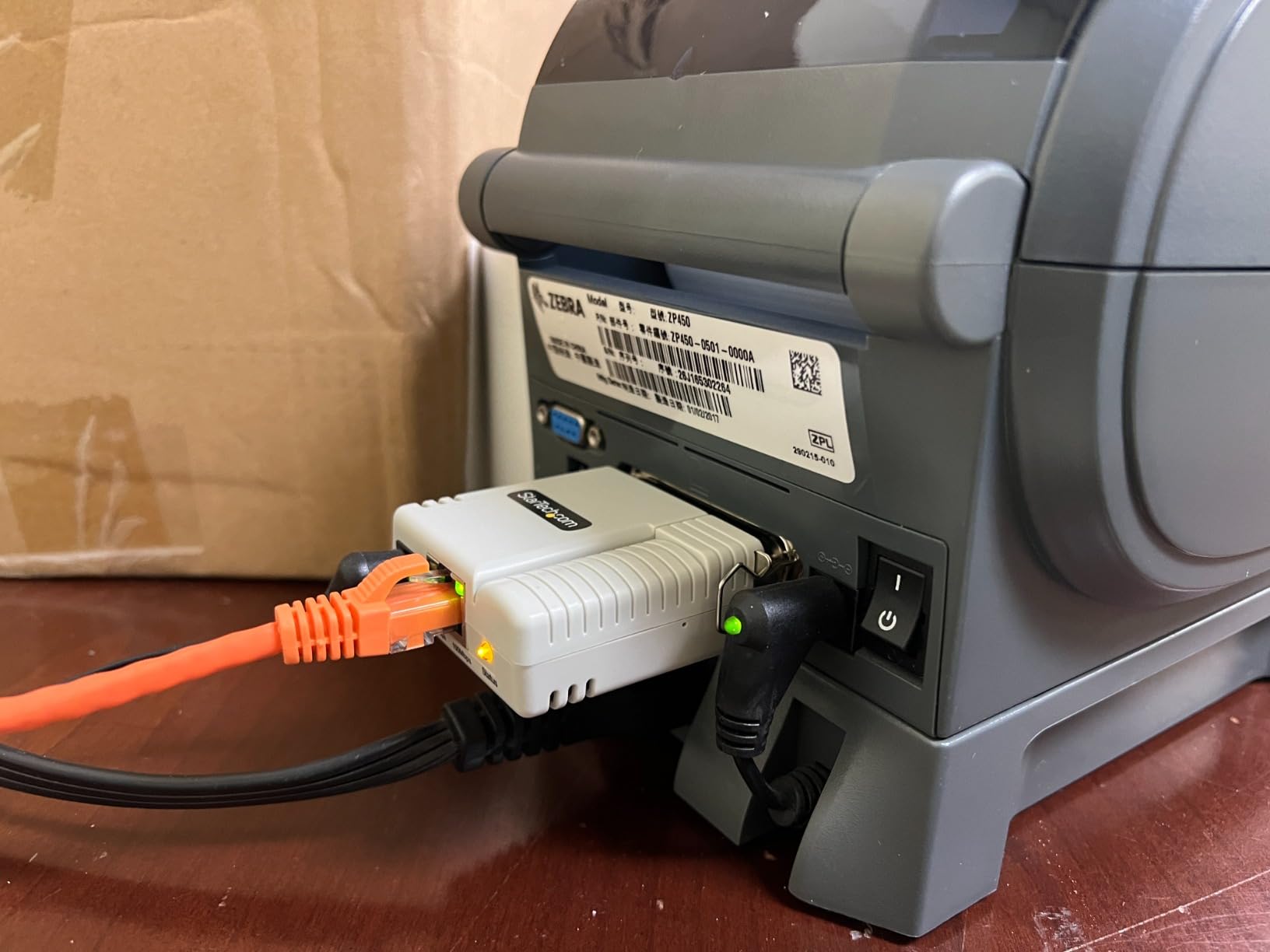
- Proven on Zebra ZP450 label printers across many Windows 11 PCs
- Two-year warranty with a Windows utility and WebUI for queues status and firmware
Cons
- Ships with a default fixed IP of 192.168.0.10 that a DHCP router will not see
- Requires downloading the manual and setup utility from the StarTech site first
- One owner reported the unit stopped working after about a month
- One buyer found it would not replace an older HP Parallel JetDirect
This is the one to buy for shipping labels and inventory hardware, and the review sample is small but strongly positive with a 4.2 rating. The protocol list is the widest in the roundup: 10/100Mbps LAN plus IPP, TCP/IP, LPR, RAW, AppleTalk, NetWare and SMB. That breadth is why it has a track record on Zebra ZP450 label printers spread across many Windows 11 machines.
It also handles laser printers from HP, Epson, Canon, Lexmark and Brother, plus vinyl cutters, which widens the use case considerably. Two-year warranty, 1.6 ounces, and a body of 2.2 x 2.1 x 0.9 inches.
There is one configuration trap that catches nearly everyone. It ships with a default fixed IP of 192.168.0.10, which a DHCP router will not see until you change the protocol to DHCP using the setup software. Download the manual and the utility from the StarTech site first, or you will conclude the unit is faulty.
Why Protocol Breadth Matters for Labels
Label printers are the most protocol-sensitive devices in this category. A unit that only speaks LPR and RAW will quietly ignore a machine that expects SMB or AppleTalk. Supporting seven protocols is what lets technicians point the same box at a Zebra ZP450, a legacy laser or a vinyl cutter without swapping hardware.
Configuration runs through Windows software or the web interface, with a Windows Utility and WebUI covering network and protocol setup, print status and queue, queue reset and firmware upgrades. Network technicians describe the setup as easy once you know about the default IP.
Where It Falls Short
Only 25 reviews, so the sample is thin compared with the StarTech wired unit. A few critical reviews concern durability over time rather than setup, including one owner whose unit stopped working after about a month, and one buyer who found it would not act as a replacement for an older HP Parallel JetDirect.
If your label hardware already has USB and you just need capacity, the three-port Xiiaozet covers more printers on one box. Buy this one for protocol coverage on a single machine, not for flexibility.
How to Set Up a Print Server in Five Steps
Every unit in this roundup follows the same sequence, and the whole job is 30 to 60 minutes for a wired box. Have a laptop and an Ethernet cable ready, because even wireless models usually want a wired link for the initial configuration.
1. Connect the printer to the print server with its USB or Centronics cable, and power the printer on first so it is enumerated before the server looks for it.
2. Connect the print server to the router or a switch with the included network cable, or join it to your 2.4GHz Wi-Fi network if it is a wireless model.
3. Assign an address. Use a DHCP reservation in your router rather than a static IP on the device, and pick an address outside the range the router hands out.
4. Add the printer on each client. In Windows, add a printer, choose TCP/IP device, and enter the IP address. On macOS, add a printer, hold Option, choose TCP/IP, and enter the address or queue name such as LP1.
5. Print a test page from a second computer, then reboot the router and print again. If the second test page fails, your address changed and you skipped step 3 properly.
Print Server Buying Guide: What Actually Matters
Wired Ethernet or Wireless?
Choose wired whenever you can run a cable. A cable through drywall is a weekend project, and after that the connection is faster and immune to the 2.4GHz band problems that cause most wireless complaints. Choose wireless when the printer physically cannot be near the router, or when the printer is in a garage, basement or far room.
One asymmetry is worth knowing: wireless units almost always need a wired Ethernet link during initial configuration, so a cable and a laptop come out of the closet regardless.
LPR, RAW, IPP and Bonjour Explained
These four names describe how a print job travels from your computer to the printer, and choosing a server that speaks the right one avoids the most common disappointment.
LPR is the most compatible and the easiest to configure by hand, since you just type a queue name. RAW is close to universal and the fastest, but it gives no job status. IPP is the modern standard and what macOS and most modern drivers prefer. Bonjour is a discovery protocol rather than a print protocol, which is why a Bonjour-capable server appears automatically on a Mac.
Printers using proprietary host-based protocols such as Canon CAPT or Ricoh DDST speak none of these and will never work on a print server. Check the printer manual for host-based printing before you buy.
Static IP or DHCP Reservation?
This is the single most important reliability decision, and most advice gets it slightly wrong. A printer that disappears after every router reboot is almost always a DHCP lease that changed. System administrators on r/sysadmin consistently recommend leaving the device on DHCP and creating a reservation in the router, so the address never changes hands.
Setting a static IP on the device itself works, but if you later choose that address for another device you get a conflict that is genuinely painful to diagnose. A router-side reservation gives you the same stability with none of that risk. Verify your server supports DHCP; the StarTech PM1115P3 ships on a fixed 192.168.0.10 and must be switched to DHCP first.
AirPrint: The Honest Limitation
Almost no dedicated print server supports AirPrint natively. If your household prints mainly from iPhones and iPads, no amount of configuration will fix that, because the protocol lives in the printer rather than the server. In that case buy a printer with AirPrint built in instead, or run a Raspberry Pi with CUPS, which can expose a shared printer to AirPrint clients.
Wireless units from CHEECENT and Xiiaozet state the exclusion explicitly, and both also rule out phone and tablet printing. This is the most common reason a well-reviewed print server gets returned.
Operating System Compatibility
Windows and macOS are covered by every unit here. Linux is listed by several, including the CHEECENT CR202 and the StarTech PM1115P3, which is reassuring for a household running a Linux desktop. The DS-510 is the outlier: its software layer is Windows-oriented, so a mixed Mac and Linux home should pick a print server instead.
Watch the minimum OS version on older Windows units. The X-MEDIA XM-PS110U’s setup utility is reported not to run on Windows 11, which is now a very common home operating system.
Six Common Buying Mistakes
1. Buying a print server for a printer that already has Wi-Fi. This is the most expensive mistake and the easiest to avoid.
2. Expecting network scanning from a print-only server. Bi-directional USB is a separate feature and is absent from most units.
3. Buying for an iPhone-only household. AirPrint is not supported by dedicated print servers.
4. Ignoring proprietary protocols. CAPT and DDST printers will never print through a print server.
5. Skipping the address assignment. Without a DHCP reservation or static IP, every router reboot breaks every client queue.
6. Assuming plug-and-play. Every unit here needs web interface configuration, and wireless models usually need a cable during setup.
Troubleshooting: Why the Printer Disappears After a Router Reboot
This is the most repeated complaint in home networking forums, and it has a boring, reliable fix. A user in r/printers described having personally had bad experience with dedicated network printers because they would randomly not show up on the network. Another, on the Arch Linux forum, described having to power down and then power up the print server to make Windows recognize the printer again.
Both describe the same underlying cause. The router handed the print server a different address, so the saved port on every client computer now points at nothing. Power cycling works because it forces a new DHCP request, which is why it seems like a random fix.
Open your router’s admin page and create a DHCP reservation for the print server’s MAC address, so it always receives the same IP. That removes the cause instead of resetting the symptom. After that, four things are worth checking in order: confirm the client port still uses the right IP, confirm the print server has power, confirm the printer is out of sleep mode, and confirm the queue is clear.
One more failure mode that gets overlooked. In r/homelab a user was pointed toward checking which users are allowed to access the printer on the server and which credentials the client is using. If your print server is configured with per-user access, a credential change on a client machine will look exactly like a network failure.
DIY Alternatives: Raspberry Pi, NAS, and the Router USB Port
Before buying hardware, check what you already own. This advice comes up repeatedly in self-hosting communities, where the general view is that converting existing infrastructure beats adding a dedicated box.
Your router’s USB port may already be a print server. Many routers support printer sharing from a USB port through firmware settings, which is a free print server with a web interface. It supports LPR, which covers most printers. Check your router manual for a print server or USB sharing option before ordering anything.
A Raspberry Pi running CUPS is the most capable DIY route, and it is also the only way to get AirPrint working on a printer that lacks it. Install Raspberry Pi OS, install CUPS, add the printer on port 631, browse to the CUPS interface to enable AirPrint, then set a static address on the Pi. Expect an hour for a first-timer and real troubleshooting skills afterwards.
A NAS or an always-running server can do the same job. On r/selfhosted and across community support forums the recurring recommendation is to convert a Synology or an existing Unraid box into the print server rather than buy dedicated hardware. Windows 10 and 11 also share USB printers natively, though that keeps the dependency on a machine staying powered on.
Our networking guides cover home servers for media streaming and NAS drives for home media servers if you are weighing the hardware route.
Frequently Asked Questions
What is the best print server for a USB printer?
For most homes, the StarTech PM1115U2 is the best print server for a USB printer. It has one USB 2.0 port, an auto-sensing 10/100Mbps Ethernet port, LPR and Bonjour support, and a two-year warranty. If you have two printers or cannot run a cable to the printer, the CHEECENT CR202 is the better match.
What is a print server and how does it work?
A print server is a small network device that connects a USB or parallel printer to your router over Ethernet or Wi-Fi. It receives print jobs from any device on the network and forwards them to the printer using a protocol such as LPR, RAW or IPP. Because the printer gets its own network address, no computer has to stay powered on to host it.
Can you connect a USB printer to a network?
Yes. Connect the USB printer to a print server with its USB cable, connect the print server to your router with Ethernet or Wi-Fi, then add the printer on each computer using the server’s IP address. In Windows you add a TCP/IP device, and on macOS you add a TCP/IP printer by IP address or by an LPR queue name such as LP1.
Is USB or Ethernet better for printers?
Ethernet is better whenever you can run a cable. It is faster, has no wireless interference, and large jobs will not stall during a video call. Choose wireless only when the printer is physically too far from the router to cable, such as in a garage, basement or an upstairs office. Wireless models usually still need a wired link for initial setup.
Can a print server share a scanner as well?
Most cannot. Standard print servers lack bi-directional USB, so network scanning silently does not work, and buyers often discover this after purchasing. If scanning over the network matters, choose a USB device server such as the Silex DS-510, which shares scanners, multi-function printers, flash drives and webcams alongside printers.
Why does my printer keep disappearing from the network?
Almost always the address changed. Your router handed the print server a new IP address after a reboot, so every saved client port points at nothing. Create a DHCP reservation in your router tied to the print server’s MAC address so it always receives the same address. Also check the printer is out of sleep mode and that the print queue is clear.
How to make your own print server?
The most common DIY method uses a Raspberry Pi. Install Raspberry Pi OS, install the CUPS print server, add your USB printer on port 631, open the CUPS web interface to enable AirPrint sharing, and set a static address on the Pi. Many routers also support printer sharing from a built-in USB port, which costs nothing and covers most LPR-capable printers.
Final Verdict: Which Print Server Should You Buy?
Start by confirming you actually need one. If your printer has Wi-Fi, plug it into the router. If your household is iPhone-only, buy a printer with AirPrint instead of any box on this list. If you need to scan over the network, the Silex DS-510 is the only pick here that does it properly.
For everyone else, the StarTech PM1115U2 is our pick as the best print server for home networks in 2026. It is a plain wired box that does one job, it works on Mac and Windows out of the box once configured, and at 590 ratings it has the largest field history in this group. Forum owners report multi-year continuous uptime on StarTech hardware, and a two-year warranty backs it up. If you need two printers or cannot run a cable, the CHEECENT CR202 is the value pick. Three printers means the three-port Xiiaozet, and Centronics hardware means the X-MEDIA XM-PS110P or the StarTech PM1115P3.
Whatever you buy, set the DHCP reservation before you print anything else. That one step removes the failure that makes people conclude their print server is broken. Our Cat 6 Ethernet cable guide covers the cabling side if you are running the wired option, and our instant print camera review is worth a look if you want printing without a network at all.
