How To Add Mods in Escape From Duckov (September 2026 Guide)
Adding mods to Escape From Duckov is a straightforward process that can dramatically enhance your gameplay experience. Whether you’re using Steam Workshop or installing manually, this comprehensive guide will walk you through every step, from basic installation to advanced mod management, while keeping your game safe and stable.
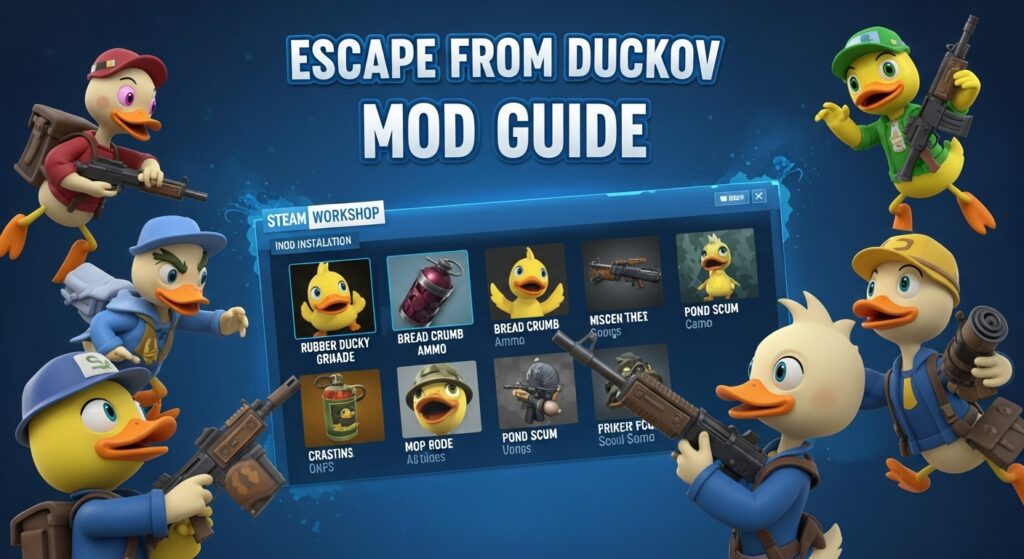
Quick Reference: Mod Installation Basics
| Platform | Installation Method | Time Required | Difficulty Level |
|---|---|---|---|
| Steam | Workshop Subscribe | 2-5 minutes | Beginner |
| Non-Steam | Manual File Placement | 5-10 minutes | Intermediate |
| All Platforms | Mod Management | Ongoing | Beginner |
What Are Escape From Duckov Mods?
Mods in Escape From Duckov are community-created modifications that enhance, tweak, or expand the base game experience. Unlike traditional cheats, these mods are officially supported by Team Soda and designed to improve gameplay without compromising your save files or the game’s integrity. Think of them as your personal toolkit to customize Duckov’s world to match your playstyle.
Contents
The modding ecosystem includes everything from simple quality-of-life improvements to complex gameplay overhauls. As of September 2026, over 92 mods have been published to the Steam Workshop, with new ones being added regularly by the creative community.
Why Use Mods in Escape From Duckov?
Before diving into installation, understand why mods have become so popular in the Duckov community:
- Enhanced Information Display: Get real-time data on item values, boss locations, and match statistics
- Quality of Life Improvements: Streamline inventory management and reduce tedious tasks
- Tactical Advantages: Gain better situational awareness with improved UI elements
- Experimental Gameplay: Test new weapons, mechanics, and even co-op features
- Personalization: Customize your experience to match your preferred playstyle
Steam Workshop Installation (The Easy Method)
For Steam players, installing mods is incredibly simple thanks to the integrated Workshop system. Follow these steps carefully:
Step 1: Prepare Your Game
Before installing any mods, ensure your game is ready:
- Launch Escape From Duckov from your Steam library
- Navigate to the Mods tab in the main menu
- Confirm no mods are currently active (clean slate)
- Exit the game completely – this is crucial!
Step 2: Access Steam Workshop
- Open Steam and go to your Library
- Find Escape From Duckov in your games list
- Click on the game to open its store page
- Scroll down and select the Workshop tab
Inside the Workshop, you’ll find several organized sections:
- Most Popular Mods: Community favorites with high subscription counts
- Most Subscribed Mods: Trending mods gaining traction
- Most Recent Mods: Latest additions to the Workshop
Step 3: Browse and Subscribe
Take your time exploring the available mods. When you find one that interests you:
- Click on the mod’s name to view its details
- Read the description carefully to understand what it does
- Check the comments section for user feedback and potential issues
- Click the Subscribe button (it’s completely free)
Steam will automatically download and install the mod in the background. You can monitor the download progress in Steam’s downloads section.
Step 4: Activate Mods In-Game
Once the download is complete:
- Launch Escape From Duckov again
- Go to the Mods tab in the main menu
- You should see your newly subscribed mod in the list
- Check the box next to the mod to enable it
- The mod’s features will automatically activate in your next session
Manual Installation (Non-Steam Players)
If you purchased Escape From Duckov from other platforms like Epic Games Store, you’ll need to install mods manually:
Step 1: Download Mod Files
- Find mods from community sources (mod creator websites, forums, etc.)
- Download the mod files to your computer
- Always scan downloaded files for malware before proceeding
Step 2: Locate Game Directory
Navigate to your Escape From Duckov installation folder. Common locations include:
- Epic Games:
C:\Program Files\Epic Games\EscapeFromDuckov - GOG:
C:\GOG Games\Escape From Duckov - Microsoft Store:
C:\Program Files\WindowsApps\[Publisher]\EscapeFromDuckov
Step 3: Create Mods Folder
- Inside the game directory, find the
Duckov_Datafolder - Create a new folder named
Mods(if it doesn’t already exist) - This is where all your mod files will go
Step 4: Install Mod Files
- Extract downloaded mod files if they’re in a compressed format
- Copy the extracted files into the
Modsfolder you created - Ensure the folder structure matches the mod creator’s instructions
Step 5: Activate Mods
Launch the game and navigate to the Mods menu to enable your manually installed mods, following the same process as Steam users.
Essential Mods Every Player Should Consider
Based on community feedback and popularity, here are the must-have mods that significantly improve the Escape From Duckov experience:
1. Show the Cost
- Creator: XavierSeal 脑吴
- Function: Displays item sell prices directly in your inventory
- Why It’s Essential: Eliminates guesswork when deciding what loot to keep
- Impact: Reduces time spent in menus, increases raid efficiency
2. Item Value Rarity Display & Search Sounds
- Creator: 土豆宝
- Function: Shows item values and rarity with customizable audio cues
- Why It’s Essential: Quick visual sorting with helpful audio feedback
- Impact: Faster decision-making during looting
3. Display Match Total & Duration
- Creator: 土豆宝
- Function: Shows actual profit and raid duration on UI
- Why It’s Essential: Track your performance and efficiency metrics
- Impact: Better understanding of your raid success rate
4. Live Boss Map Markers
- Creator: Pos 4/5
- Function: Real-time boss location tracking on your map
- Why It’s Essential: Tactical advantage for hunting or avoiding bosses
- Impact: Improved survival rate and quest completion
5. Better Key Indicator
- Creator: Cyerol
- Function: Enhanced visual indicators for keys and locks
- Why It’s Essential: Reduces confusion about which key opens which door
- Impact: Faster access to high-value loot areas
6. Display Cash With Money
- Creator: 土豆宝
- Function: Shows current funds in trading screens and inventory
- Why It’s Essential: Eliminates need to check separate money menus
- Impact: Smoother trading and purchasing experience
7. Ignore Kill Quest Conditions
- Creator: KANGYU
- Function: Removes specific kill method requirements for quests
- Why It’s Essential: Speeds up quest progression significantly
- Impact: Faster achievement completion and less frustration
8. Show Inventory Count
- Creator: 柒音繞弦
- Function: Displays total item counts across raid and base storage
- Why It’s Essential: Better resource management and planning
- Impact: More efficient crafting and upgrade decisions
9. KillFeed
- Creator: FrozenFish259
- Function: Real-time kill notifications for all game events
- Why It’s Essential: Improved situational awareness
- Impact: Better understanding of battlefield dynamics
Advanced Mod Management
As you become more comfortable with mods, you’ll want to manage them more effectively:
Mod Organization Strategies
- Category-Based Grouping: Organize mods by function (UI, gameplay, visual)
- Load Order Management: Some mods may need to load in specific orders
- Mod Profiles: Create different mod combinations for different playstyles
- Regular Updates: Keep mods updated to ensure compatibility
Performance Considerations
Multiple mods can impact game performance. Monitor these factors:
- Loading Times: More mods = longer initial loading
- Memory Usage: Complex mods consume more RAM
- Save File Size: Some mods increase save file sizes
- FPS Impact: Visual and processing mods may affect frame rates
Creating Mod Backups
Always maintain backups of your favorite mods:
- Keep downloaded mod files in a separate folder
- Document mod versions and installation dates
- Save mod configurations and settings
- Maintain a list of active mods for easy restoration
The Experimental Co-Op Mod
One of the most exciting developments in the Duckov modding scene is the experimental co-op mod. While Escape From Duckov is officially a single-player experience, this community project aims to add multiplayer functionality:
Current Features
- Synchronized Maps: All players see the same map state
- Independent Warehouses: Personal stash management
- Shared Workbench Progress: Team-based crafting advancement
- Lootable Teammate Corpses: High-stakes team gameplay
- Friendly Fire: Explosives can damage teammates (adds tactical depth)
Important Considerations
- Early Development: This mod is in testing phases
- Potential Bugs: Expect instability and incomplete features
- Performance Impact: Multiplayer requires more resources
- Future Updates: The mod is actively being developed
How to Access?
The co-op mod is typically available through the Steam Workshop or dedicated modding community forums. Check the official Discord server for the latest information and download links.
Mod Safety and Risk Management
While mods are generally safe, it’s important to understand and mitigate potential risks:
Common Risks
- Game Crashes: Poorly optimized mods can cause instability
- Save File Corruption: Rare but possible with conflicting mods
- Performance Issues: Some mods may significantly impact FPS
- Mod Conflicts: Multiple mods may not work well together
- Security Concerns: Download from untrusted sources
Essential Safety Precautions
Backup Your Save Files
Before installing any mods, create backups:
- Navigate to:
%appdata%/../locallow/teamsoda/duckov - Copy the entire folder to a safe location
- Repeat this process regularly
Test Mods Individually
- Install one mod at a time
- Test thoroughly before adding another
- Keep notes on which mods cause issues
- Remove problematic mods immediately
Stay Informed
- Read mod descriptions and comments
- Check for recent updates and bug reports
- Follow mod creators for compatibility notices
- Join community discussions about mod issues
Troubleshooting Common Issues
Mods Not Appearing In-Game
- Problem: Subscribed mods don’t show in the Mods menu
- Solutions:
- Restart Steam completely
- Verify game files through Steam
- Check if you’re playing offline (some mods require online)
- Ensure mods are properly subscribed
Game Crashes on Launch
- Problem: Game crashes after installing mods
- Solutions:
- Disable all mods and test vanilla game
- Re-enable mods one by one to identify the culprit
- Check for mod conflicts in the comments section
- Update or remove problematic mods
Performance Degradation
- Problem: Significant FPS drop after adding mods
- Solutions:
- Disable visual enhancement mods first
- Reduce the number of active mods
- Check mod settings for performance options
- Monitor system resources while playing
Official Modding Guidelines
Team Soda has established clear guidelines for the modding community. Understanding these rules helps ensure a positive experience for everyone:
Content Restrictions
- No Illegal Content: Mods cannot include illegal materials or promote harmful activities
- No Malicious Content: Mods designed to cause harm or disrupt gameplay are prohibited
- Respect Copyright: No unauthorized use of third-party assets
- No Commercial Exploitation: Mods cannot include ads or payment requests
- AI Content Disclosure: AI-generated content must be clearly labeled
Community Standards
- Positive Environment: Contribute to a constructive modding community
- Credit Where Due: Respect other creators’ work
- Quality Focus: Strive for stable, well-tested mods
- Responsive Support: Provide help for users of your mods
Consequences for Violations
- Mod Removal: Violating mods may be removed without warning
- Account Restrictions: Repeat offenders may lose modding privileges
- Community Action: Serious violations may result in broader consequences
Creating Your Own Mods
For those interested in creating mods, Team Soda provides official support:
Getting Started
- Download the Mod Development Guide from official channels
- Join the Official Discord for creator support
- Fill out the Creator Form for official recognition
- Start Simple with basic UI or gameplay tweaks
Official Support Benefits
Creators who register with Team Soda receive:
- Early Access: Upcoming development builds
- Promotion: Featured mods on official social media
- Direct Support: Developer assistance for technical issues
- Community Recognition: Official endorsement of quality mods
Best Practices for Mod Creators
- Test Thoroughly: Ensure mods are stable before release
- Document Clearly: Provide comprehensive installation and usage instructions
- Support Users: Respond to questions and bug reports
- Update Regularly: Keep mods compatible with game updates
- Collaborate: Work with other creators for better mods
Platform-Specific Considerations
Steam Deck Users
- Verification Status: Check if mods are Steam Deck compatible
- Performance Impact: Mobile hardware may struggle with multiple mods
- Control Schemes: Some UI mods may not work well with controller input
- Storage Space: Limited storage means careful mod selection
Epic Games Store Users
- Manual Installation Only: No Workshop integration
- Update Management: Manual updates required for both game and mods
- Cross-Platform Play: Mods may affect multiplayer compatibility
- Cloud Saves: Mod conflicts may impact cloud save functionality
Console Players
- Limited Mod Support: Console versions may have restricted mod access
- Official Mods Only: Some platforms only allow curated mods
- Performance Constraints: Console hardware limitations apply
- Account Security: Console mod policies may differ from PC
Community Resources and Support
Official Resources
- Official Discord Server: Join for real-time discussions and support
- Direct developer communication
- Mod creator community
- Technical support channels
- Announcement updates
- Steam Community Hub: Forums and discussions
- Mod troubleshooting threads
- Creator announcements
- User feedback and reviews
- Technical support guides
- Official Twitter (@GameDuckov): Latest news and updates
- Developer announcements
- Mod spotlights
- Community highlights
- Event information
Community Resources
- Modding Communities: Dedicated forums and subreddits
- Mod recommendations
- Technical tutorials
- Creator spotlights
- Bug reporting
- Wiki and Knowledge Bases: Comprehensive game information
- Mod compatibility lists
- Installation guides
- Troubleshooting databases
- Best practices
- Content Creators: Video guides and tutorials
- Installation walkthroughs
- Mod showcases
- Performance comparisons
- Creator interviews
Future of Escape From Duckov Modding
The modding scene for Escape From Duckov continues to evolve rapidly. Based on developer communications and community trends, here’s what to expect:
Upcoming Features
- Enhanced Mod Tools: More robust creation and management tools
- Workshop Improvements: Better organization and discovery features
- Performance Optimization: Reduced impact on game performance
- Cross-Platform Support: Expanded mod availability across platforms
Community Trends
- Quality of Life Focus: Continued emphasis on UI and usability improvements
- Co-op Development: Growing interest in multiplayer modifications
- Visual Enhancements: More graphics and visual effect mods
- Gameplay Expansions: Mods adding new content and features
Developer Commitment
Team Soda has shown strong commitment to supporting the modding community:
- Regular updates to modding tools
- Active engagement with creators
- Promotion of outstanding mods
- Consideration of popular mods for official features
Frequently Asked Questions
Are mods safe to use in Escape From Duckov?
Yes, mods are generally safe when downloaded from official sources like the Steam Workshop. However, always backup your save files before installing mods and be aware that community-created content may occasionally have bugs or compatibility issues.
Can mods get me banned?
No, Team Soda officially supports modding and will not ban players for using mods. However, mods that violate the official guidelines (such as those containing illegal content or malware) may result in removal from the Workshop.
Do mods work in multiplayer?
Escape From Duckov is primarily a single-player game, so most mods are designed for solo play. The experimental co-op mod is being developed by the community but is still in early testing phases.
How many mods can I use at once?
There’s no strict limit, but performance may degrade with too many active mods. Start with 3-5 essential mods and gradually add more while monitoring performance. Most players find 10-15 mods to be a comfortable maximum.
Can I use mods on non-Steam versions?
Yes, but you’ll need to install them manually. Non-Steam players can download mod files from community sources and place them in the game’s Duckov_Data/Mods folder.
What should I do if a mod breaks my game?
First, disable all mods and test the vanilla game. If the game works, re-enable mods one by one to identify the problematic one. Check the mod’s comments section for known issues and contact the mod creator for support.
Are mods updated when the game updates?
Not automatically. Mod creators must update their mods to maintain compatibility with game updates. Check mod pages for update announcements and be patient after major game updates.
Can I create my own mods?
Absolutely! Team Soda encourages mod creation and provides official documentation and support. Join the official Discord and fill out the creator form for access to development resources and potential early access to upcoming features.
Do mods affect achievements?
Most mods do not affect achievement progress, but some gameplay-altering mods might. Check individual mod descriptions for information about achievement compatibility.
How do I report a problem with a mod?
For mod-specific issues, contact the mod creator directly through the Steam Workshop comments or their preferred communication channel. For general modding support, join the official Discord community.
Final Thoughts
The Escape From Duckov modding community represents one of the most vibrant and creative aspects of the game. With official support from Team Soda and over 92 mods already available, players have unprecedented opportunities to customize and enhance their experience.
Remember to approach modding responsibly: backup your saves, test mods individually, and stay informed about updates and potential issues. The community is generally helpful and welcoming, so don’t hesitate to ask questions and share your experiences.
Whether you’re looking to streamline your inventory management, gain tactical advantages, or experiment with new gameplay features, there’s likely a mod that fits your needs. And if you can’t find exactly what you’re looking for, consider creating it yourself – the tools and support are available, and the community is eager to see what creative solutions players can develop.
As the modding scene continues to evolve, we can expect even more innovative and exciting additions to the Escape From Duckov experience. Stay engaged with the community, keep your mods updated, and most importantly, have fun exploring the enhanced world of Duckov!