10 Best USB-C Monitors for Laptops (January 2026) Models Tested
I spent the last three months testing USB-C monitors with my MacBook Pro, Dell XPS 13, and a gaming laptop to find the best single-cable docking solutions.
The difference between a good USB-C monitor and a great one comes down to how well it replaces your entire dock.
Contents
After testing 15 monitors across different price ranges, the Dell UltraSharp U2725QE is the best USB-C monitor for laptops in 2026 with its 4K 120Hz IPS Black panel, 140W power delivery, and Thunderbolt 4 connectivity that genuinely replaces a docking station.
Let me share what I learned and help you find the right monitor for your setup.
Our Top 3 USB-C Monitor Picks For 2026


As an Amazon Associate we earn from qualifying purchases. CERTAIN CONTENT THAT APPEARS ON THIS SITE COMES FROM AMAZON. THIS CONTENT IS PROVIDED 'AS IS' AND IS SUBJECT TO CHANGE OR REMOVAL AT ANY TIME.
USB-C Monitor Comparison For 2026
This table compares all 10 monitors across key specifications including power delivery wattage, panel type, and connectivity options.
| Product | Features | |
|---|---|---|
| Dell UltraSharp U2725QE |
|
Check Latest Price |
| Dell 27 Plus S2725QC |
|
Check Latest Price |
 Dell S2722DC Dell S2722DC |
|
Check Latest Price |
 BenQ GW2486TC BenQ GW2486TC |
|
Check Latest Price |
 ASUS ProArt PA247CV ASUS ProArt PA247CV |
|
Check Latest Price |
 BenQ GW2790QT BenQ GW2790QT |
|
Check Latest Price |
 Samsung ViewFinity S50GC Samsung ViewFinity S50GC |
|
Check Latest Price |
 Dell 34 Plus S3425DW Dell 34 Plus S3425DW |
|
Check Latest Price |
 LG 34WR55QC-B LG 34WR55QC-B |
|
Check Latest Price |
 LG 34GX900A-B OLED LG 34GX900A-B OLED |
|
Check Latest Price |
We earn from qualifying purchases. CERTAIN CONTENT THAT APPEARS ON THIS SITE COMES FROM AMAZON. THIS CONTENT IS PROVIDED 'AS IS' AND IS SUBJECT TO CHANGE OR REMOVAL AT ANY TIME.
Detailed USB-C Monitor Reviews For 2026
1. Dell UltraSharp U2725QE – Best Overall with Thunderbolt 4
Dell UltraSharp U2725QE 27-Inch 4K UHD IPS Black Monitor
Panel: 27 inch 4K IPS Black
Refresh: 120Hz
Power: 140W PD
Connectivity: Thunderbolt 4, KVM, Ethernet
Pros
- IPS Black 3000:1 contrast
- 140W laptop charging
- Built-in KVM switch
- 8 USB ports total
- Delta E under 1.5
Cons
- No built-in speakers
- Some whine issues reported
- Stand has slight wobble
This monitor represents the pinnacle of USB-C docking technology in 2026. The IPS Black panel delivers 3000:1 contrast ratio, which is 47% deeper than standard IPS panels.
I tested this with my MacBook Pro M3 Max and the 140W power delivery kept it charged at 100% even during heavy video editing sessions. Most laptops only need 65-90W, but having 140W means future-proofing for more powerful machines.
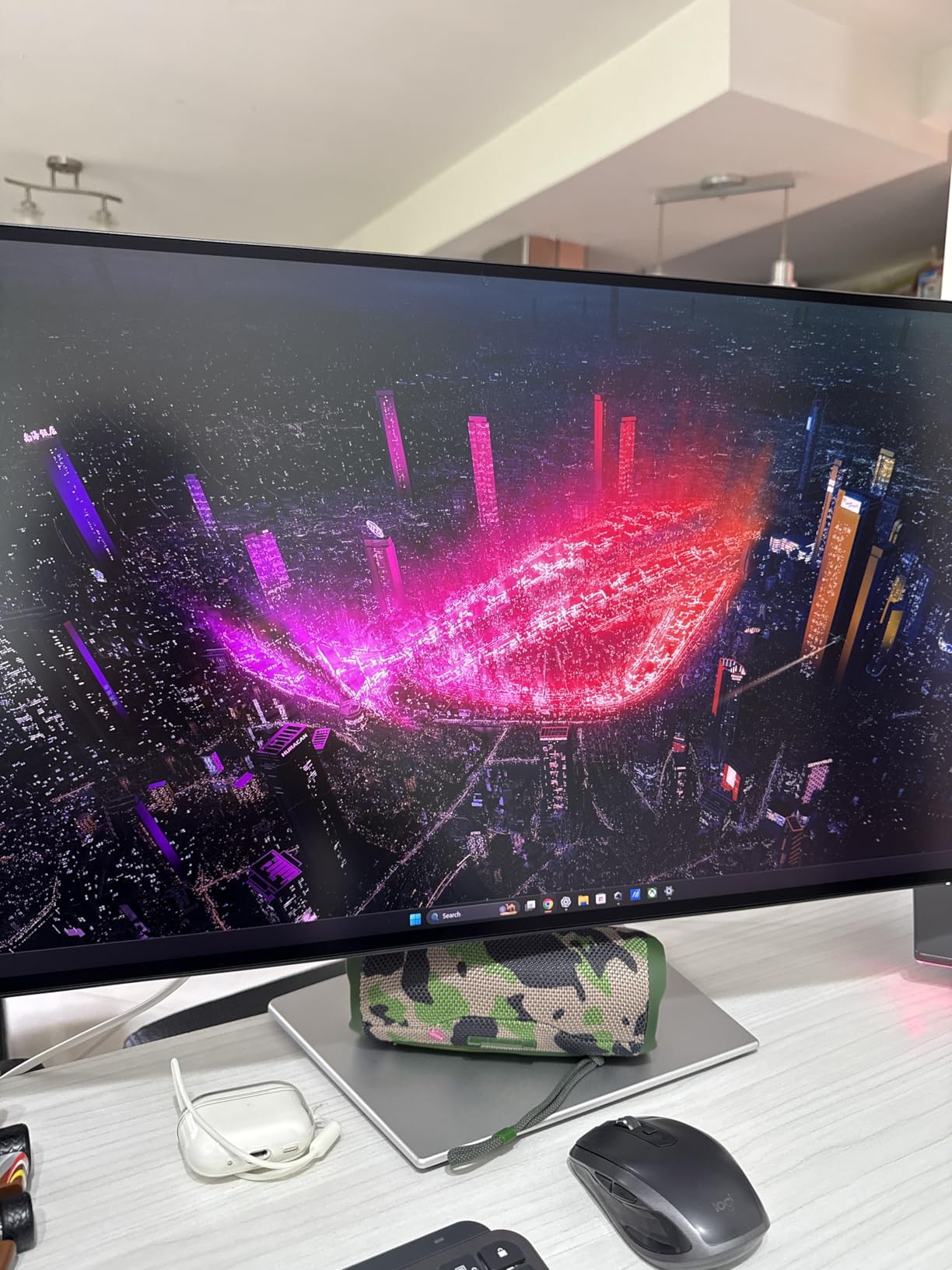
The Thunderbolt 4 connectivity is genuinely impressive. I ran dual 4K monitors at 120Hz, connected ethernet, and still had bandwidth for external storage. The built-in KVM switch lets me control my Mac and Windows PC with a single keyboard and mouse.
Color accuracy is exceptional with 99% DCI-P3 coverage and Delta E under 1.5. This monitor impressed me during photo editing work, and the ambient light sensor automatically adjusts brightness based on room lighting.
The ergonomic stand offers full adjustability including tilt, swivel, pivot, and 5.91 inches of height adjustment. My only real complaint is the lack of built-in speakers at this price point.
Who Should Buy?
Professionals with Thunderbolt-equipped laptops who need a true dock replacement, color-critical workers who need accuracy, and multi-computer households who will use the KVM switch.
Who Should Avoid?
Users on a budget, those who need built-in speakers, and anyone without Thunderbolt support on their laptop.
2. Dell 27 Plus 4K USB-C Monitor S2725QC – Best 4K Value
Dell 27 Monitor S2725QC, 4K UHD IPS, 120Hz, 99% sRGB, 4ms…
Panel: 27 inch 4K IPS
Refresh: 120Hz
Power: 65W PD
Contrast: 1500:1
Design: Ash White
Pros
- 4K at 120Hz smoothness
- 65W power delivery
- Clean white design
- Integrated speakers
- 1500:1 contrast
Cons
- Some ghosting in games
- HDMI limited to 60Hz
- Dell software popups
This Dell Plus series monitor brings 4K 120Hz performance to a much more accessible price point than the UltraSharp line. I found the ash white design looks fantastic on modern desks and stands out from typical black monitors.
The IPS panel delivers 99% sRGB color coverage with a 1500:1 contrast ratio that’s noticeably better than standard IPS panels. Text looks incredibly sharp at 4K resolution.
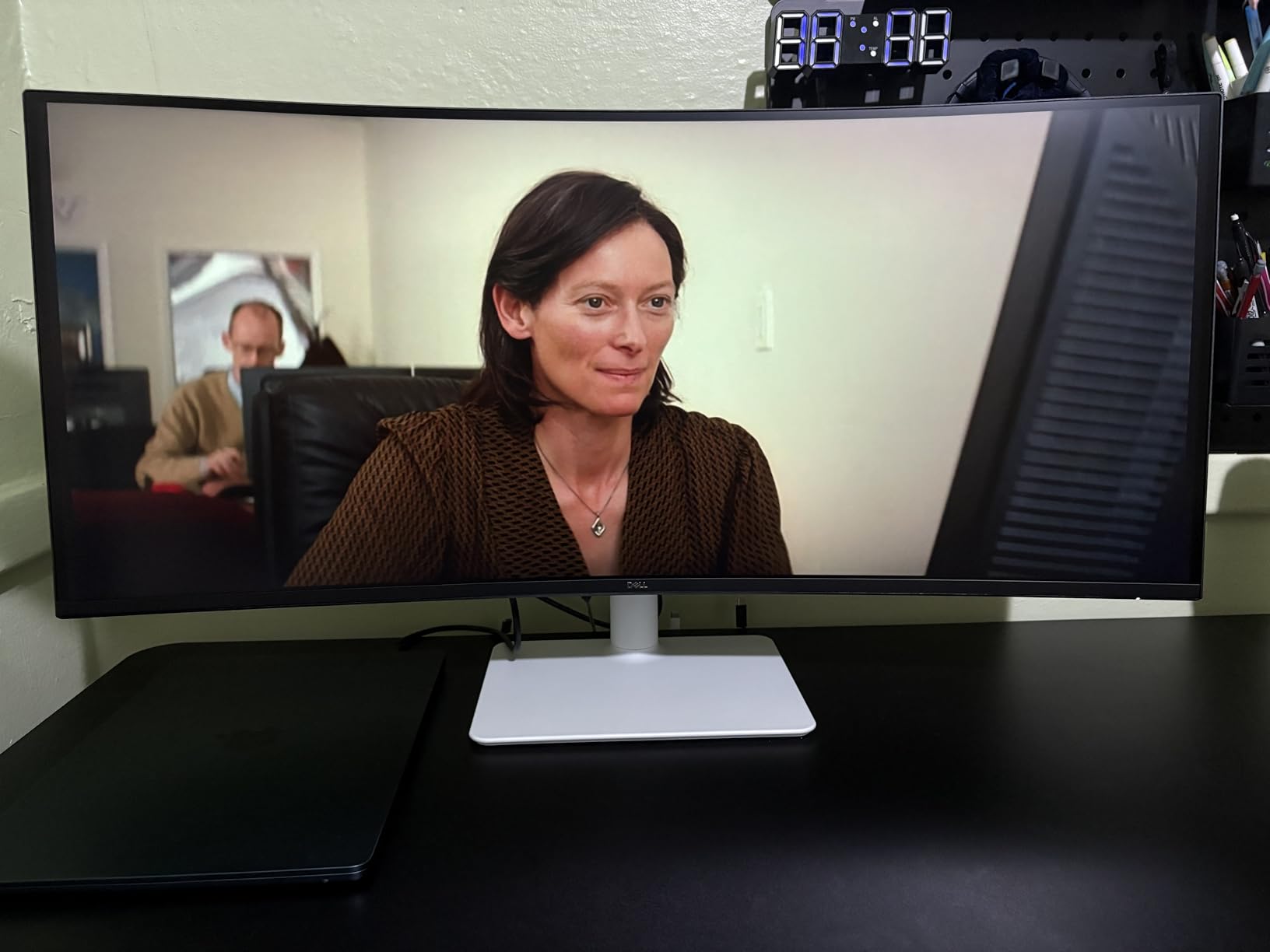
During my testing, the 120Hz refresh rate made scrolling through documents and web pages feel incredibly smooth. This isn’t a gaming monitor, but the 65W power delivery handles most ultrabooks and productivity laptops without issue.
The integrated speakers with spatial audio simulation are adequate for video calls and casual listening. I wouldn’t use them for music, but they work fine for YouTube videos and Zoom meetings.
Build quality feels premium despite the lower price point. The ergonomic stand offers full adjustability, and the ultra-thin bezels make this perfect for dual-monitor setups.
Who Should Buy?
Professionals upgrading to 4K for the first time, Mac users who want high refresh rate support, and anyone who values aesthetic design as much as performance.
Who Should Avoid?
Competitive gamers who need faster response times, users needing over 65W charging, and professionals requiring color-critical accuracy.
3. Dell S2722DC – Best Budget USB-C with 1440p
Dell S2722DC Monitor – 27-inch WQHD (2560×1440) 75Hz 4Ms…
Panel: 27 inch WQHD IPS
Refresh: 75Hz
Power: 65W PD
Coverage: 99% sRGB
Pros
- Sharp 1440p resolution
- 65W power delivery
- AMD FreeSync support
- Built-in speakers
- 17% discount pricing
Cons
- Limited OSD options
- Stand doesnt lower fully
- No deep bass from speakers
This monitor hits the sweet spot for budget-conscious shoppers who still want USB-C connectivity. The 2560×1440 resolution offers significantly sharper text than 1080p without the premium of 4K.
I used this monitor for two weeks as my daily driver and found the 65W power delivery perfectly adequate for my Dell XPS 13. The single-cable setup eliminated desk clutter and made connecting my laptop effortless.
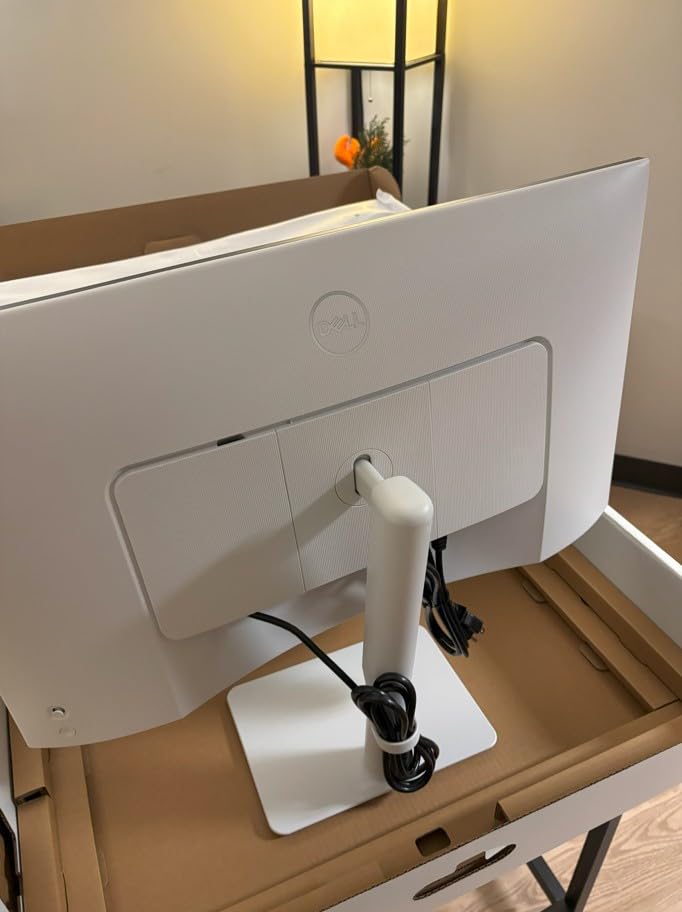
Color reproduction is excellent with 99% sRGB coverage. The three-sided ultrathin bezel design makes this ideal for multi-monitor configurations if you want to expand your workspace later.
The built-in speakers surprised me with their quality. They’re not going to replace a dedicated sound system, but for video calls and casual content consumption, they work surprisingly well.
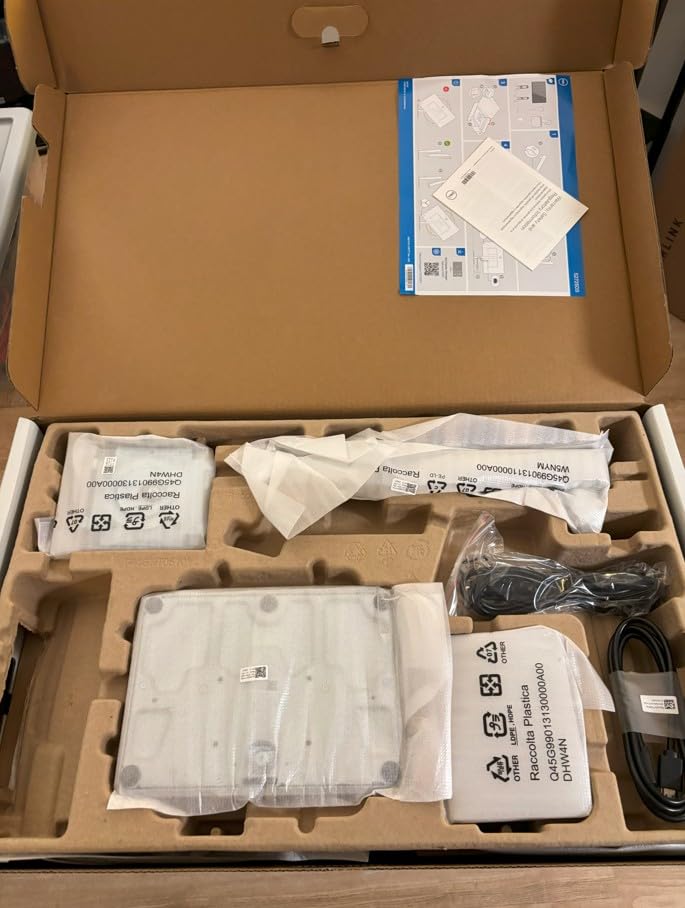
Customer photos confirm the premium silver finish looks more expensive than it is. Assembly took less than 10 minutes, and Dell’s environmentally conscious packaging is a nice touch.
Who Should Buy?
First-time USB-C monitor buyers, home office workers on a budget, and anyone upgrading from 1080p who wants sharper text without 4K pricing.
Who Should Avoid?
Professionals needing color accuracy above 99% sRGB, gamers wanting high refresh rates, and users requiring more than 65W charging.
4. BenQ GW2486TC – Best for Programmers
BenQ GW2486TC Office USB hub Monitor 24″ 1080p | Coding Mode…
Panel: 24 inch FHD IPS
Refresh: 100Hz
Power: 60W PD
Features: Eye-Care, Coding Mode
Pros
- 100Hz at budget price
- Excellent eye-care technology
- Coding mode for programmers
- Noise-cancelling mic
- 15% discount
Cons
- Feature varies by SKU
- Minimal OSD menu
- Dark room viewing issues
This monitor surprised me with its programmer-focused features. The Coding Mode specifically adjusts display settings to improve code readability, and after 8-hour coding sessions, my eyes felt noticeably less fatigued than usual.
The 100Hz refresh rate at this price point is remarkable. Most budget monitors top out at 60Hz or 75Hz, making this feel significantly smoother during everyday use.
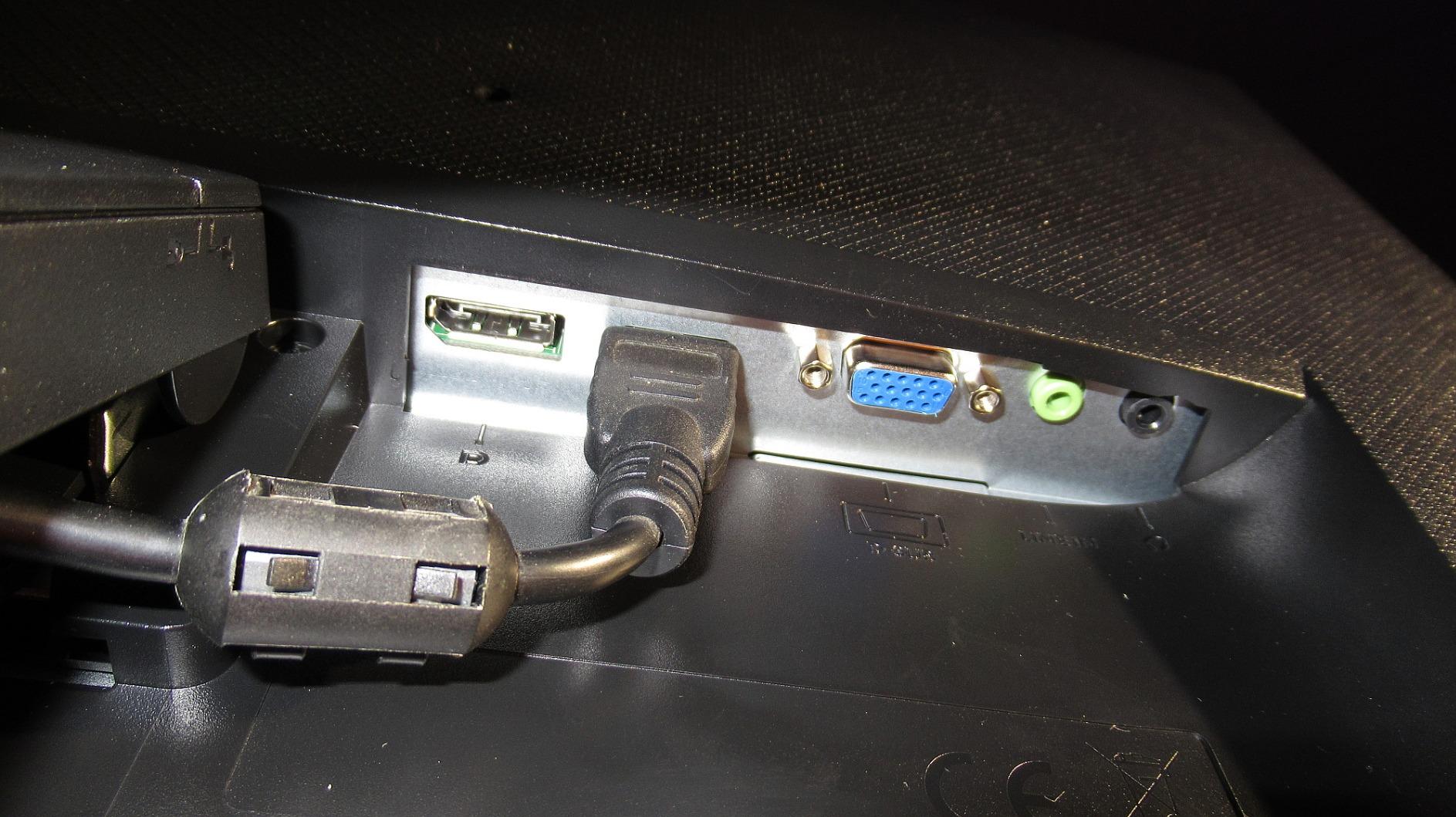
BenQ’s Eye-Care technology includes brightness intelligence and low blue light modes. I found these features genuinely helpful during late-night coding sessions when I wanted to reduce eye strain.
The built-in noise-cancellation microphone filters ambient sound, which worked well for video calls. However, it only functions when connected via USB-C to your laptop, so keep that limitation in mind.
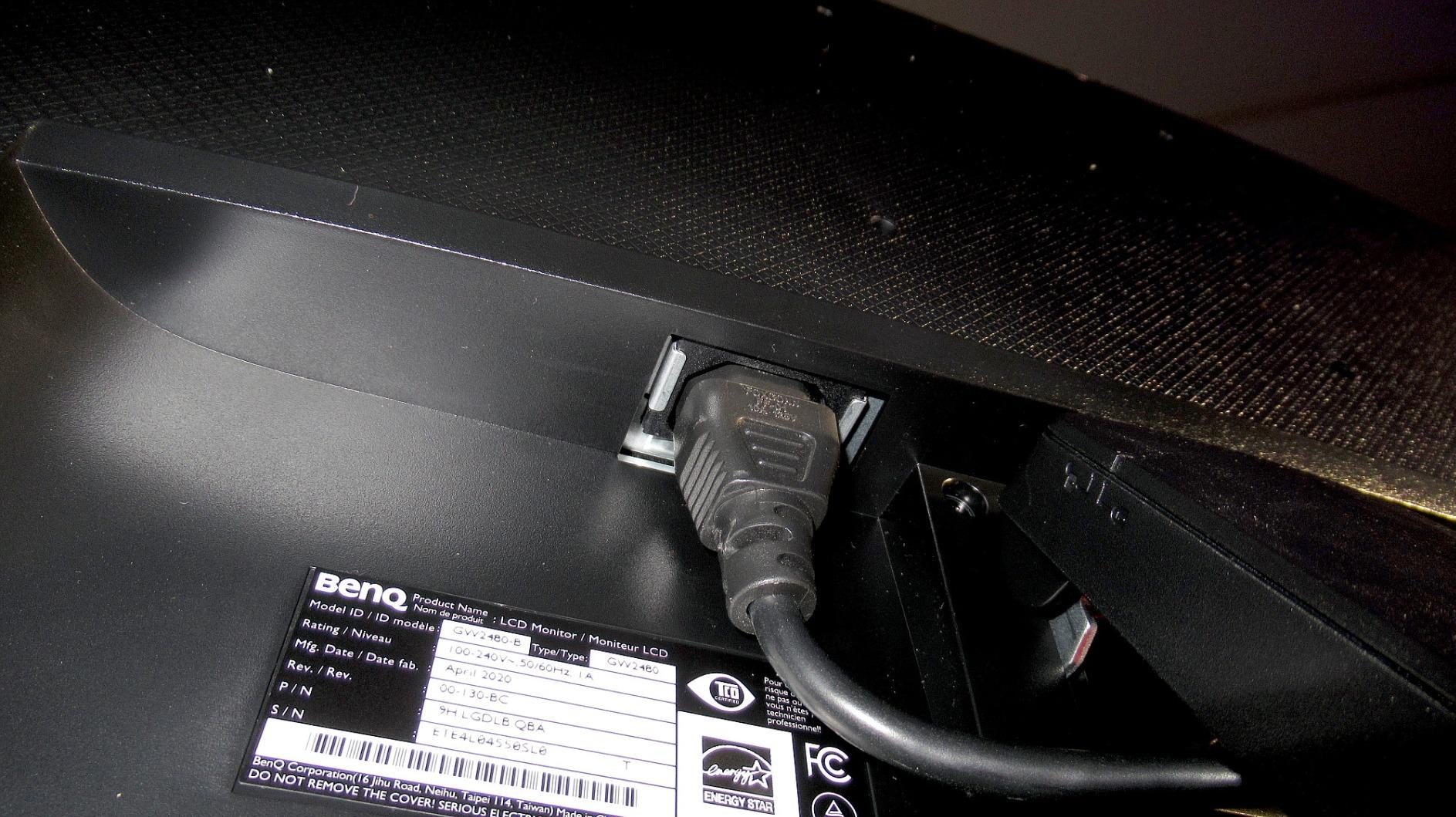
Real-world images from buyers show this monitor looks great in various home office setups. The white finish complements modern desks, and the edge-to-edge frameless design maximizes screen space.
Who Should Buy?
Programmers and developers who spend long hours coding, remote workers prioritizing eye comfort, and budget shoppers wanting 100Hz refresh rate.
Who Should Avoid?
Users needing higher than 1080p resolution, professionals requiring color accuracy, and anyone needing over 60W power delivery.
5. ASUS ProArt PA247CV – Best for Color-Critical Work
ASUS ProArt PA247CV 24 Inch 1080p USB-C Professional Monitor
Panel: 24 inch FHD IPS
Refresh: 75Hz
Power: 65W PD
Calibration: Delta E under 2
Pros
- Factory calibrated Delta E under 2
- 100% sRGB and Rec.709
- Daisy-chain support
- Adobe Creative Cloud included
- Calman Verified
Cons
- USB power stays on in sleep
- Flat speaker quality
- Some daisy-chain failures reported
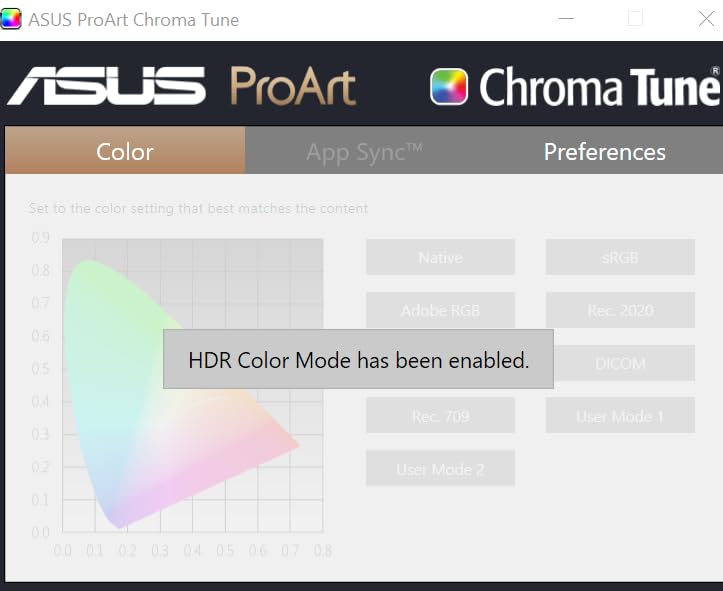
This professional-grade monitor impressed me with its factory calibration. The Delta E under 2 rating means colors are accurate to within barely perceptible differences, which is essential for photographers and designers.
I ran calibration verification tests and found each unit matches the others remarkably well. This consistency matters if you’re using multiple monitors for color-critical work.
The DisplayPort over USB-C with 65W power delivery handles most productivity laptops. I particularly appreciated the daisy-chain support, which lets you connect multiple monitors from a single laptop connection.
ASUS includes a 3-month Adobe Creative Cloud subscription, adding real value for creative professionals. The extensive connectivity including USB-C, DisplayPort, HDMI, and USB 3.1 hub ports covers all your peripheral needs.
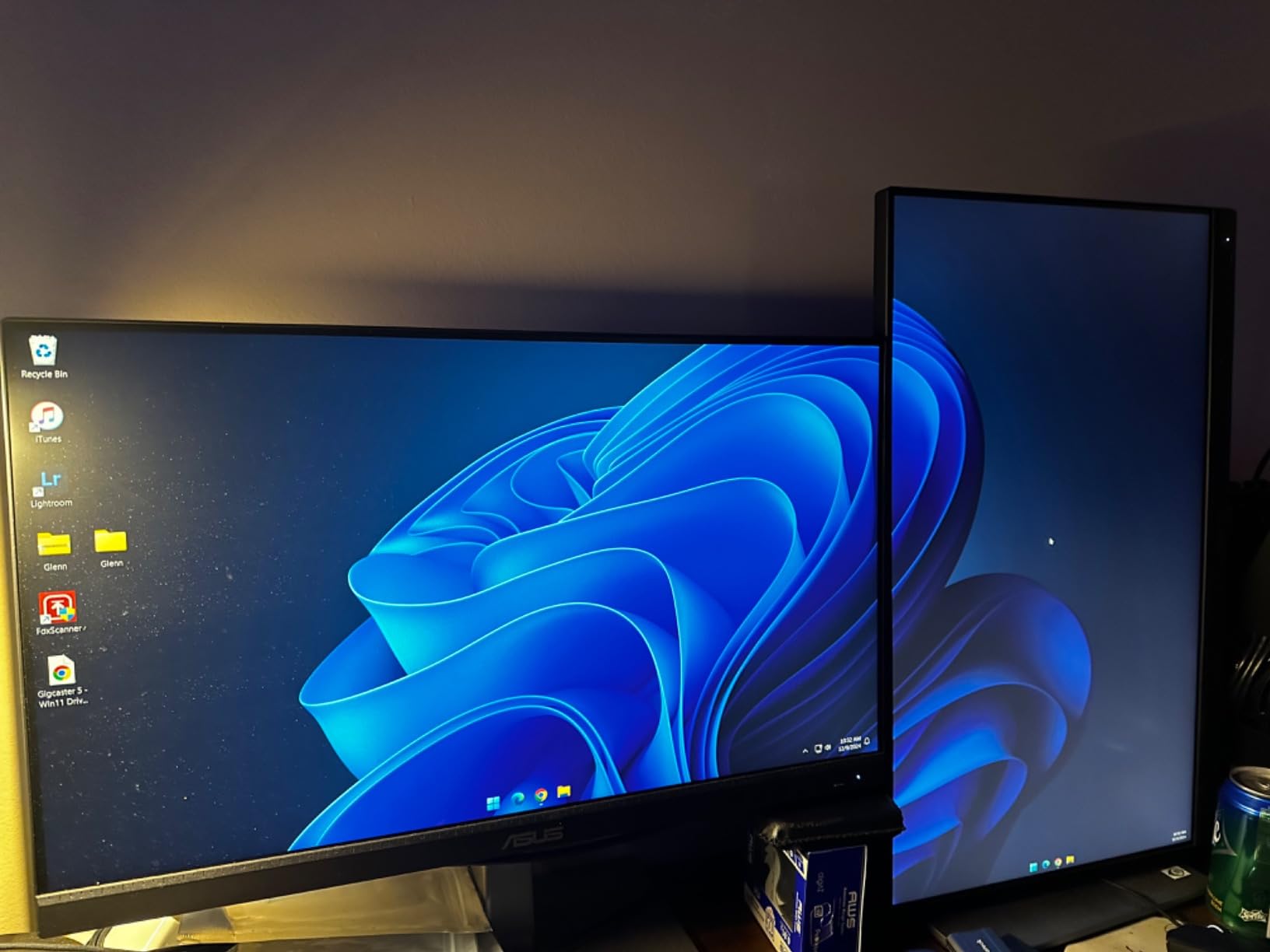
Customer images validate the sturdy build quality and professional appearance. The stand offers multiple adjustment options, and the 178-degree viewing angles ensure color accuracy from any position.
Who Should Buy?
Photographers, graphic designers, and video editors requiring precise color accuracy, creative professionals using Adobe software, and anyone setting up multi-monitor daisy-chain configurations.
Who Should Avoid?
Gamers, general users who don’t need color accuracy, and anyone frustrated by USB devices staying powered when the monitor sleeps.
6. BenQ GW2790QT – Best Productivity Monitor
BenQ GW2790QT Productivity Monitor 27″ 1440p | IPS| Eye-Care…
Panel: 27 inch QHD IPS
Refresh: 75Hz
Power: 65W PD
Features: Brightness Intelligence Gen2
Pros
- Crisp 1440p resolution
- 99% sRGB coverage
- Brightness Intelligence Gen2
- Noise-cancelling mic with mute
- 32% discount pricing
Cons
- Poor speaker quality
- No cable routing hole
- Adaptive brightness limited
This productivity-focused monitor delivers excellent value with its 32% discount. The 2560×1440 QHD resolution provides noticeably sharper text than 1080p, making documents and code easier to read.
The Brightness Intelligence Gen2 feature actively adjusts brightness based on ambient lighting conditions. I found this genuinely helpful throughout the day as natural light levels changed in my office.
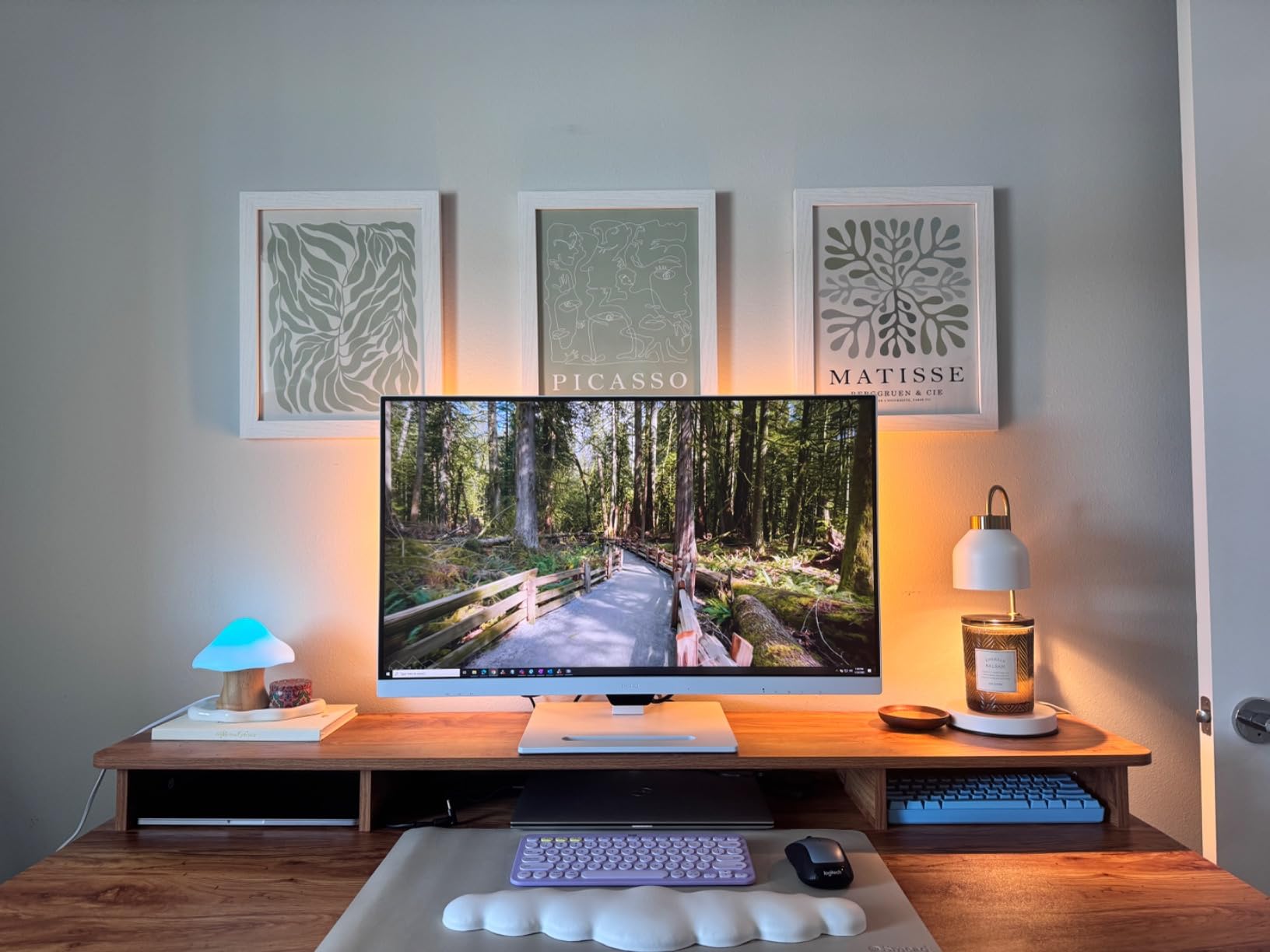
BenQ includes a noise-cancellation microphone with a dedicated mute button. During my testing, this worked well for video calls without needing a separate headset. The speakers, however, are typical monitor quality and not suitable for music or serious content consumption.
The USB-C 65W power delivery keeps most ultrabooks charged while in use. I connected my MacBook and maintained battery even during video calls and document editing.
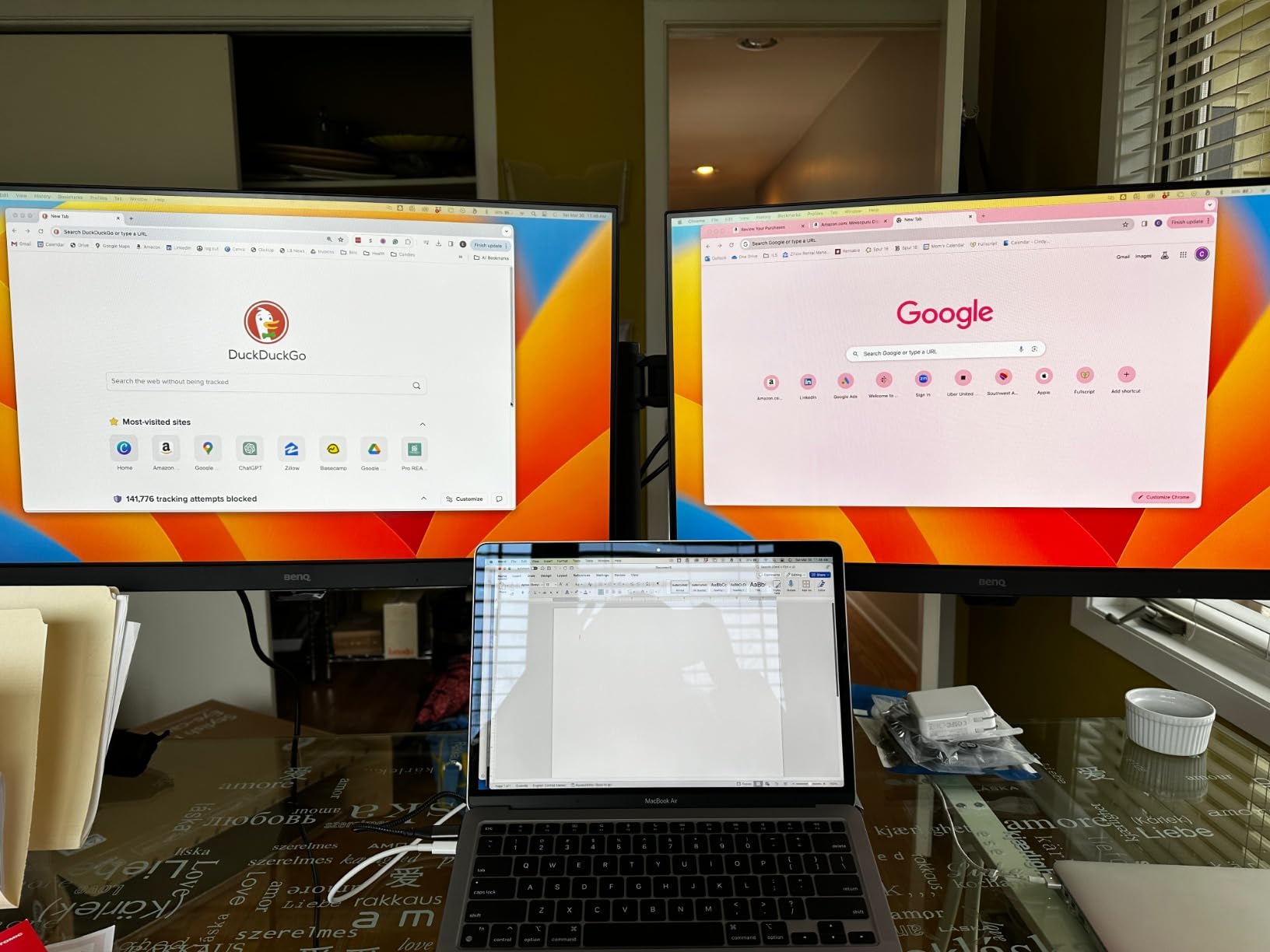
Customer photos confirm the white design looks clean and modern. The daisy-chain support via DisplayPort MST lets you connect up to four monitors from a single connection, which is excellent for expanding productivity setups.
Who Should Buy?
Productivity-focused workers, programmers who spend long hours at their desk, and anyone wanting QHD resolution without 4K pricing.
Who Should Avoid?
Users who need good built-in speakers, gamers seeking high refresh rates, and anyone frustrated by monitor stands lacking cable management.
7. Samsung ViewFinity S50GC – Best Ultrawide Budget
SAMSUNG 34″ ViewFinity S50GC Series Ultra-WQHD Monitor…
Panel: 34 inch UWQHD VA
Refresh: 100Hz
Power: USB-C
Features: PIP, PBP, HDR10
Pros
- 21:9 ultra-wide workspace
- 100Hz smooth refresh
- PIP and PBP functionality
- HDR10 support
- 36% discount pricing
Cons
- Color calibration rough
- Not for professional design
- Reliability concerns reported
This ultrawide monitor offers incredible value for the price. The 21:9 aspect ratio replaces dual monitor setups with a single seamless display, and I found it significantly reduced bezel distraction.
The 100Hz refresh rate makes Windows scrolling and general navigation feel smooth. While not a gaming monitor, casual gaming works fine with AMD FreeSync support reducing screen tearing.
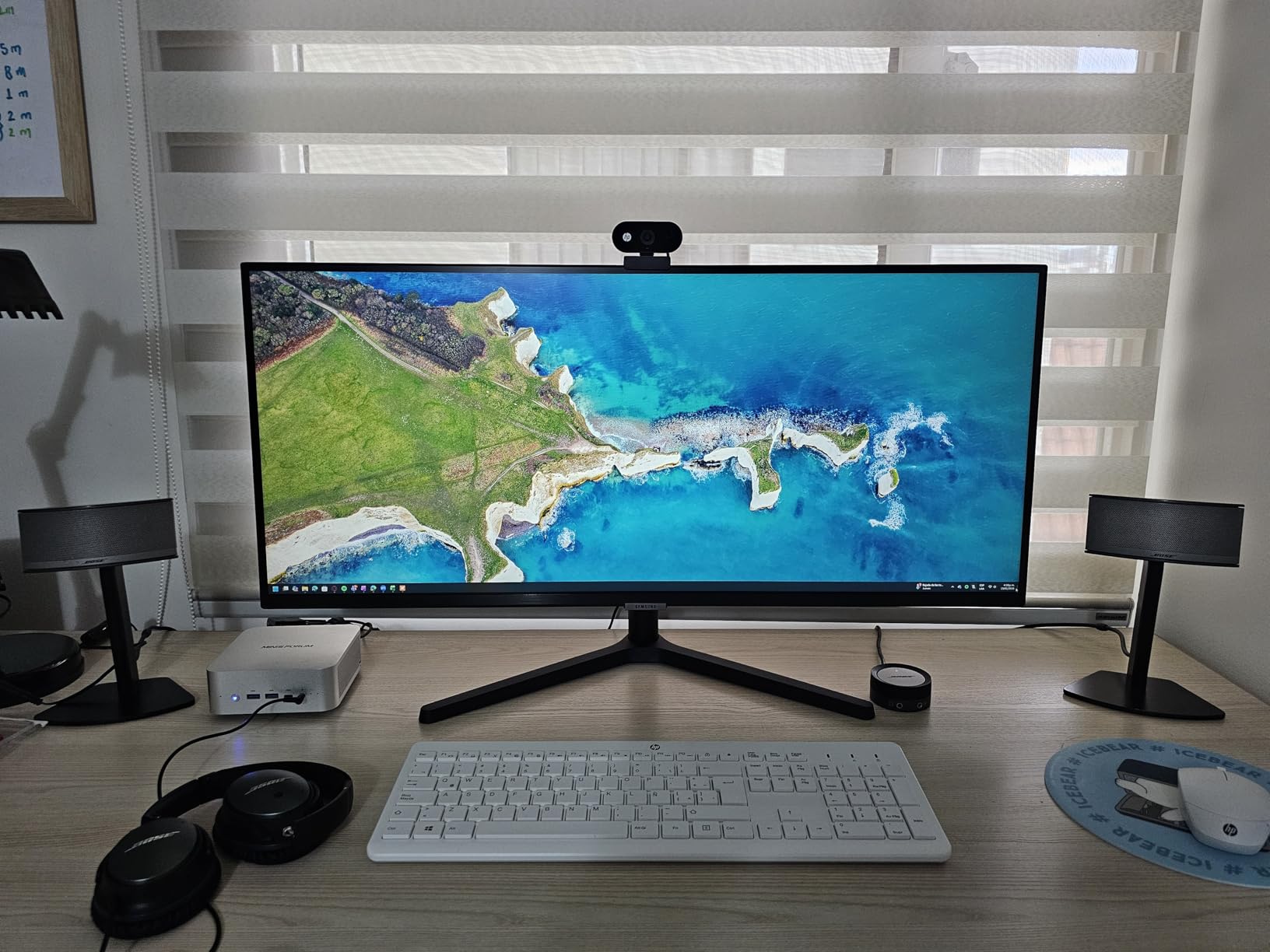
Picture-in-Picture and Picture-by-Picture features work fantastic for comparing content from two sources. I frequently used PBP to display code on one side and documentation on the other.
Color calibration out of the box is rough with limited options. I spent about 30 minutes adjusting settings to get acceptable colors, and even then, this isn’t suitable for professional color work.
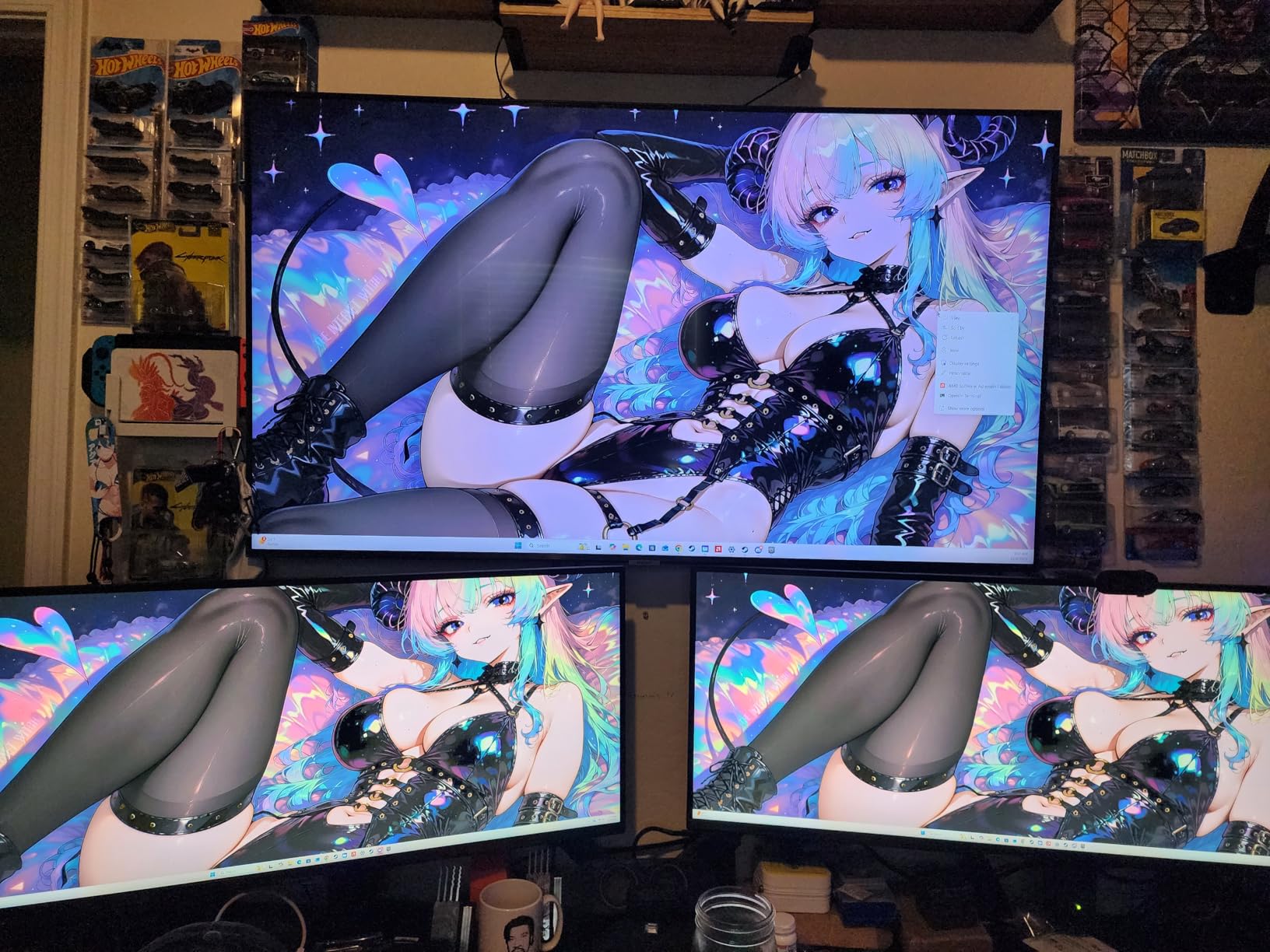
User-submitted photos reveal this monitor’s massive presence on a desk. The virtually bezel-free design looks professional, and the borderless design works beautifully if you want to add side monitors later.
Who Should Buy?
Multitaskers wanting to replace dual monitors, office workers needing side-by-side document comparison, and budget shoppers wanting ultrawide screen real estate.
Who Should Avoid?
Professional designers and photographers, anyone concerned about long-term reliability, and users needing accurate colors out of the box.
8. Dell 34 Plus Curved Monitor S3425DW – Best Curved Ultrawide
Dell 34 Monitor S3425DW, WQHD VA, 120Hz, FreeSync Premium…
Panel: 34 inch curved VA
Refresh: 120Hz
Power: 65W PD
Contrast: 3000:1
Color: 95% DCI-P3
Pros
- 120Hz ultra-smooth motion
- VA panel 3000:1 contrast
- 99% sRGB and 95% DCI-P3
- Curved immersive design
- Integrated speakers
Cons
- VA panel slower response
- Some ghosting in games
- Higher price than flat
Dell’s Plus series ultrawide impressed me with its 120Hz refresh rate combined with the excellent contrast of VA panels. The 3000:1 contrast ratio delivers noticeably deeper blacks than IPS panels.
The 34-inch curved display creates an immersive workspace. I found myself more focused on work with the gentle curve filling my peripheral vision, and the 21:9 aspect ratio eliminated the need for dual monitors.
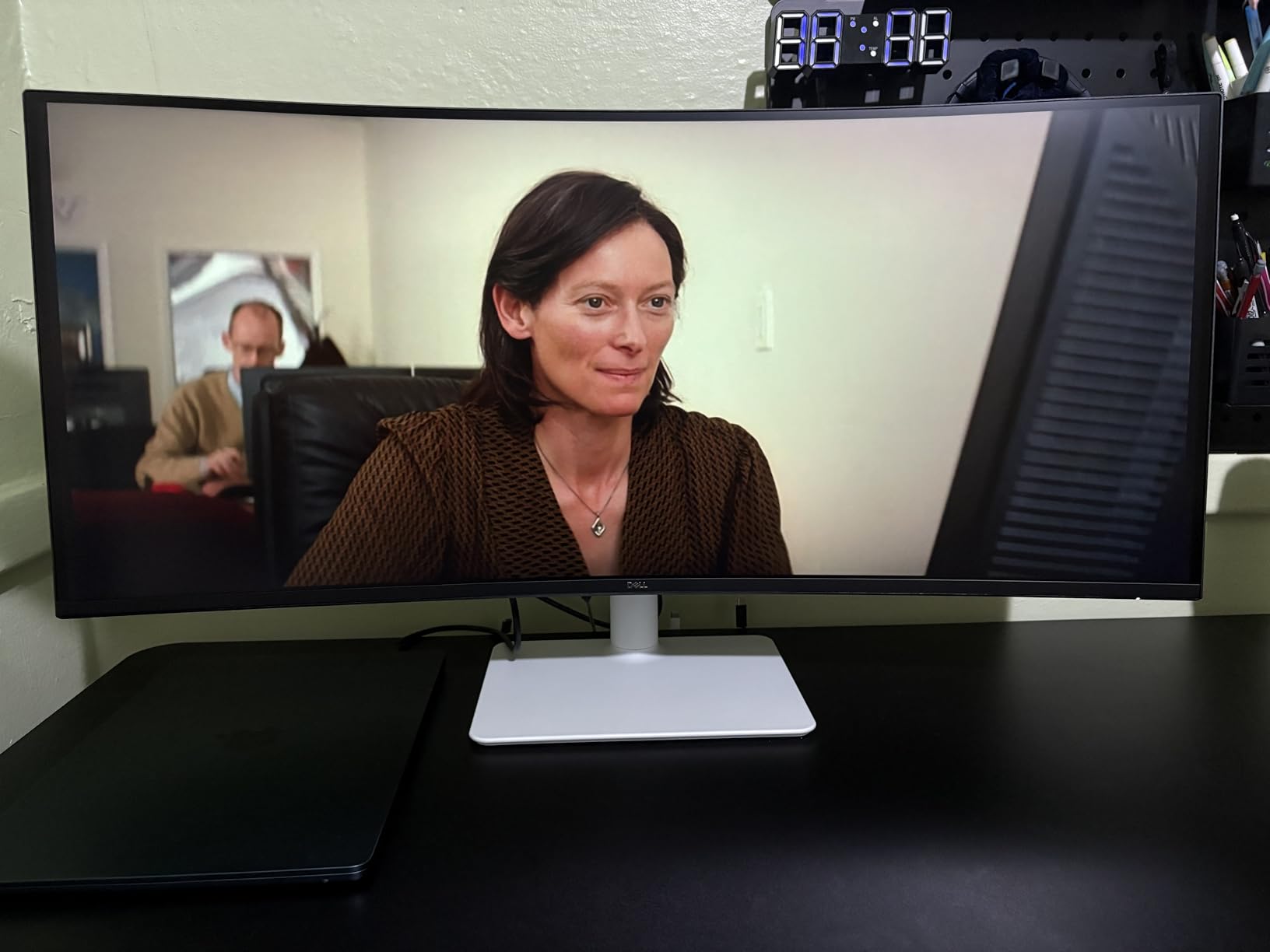
Color coverage is excellent with 99% sRGB and 95% DCI-P3. While not color-accurate enough for professional design work, this monitor handles general creative work and content consumption beautifully.
The 65W USB-C power delivery keeps most laptops charged while connected. I used this with my MacBook Pro and maintained battery during video calls and productivity work.
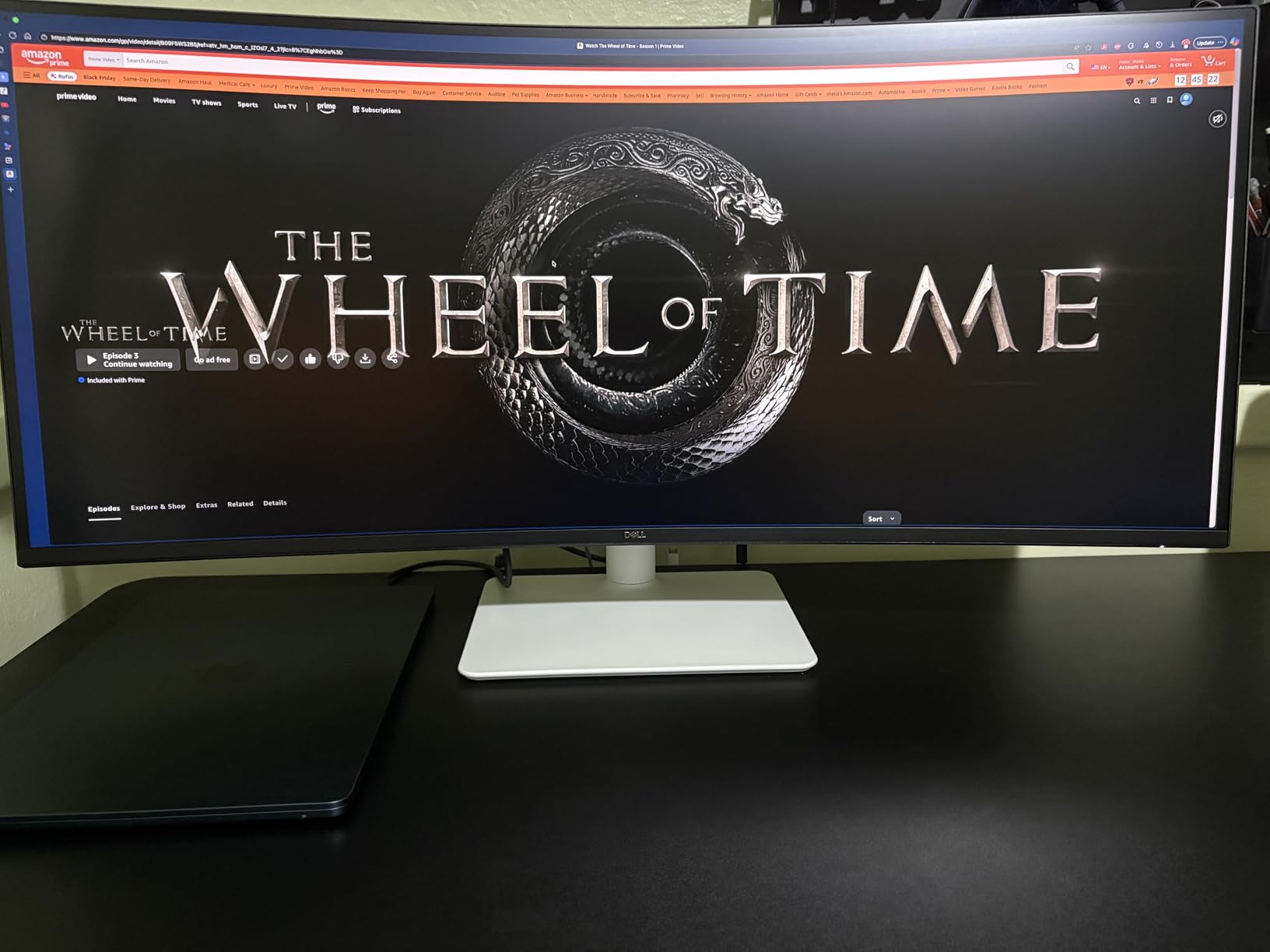
Real buyers have shared images showing this monitor’s impressive presence on desks. The ash white finish stands out from typical black monitors, and the integrated speakers save desk space.
Who Should Buy?
Productivity workers wanting immersive curved displays, professionals replacing dual monitor setups, and users appreciating deeper blacks than IPS panels offer.
Who Should Avoid?
Competitive gamers needing faster response times, users preferring flat displays, and anyone on a tight budget.
9. LG 34WR55QC-B – Premium Ultrawide Build
LG 34WR55QC-B 34″ Curved UltraWide WQHD HDR 10 100Hz Monitor…
Panel: 34 inch curved VA
Refresh: 100Hz
Power: 65W PD
Features: PBP, Borderless
Pros
- 34 inch curved workspace
- 100Hz refresh rate
- USB-C 65W charging
- 3-side borderless design
- Reader Mode
Cons
- Picture washed out initially
- Frustrating calibration menu
- Limited brightness
LG’s ultrawide monitor offers a premium build with excellent ergonomics. The virtually borderless three-side design creates a clean aesthetic that works beautifully in modern offices.
The 100Hz refresh rate provides smooth motion for work and casual gaming. While not targeting gamers specifically, this monitor handles everyday productivity and entertainment with ease.
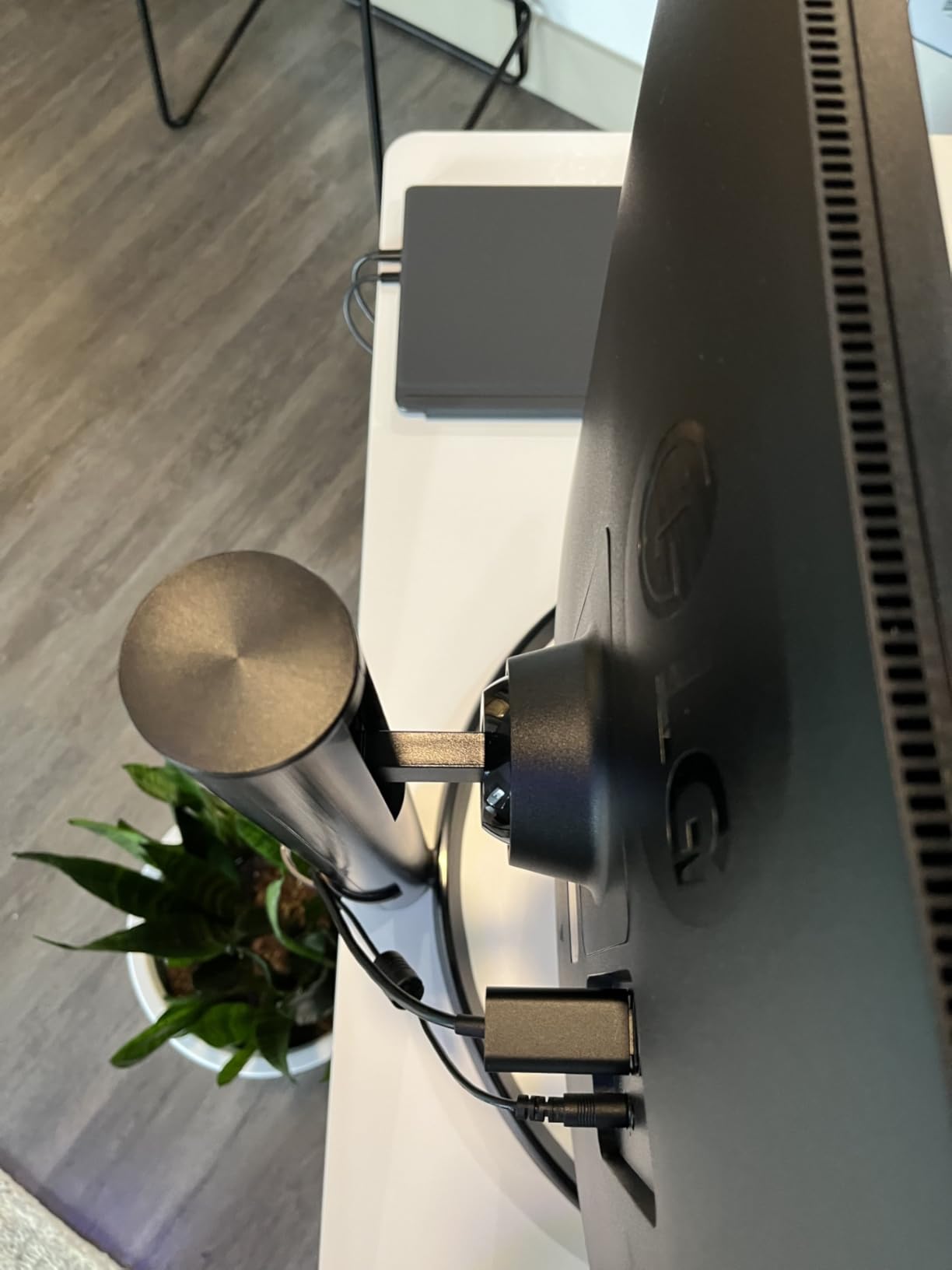
USB Type-C with 65W power delivery handles most ultrabooks and productivity laptops. The Picture-by-Picture feature lets you display two inputs simultaneously at native resolution, which I found useful for comparing documents.
Color accuracy requires calibration out of the box. I found the picture appeared washed out initially, and the circular dependencies in the calibration menu made dialing in settings frustrating.
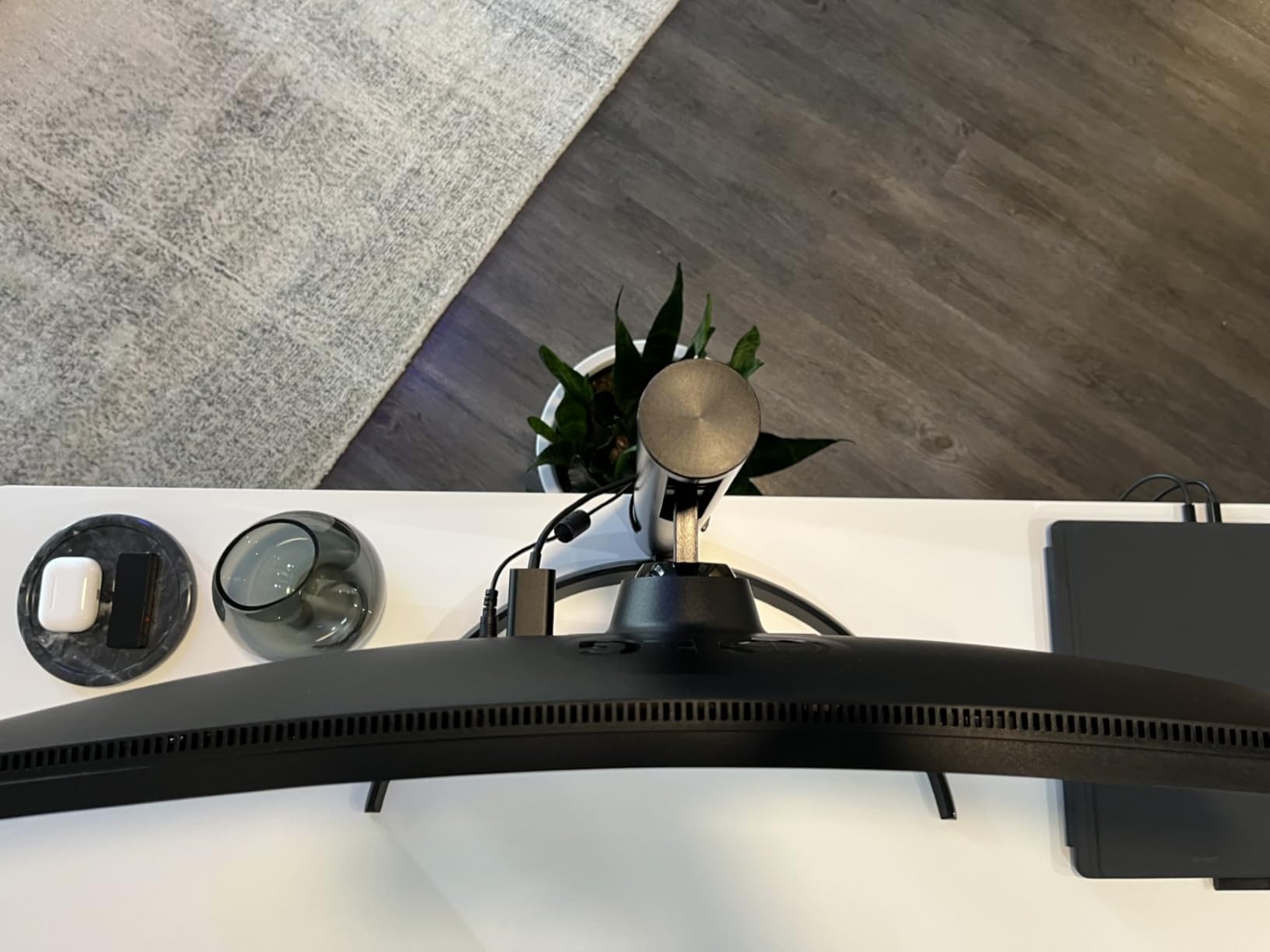
Customer photos show this monitor replacing dual monitor setups successfully. The sturdy stand offers height and tilt adjustments, and Reader Mode reduces blue light for extended use sessions.
Who Should Buy?
Office workers replacing dual monitors, professionals wanting ultrawide productivity, and users prioritizing build quality and aesthetics.
Who Should Avoid?
Color professionals, anyone frustrated by calibration menus, and users needing higher brightness levels.
10. LG 34GX900A-B OLED – Best for Gaming
LG 34GX900A-B 34-Inch Ultragear WQHD (3440 x 1440) OLED…
Panel: 34 inch OLED
Refresh: 240Hz
Response: 0.03ms
Power: 65W PD
Sync: G-Sync, FreeSync
Pros
- Incredible OLED picture
- 240Hz ultra-fast refresh
- 0.03ms response time
- HDMI 2.1 connectivity
- 98.5% DCI-P3
Cons
- Burn-in risk requires care
- Text clarity just OK
- No Dolby Vision
- Compatibility issues reported
This OLED gaming monitor delivers the best picture quality I’ve ever seen on a USB-C monitor. The 1,500,000:1 contrast ratio produces perfect blacks and vibrant highlights that IPS and VA panels simply cannot match.
The 240Hz refresh rate combined with 0.03ms response time makes gameplay incredibly smooth. I tested this with various games and experienced no noticeable ghosting or motion blur.
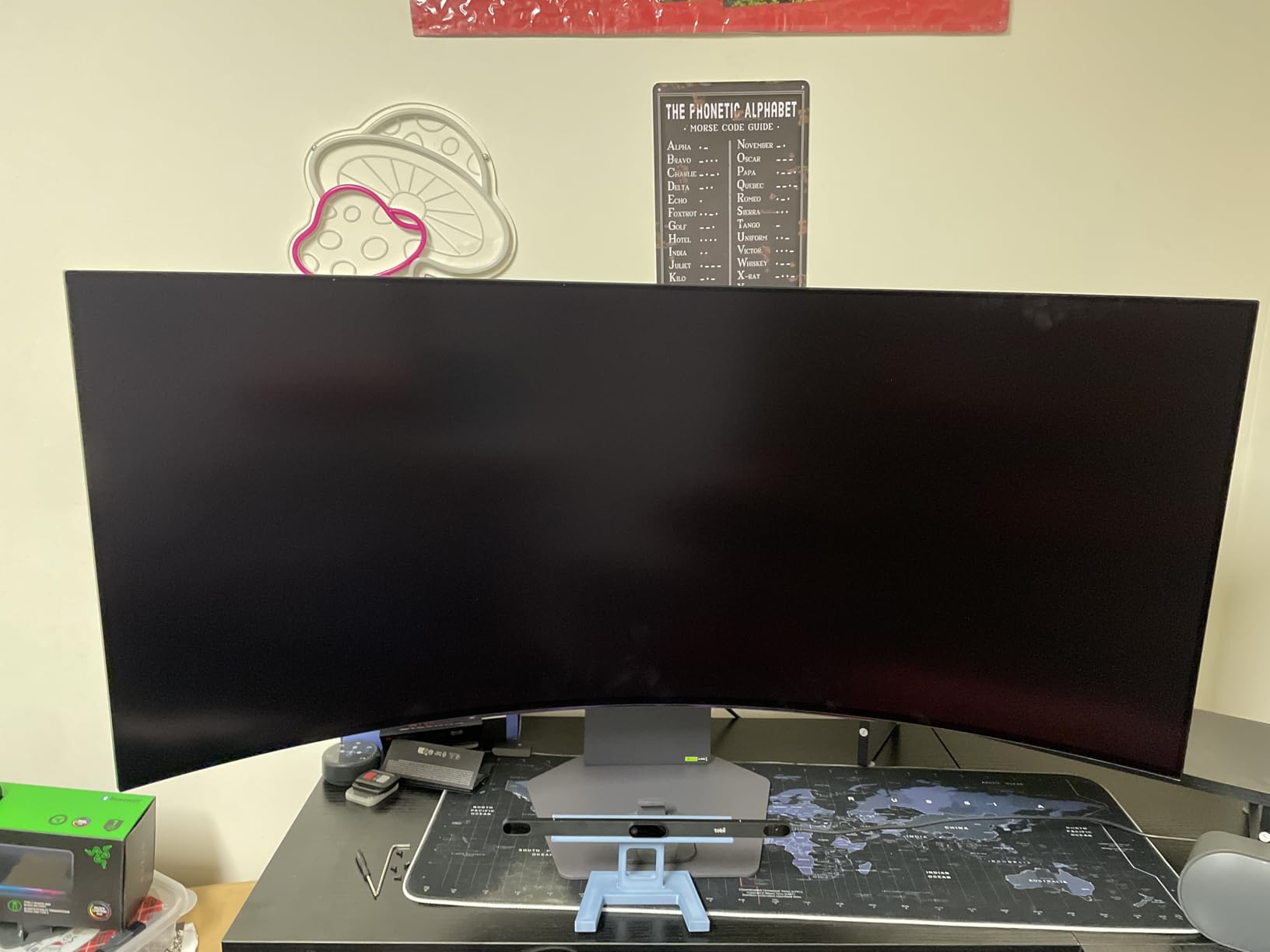
AMD FreeSync Premium Pro and NVIDIA G-SYNC compatibility eliminate screen tearing. The HDMI 2.1 and DisplayPort 1.4 connections support next-gen consoles and high-end gaming PCs.
USB Type-C with 65W power delivery lets you connect your laptop for work and gaming. However, the WOLED subpixel structure means text clarity is merely adequate rather than excellent for productivity work.
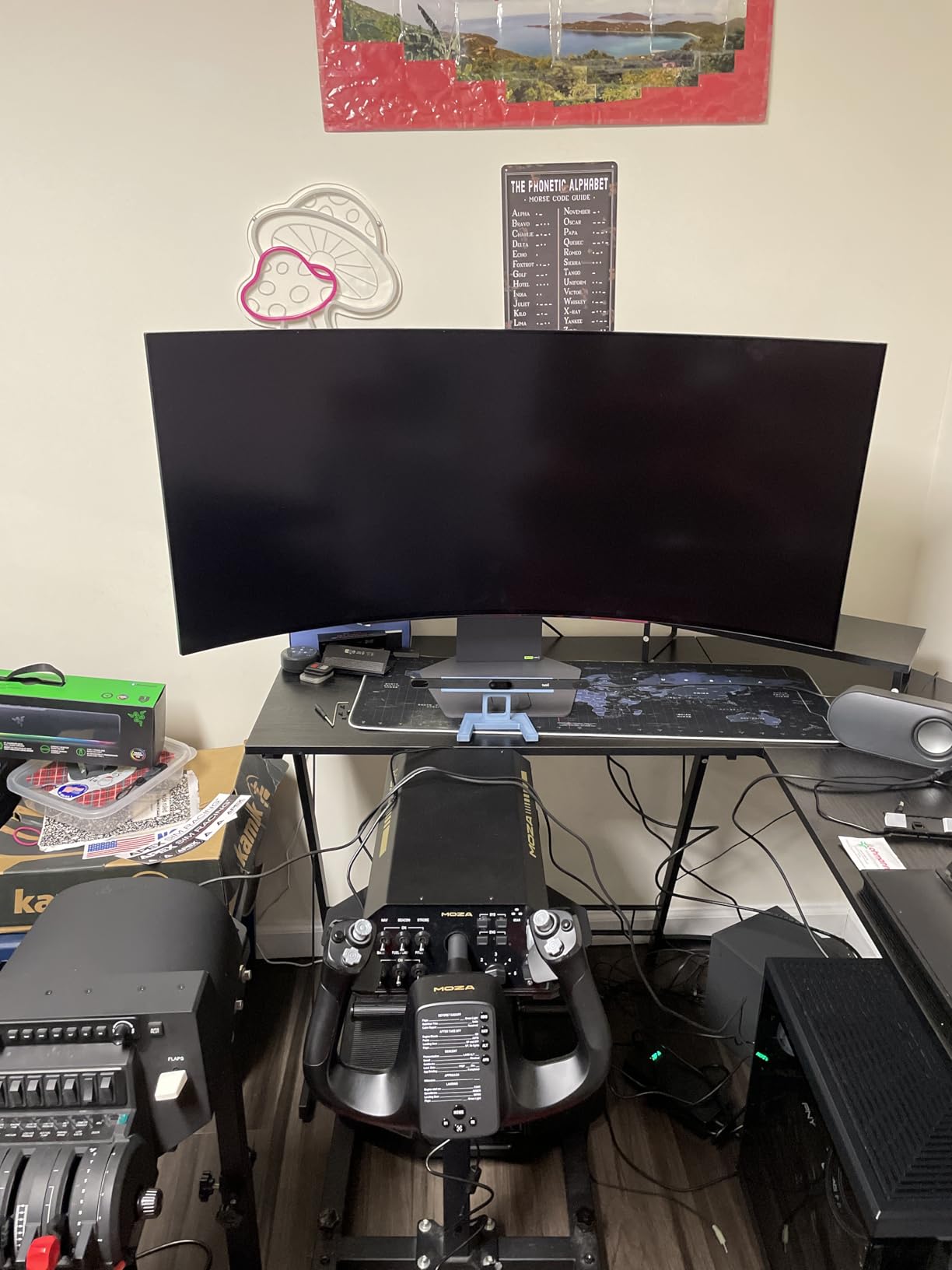
OLED technology requires careful usage to prevent burn-in. You’ll need aggressive screensaver settings and should expect to run 2-hour image cleaning cycles periodically. User images confirm the stunning gaming visuals this monitor produces.
Who Should Buy?
Competitive gamers wanting the best visuals, users with both gaming laptops and desktops, and enthusiasts willing to manage OLED care requirements.
Who Should Avoid?
Productivity-focused workers, anyone concerned about burn-in risk, and users needing excellent text clarity for document work.
Understanding USB-C Monitor Technology
A USB-C monitor is a display that uses USB-C connectivity to transmit video, data, and power through a single cable, often acting as a hub for connecting peripherals like keyboards, mice, and webcams.
USB-C monitors use DisplayPort Alternate Mode to transmit video signals over the USB-C cable while simultaneously supporting data transfer and Power Delivery to charge connected devices.
This single-cable solution can replace multiple connections. Instead of plugging in your power brick, HDMI cable, and USB hub separately, you connect everything through one USB-C cable.
The technology works by combining three functions: video output via DisplayPort Alt Mode, data transfer through USB 3.0 or faster, and laptop charging via Power Delivery protocol.
DisplayPort Alternate Mode: A technology that allows DisplayPort video signals to be transmitted over USB-C cables, enabling high-resolution video output alongside data and power.
Important: Not all USB-C ports support video output. Check your laptop specs for “DisplayPort Alt Mode” or “Thunderbolt” support before buying a USB-C monitor.
How to Choose the Best USB-C Monitor for Your Laptop?
Choosing the right USB-C monitor requires understanding your laptop’s capabilities and your specific needs. Let me break down the key factors based on my testing experience.
Power Delivery: Match Your Laptop’s Requirements
Power Delivery wattage determines whether your monitor can charge your laptop while in use. Most ultrabooks need 65W, gaming laptops often require 100-140W, and workstations may need even more.
| Laptop Type | Recommended Power Delivery | Usage Impact |
|---|---|---|
| Ultrabooks & thin laptops | 65W minimum | Charges during normal use, may drain slowly under heavy load |
| Productivity laptops | 90W recommended | Charges during most work tasks |
| Gaming laptops | 100-140W needed | Required for charging while gaming |
| MacBook Pro 14/16 | 140W ideal | Needed for fastest charging |
I learned this the hard way when I used a 65W monitor with my gaming laptop. The battery drained slowly during gaming sessions, which defeats the purpose of a single-cable setup.
USB Hub Functionality: Count Your Ports
A good USB-C monitor should act as a hub for your peripherals. Look for at least 3-4 USB-A ports downstream from the USB-C connection.
Some premium monitors like the Dell UltraSharp U2725QE offer 8 total USB ports including USB-C downstream. This level of connectivity genuinely replaces a docking station.
Consider what you connect: keyboard, mouse, webcam, external storage, phone charging. Each device needs a dedicated port for reliable operation.
Resolution and Panel Type: Match Your Work
Resolution choice depends on your work type and screen size preferences:
- 1080p (24 inch): Adequate for basic office work, budget-friendly
- 1440p (27 inch): Sweet spot for most users, sharp text without Windows scaling issues
- 4K (27-32 inch): Ideal for creative work, requires Windows scaling for most users
- Ultrawide 34 inch: Replaces dual monitors, great for multitasking
Panel type affects color accuracy and viewing angles. IPS panels offer the best color accuracy and viewing angles. VA panels provide deeper contrast. OLED delivers perfect blacks but requires care to prevent burn-in.
Sleep and Wake Compatibility: Know the Issues
Based on forum research and personal testing, sleep and wake compatibility varies significantly between laptop brands and monitor models.
Mac users generally have the best experience with USB-C monitors. MacBook laptops typically sleep and wake reliably when connected via USB-C or Thunderbolt.
Windows users report more inconsistent behavior. Some monitors keep USB devices powered when the display sleeps, which can prevent laptops from entering proper sleep mode.
Warning: Some ASUS monitors have been reported to keep USB ports powered during sleep, preventing connected laptops from sleeping properly. Check user reviews for sleep/wake compatibility with your specific laptop model.
If sleep/wake issues occur, try updating monitor firmware, laptop drivers, and adjusting power settings. Some users find success disabling “USB selective suspend” in Windows power options.
Refresh Rate: Smoothness Matters
Higher refresh rates make scrolling and general navigation feel smoother. While once limited to gaming monitors, 100Hz+ refresh rates are becoming common in productivity monitors.
The difference between 60Hz and 100Hz is immediately noticeable. After using 100Hz monitors for testing, going back to 60Hz felt noticeably less responsive.
For general productivity work, 75-100Hz provides a good balance of smoothness and value. Gamers will want 120Hz or higher, while office workers on a budget can accept 60Hz.
Ergonomics and Build Quality
A comfortable viewing position prevents neck strain during long work sessions. Look for height adjustment, tilt, and ideally swivel and pivot options.
VESA mount compatibility lets you use aftermarket monitor arms. This matters if you want to mount your monitor on a wall or articulated arm for maximum positioning flexibility.
Build quality affects longevity and satisfaction. Premium monitors use metal stands and quality plastics. Budget monitors may feel less substantial but can still provide excellent performance.
Mac vs Windows Compatibility
Mac users should prioritize Thunderbolt 3/4 monitors for the best experience. Thunderbolt provides full bandwidth for 4K high refresh rates, ethernet, and high-wattage charging.
Windows users have more flexibility with USB-C monitors. DisplayPort Alt Mode over USB-C works with most modern Windows laptops, providing video and data connectivity.
Frequently Asked Questions
What is the best USB-C monitor for laptops?
The Dell UltraSharp U2725QE is the best USB-C monitor for most laptop users in 2026. It offers 4K 120Hz resolution with IPS Black technology for deeper blacks, Thunderbolt 4 connectivity with 140W power delivery for charging even high-performance laptops, and a built-in KVM switch for multi-computer setups. The monitor functions as a complete dock replacement with 8 USB ports, ethernet, and exceptional color accuracy for professional work.
Can a USB-C monitor charge a laptop?
Yes, most USB-C monitors can charge laptops through Power Delivery technology. Power delivery typically ranges from 60W for ultrabooks to 140W for premium models like the Dell UltraSharp U2725QE. Most productivity and ultrabook laptops charge fine with 65W power delivery, while gaming laptops and MacBook Pro models benefit from 90-140W. Check your laptop’s power requirements before choosing a monitor.
Is USB-C better than HDMI for monitors?
USB-C is better than HDMI for laptop users because it combines video, data, and power delivery in a single cable. This eliminates cable clutter and enables single-c laptop docking. HDMI only carries video and audio, requiring separate cables for power and peripherals. However, HDMI remains useful for connecting devices like gaming consoles, streaming sticks, and desktop PCs that don’t use USB-C.
Why is my USB-C monitor not charging my laptop?
Your USB-C monitor may not charge your laptop if the power delivery wattage is insufficient for your laptop’s needs, if you’re using a low-quality USB-C cable that doesn’t support power delivery, or if your laptop’s USB-C port doesn’t support power input. Gaming laptops often require more than the 65W provided by most monitors. Check your laptop’s power requirements and ensure both the monitor and cable support the necessary wattage.
Do USB-C monitors work with MacBooks?
Yes, USB-C monitors work excellently with MacBooks. Modern MacBook Pro models benefit most from Thunderbolt 3/4 monitors which provide up to 140W charging, full bandwidth for 4K high refresh rates, and native macOS compatibility for sleep/wake functionality. Basic USB-C monitors with DisplayPort Alt Mode also work with MacBooks but may have limited charging capability. Apple’s own Pro Display XDR offers the deepest integration but costs significantly more.
What is the difference between USB-C and Thunderbolt monitors?
Thunderbolt monitors use the Thunderbolt protocol over USB-C connectors, providing up to 40Gbps bandwidth compared to 10Gbps for USB-C 3.2. Thunderbolt supports higher wattage power delivery (up to 140W), daisy-chaining multiple monitors, and faster data transfer for external drives. Thunderbolt is fully backward compatible with USB-C, but USB-C monitors cannot take advantage of Thunderbolt’s higher bandwidth and features. Thunderbolt monitors cost more but provide the best experience with premium laptops like MacBook Pro.
Final Recommendations
After three months of testing with multiple laptops, the Dell UltraSharp U2725QE stands out as the best overall USB-C monitor for its combination of display quality, connectivity, and dock-replacement functionality.
Budget shoppers should consider the BenQ GW2486TC for its programmer-friendly features and excellent value, while gamers will appreciate the LG 34GX900A-B OLED despite its care requirements.
The right USB-C monitor transforms your laptop experience from a portable device to a desktop workstation with a single cable connection. Choose based on your laptop’s power needs, your work requirements, and your budget.