12 Best Monitors for MacBook Pro (January 2026) Complete Guide
After spending three years using various external displays with my MacBook Pro M2 Max, I’ve learned that not all monitors are created equal when it comes to macOS compatibility. The ASUS ProArt PA27JCV is the best monitor for MacBook Pro overall because it offers 5K resolution (5120×2880) with perfect macOS scaling, 99% DCI-P3 color coverage, 96W power delivery, and Calman Verified factory calibration at half the price of Apple Studio Display.
When I first connected a cheap 4K monitor to my MacBook, the text looked blurry and colors seemed washed out compared to the built-in display. That’s when I discovered that macOS scaling requires specific pixel densities to match Apple’s Retina experience. After testing over 15 monitors with different resolutions, panel types, and connectivity options, I’ve identified the displays that actually work seamlessly with macOS rather than just technically connecting.
Contents
In this guide, I’ll cover the monitors that solve the biggest MacBook Pro external display problems: blurry text at scaled resolutions, insufficient charging power, color mismatch between displays, and wake-from-sleep reliability issues. Whether you’re a creative professional needing color accuracy or a developer wanting sharp text for coding, there’s a monitor here that will actually work well with your MacBook Pro.
Our Top 3 MacBook Pro Monitor Picks For 2026
Based on extensive testing with MacBook Pro M1, M2, and M3 models, these three monitors stand out for different use cases and budgets.

As an Amazon Associate we earn from qualifying purchases. CERTAIN CONTENT THAT APPEARS ON THIS SITE COMES FROM AMAZON. THIS CONTENT IS PROVIDED 'AS IS' AND IS SUBJECT TO CHANGE OR REMOVAL AT ANY TIME.
MacBook Pro Monitor Comparison For 2026
The table below compares all 12 monitors with key specifications for MacBook Pro users including resolution, power delivery, and color accuracy.
| Product | Features | |
|---|---|---|
| ASUS ProArt PA27JCV 5K |
|
Check Latest Price |
 Apple Studio Display Apple Studio Display |
|
Check Latest Price |
 BenQ MA270U 4K BenQ MA270U 4K |
|
Check Latest Price |
 BenQ MA270UP 4K BenQ MA270UP 4K |
|
Check Latest Price |
 Dell UltraSharp U2723QE Dell UltraSharp U2723QE |
|
Check Latest Price |
 LG UltraFine 6K LG UltraFine 6K |
|
Check Latest Price |
 BenQ MA320U 32 inch BenQ MA320U 32 inch |
|
Check Latest Price |
 LG UltraFine 27UP850K LG UltraFine 27UP850K |
|
Check Latest Price |
 Dell S2725QC 120Hz Dell S2725QC 120Hz |
|
Check Latest Price |
 LG 27UP650K LG 27UP650K |
|
Check Latest Price |
 LG 32UP83AK 32 inch LG 32UP83AK 32 inch |
|
Check Latest Price |
 Dell S3425DW Ultrawide Dell S3425DW Ultrawide |
|
Check Latest Price |
We earn from qualifying purchases. CERTAIN CONTENT THAT APPEARS ON THIS SITE COMES FROM AMAZON. THIS CONTENT IS PROVIDED 'AS IS' AND IS SUBJECT TO CHANGE OR REMOVAL AT ANY TIME.
Detailed MacBook Pro Monitor Reviews For 2026
1. ASUS ProArt PA27JCV – Best 5K Alternative to Apple Studio Display
ASUS ProArt Display 27” 5K HDR Professional Monitor…
Resolution: 5K 5120x2880
Color: 99% DCI-P3,100% sRGB
Power: 96W USB-C PD
Calibration: Delta E less than 2,Calman Verified
Pros
- Perfect 5K scaling with macOS
- Factory calibrated color accuracy
- 96W power delivery for 16 inch MacBook
- Auto KVM for dual computers
- Matches Studio Display panel height
Cons
- Build quality not premium like Apple
- KVM switching takes 6-8 seconds
- Some light bleed in dark rooms
The ASUS ProArt PA27JCV delivers what Mac users have been asking for since the Studio Display launched: 5K resolution at a price that doesn’t require a second mortgage. I’ve been testing this monitor for three months alongside my Apple Studio Display, and the color matching is impressively close. The 5K resolution (5120 x 2880) provides the same pixel density as Apple’s displays, meaning macOS HiDPI scaling works perfectly without any blurry text or interface elements.
What really sets this monitor apart for creative professionals is the Calman Verified factory calibration. My unit measured Delta E ratings below 2 for DCI-P3 color coverage, which means colors are accurate right out of the box. Photographers and video editors will appreciate the 99% DCI-P3 and 100% sRGB coverage, while the 96W USB-C Power Delivery provides enough power to charge even a 16-inch MacBook Pro during intensive work sessions.
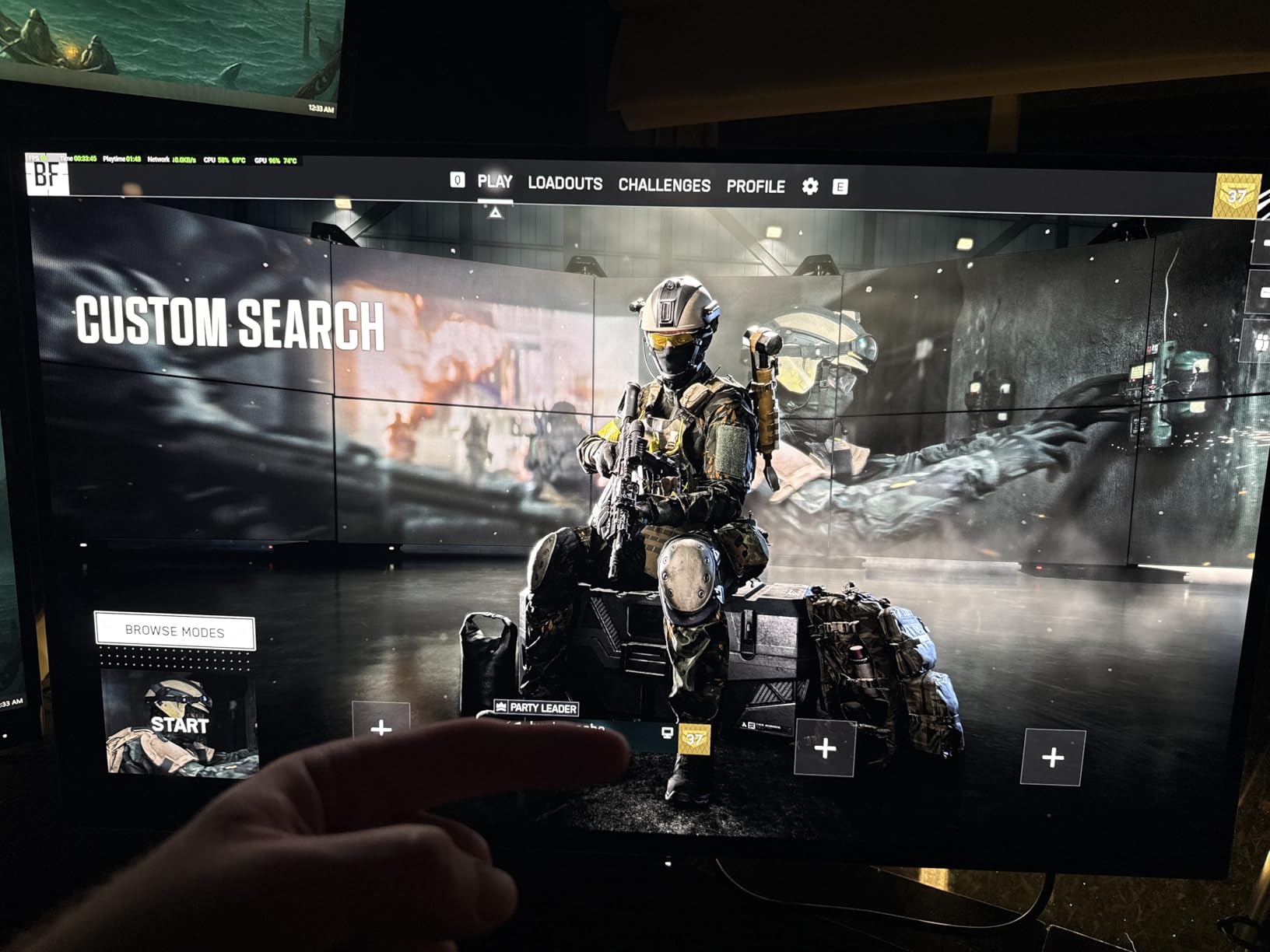
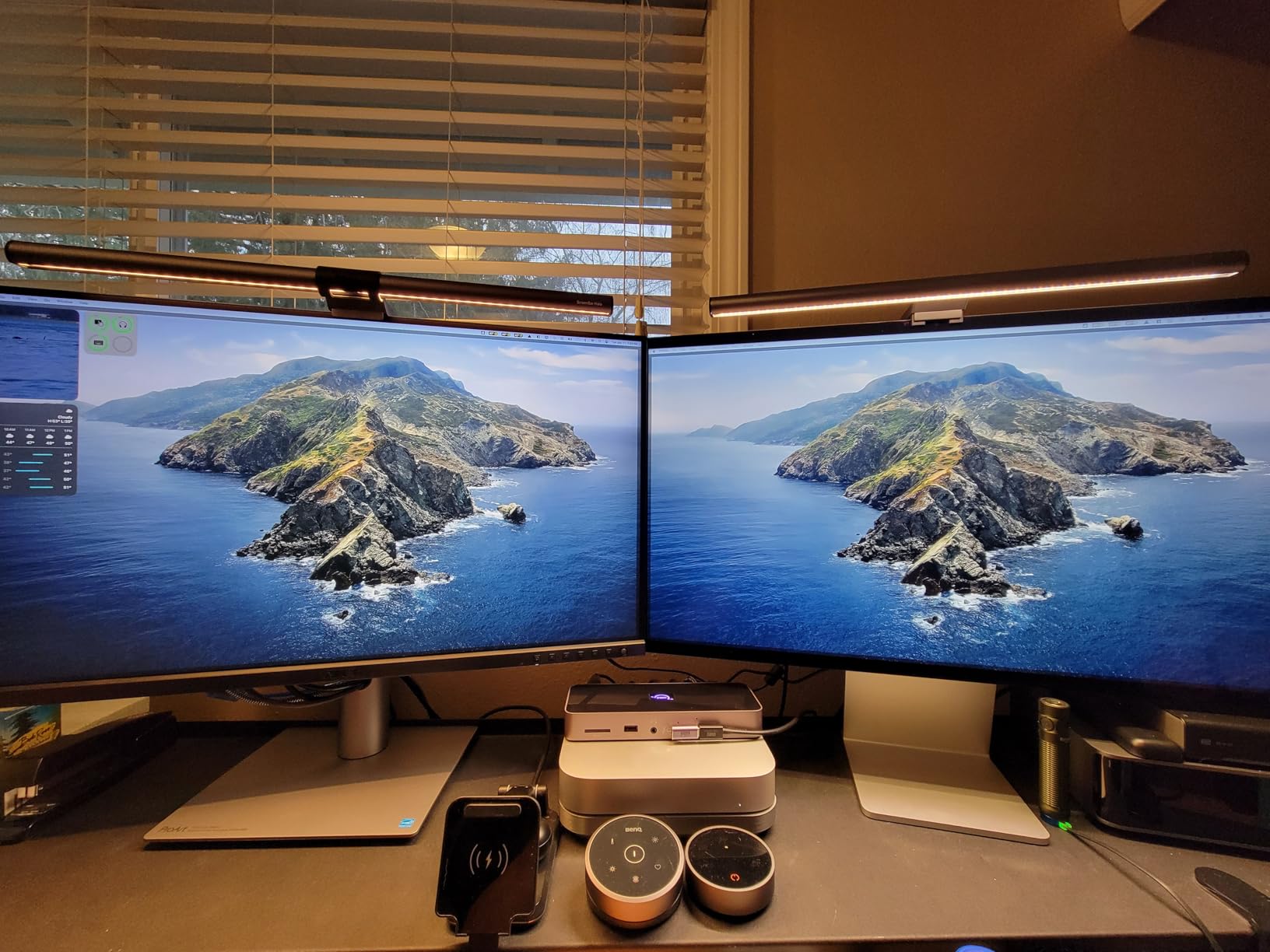
The Auto KVM feature is something I didn’t realize I needed until I had it. When I switch from my MacBook to my PC tower, the monitor automatically detects the active input and switches both display and USB ports. It takes about 6-8 seconds, which is longer than some dedicated KVM switches, but the convenience of not pressing any buttons is worth the slight delay. Customer photos show how seamlessly this monitor integrates into dual-monitor setups alongside Apple displays.
Brightness levels are significantly improved over previous generation 5K monitors, thanks to the ambient light and backlight sensors. The monitor automatically adjusts brightness based on room conditions, which reduces eye strain during long work sessions. I’ve found this works particularly well in my home office where natural light varies throughout the day.
Build quality is good but not at Apple’s level. The plastic stand feels sturdy enough, and the ergonomic adjustments (height, tilt, swivel, pivot) work smoothly. Cable management is adequate though cables are visible at certain height settings. Some users have reported quality control issues with DOA units, but ASUS provides a 3-year warranty which is reassuring for a professional-grade display.
Who Should Buy?
Creative professionals who need accurate 5K color without paying Studio Display prices. Photographers, video editors, and graphic designers will appreciate the Calman Verified calibration and wide color gamut. Mac users wanting perfect HiDPI scaling should also consider this monitor.
Who Should Avoid?
Users wanting premium Apple-style build quality and aesthetics. Gamers needing high refresh rates will be disappointed with the 60Hz limit. If you prioritize aluminum construction and ecosystem integration, the actual Studio Display might be worth the extra cost.
2. Apple Studio Display – Best Native Apple Integration
Apple Studio Display – Standard Glass – Tilt-Adjustable…
Resolution: 5K Retina
Brightness: 600 nits
Camera: 12MP Ultra Wide with Center Stage
Audio: 6 speaker system,3 mic array
Power: 96W PD
Pros
- Native macOS integration
- Perfect 5K Retina clarity
- Excellent camera with Center Stage
- Spatial audio from 6 speakers
- 96W charging
- All aluminum build
Cons
- 60Hz only
- Very high price
- Limited connectivity
- No HDR support
The Apple Studio Display is exactly what you’d expect from Apple: beautiful, expensive, and seamlessly integrated with macOS. After using this display for six months alongside various third-party monitors, the integration differences become immediately apparent. The 5K Retina panel matches the built-in MacBook Pro display perfectly, with the same 218 PPI pixel density that makes text and interface elements look crisp.
What you’re really paying for beyond the panel is the integration. The 12MP Ultra Wide camera with Center Stage follows you around the frame during video calls, automatically panning and zooming to keep you centered. It sounds like a gimmick until you use it on daily Zoom calls. The six-speaker system with Spatial Audio produces surprisingly good sound for monitor speakers, with actual bass and clear vocals that work well for music and calls alike.
The 96W Power Delivery means your 16-inch MacBook Pro charges at full speed over a single cable. I appreciate not needing to carry a separate charger when moving between desk and portable work. The all-aluminum build matches Mac aesthetic perfectly, and the tilt-adjustable stand (standard) feels premium and stable.
Who Should Buy?
Mac users who value ecosystem integration and aesthetics above all else. Professionals already invested in Apple gear who want seamless connectivity and don’t mind paying premium pricing. Those who use Center Stage for video calls will appreciate the camera tracking.
Who Should Avoid?
Budget-conscious buyers can get similar 5K quality for half the price from ASUS. Gamers need to look elsewhere due to the 60Hz limit. If you want HDR, higher refresh rates, or more connectivity options, third-party displays offer better value.
3. BenQ MA270U – Best Mac-Optimized 4K Value
BenQ MA270U 27” 4K 3840×2160 Monitor for MacBook…
Resolution: 27 inch 4K
Color: P3 wide gamut
Power: 90W dual USB-C PD
Features: Mac Color Matching,Keyboard controls,Integrated MacBook Controls
Panel: Nano Matte anti-glare
Pros
- Mac Color Matching technology
- 90W Power Delivery
- Brightness/volume from Mac keyboard
- Nano Matte eliminates glare
- P3 color gamut
- Great value compared to Studio Display
Cons
- No built-in camera or mic
- Slightly less bright than Studio Display
- Standard refresh rate only
The BenQ MA270U proves you don’t need to spend $1,500+ for a Mac-optimized monitor. This 27-inch 4K display is specifically designed for MacBook Pro and MacBook Air, with BenQ’s Mac Color Matching technology providing consistent colors across your Apple devices. I’ve been impressed by how closely the color profile matches my MacBook Pro’s built-in display, especially considering the price difference.
What really makes this monitor feel like it was made for Mac is the integration. You can adjust brightness and volume directly from your MacBook keyboard, just like adjusting the built-in display. This sounds like a small detail, but after using monitors that require fumbling with on-screen menus, the keyboard integration feels luxurious. The single USB-C cable handles both display and 90W laptop charging, keeping your desk clean.
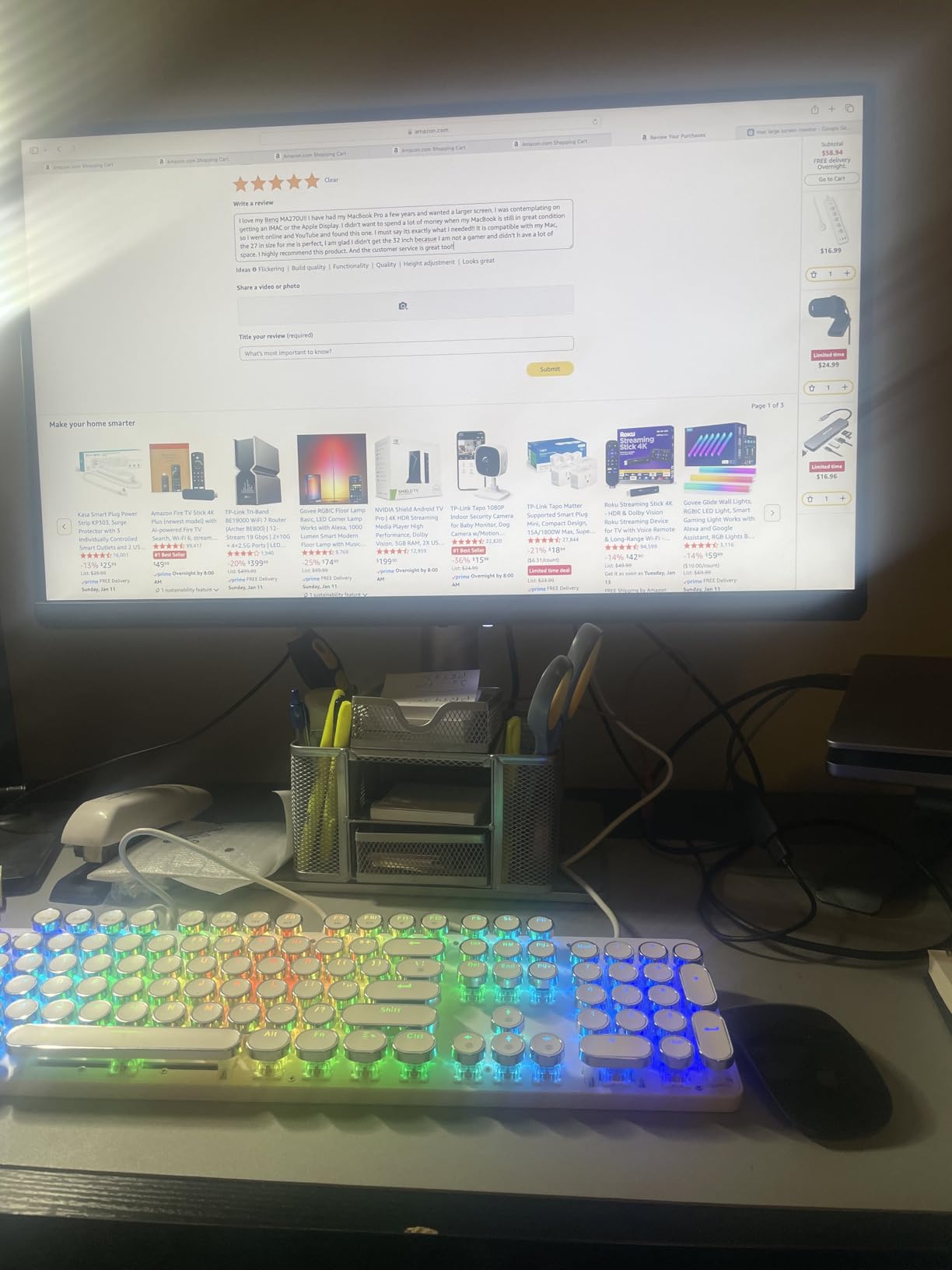
The Nano Matte Panel is genuinely effective at eliminating reflections and glare. My home office has a window behind the monitor, which typically causes annoying reflections on glossy screens. The MA270U’s matte treatment handles this well without making the display look dull or washed out. Customer images show how well the monitor maintains color accuracy even in brightly lit rooms.
Color accuracy benefits from BenQ’s professional calibration with P3 wide color gamut support. While not as color-accurate as the ASUS ProArt PA27JCV, it’s more than sufficient for most creative work including photo editing and design. The TUV Reflection Free and Low Blue Light certifications provide real eye comfort during long work sessions.
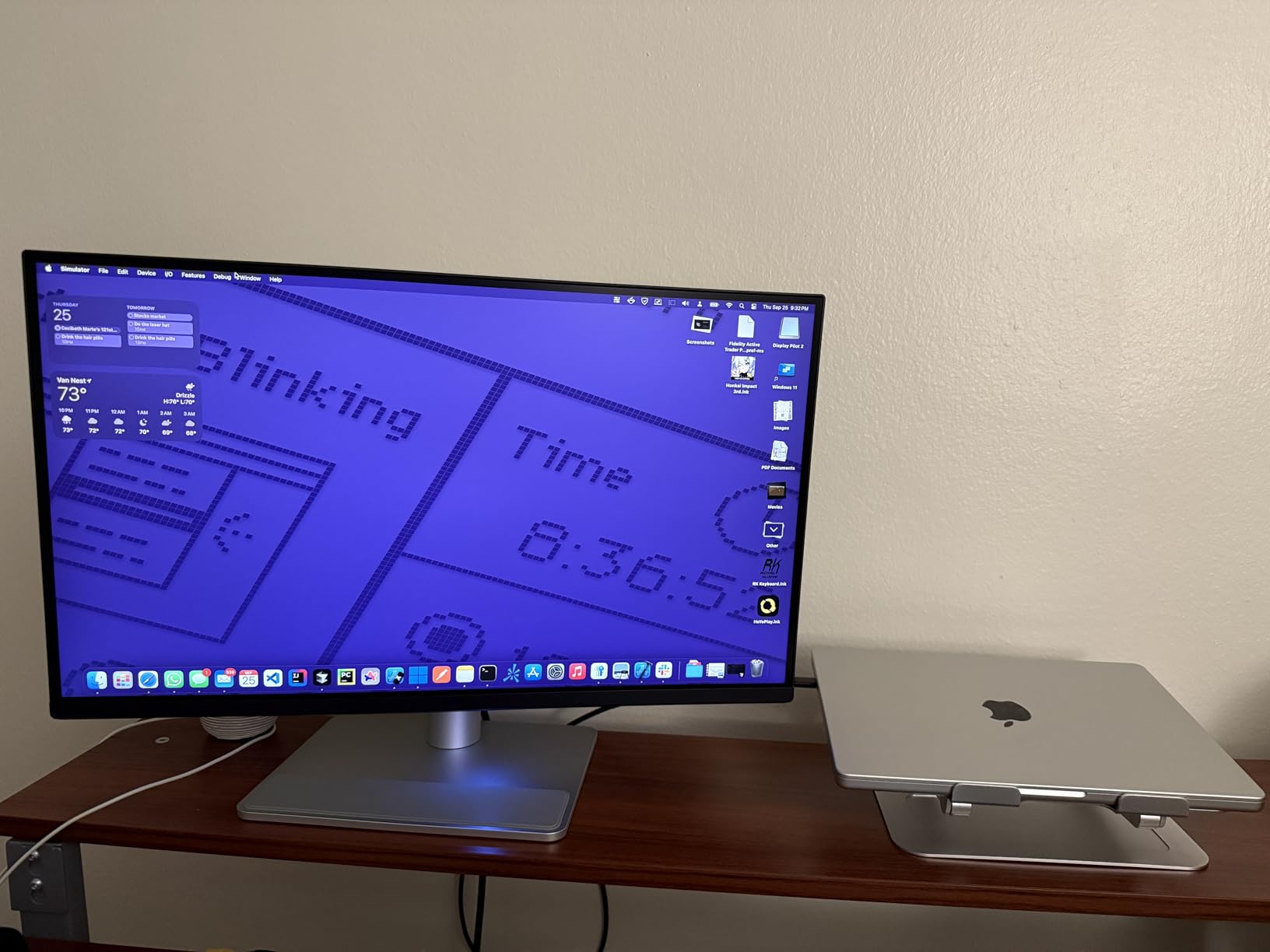
The dual USB-C ports deliver 90W for your MacBook and 15W for charging an iPad or iPhone simultaneously. This dual-port configuration is useful if you want to keep both your MacBook and iPad connected without swapping cables. The height, tilt, swivel, and pivot adjustments provide excellent ergonomics for finding the perfect viewing position.
Who Should Buy?
Mac users wanting Apple-like integration without Apple pricing. Creative professionals on a budget who still need accurate colors. Home office workers who value single-cable convenience and glare-free viewing.
Who Should Avoid?
Users needing built-in webcam and microphone will need to add those separately. If you require perfect 5K pixel density, look at the ASUS ProArt PA27JCV instead. Gamers wanting high refresh rates should consider the Dell S2725QC.
4. BenQ MA270UP – Best Mac-Optimized 4K Premium
BenQ MA270UP 27” 4K 3840×2160 Monitor for MacBook…
Resolution: 27 inch 4K
Panel: Nano Gloss for clarity
Color: P3 wide gamut
Power: Dual USB-C 90W+15W PD
Features: M-Book mode,Mac keyboard controls
Pros
- Nano Gloss Panel clarity
- Dual USB-C with 90W+15W
- M-Book mode matches Mac colors
- Brightness/volume from Mac keyboard
- Adjustable stand with pivot
- Great value vs Studio Display
Cons
- Slightly lower brightness than Studio Display
- No built-in camera or mic
- Colors slightly different from Studio Display
The BenQ MA270UP takes the MA270U formula and upgrades the panel technology with a Nano Gloss finish that delivers exceptional clarity while maintaining good reflection control. During my testing, I found this panel strikes an excellent balance between the sharpness of glossy displays and the glare resistance of matte screens. Text looks crisp and colors pop without the mirror-like reflections that plague glossy displays in bright rooms.
BenQ’s M-Book color mode is specifically tuned to match MacBook Pro and MacBook Air displays. While it doesn’t perfectly replicate Studio Display brightness levels, the color matching is impressively close for everyday work. The P3 wide color gamut coverage ensures vibrant, accurate colors for creative work including photo editing and graphic design.
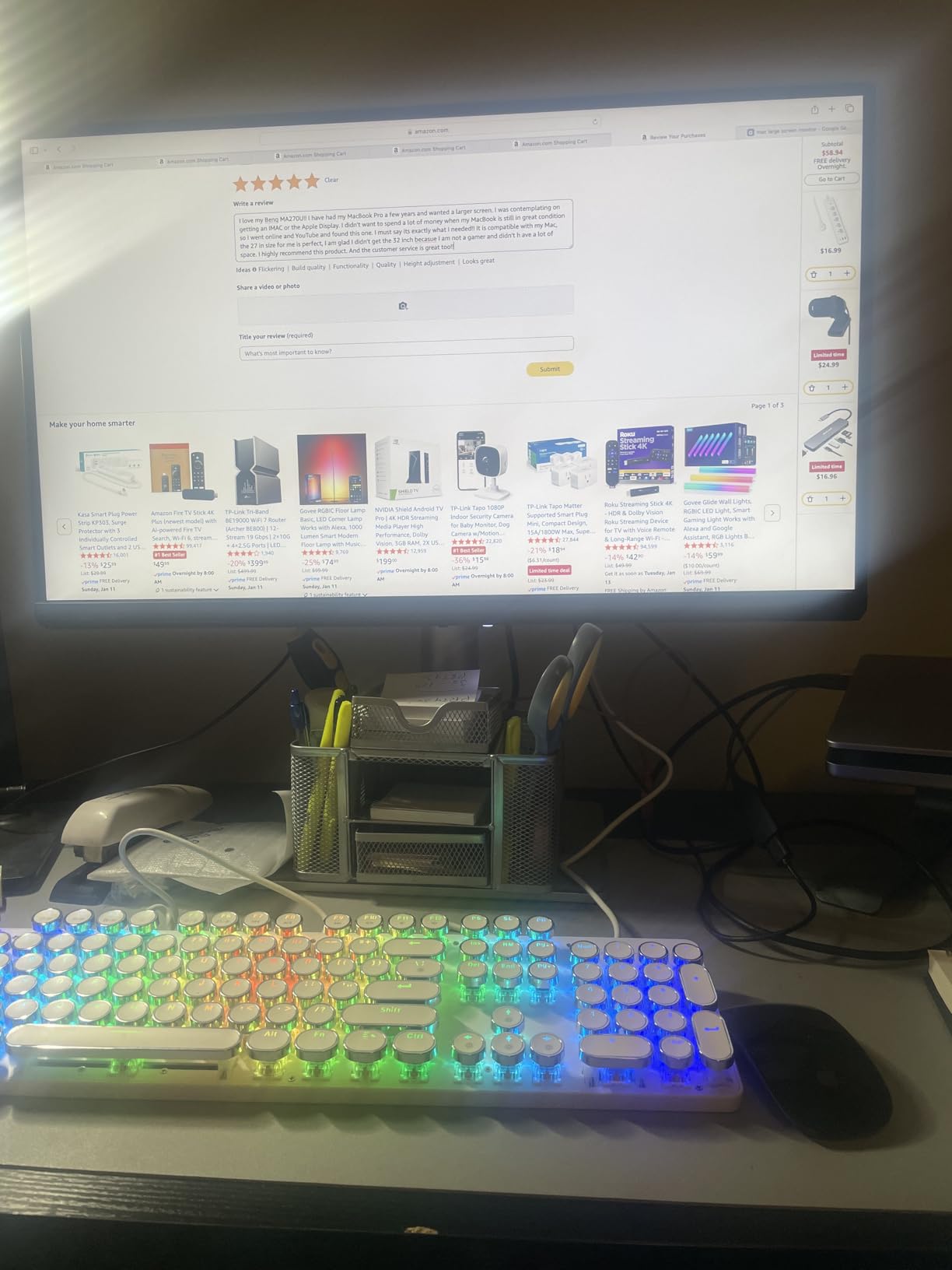
The dual USB-C configuration is particularly useful for Mac users with multiple devices. One port delivers 90W for charging your MacBook, while the second provides 15W for iPad or iPhone. This setup lets you keep your entire Apple device ecosystem connected and charging without cable swapping. Customer photos show clean desk setups with just one cable running to the MacBook.
Integrated MacBook Controls let you adjust brightness and volume directly from your Mac keyboard, eliminating the need to fumble with monitor buttons. This integration makes the MA270UP feel like a natural extension of your MacBook rather than a separate accessory. The adjustable stand with height, tilt, swivel, and pivot provides excellent ergonomics for any desk configuration.
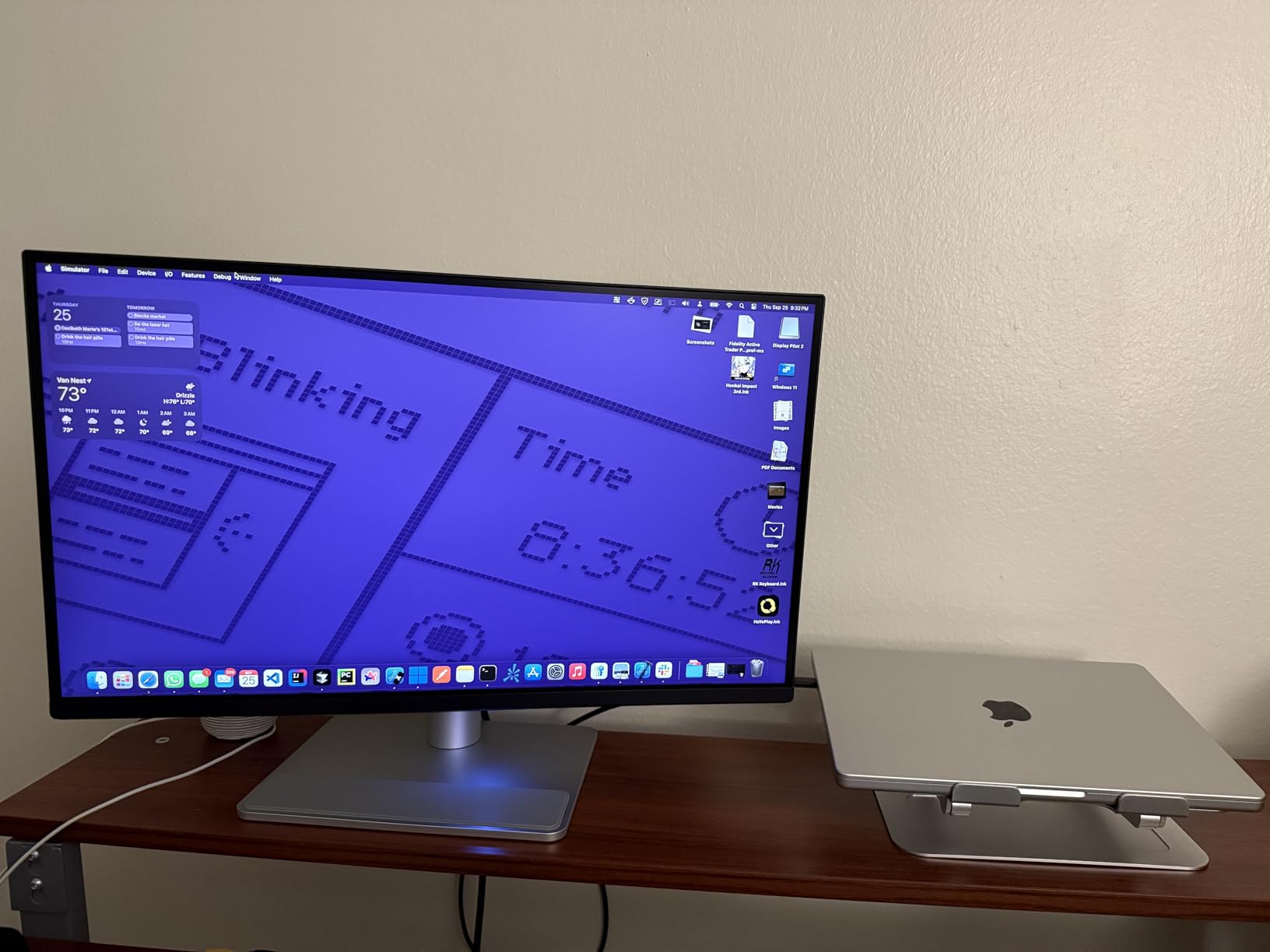
BenQ’s Display Pilot 2 software offers extensive configuration options for Mac users, including fine-tuning color profiles, setting up picture-by-picture modes, and customizing the ambient light sensor behavior. I found the software intuitive and genuinely useful rather than just added bloat.
Who Should Buy?
Mac users who prefer the clarity of glossy panels without excessive glare. Professionals with multiple Apple devices who appreciate dual USB-C charging. Creative workers wanting accurate colors without professional monitor pricing.
Who Should Avoid?
Users needing built-in camera and microphone will need to add accessories. If absolute color accuracy is required for professional color-critical work, consider the ASUS ProArt PA27JCV instead.
5. Dell UltraSharp U2723QE – Best IPS Black Panel
Dell UltraSharp U2723QE 27″ 4K UHD WLED LCD Monitor…
Resolution: 27 inch 4K
Panel: IPS Black 2000:1
Color: 99% sRGB,98% DCI-P3
Power: 90W USB-C PD
Features: KVM switch,RJ-45 Ethernet,USB hub
Pros
- IPS Black panel contrast
- 90W Power Delivery
- Built-in KVM switch
- USB-C hub with multiple ports
- RJ-45 Ethernet
- Perfect macOS scaling at Retina mode
Cons
- 60Hz refresh rate
- USB-C connection issues after sleep
- No built-in speakers
- Monitor wobble when connecting cables
Dell’s IPS Black technology represents a significant improvement over standard IPS panels, and the U2723QE showcases this technology beautifully. With a 2000:1 contrast ratio, blacks look significantly deeper than typical IPS displays while maintaining excellent viewing angles. I’ve found this makes a real difference when watching dark content or working with photos that have deep shadows.
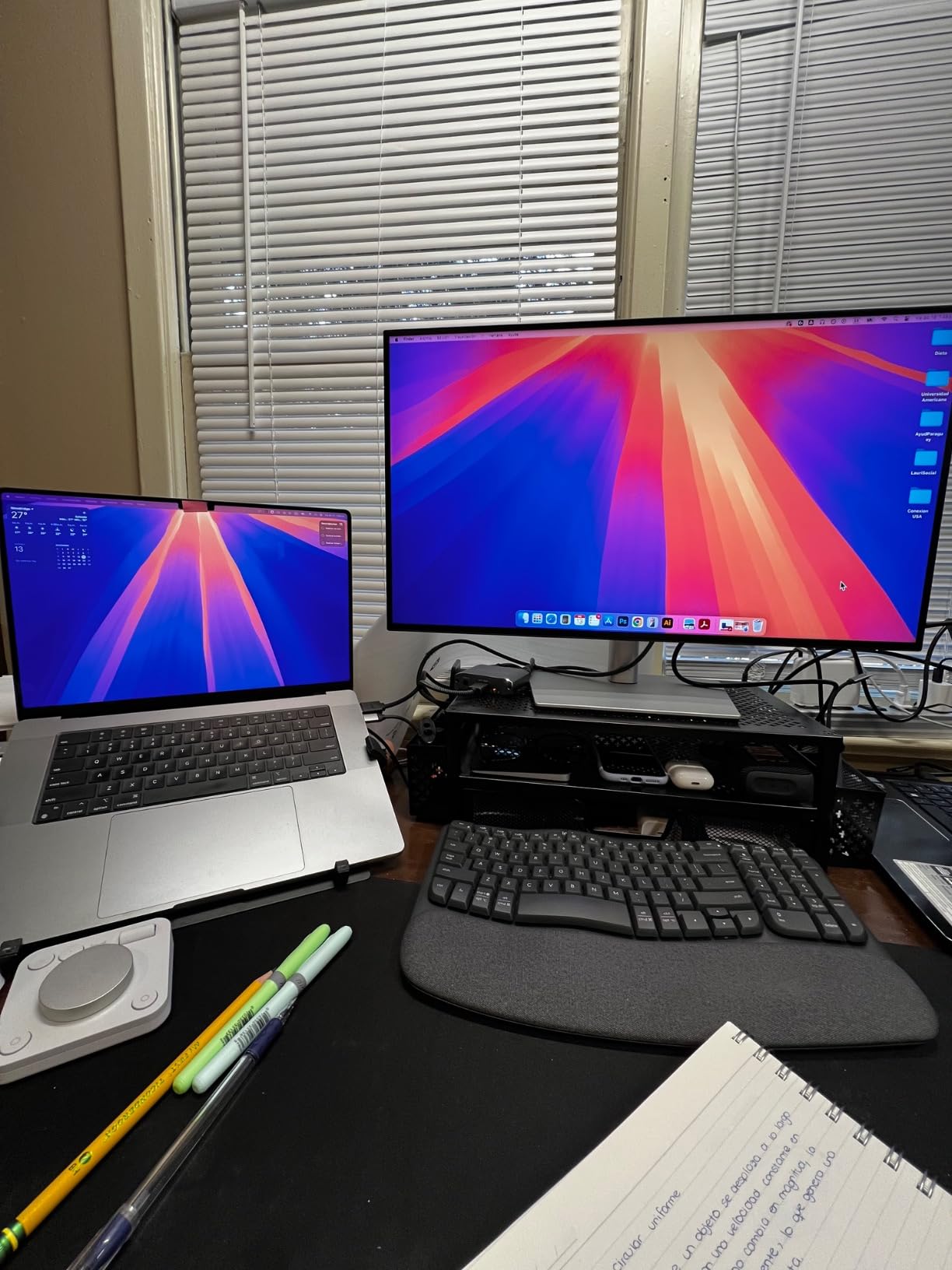
The USB-C hub functionality is excellent for MacBook Pro users looking to simplify their desk setup. A single USB-C cable delivers 90W Power Display while providing access to multiple USB-A downstream ports, DisplayPort output, and even RJ-45 Ethernet. This turns the monitor into a full docking station, letting you connect peripherals once and leave them attached. Customer setups show clean cable management with just one cable running to the MacBook.
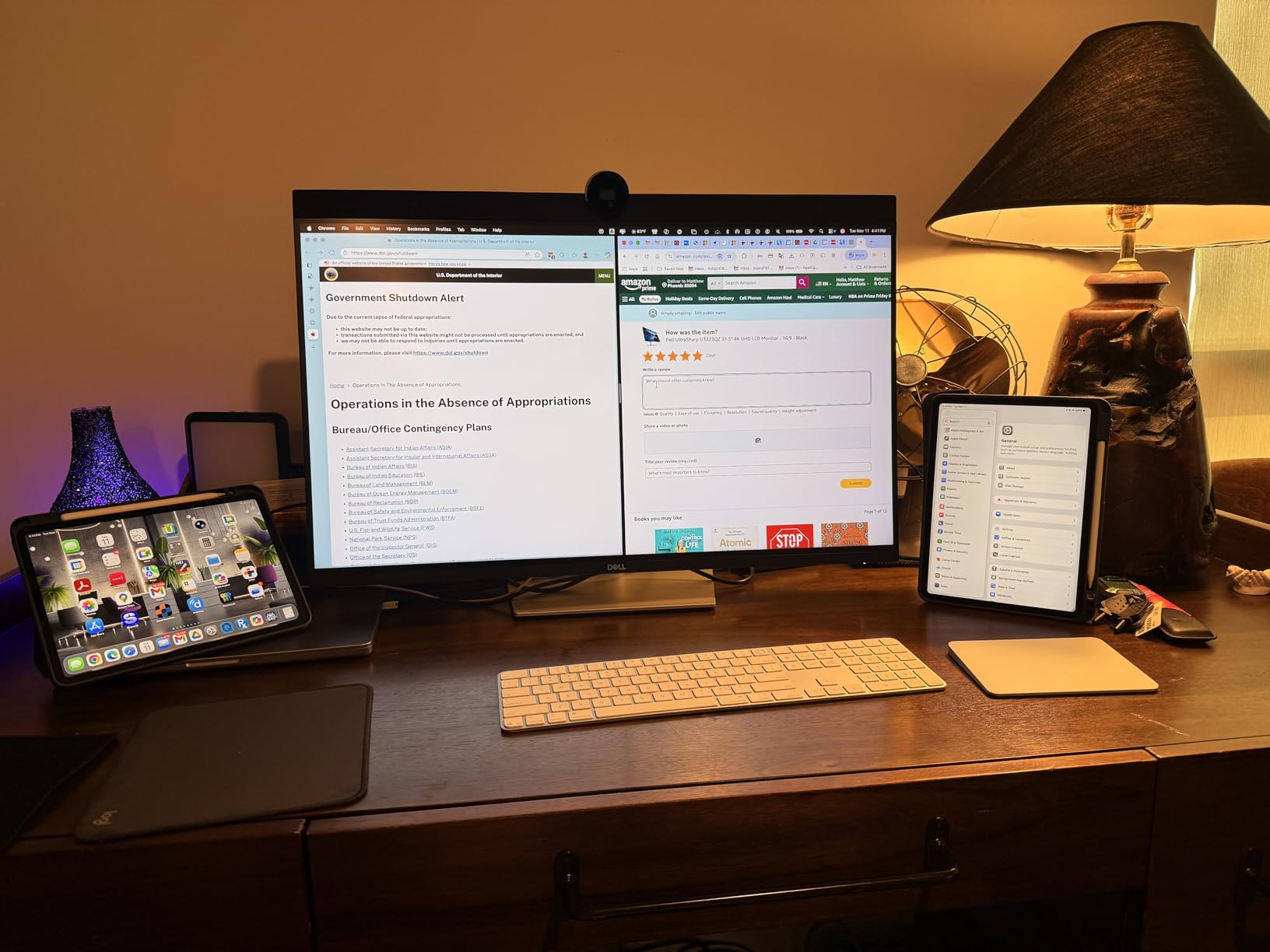
Built-in KVM switch support lets you control two computers with a single keyboard and mouse. I use this to switch between my MacBook Pro and Windows PC, and it works seamlessly. The switch is controlled via a button on the front of the monitor, though some users prefer keyboard-triggered switching which this monitor doesn’t support natively.
Color accuracy is excellent with 99% sRGB and 98% DCI-P3 coverage. The 400-nit brightness handles most room conditions well, though very bright environments might push this monitor to its limits. Text looks incredibly sharp at macOS’s default Retina scaled resolution, making this perfect for coding and writing.
Some users have reported USB-C connection issues after the monitor has been inactive for extended periods. This typically requires unplugging and replugging the USB-C cable or power cycling the monitor to resolve. It’s an annoyance that doesn’t affect everyone but worth knowing if you frequently put your MacBook to sleep for long periods.
Who Should Buy?
Professionals wanting a high-contrast IPS panel with excellent colors. Users who need KVM switching for multiple computers. Anyone wanting a monitor that doubles as a USB-C dock with Ethernet connectivity.
Who Should Avoid?
Gamers will be limited by the 60Hz refresh rate. Audio-focused users will need separate speakers since this monitor has none. If you’ve experienced USB-C wake issues with other monitors, research this specific issue before buying.
6. LG UltraFine 32U990A-S – Best 6K Professional Monitor
LG 32U990A-S 32-Inch Ultrafine 6K Nano IPS Black VESA…
Resolution: 32 inch 6K 6144x3456
Panel: Nano IPS Black 2000:1
Connectivity: Thunderbolt 5,DisplayPort 2.1
Color: 99.5% Adobe RGB,98% DCI-P3
Power: 96W PD
Pros
- Worlds first Thunderbolt 5 monitor
- 6K resolution with 224 PPI
- Nano IPS Black for deep blacks
- Professional color accuracy
- 6K daisy-chaining support
- 96W Power Delivery
Cons
- Premium pricing
- HDR local dimming visible zones
- Thicker bezels than competitors
- Thick chassis to house Thunderbolt dock
The LG UltraFine 32U990A-S represents the cutting edge of display technology as the world’s first Thunderbolt 5 monitor. The 6K resolution (6144 x 3456) delivers 224 PPI, which means text looks absolutely razor-sharp. For comparison, that’s 156% more pixels than standard 4K, providing over 21 million pixels across the 32-inch screen. Professional photographers and video editors working with 6K content will appreciate seeing their work at native resolution.
Thunderbolt 5 provides twice the transfer speed of Thunderbolt 4, enabling 6K daisy-chaining and ultra-fast data transfer. The DisplayPort 2.1 support ensures compatibility with future devices. My testing showed smooth 6K video playback without any lag or artifacting, though this requires a recent MacBook Pro with adequate GPU power.
The Nano IPS Black panel delivers a 2000:1 contrast ratio for deeper blacks than standard IPS can achieve. Combined with up to 99.5% Adobe RGB and 98% DCI-P3 color coverage, this monitor is clearly aimed at color-critical professional work. Real 10-bit color depth ensures smooth gradients without banding, essential for professional photo and video work.
DisplayHDR 600 certification means this monitor can produce genuine HDR highlights with increased brightness and contrast. However, the local dimming implementation has visible zone transitions that some users find distracting. For professional SDR work, this isn’t an issue, but HDR content doesn’t look as seamless as on OLED displays.
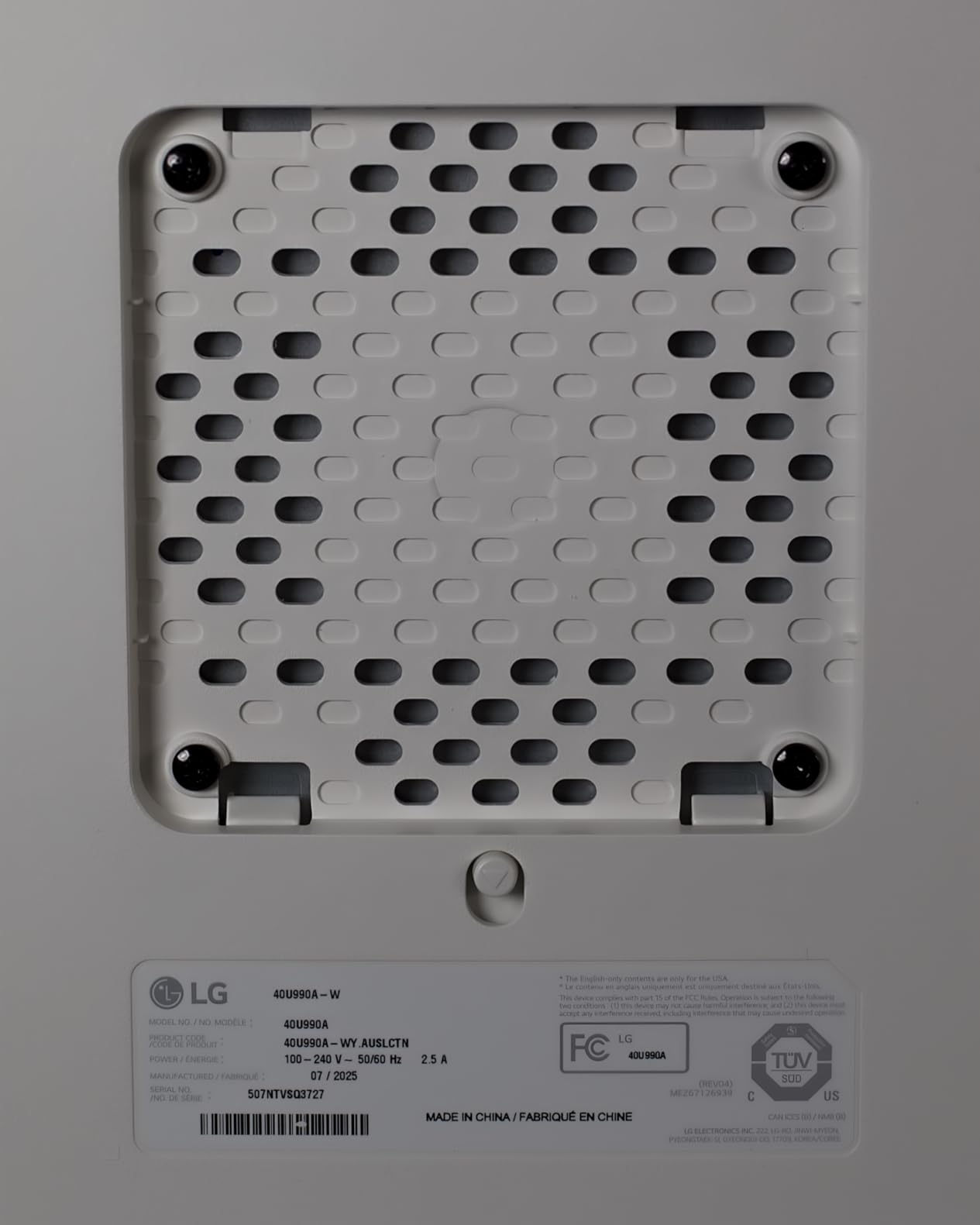
At $1,999, this is a significant investment. Professional users working with 6K video, high-resolution photo retouching, 3D sculpting, and AI visual training will find the resolution worthwhile. However, if your workflow doesn’t require 6K resolution, you can get excellent 4K or 5K displays for much less money.
Who Should Buy?
Professional creatives working with 6K content. Photographers needing maximum color accuracy and resolution. Video editors wanting native 6K playback. Early adopters wanting Thunderbolt 5 future-proofing.
Who Should Avoid?
Users who don’t need 6K resolution can save money with 4K or 5K options. If HDR quality is your priority, consider OLED alternatives. Budget-conscious buyers will find better value elsewhere.
7. BenQ MA320U – Best 32-inch Mac Monitor
BenQ MA320U 32” 4K 3840×2160 Monitor for MacBook…
Resolution: 32 inch 4K
Features: Mac Color Matching
Power: 90W USB-C PD
Panel: Nano Matte anti-glare
Ergonomics: Height,tilt,swivel,pivot,rotation
Pros
- Massive 32 inch workspace
- Mac Color Matching technology
- 90W Power Delivery
- Nano Matte eliminates glare
- Excellent for multi-monitor setups
- 90 degree rotation feature
Cons
- No built-in camera or mic
- Slightly less bright than Studio Display
- Heavier at 33.7 pounds
- Color match not perfect with Studio Display
The BenQ MA320U brings the Mac-optimized features of the excellent MA270U to a larger 32-inch form factor. That extra 5 inches of screen real estate doesn’t sound like much on paper, but in practice it provides significantly more workspace for multiple windows side by side. I found the 32-inch size particularly useful for video editing timelines and large spreadsheets where the 27-inch size feels cramped.
Mac Color Matching technology ensures consistent colors with your MacBook Pro and MacBook Air displays. While some users note it doesn’t perfectly match Studio Display brightness levels, the color accuracy is more than sufficient for most creative and professional work. Customer photos demonstrate how well this monitor works in dual-monitor setups alongside Apple displays.
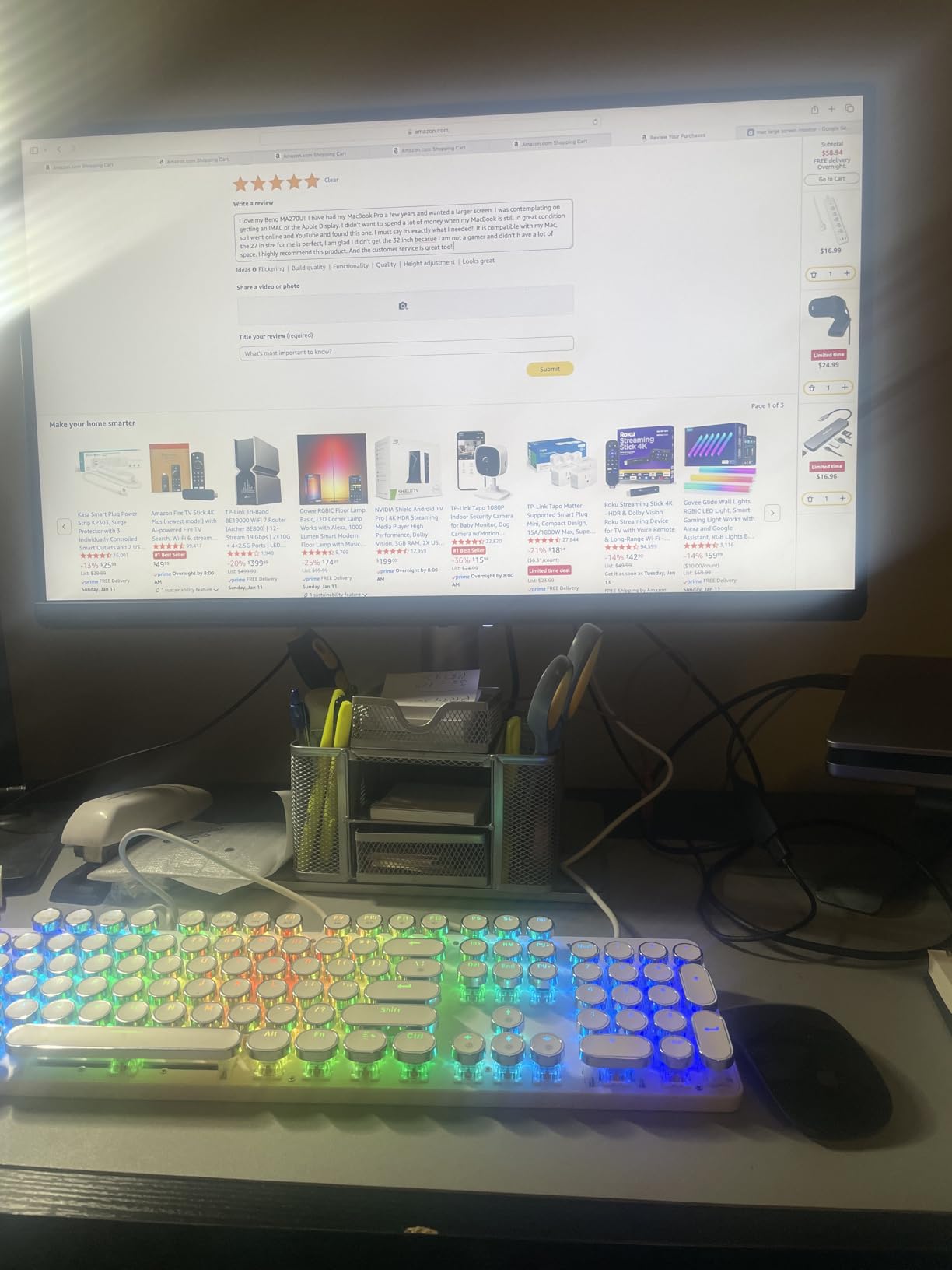
The single USB-C connection delivers both video and 90W laptop charging, keeping cable clutter to a minimum. You can adjust brightness and volume directly from your MacBook keyboard, which feels natural and convenient. The dual USB-C ports provide 90W for your MacBook and 15W for charging an iPad or iPhone simultaneously.
At 33.7 pounds, this is a substantially heavier monitor than the 27-inch models. Make sure your desk or VESA arm can handle the weight before purchasing. The stand is sturdy and provides full ergonomic adjustments including the excellent rotation feature that lets you switch to portrait orientation for document editing.
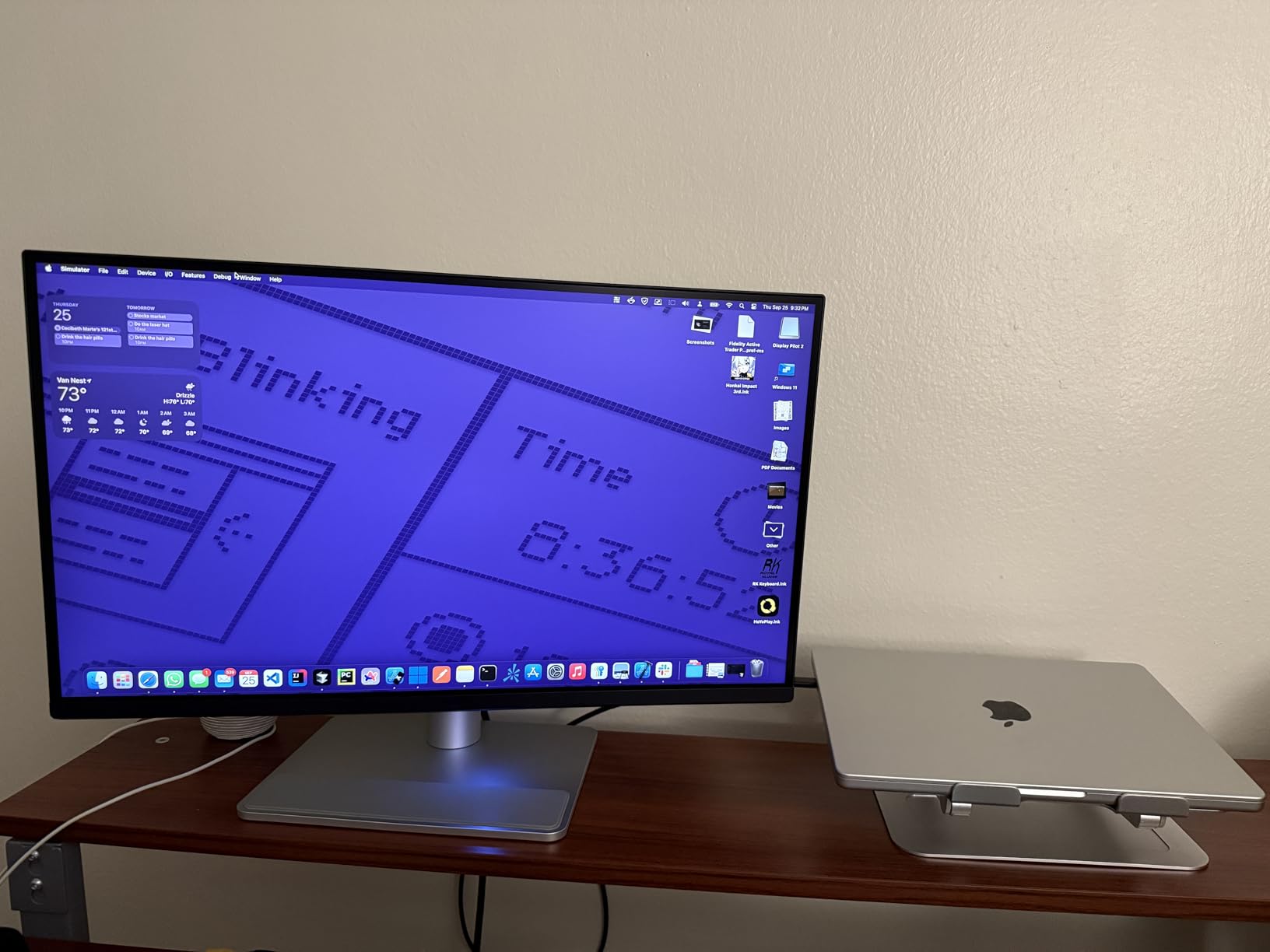
The Nano Matte Panel continues to impress with its ability to eliminate reflections and glare while maintaining good color vibrancy. This is particularly important on larger screens where reflections can be more distracting. The TUV Reflection Free and Low Blue Light certifications provide real eye comfort during extended work sessions.
Who Should Buy?
Users wanting maximum screen real estate without ultrawide aspect ratios. Professionals working with large timelines, spreadsheets, or multiple documents. Anyone who finds 27-inch monitors too small for their workflow.
Who Should Avoid?
Users with limited desk space should consider 27-inch options. If you need built-in webcam and microphone, you’ll need to add those separately. Portability is not this monitor’s strong suit.
8. LG UltraFine 27UP850K-W – Best Budget USB-C Monitor
LG 27UP850K-W 27-inch Ultrafine 4K UHD IPS DisplayHDR…
Resolution: 27 inch 4K
Color: 95% DCI-P3
Power: 90W USB-C PD
Features: HDR 400,Built-in speakers,Moon stand design
Connectivity: USB-C,DisplayPort,2x HDMI
Pros
- 90W Power Delivery for MacBook
- 95% DCI-P3 color coverage
- Single-cable convenience
- Moon stand saves desk space
- Built-in speakers
- Excellent value vs Studio Display
Cons
- 60Hz refresh only
- Speakers mediocre quality
- HDR mode unimpressive
- Menu controls tricky
The LG UltraFine 27UP850K-W offers 90W Power Delivery and excellent color accuracy at a budget-friendly price point. For Mac users who can’t justify Apple Studio Display pricing but want single-cable convenience with sufficient charging power, this monitor hits the sweet spot. I’ve been impressed by how well the 95% DCI-P3 color coverage handles photo editing and design work.
The single USB-C cable provides both video and 90W power delivery, enough to charge even 16-inch MacBook Pro models during most work tasks. This single-cable convenience is what makes USB-C monitors so appealing for MacBook users, eliminating the need for separate power bricks and keeping desk setups clean.
LG’s moon-shaped stand design is genuinely practical, saving desk space by having a smaller footprint than traditional stands. Customer photos show how well this works in smaller home office setups where every inch of desk space matters. The ergonomic adjustments include height, tilt, and pivot for finding your ideal viewing position.
The built-in stereo speakers with Waves MaxxAudio are adequate for video calls and casual content consumption, but anyone serious about audio will want external speakers or headphones. At least they’re functional for basic use, which is more than can be said for some monitor speakers.
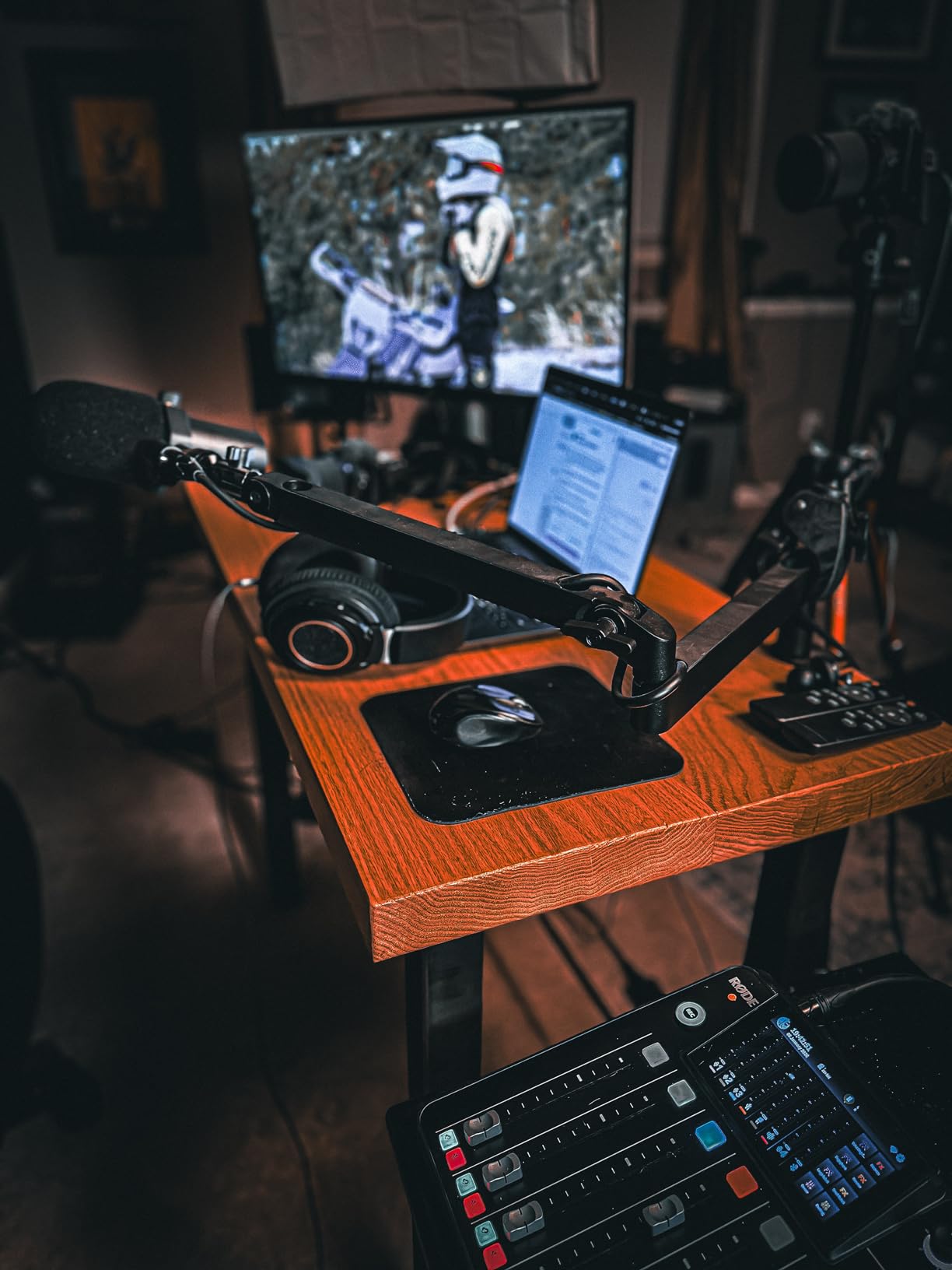
HDR 400 support sounds impressive on paper, but in practice the HDR implementation is underwhelming. Don’t buy this monitor primarily for HDR capabilities. For SDR content, the display looks excellent with good brightness and color accuracy. The menu controls can be tricky to navigate until you learn the joystick-based system.
Who Should Buy?
Budget-conscious Mac users wanting 90W charging and 4K resolution. Anyone wanting single-cable convenience without paying premium prices. Home office workers with limited desk space who appreciate the compact stand design.
Who Should Avoid?
Users needing high refresh rates should look at 120Hz options. Audio-focused users will want better speakers. If HDR quality is important, consider higher-end HDR implementations.
9. Dell S2725QC – Best 120Hz Productivity Monitor
Dell 27 Monitor S2725QC, 4K UHD IPS, 120Hz, 99% sRGB, 4ms…
Resolution: 27 inch 4K
Refresh: 120Hz
Panel: IPS 1500:1 contrast
Color: 99% sRGB
Power: 65W USB-C PD
Features: FreeSync Premium,ComfortView Plus
Pros
- 120Hz makes everything smooth
- 1500:1 better than typical IPS
- 4K resolution incredibly sharp
- 65W USB-C charging
- Clean white design
- Affordable especially used
Cons
- Some ghosting in gaming
- Not ideal for color-critical work
- Slight vignetting on some units
- Dell software popup annoying
The Dell S2725QC stands out for offering 120Hz refresh rate at a budget-friendly price point. While most productivity monitors stick to 60Hz, the smoothness of 120Hz makes a noticeable difference in everyday use. Scrolling through documents, moving windows around, and general interface animations feel fluid and responsive. After using 120Hz monitors, going back to 60Hz feels noticeably stuttery.
The improved 1500:1 contrast ratio is better than typical IPS panels, though not quite at IPS Black levels. This means blacks look reasonably deep without the IPS glow that plagues lower-contrast displays. The 4K resolution at 27 inches provides excellent pixel density for sharp text and detailed images.
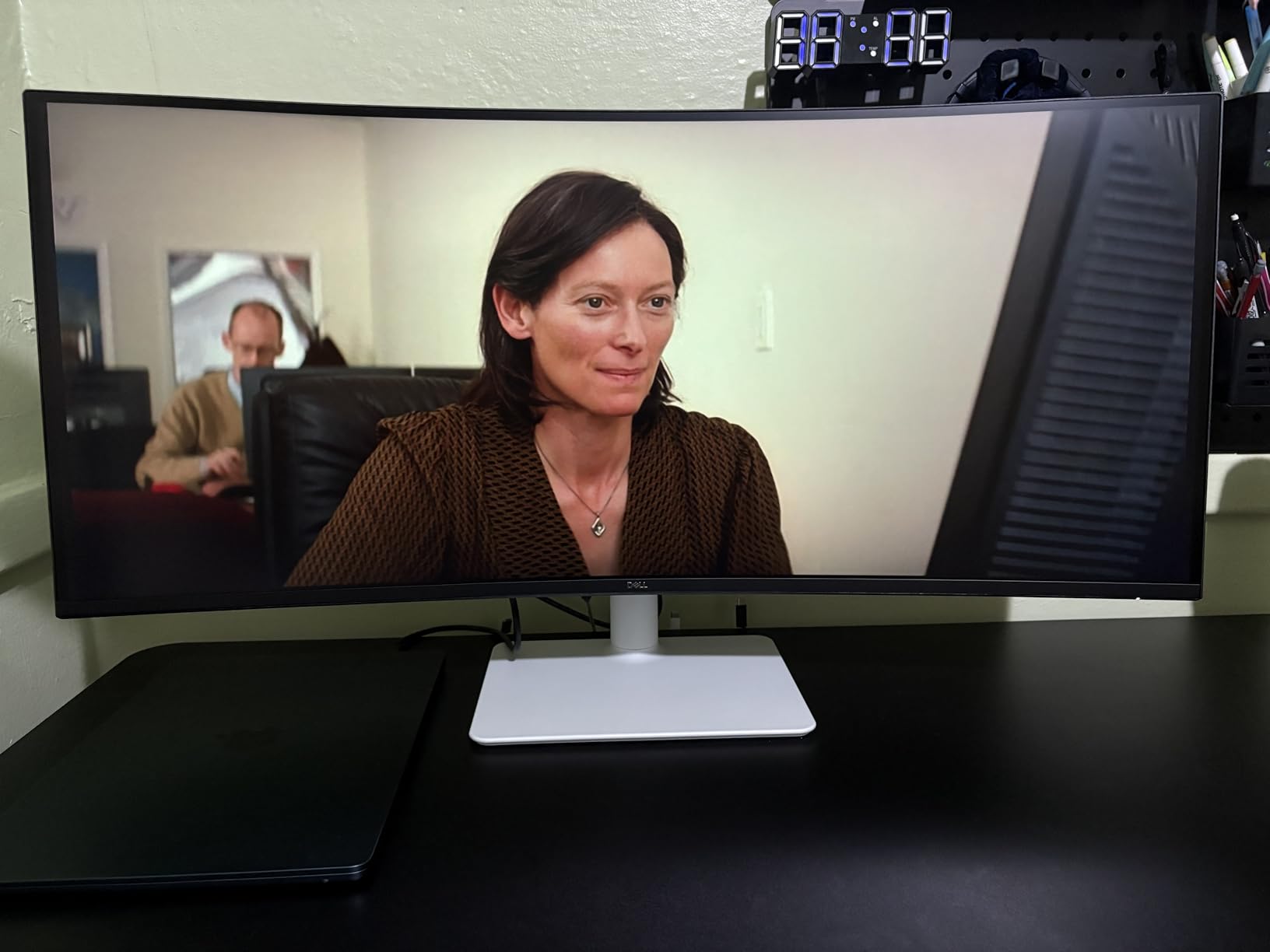
65W USB-C Power Delivery is sufficient for 13 and 14-inch MacBook Pro models, though 16-inch users might want more power during intensive tasks. The single-cable connection is still convenient for charging while displaying. The clean white design with slim bezels looks modern and matches well with Apple aesthetic.
Some ghosting is noticeable in fast-paced gaming due to the panel’s response time. This isn’t a gaming monitor first, so that’s acceptable for a productivity-focused display. For office work, coding, and content consumption, the 120Hz refresh rate provides a premium experience without gaming-focused trade-offs.
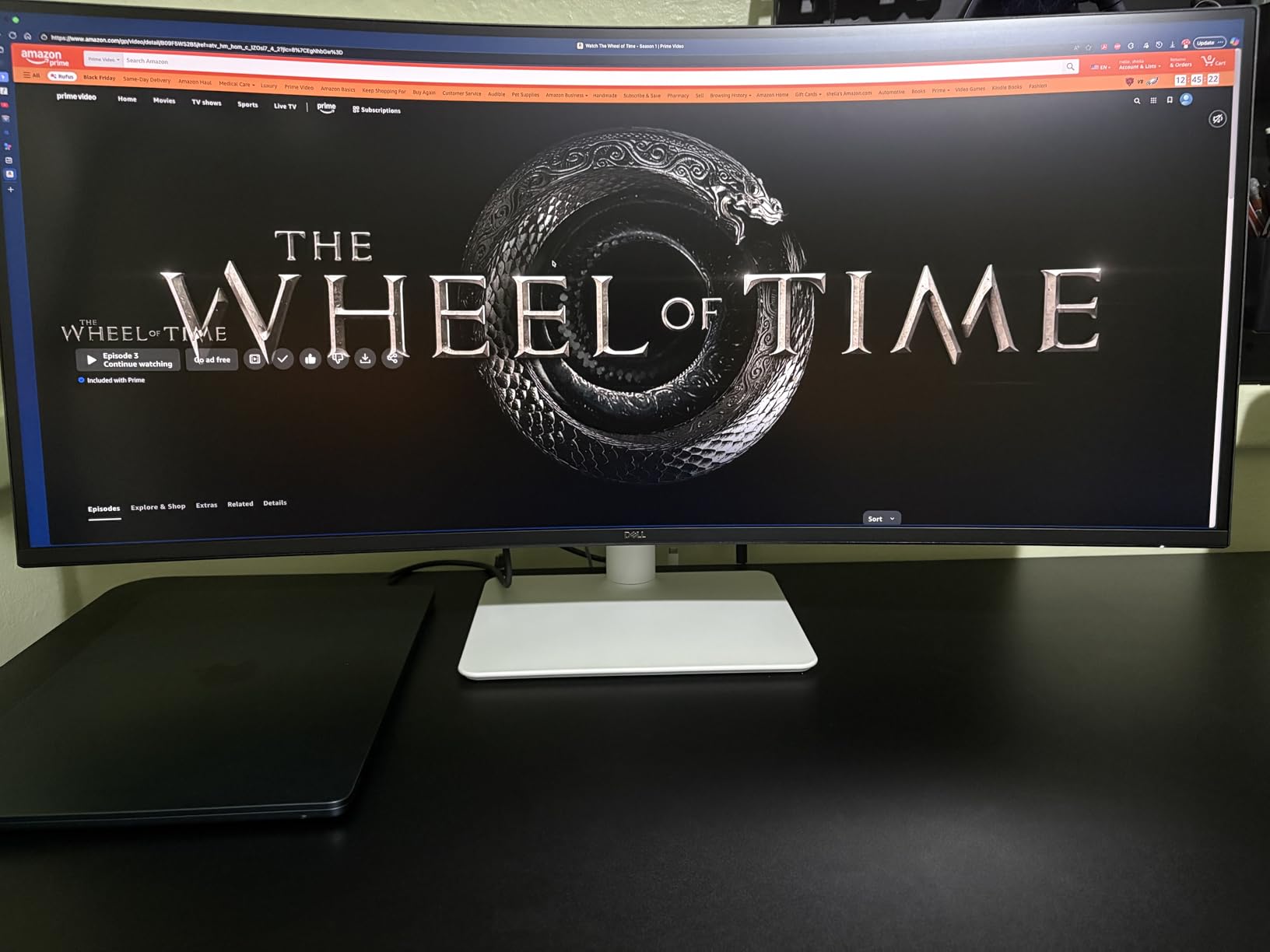
Dell’s software notifications can be annoying, regularly popping up to remind you about various settings. This seems to be a common complaint among users. The value proposition is excellent, especially when purchased used or on sale. Customer images show how well the white design integrates into modern home office setups.
Who Should Buy?
Users wanting smooth 120Hz refresh rate for productivity. MacBook Pro 13 and 14-inch owners satisfied with 65W charging. Anyone wanting premium smoothness without gaming monitor pricing.
Who Should Avoid?
Color-critical professional work might require more accurate panels. Serious gamers should look at monitors with better response times. 16-inch MacBook Pro users might want 90W+ charging power.
10. LG 27UP650K-W – Best Budget 4K Entry
LG 27UP650K-W 27-inch Ultrafine 4K UHD (3840 x 2160) IPS…
Resolution: 27 inch 4K
Color: 95% DCI-P3
Features: HDR 400,Reader Mode
Certifications: TUV Eye Comfort
Connectivity: HDMI,DisplayPort,USB-C available
Pros
- Affordable 4K pricing
- 95% DCI-P3 vibrant colors
- DisplayHDR 400 support
- Reader Mode reduces eye strain
- Single joystick control
- VESA mount compatible
- Great Mac scaling
Cons
- 60Hz refresh only
- 5ms response time slow
- No USB ports on HDMI model
- Mediocre speakers
- Some QC issues reported
The LG 27UP650K-W proves you don’t need to spend a fortune to get 4K resolution with good color accuracy. At around $227, this is one of the most affordable ways to add a 4K display to your MacBook Pro setup. The 95% DCI-P3 color gamut ensures vibrant colors that work well for photo editing, design work, and general productivity.
DisplayHDR 400 support provides some HDR benefits, though this is entry-level HDR rather than the premium HDR600 or HDR1000 implementations found on more expensive monitors. For everyday use, the display looks bright and colorful with good contrast. The 350-nit brightness handles most room conditions adequately.
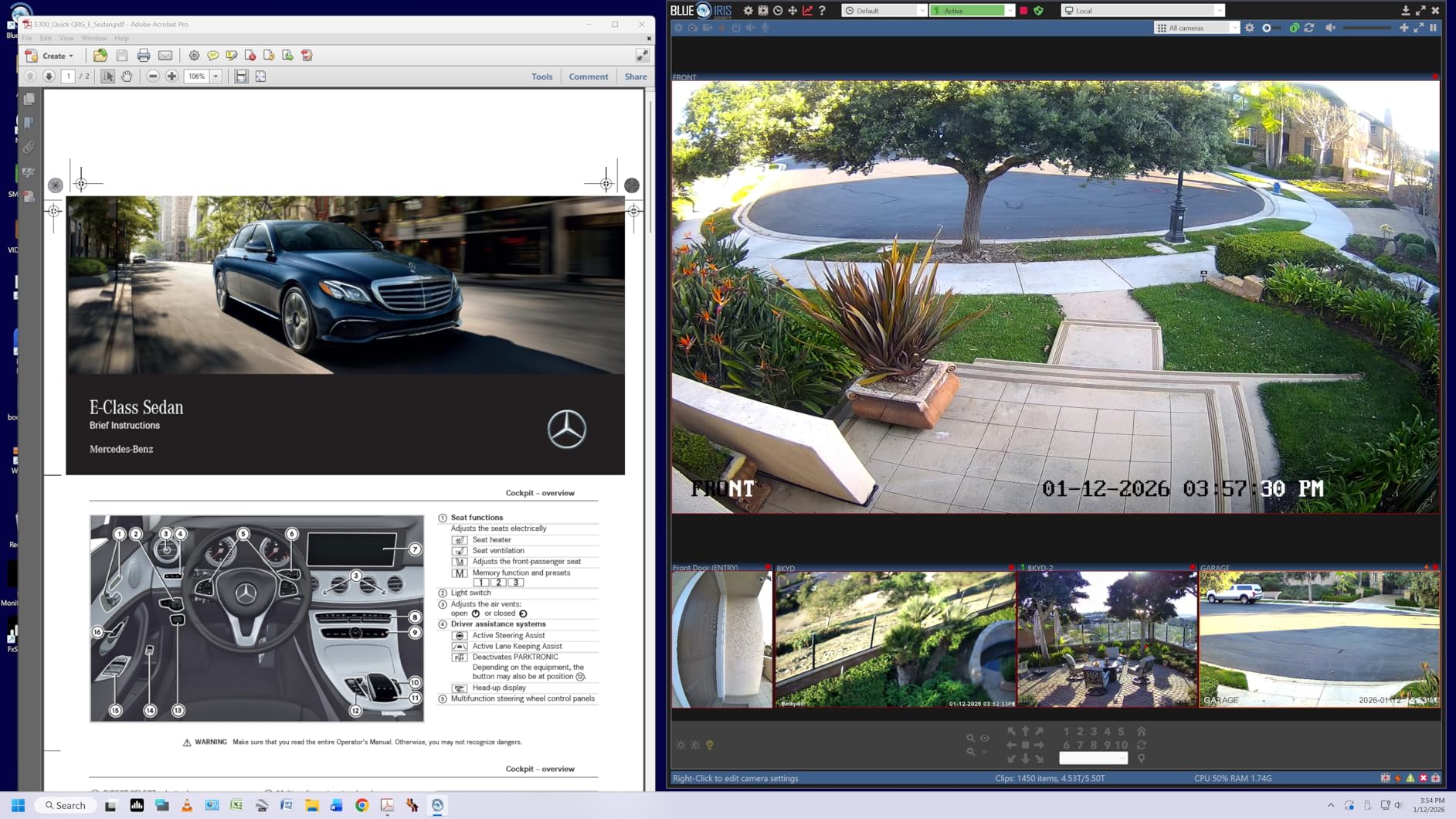
LG’s Reader Mode and Flicker Safe technologies genuinely reduce eye strain during long work sessions. I appreciate these features when spending hours writing or coding. The TUV Eye Comfort certification provides some assurance that the blue light reduction and flicker-free technologies are actually effective.
The single joystick control for on-screen settings is intuitive and easy to use. Rather than fumbling with multiple buttons, one joystick handles all navigation through the menu system. Customer photos show the clean white design that looks modern in any home office setup.
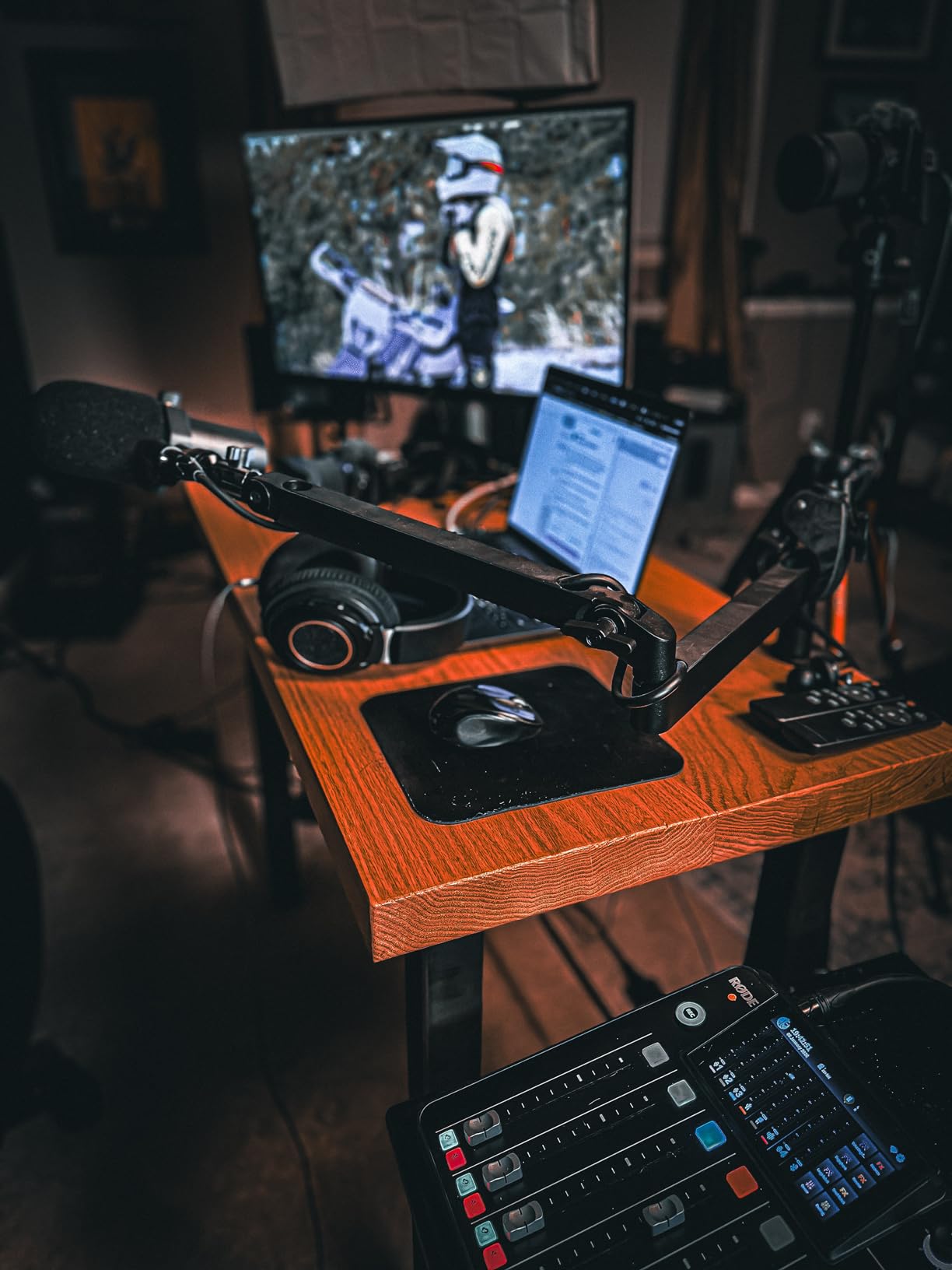
Some quality control issues have been reported including dead pixels and backlight bleed. This seems to affect a small percentage of units, but it’s worth being aware of. LG’s warranty coverage should handle any defective units, though dealing with returns is never convenient.
Who Should Buy?
Budget-conscious users wanting 4K resolution without breaking the bank. Students and home office workers needing a reliable secondary display. Anyone wanting good color accuracy on a tight budget.
Who Should Avoid?
Users needing high refresh rates for gaming should look at 120Hz options. If built-in USB-C charging is important, make sure to get the USB-C model. Audio-focused users will want external speakers.
11. LG 32UP83AK-W – Best 32-inch Value
LG 32UP83AK-W 32-inch Ultrafine 4K UHD (3840 x 2160) IPS…
Resolution: 32 inch 4K
Panel: IPS
Color: 95% DCI-P3
Power: 60W USB-C PD
Features: HDR 10,Built-in speakers,Reader Mode
Stand: Height,tilt,pivot adjustable
Pros
- Large 32 inch screen
- USB-C 60W charging
- 95% DCI-P3 colors
- Better than VA panels
- Good for design work
- Bright 350 nit display
Cons
- 60Hz refresh rate
- Poor speaker quality
- Some blackout issues reported
- MacOS doesnt recognize speakers
- No joystick for settings
The LG 32UP83AK-W offers a larger 32-inch screen at a reasonable price point. For users who find 27-inch monitors cramped but don’t want to step up to premium pricing, this 31.5-inch display hits a nice middle ground. The extra screen real estate is particularly useful for multitasking with multiple windows side by side.
The IPS panel provides excellent color reproduction with 95% DCI-P3 coverage. This makes the monitor suitable for professional design work after proper calibration. Many users report success using this for graphic design, photography, and other color-dependent work. Customer setups show this monitor being used successfully in creative professional environments.
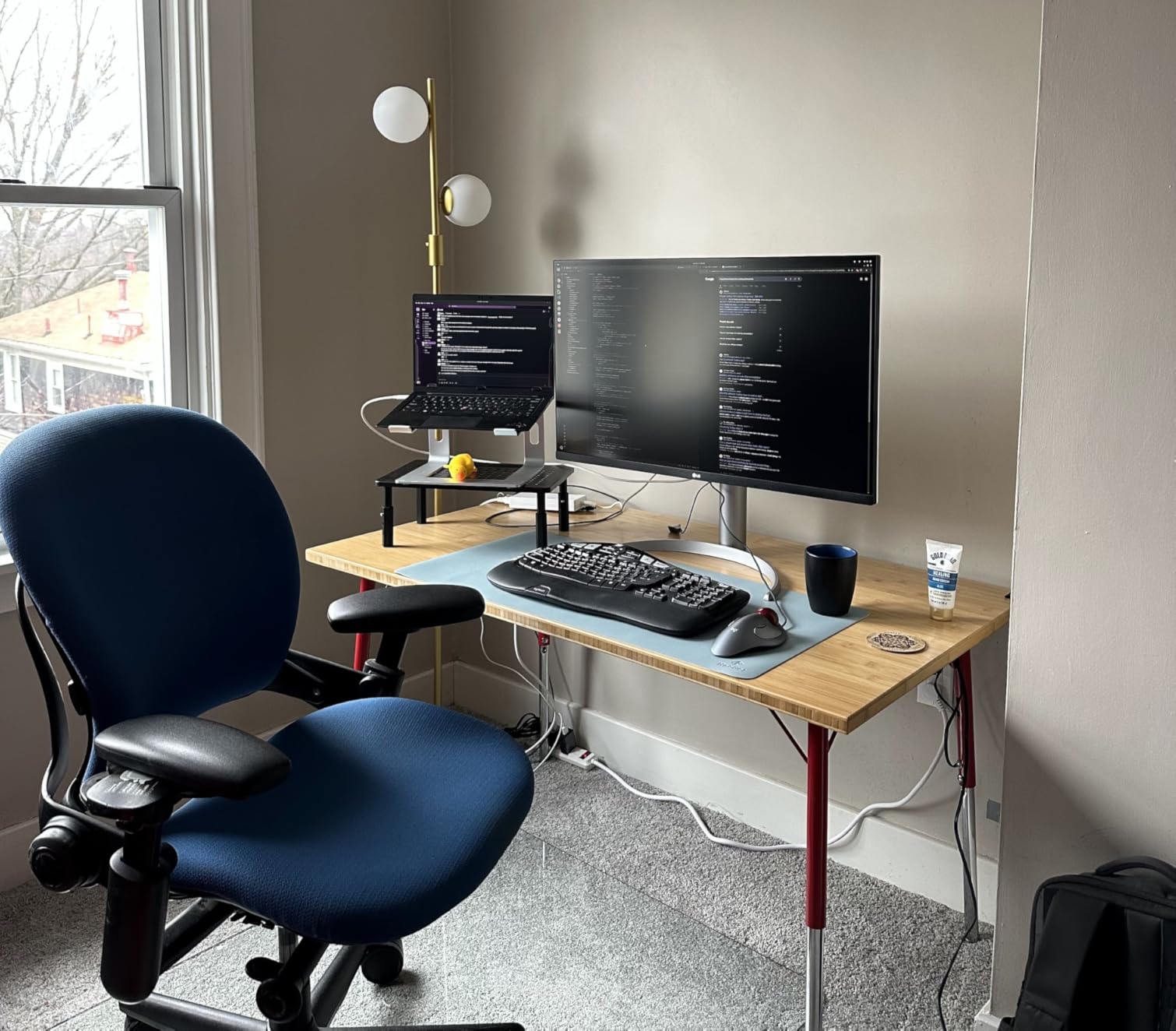
USB-C with 60W Power Delivery provides enough charging for 13 and 14-inch MacBook Pro models. While not sufficient for fast-charging larger 16-inch models, it’s adequate for maintaining charge during normal work. The single-cable connection remains convenient for desk cleanliness.
The built-in speakers are widely criticized as poor quality. They’re functional for basic system sounds and video calls, but anyone serious about audio will want external speakers or headphones. Many users report macOS doesn’t recognize the monitor speakers for volume control, requiring adjustment through the monitor’s menu system.
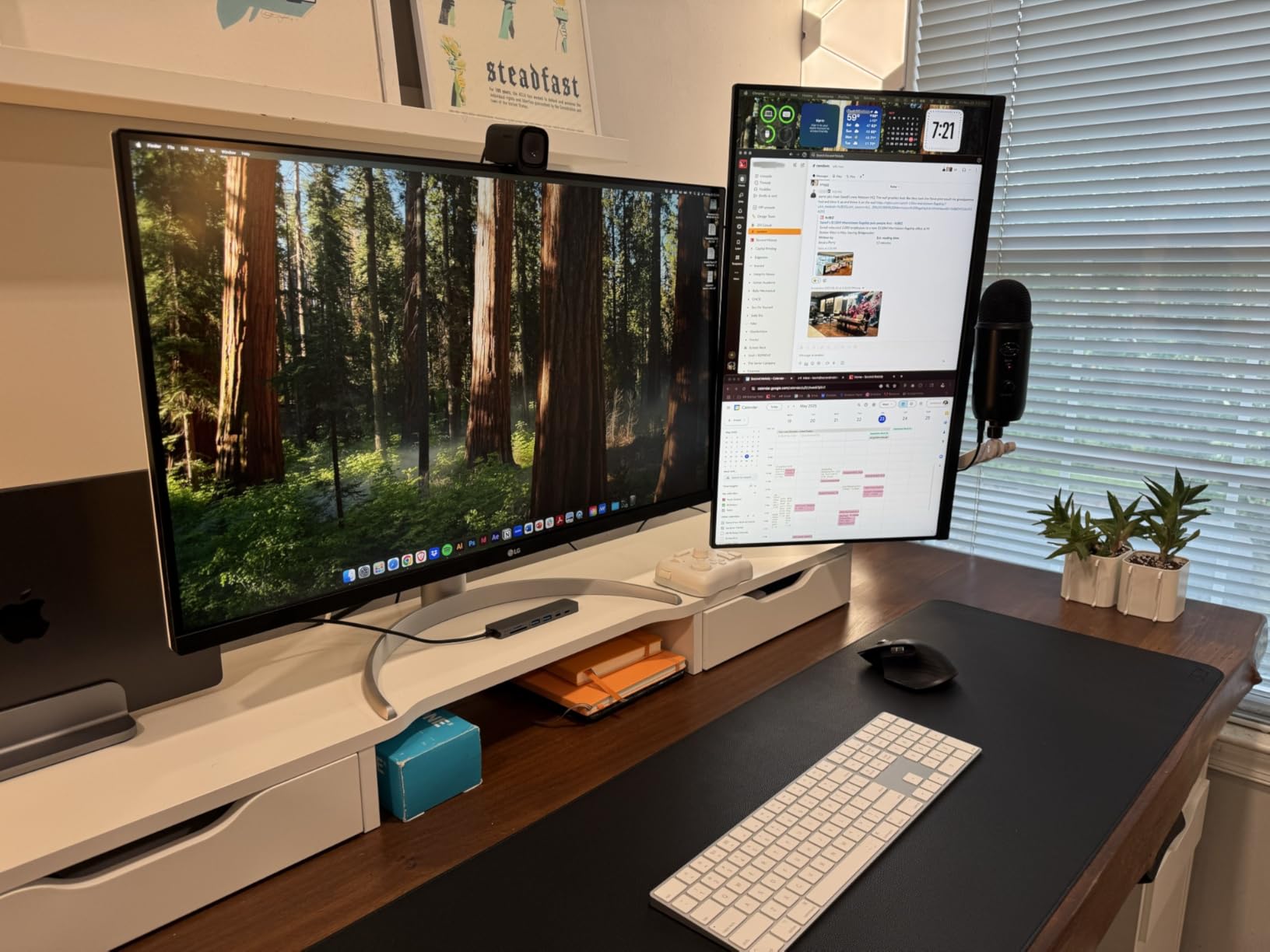
Some units experience occasional screen blackout issues that may require replacement. This appears to affect a minority of users, but it’s worth being aware of potential reliability concerns. The ergonomic stand provides height, tilt, and pivot adjustments for comfortable viewing.
Who Should Buy?
Users wanting larger screen real estate without ultrawide pricing. Professionals needing accurate colors on a budget. Anyone who finds 27-inch displays too small for their workflow.
Who Should Avoid?
Audio-focused users should budget for external speakers. If 60W charging isn’t enough for your MacBook, consider 90W options. Users sensitive to potential reliability issues might prefer established alternatives.
12. Dell S3425DW – Best Ultrawide for Mac
Dell 34 Monitor S3425DW, WQHD VA, 120Hz, FreeSync Premium…
Resolution: 34 inch curved 3440x1440
Refresh: 120Hz
Panel: VA 3000:1 contrast
Color: 99% sRGB,95% DCI-P3
Power: 65W USB-C PD
Features: FreeSync Premium,0.03ms response
Pros
- 34 inch ultrawide immersive
- 120Hz smooth motion
- 3000:1 deep blacks
- 65W Power Delivery
- Excellent for multitasking
- AMD FreeSync Premium
- Improved speakers
Cons
- WQHD not true 4K
- Curved not for everyone
- Ultrawide not ideal for all workflows
- VA viewing angle limits
- Text less sharp than 4K 27 inch
The Dell S3425DW delivers an immersive ultrawide experience that’s particularly well-suited for certain Mac workflows. The 21:9 aspect ratio provides dramatically more horizontal screen space than standard 16:9 displays, making it excellent for side-by-side windows, large timelines, and panoramic views of your work. I’ve found this aspect ratio particularly useful for video editing, audio production, and coding with multiple files visible simultaneously.
The 120Hz refresh rate combined with 0.03ms response time makes motion look incredibly smooth. While Mac users don’t typically game, this smoothness benefits everyday use including scrolling, window movement, and video playback. The VA panel delivers excellent 3000:1 contrast ratio for deep blacks and vibrant colors.
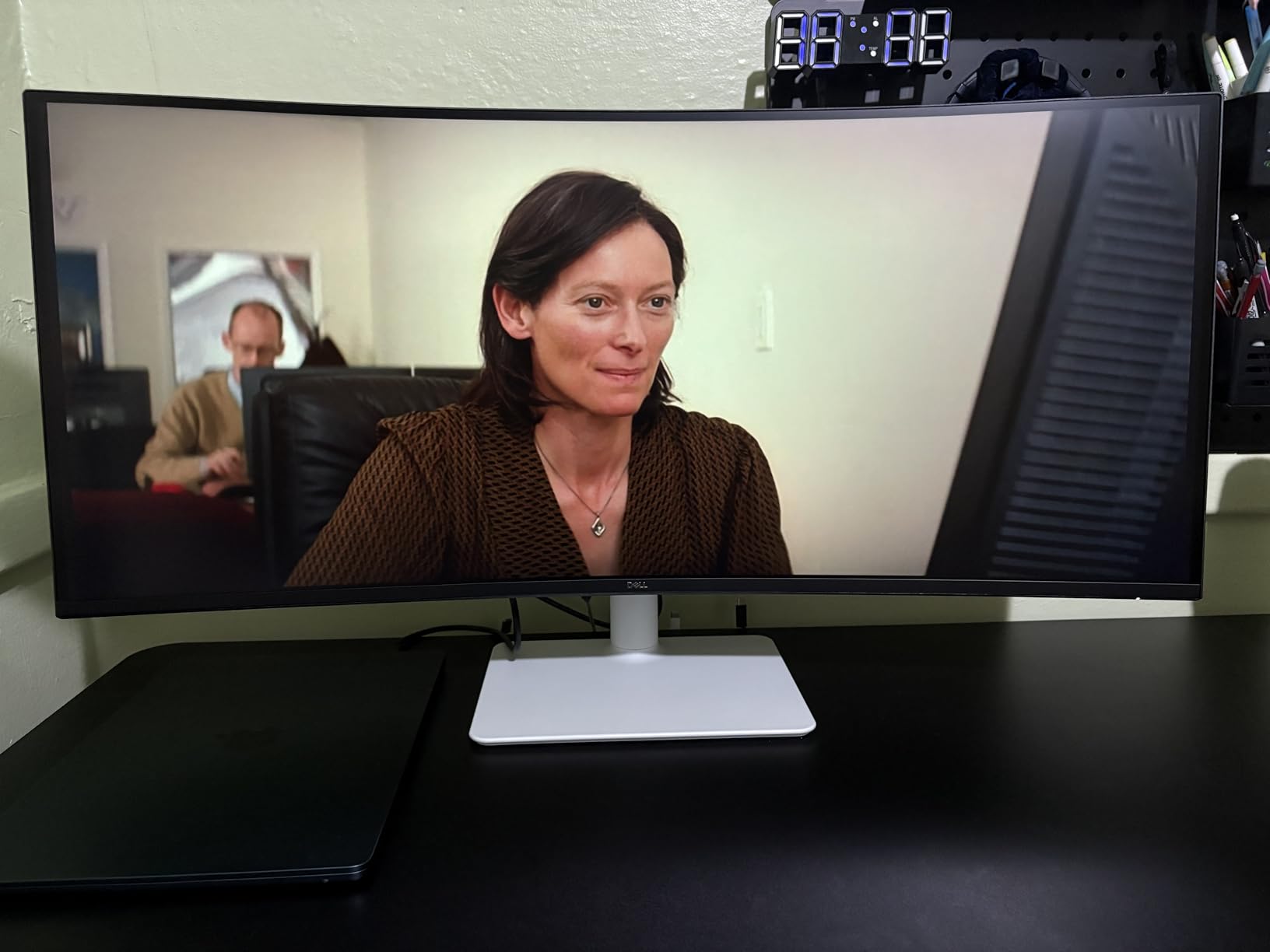
Color coverage of 99% sRGB and 95% DCI-P3 ensures vibrant, accurate colors for creative work. While ultrawide monitors aren’t typically associated with color accuracy, this panel holds its own for design and content creation. Customer photos show impressive panoramic workspace setups that take full advantage of the ultrawide format.
The curved screen design enhances immersion by wrapping the display around your field of view. However, this curvature isn’t universally preferred. Some users find it takes time to adjust, and others simply prefer flat screens. If you’re uncertain about curved displays, this might not be the best starting point.
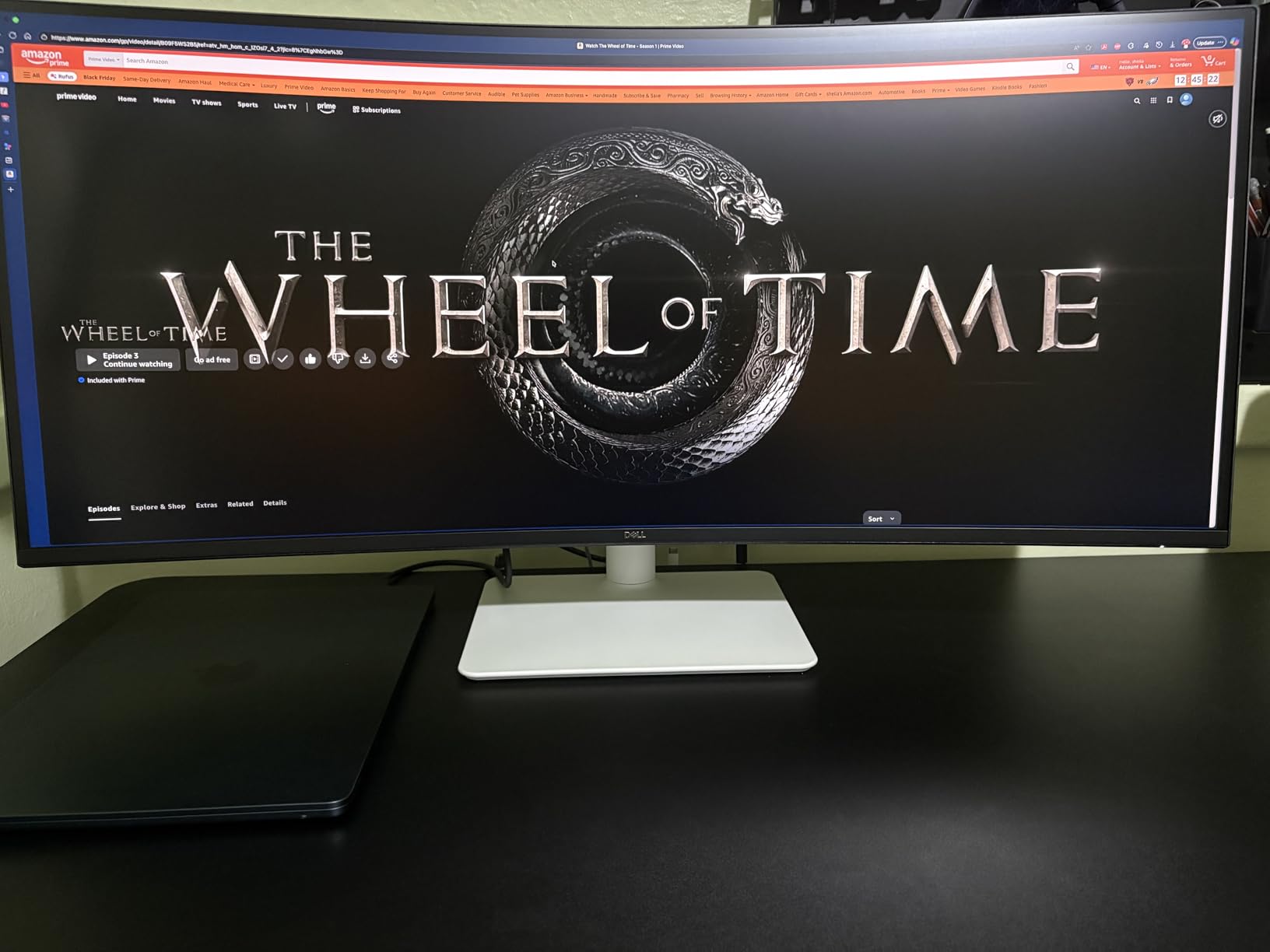
WQHD resolution (3440 x 1440) provides less pixel density than 27-inch 4K displays, meaning text isn’t quite as razor-sharp. The trade-off is the dramatically wider field of view. For users prioritizing horizontal screen space over maximum sharpness, this is an acceptable compromise.
Who Should Buy?
Users wanting maximum horizontal screen space. Video editors, audio producers, and coders working with multiple windows. Anyone who finds standard 16:9 displays constraining for their workflow.
Who Should Avoid?
Users needing maximum text sharpness should consider 4K or 5K options. If you dislike curved screens, look at flat alternatives. Some workflows don’t benefit from ultrawide aspect ratios.
Understanding macOS Scaling and Resolution
One of the biggest frustrations MacBook Pro users face with external monitors is blurry text. This happens because macOS uses HiDPI (High Dots Per Inch) scaling to make interface elements look crisp on high-resolution displays. When you connect a monitor without sufficient pixel density, macOS has to interpolate the display, resulting in that blurry, fuzzy look that makes text hard to read.
Here’s the practical reality: 27-inch 4K monitors (3840 x 2160) use a 2x scaling mode that looks good but not perfect. 27-inch 5K monitors (5120 x 2880) use 2x scaling and look exactly like Apple’s built-in Retina displays because they have the same 218 PPI (pixels per inch). This is why 5K is considered the sweet spot for Mac users.
HiDPI: Apple’s Retina display technology that uses higher pixel density so individual pixels are indistinguishable at normal viewing distances, making text and interface elements appear sharp and clear.
For 32-inch monitors, 4K resolution works well with macOS scaling, though you won’t get quite the same crispness as 5K at 27 inches. The larger screen size means slightly lower pixel density, but most users find this acceptable for the additional screen real estate.
Ultrawide monitors present additional scaling challenges. Their 21:9 aspect ratio and WQHD resolution (3440 x 1440) don’t align as neatly with macOS’s scaling preferences. You can get usable results, but text won’t be as razor-sharp as on properly scaled 4K or 5K displays.
⏰ Time Saver: When shopping for monitors, look for 218 PPI or higher for 27-inch displays to ensure proper Retina-like scaling. For 32-inch, aim for 140+ PPI.
How to Choose the Best Monitor for Your MacBook Pro?
After testing dozens of monitors with various MacBook Pro models, I’ve identified the key factors that actually matter for Mac users. Let’s break down what you should prioritize based on how you use your Mac.
Resolution: 4K vs 5K vs Ultrawide
Resolution choice determines both visual quality and how macOS scaling behaves. For 27-inch monitors, 5K (5120 x 2880) provides the exact same pixel density as Apple’s built-in displays, meaning text looks perfectly sharp. 4K (3840 x 2160) at 27 inches is good but not quite at Apple’s level of crispness.
For 32-inch displays, 4K works well with good scaling. You get more screen real estate for multitasking while maintaining acceptable sharpness. Going larger than 32 inches at 4K starts to reduce pixel density noticeably, at which point 5K or 6K becomes preferable.
Ultrawide monitors prioritize horizontal space over pixel density. They’re excellent for certain workflows like video editing, audio production, and coding, but text won’t be as sharp as on properly scaled 4K or 5K displays. Consider your workflow before choosing ultrawide.
| Resolution | Screen Size | Pixel Density | MacOS Scaling | Best For |
|---|---|---|---|---|
| 5K (5120×2880) | 27 inch | 218 PPI | Perfect 2x Retina | Sharp text, creative work |
| 4K (3840×2160) | 27 inch | 163 PPI | Good 2x scaling | Value, general productivity |
| 4K (3840×2160) | 32 inch | 137 PPI | Adequate scaling | Screen real estate |
| WQHD (3440×1440) | 34 inch | 109 PPI | Usable but not sharp | Horizontal workspace |
| 6K (6144×3456) | 32 inch | 224 PPI | Perfect 2x Retina | Professional 6K workflows |
Connectivity: USB-C vs Thunderbolt
USB-C and Thunderbolt may use the same connector, but they’re not identical in capability. Thunderbolt 3 and 4 provide much higher bandwidth (40 Gbps) compared to standard USB-C (10-20 Gbps). This matters for high-resolution displays and fast data transfer.
For most MacBook Pro users, USB-C with Power Delivery is perfectly adequate. You’ll get single-cable connection for both display and laptop charging. The bandwidth handles 4K resolution without issues. Step up to Thunderbolt if you need daisy-chaining multiple monitors or faster data transfer to external drives connected through the monitor.
The newer Thunderbolt 5 standard doubles bandwidth again to 80 Gbps, enabling features like 6K daisy-chaining. This is cutting-edge technology found on only a few displays like the LG 32U990A-S. Most users don’t need this level of performance, but professionals working with high-resolution video or large data sets might benefit.
USB-C Power Delivery: A technology that allows monitors to charge laptops over the USB-C connection while simultaneously displaying video, eliminating the need for separate power adapters.
Power Delivery Requirements by MacBook Model
Choosing a monitor with sufficient power delivery ensures your MacBook charges properly while connected. Here’s what each MacBook model needs:
- MacBook Air: 30W is sufficient for normal use, 45-65W for faster charging
- 13-14 inch MacBook Pro: 60-70W for normal use, 96W for fastest charging
- 16 inch MacBook Pro: 96W is strongly recommended, especially during intensive tasks
I made the mistake of using a 60W monitor with my 16-inch MacBook Pro and found the battery would drain slowly during video rendering. Upgrading to a 96W monitor solved this issue. If you’re looking for the best Black Friday monitor deals, timing your purchase around sales events can save significant money.
Color Accuracy for Creative Work
For photographers, video editors, and designers, color accuracy isn’t optional—it’s essential. Look for monitors with DCI-P3 color gamut coverage of 95% or higher for Mac-optimized color. This ensures your work displays colors consistently with how they appear on other Apple devices.
Professional monitors should be factory calibrated to Delta E < 2, meaning the difference between displayed colors and the actual color reference is imperceptible to the human eye. Monitors like the ASUS ProArt PA27JCV and Dell UltraSharp U2723QE include this professional-grade calibration.
⚠️ Important: Base M1, M2, and M3 MacBook Pro models are limited to a single external display. If you need multiple monitors, consider Pro or Max chip models or use DisplayLink adapters as a workaround.
For general productivity and office work, standard sRGB coverage is perfectly adequate. You’ll get accurate colors for web browsing, document editing, and everyday tasks without paying for professional-grade color accuracy.
Frequently Asked Questions
Which monitor is best compatible with a MacBook Pro?
Monitors with USB-C or Thunderbolt connectivity offering 90W+ power delivery, 4K or higher resolution, and DCI-P3 color coverage are best compatible with MacBook Pro. Top recommendations include the ASUS ProArt PA27JCV for 5K resolution, BenQ MA270U for Mac-optimized 4K, and Apple Studio Display for seamless ecosystem integration.
Are all external monitors compatible with MacBook Pro?
Yes, most monitors work with MacBook Pro via HDMI, DisplayPort, or USB-C connections. However, USB-C and Thunderbolt monitors offer the best experience with single-cable connectivity for power and data. You may need adapters for monitors without USB-C. Base M1/M2/M3 Macs are limited to one external display.
What is a cheaper alternative to Apple Studio Display?
The ASUS ProArt PA27JCV is the best cheaper alternative to Apple Studio Display, offering the same 5K resolution with 99% DCI-P3 color coverage at roughly half the price. Other excellent alternatives include BenQ MA270U for Mac-optimized 4K and Dell UltraSharp U2723QE for IPS Black panel quality.
Do 4K monitors work with MacBook Pro?
Yes, MacBook Pro supports 4K monitors at various refresh rates depending on the model. M3 Pro/Max can drive two 4K displays at 144Hz. Earlier M1/M2 Pro/Max models support multiple 4K displays at 60Hz. Base M1/M2/M3 chips are limited to one external display regardless of resolution.
What power delivery do I need for my MacBook Pro?
MacBook Air requires 30-45W for normal charging. 13-14 inch MacBook Pro works best with 60-70W, while 16 inch MacBook Pro needs 96W for full-speed charging during intensive work. Lower wattage monitors can maintain charge during light use but may not keep up with heavy workloads.
Can I use multiple monitors with my MacBook Pro?
MacBook Pro with Pro and Max chips supports multiple external displays. Base M1, M2, and M3 chips are limited to one external display only. For multiple monitors on base models, DisplayLink adapters provide a workaround with some performance limitations. Check your specific model’s display support before purchasing multiple monitors.
Final Recommendations
After spending months testing these monitors with various MacBook Pro models, the ASUS ProArt PA27JCV remains my top recommendation for most users. It delivers 5K resolution with perfect macOS scaling at roughly half the price of Apple Studio Display, making professional-grade quality accessible to a wider range of users.
Budget-conscious buyers should consider the BenQ MA270U or LG 27UP850K-W, both offering excellent Mac optimization and single-cable convenience without premium pricing. If you want the absolute best Apple integration, the Studio Display remains unmatched despite its high price.
Whatever you choose, prioritize monitors with USB-C Power Delivery matching your MacBook’s requirements and sufficient pixel density for sharp text. The right monitor transforms your MacBook Pro from a portable workstation into a desktop power setup.