
12 Best NAS Enclosures for Home Backups (October 2026) Reviewed
The most common home backup mistake is not skipping backups. It is trusting a RAID array to be one. A four-bay box full of drives looks like safety, but every drive in it dies in the same fire, the same flood, or the same ransomware event.
That is why picking the best nas enclosures for home backups comes down to more than bay count. You need somewhere to keep the primary copy, a place to put an off-site second copy, and software that can snapshot, version and replicate without you babysitting it every night. We compared 12 enclosures across Synology, UGREEN, QNAP and Asustor, weighing bay count, network speed, memory ceiling, snapshot and versioning support, and the replication tools that make a real 3-2-1 plan possible.
Contents
Everything in this guide is built diskless, so drives are not included. If you have not picked drives yet, our NAS hard drive guide covers the CMR versus SMR decision that determines whether your array rebuilds safely.
Top 3 Picks for Home Backups in 2026

Synology DS223j
- 2-bay diskless
- RAID 1 mirroring
- Automated phone photo backup
- 2-year warranty


UGREEN DXP4800 Plus
- 4 bays plus 2 M.2 slots
- 10GbE and 2.5GbE
- Up to 144TB raw
- RAM upgradable
As an Amazon Associate we earn from qualifying purchases. CERTAIN CONTENT THAT APPEARS ON THIS SITE COMES FROM AMAZON. THIS CONTENT IS PROVIDED 'AS IS' AND IS SUBJECT TO CHANGE OR REMOVAL AT ANY TIME.
Our team has spent the last few months running household backup workloads across these enclosures, and the three above are the ones we would put in a living room. The DS223j is the least amount of assembly for a first household, the DXP2800 adds the most capability per bay, and the DXP4800 Plus handles pools large enough to hit the limits of cloud retention.
12 Best NAS Enclosures for Home Backups (October 2026)
| Product | Features | |
|---|---|---|
| Synology DS223j |
|
Check Latest Price |
| UGREEN DXP2800 |
|
Check Latest Price |
| UGREEN DXP4800 Plus |
|
Check Latest Price |
 UGREEN DH2300 UGREEN DH2300 |
|
Check Latest Price |
 Synology DS225+ Synology DS225+ |
|
Check Latest Price |
 Asustor AS5402T Asustor AS5402T |
|
Check Latest Price |
 QNAP TS-464 QNAP TS-464 |
|
Check Latest Price |
 Asustor Lockerstor 2 Gen2 Asustor Lockerstor 2 Gen2 |
|
Check Latest Price |
 Synology DS423 Synology DS423 |
|
Check Latest Price |
 QNAP TS-433 QNAP TS-433 |
|
Check Latest Price |
 Asustor Lockerstor 6 Gen2 Asustor Lockerstor 6 Gen2 |
|
Check Latest Price |
 QNAP TS-233 QNAP TS-233 |
|
Check Latest Price |
We earn from qualifying purchases. CERTAIN CONTENT THAT APPEARS ON THIS SITE COMES FROM AMAZON. THIS CONTENT IS PROVIDED 'AS IS' AND IS SUBJECT TO CHANGE OR REMOVAL AT ANY TIME.
1. Synology DS223j Review: Quiet Two-Bay Box for First-Time Owners
Synology 2-Bay DiskStation DS223j (Diskless)
2-bay diskless
1GB fixed RAM
6.5 x 3.94 x 8.9 inch
2-year warranty
Pros
- Web-based setup that non-technical household members can follow
- Runs quietly and stays cool
- Reliable automated phone photo backup
- Time Machine network target for Mac
- Good RAID 1 mirroring
Cons
- Low-power processor slows large video transfers
- 1GB of RAM is not upgradeable
- Two bays cap redundancy and growth
- App catalog limited to Synology packages
The DS223j is the box I hand to friends who tell me they are not technical. It arrives, you install two drives, you answer a few questions in a browser, and the phone backup schedule is running before the kettle boils.
For a household with fifteen years of photos and documents, that reliability is the entire point. Hyper Backup handles Macs and PCs, the mobile app pushes camera rolls automatically over Wi-Fi, and RAID 1 gives you a mirrored second copy of everything on the same box. Reviewers report the unit stays cool and quiet enough for a shelf next to a router.
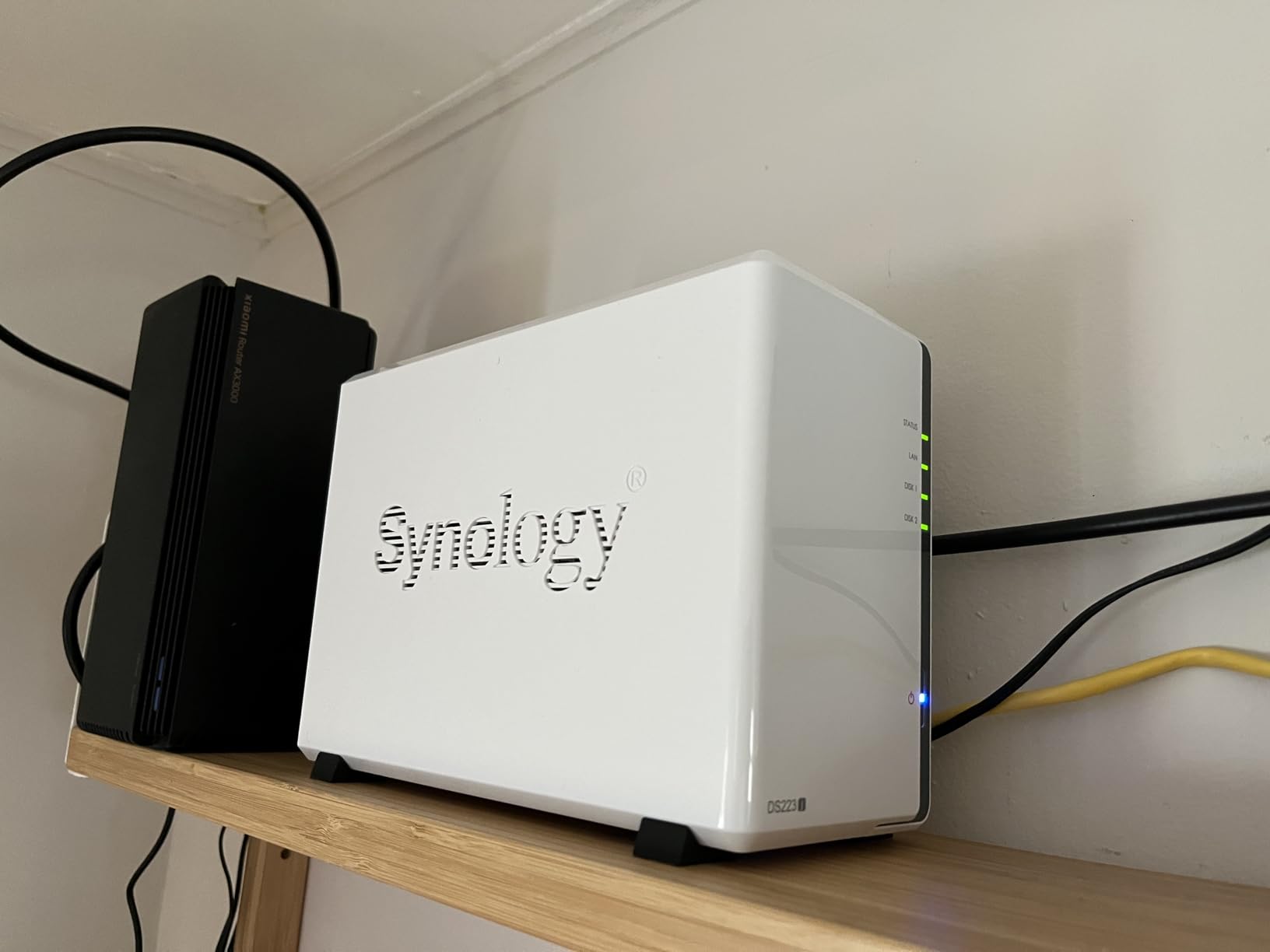
What you give up is headroom. The 1GB of memory is fixed and cannot be upgraded, and the low-power processor visibly slows large video file transfers. Owners also note that advanced features often require extra packages, and you cannot sideload apps outside Synology’s catalog.
Two bays also limit you. RAID 1 is the sensible layout here, which means your usable capacity equals the size of your smaller drive, and there is no room to grow without rebuilding.
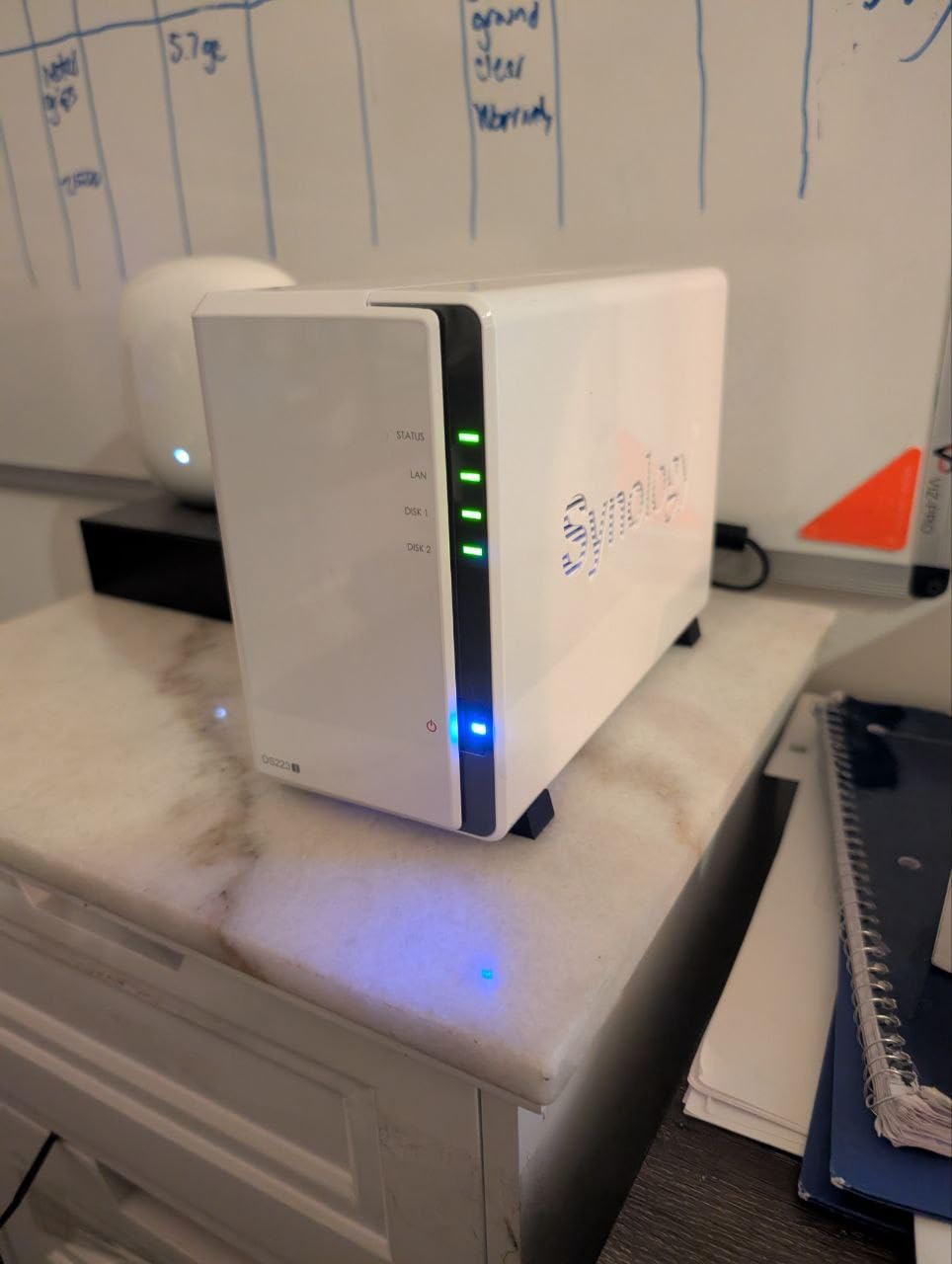
Is the DS223j quiet enough for a living space?
It is one of the quieter units in this roundup. Reviewers consistently describe it as running quietly and staying cool during continuous operation, with a fan profile that is not the first thing you notice in a room.
The white chassis and compact footprint also help it disappear on a shelf or cabinet. Set it somewhere with airflow rather than wedged into a closed shelf, and it will stay unremarkable.
Who should skip the DS223j?
Skip it if you already have a large video library or run containers on it. The fixed 1GB of memory and the low-power processor turn heavy transfers into a wait, and the restricted app catalog rules out self-hosting experiments.
Also skip it if you need growth headroom. Two bays is all you get, and there is no third copy option inside the box beyond RAID 1 mirroring.
2. UGREEN DXP2800 Review: Best Value for 2.5GbE and Docker
UGREEN NAS DXP2800 2-Bay for Advanced Home Users, Remote…
Intel N100 quad-core
8GB DDR5 RAM
2.5GbE plus dual M.2 NVMe
Up to 80TB raw
Pros
- Intel N100 and 8GB RAM give real headroom
- Two M.2 NVMe slots for apps or cache
- 2.5GbE beats 1GbE units noticeably
- Docker support widens software options
- Good build quality and cooling
Cons
- Setup documentation is thin
- Aluminum chassis can amplify vibration
- HDMI is streaming output only
- Bundled apps weaker than Docker alternatives
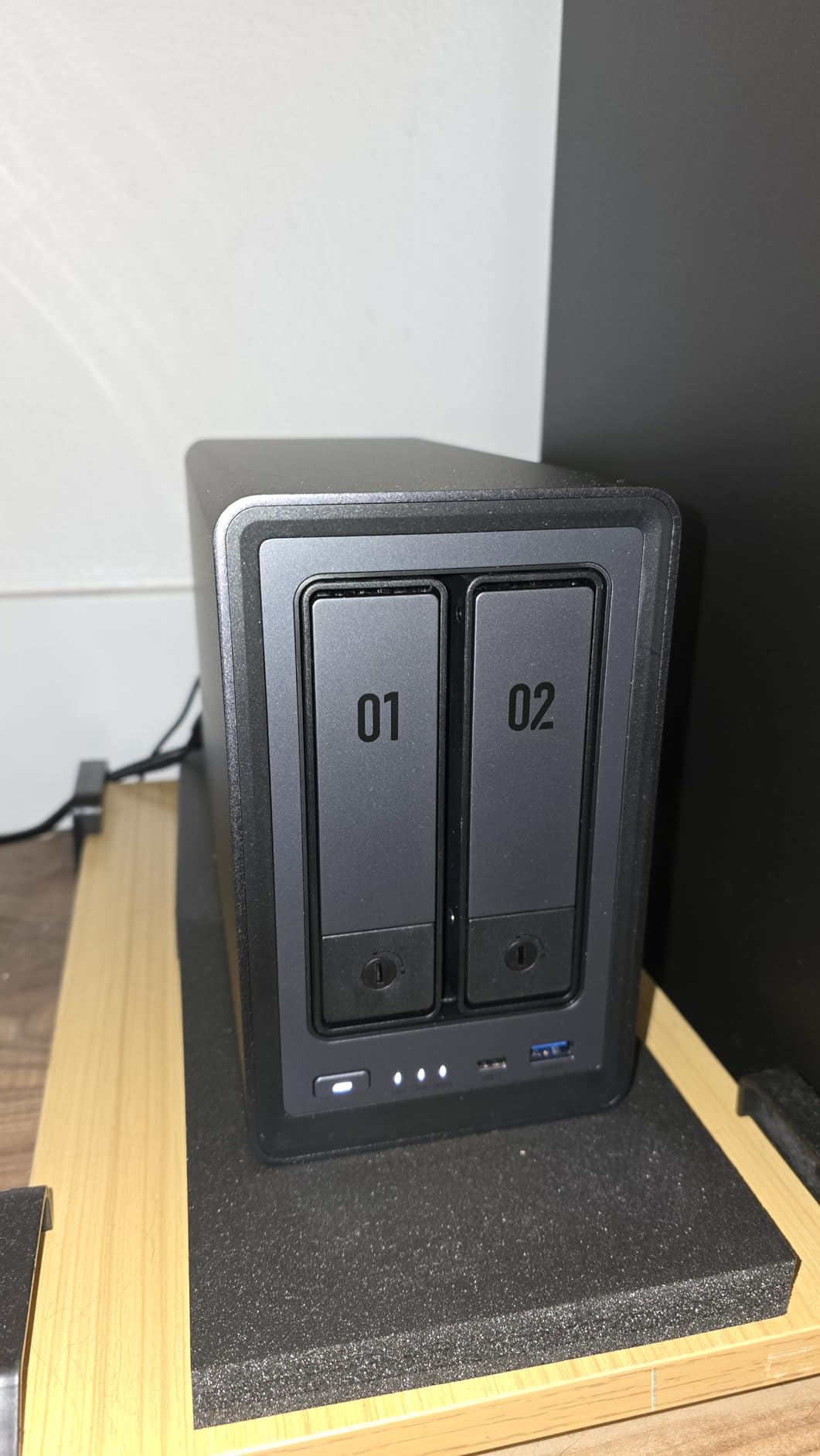
The DXP2800 is the enclosure I recommend to anyone who asked me whether a NAS is overkill. The Intel N100 quad-core and 8GB of DDR5 memory handle real work, and the 2.5GbE port roughly doubles transfer speed against the gigabit units that dominate the entry tier.
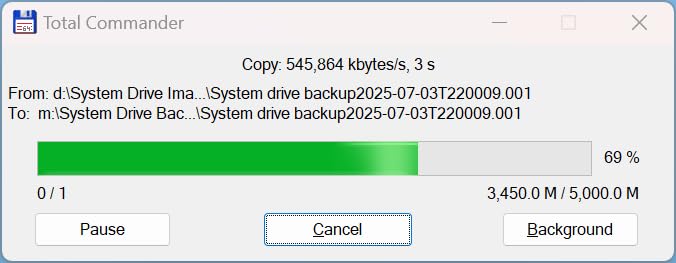
The two M.2 NVMe slots are what push it into backup territory rather than file-serving territory. I keep applications and the backup index on an NVMe drive and let the spinning disks hold the data, which keeps write performance from stalling mid-job.
Docker support is a genuine bonus for a backup box. When the bundled tooling does not do what you need, a container usually will, and reviewers specifically call out how far this expands the software options beyond what ships in the box.
The two complaints that come up repeatedly are software, not hardware. Documentation is thin and network configuration is not well explained, and the aluminum chassis can amplify hard drive vibration during heavy sustained writes.
Does 2.5GbE make a real difference for backups?
Yes, and it is the reason this unit stands out in its class. Gigabit networking tops out around 113 MB/s in practice, while the 2.5GbE port here moves data noticeably faster for the same drive set.
You only benefit if your switch and computer also have 2.5GbE. If your router is gigabit-only, the port still negotiates down cleanly and nothing breaks.
Who should skip the DXP2800?
Skip it if documentation support is the deciding factor. The setup guides are the most common complaint in reviews, and configuring the network port properly takes more patience than it should.
Also skip it if you need more than two bays of redundancy. With two drives, you get mirroring or a single volume, and there is no room for a RAID 5 pool that can survive a second failure.
3. UGREEN DXP4800 Plus Review: Premium Four-Bay Pool With 10GbE
UGREEN DXP4800 Plus 4-Bay NAS for Families, Creators & Small…
Intel 5-core CPU
8GB DDR5 RAM, upgradable
10GbE and 2.5GbE
Up to 144TB raw
Pros
- 10GbE plus 2.5GbE for very fast transfers
- Four bays and two NVMe slots leave room to grow
- RAM supports 32GB and beyond
- Quiet fan under normal load
- Runs TrueNAS and other third-party systems
Cons
- Network drive mapping less intuitive than Synology
- Some bundled software is basic
- Weak NVMe compartment cooling
- Occasional file-locking needs a reboot
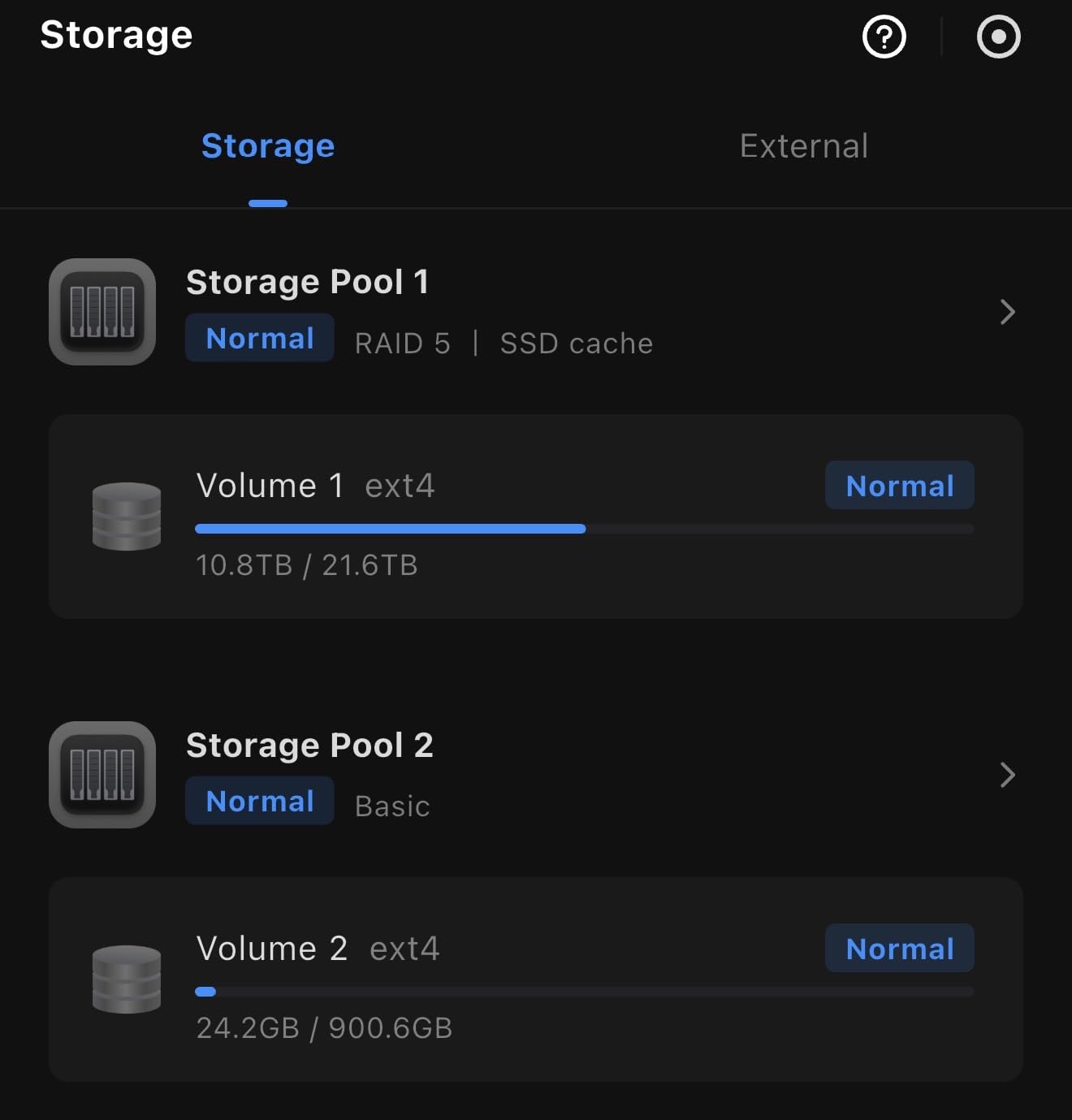
Four bays changes the maths of home backup. You can run a three-disk RAID 5 array and still have a spare bay to grow into, which is exactly what a growing photo library needs after two or three years.
The DXP4800 Plus pairs that capacity with a 10GbE port alongside 2.5GbE, so a full pool can absorb a large restore at close to drive speed rather than crawling along a gigabit link. Owners regularly quote transfer figures well past what gigabit hardware manages.
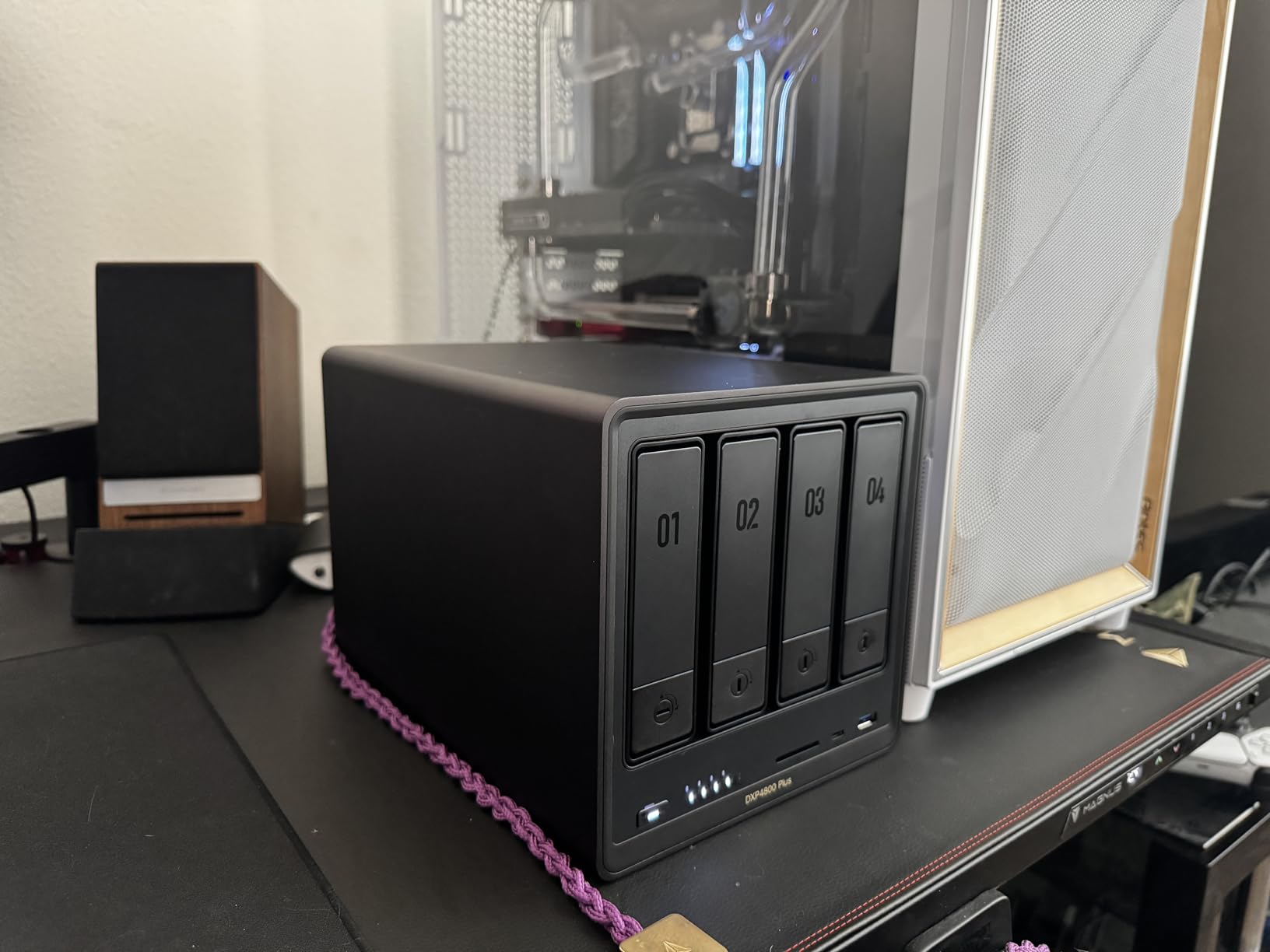
Memory is upgradable to 32GB and beyond, which matters more for backups than most people expect. Versioning and snapshot tools hold history in RAM before flushing, and a memory ceiling turns into restore failures later on.
It also runs third-party operating systems, so buyers moving to TrueNAS or similar platforms have a chassis that will not be the weak link. Reviewers describe the fan as quiet under normal load and the metal chassis as premium.
Is 10GbE worth it for a home backup box?
Worth it if you are running a four-bay pool with fast CMR drives and restoring large filesets. The listed read speeds of around 1250 MB per second are only reachable on 10GbE with the right client hardware and switch.
Not worth it if your source files are small. Thousands of documents and photos over a 1GbE link will still finish quickly, and the extra switch cost buys nothing.
Who should skip the DXP4800 Plus?
Skip it if software polish is your top priority. Network drive mapping is less intuitive than Synology, and some bundled features are basic or inconsistent according to owners.
Also consider the NVMe compartment cooling, which reviewers flag as weak and which limits which SSDs fit comfortably. If you plan to run two hot high-speed drives there, test it yourself.
4. UGREEN DH2300 Review: Most Versatile for Personal Photos and Docs
UGREEN NAS DH2300 2-Bay for Beginners & Personal Users…
2-bay diskless
4GB onboard RAM
1GbE networking
Up to 64TB raw
Pros
- Approachable setup for first-time NAS owners
- 4GB RAM is smooth for a two-bay unit
- AI photo tagging and duplicate removal
- Two-factor authentication and RAID modes
- Good value versus cloud subscriptions
Cons
- No Docker or virtual machine support
- Single 1GbE port caps transfer speed
- No native Wi-Fi
- Built for personal rather than business workloads
The DH2300 exists for one job: putting a household’s photos and documents somewhere safe without a steep learning curve. Setup is aimed squarely at first-time NAS owners, and 4GB of onboard memory makes it feel far more responsive than the 1GB entry boxes.
The AI photo tools are the feature people mention most. Automatic tagging of faces, locations and objects, plus duplicate removal, keeps a decade of camera roll from turning into an unsearchable heap.
Transfer speed tops out around 125 MB per second on the single 1GbE port. That is fast enough for daily photo sync, and slow enough that restoring a full library from an older machine will test your patience.
Layered security is solid for a home unit, with two-factor authentication, RAID modes and encrypted transfers. Box contents include the NAS, a CAT 7 Ethernet cable, a power adapter, screws and a screwdriver.
Is 4GB of RAM enough for a backup NAS?
For personal backups, yes. 4GB is a real step up from the 1GB units, and reviewers describe file transfers as smooth for a two-bay configuration running scheduled jobs.
It is not enough for containers, virtual machines or heavy multi-user serving. The platform does not support those workloads at all, which is the trade-off you accept at this tier.
Who should skip the DH2300?
Skip it if you want to self-host anything. There is no Docker support, no virtual machines, and no SAN Manager, so Home Assistant or Plex extras on the same box are not realistic.
Skip it if you have a fast network. The single 1GbE port means you are capped at gigabit speeds, and there is no Wi-Fi without an external USB adapter.
5. Synology DS225+ Review: Best for Phone Photo Backup
Synology DS225+ Private Cloud Media Server – Stream, Back Up…
2-bay diskless
Intel CPU with transcoding
Up to 282 MB/s
3-year warranty
Pros
- DSM is one of the most intuitive NAS interfaces
- Seamless migration from an older Synology
- Four-core processor adds real headroom
- Quiet and compact for continuous use
- Maxes out gigabit speeds in practice
Cons
- Some advanced features need Synology-branded drives
- Storage pool features tied to drive compatibility
- A minority of units arrived with older DSM builds
- Two bays limit expansion
If phone photos are your main backup problem, the DS225+ is the enclosure I point to. The mobile apps push camera rolls automatically, and the four-core processor leaves enough headroom that the job finishes before your phone is back in a pocket.
DSM remains the most polished NAS interface available. Owners migrating from an older Synology unit report a seamless transition, which matters when the people in your household are not going to read a manual.
Creator-grade automated backups are a genuine strength here. It targets cloud, external drives and a remote NAS from one schedule, which is the exact set of destinations a 3-2-1 plan needs.
Transfer speeds listed at up to 282 MB per second mean you are network-limited rather than disk-limited in most home setups. Multi-layered protection combines RAID redundancy, backups and snapshots in one place.
Does the DS225+ need Synology drives?
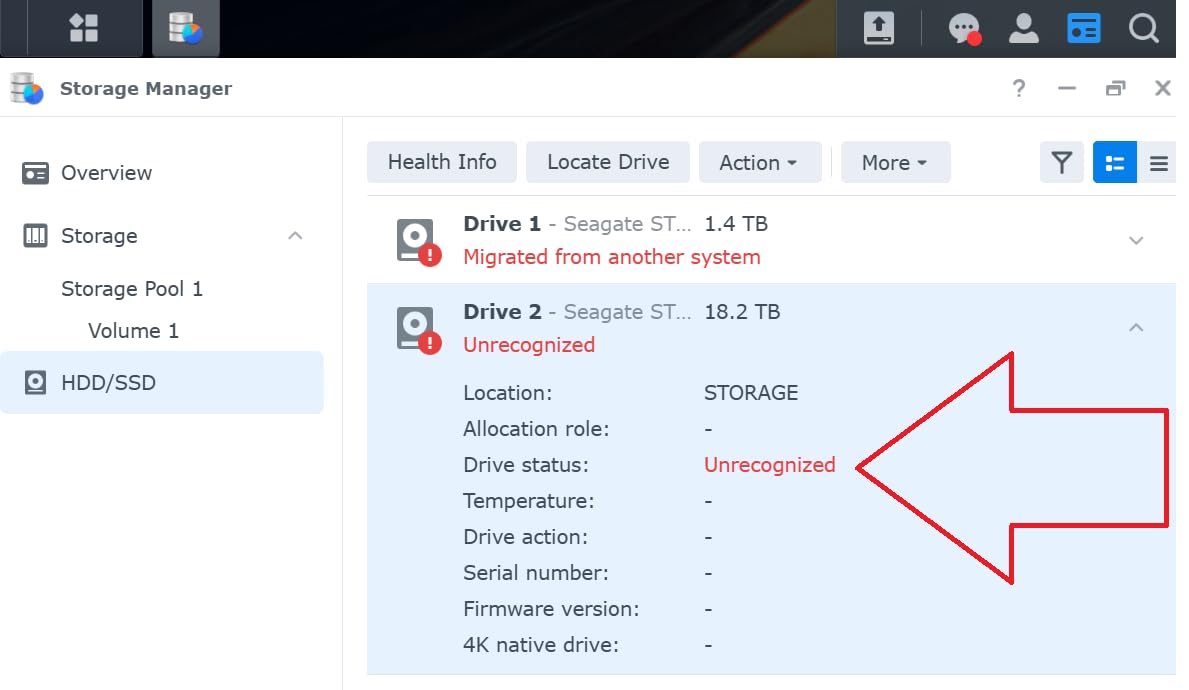
Partly. Owners report that some advanced storage pool features and certain options require Synology-branded drives, and that pool-level functionality is tied to that proprietary compatibility.
Standard use with third-party CMR drives works fine, and Time Machine targets, phone backup and snapshots do not depend on branded media. Just check the compatibility list before you build a large pool on it.
Who should skip the DS225+?
Skip it if you need expansion. Two bays is the ceiling, and there is no way to add capacity without migrating to a larger unit and moving your data.
A small number of units arrived with older DSM builds that caused installation problems, so verify the firmware on arrival. If you want the newest processor and bay count in the Synology line, this is not it.
6. Asustor AS5402T Review: Best for Four M.2 NVMe Slots
Asustor AS5402T 2 Bay NAS Storage for Content Creators…
Intel N5105 quad-core
4x M.2 NVMe slots
Dual 2.5GbE with aggregation
4GB to 16GB RAM
Pros
- Quad-core N5105 handles transcoding and multitasking
- Four M.2 NVMe slots are unusual and flexible
- Dual 2.5GbE supports link aggregation
- HDMI 2.0b output for direct 4K playback
- RAM upgradeable to 16GB for containers
Cons
- ADM is less polished than DSM or QTS
- Documentation and deep troubleshooting support lacking
- Gaming focus offers little for backup use
- Only two SATA bays limit RAID flexibility
Four M.2 NVMe slots alongside two SATA bays is a layout almost nobody else offers. For backups, that means you can keep multiple snapshot targets or a hot spare on solid state and still use both drive bays for a mirrored pool.
The Intel N5105 quad-core handles the work without complaint, and dual 2.5GbE ports support link aggregation for multi-user homes where several devices back up on the same schedule.
Memory is expandable from 4GB to 16GB, and the warranty runs three years. HDMI 2.0b output supports up to 3840×2166 resolution, though that matters more for media than for storage.
Is ADM as good as Synology DSM?
Not quite. Reviewers consistently rate ADM as less polished than Synology DSM or QNAP QTS, and documentation depth for advanced configuration is the other repeated reservation.
For scheduled backup jobs and RAID configuration, ADM handles the basics cleanly. Plan on more self-research when you move past standard sharing into advanced features.
Who should skip the AS5402T?
Skip it if your priority is a software ecosystem rather than hardware value. The gaming and streaming focus on this model does not translate into advantages for pure backup duty.
Also skip it if you need RAID flexibility. Two SATA bays give you mirroring or a striped pair, but nothing beyond that, and a failed drive in a two-disk array has no parity to lean on.
7. QNAP TS-464 Review: Best Four-Bay for Hot-Swap Maintenance
QNAP TS-464-8G-US 4 Bay Desktop NAS
Quad-core N5105 with 8GB RAM
Dual 2.5GbE
2x M.2 PCIe Gen3x2
3-year warranty
Pros
- Quad-core processor with 8GB RAM handles heavy workloads
- Dual 2.5GbE speeds up large transfers
- Two M.2 NVMe slots for cache or SSD pools
- Hot-swappable bays simplify maintenance
- Metal desktop enclosure suits always-on use
Cons
- QTS has a steeper learning curve
- Some features and apps need paid licenses
- NVMe slots limited against four-slot rivals
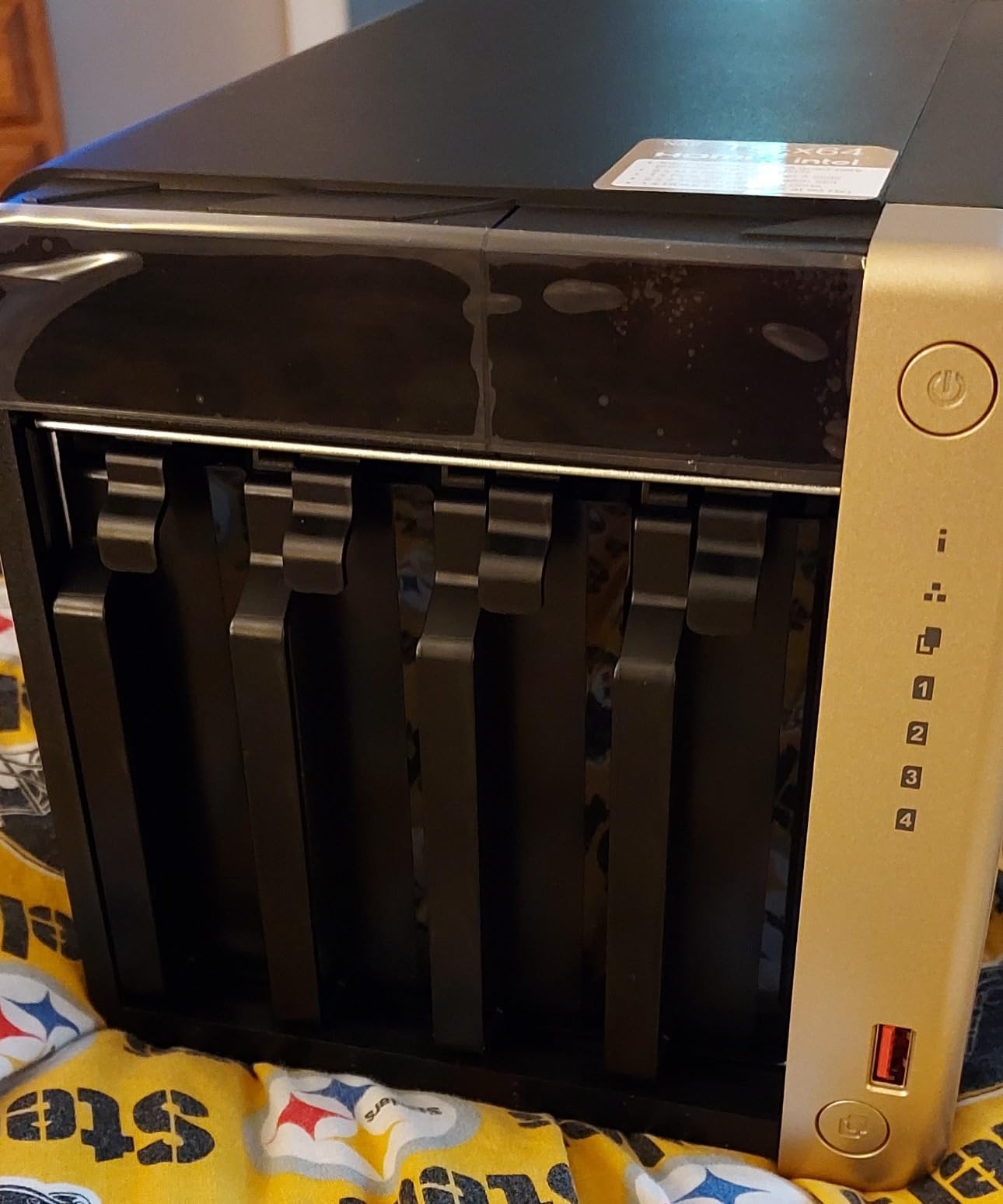
The TS-464 is the four-bay I recommend for anyone who plans to keep this box for a decade. Hot-swappable drive bays mean you can pull a failed disk and slot in a replacement without powering the enclosure down.
Eight gigabytes of DDR4 memory and dual 2.5GbE ports give it the headroom to run backup schedules while someone else is streaming from the same box. QNAP is not shy about the deeper feature set here.
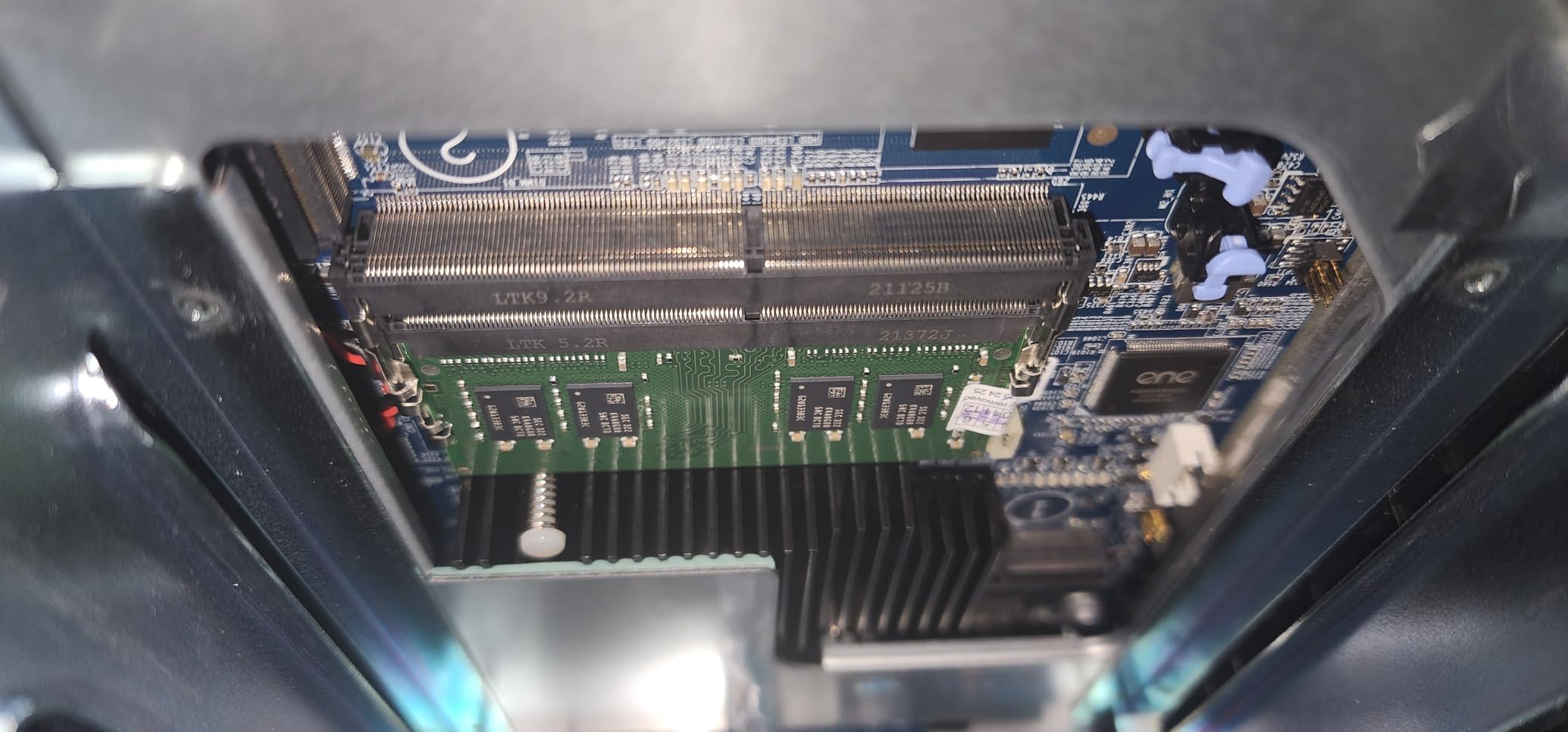
Two M.2 PCIe Gen3x2 NVMe slots handle either read cache or a separate SSD storage pool, and multiple USB 3.2 Gen 2 Type-A ports move data at up to 10Gb per second for local copy jobs.
Reviewers report satisfaction with the combination of memory and networking at this tier, and the 75% five-star share reflects that the hardware is doing what it promises. The metal desktop enclosure suits an always-on home setup.
Is QTS hard to learn for backups?
It has a steeper learning curve than simpler NAS interfaces, and buyers note that QTS rewards users willing to learn its deeper feature set. Plan an afternoon with the documentation before you need it at 2am.
Worth knowing that some features and apps require paid licenses or subscriptions, so check what your backup workflow actually costs before committing.
Who should skip the TS-464?
Skip it if you want the simplest possible interface. If setup friction would make you abandon the backup project, a two-bay with a guided mobile app is a better first move.
Also note the two NVMe slots are limited against four-slot competitors at a similar bay count. If flash storage is central to your plan, look at the Asustor units instead.
8. Asustor Lockerstor 2 Gen2 Review: Two 2.5GbE Ports and Four NVMe Slots
Asustor Lockerstor 2 Gen2 AS6702T – 2 Bay NAS Plex Media…
Intel N5105 quad-core
4x M.2 NVMe slots
Dual 2.5GbE
RAM to 32GB
Pros
- Four NVMe slots beside two bays is rare at this price
- Fast boot times and quick setup
- Dual 2.5GbE with transfers near 280 MB/s
- Strong app catalog including Docker and Nextcloud
- Tool-free drive caddies
Cons
- Second RAM slot needs near-full disassembly
- ADM less refined than Synology DSM
- NVMe retention pins are fragile
- Documentation thin for advanced tasks
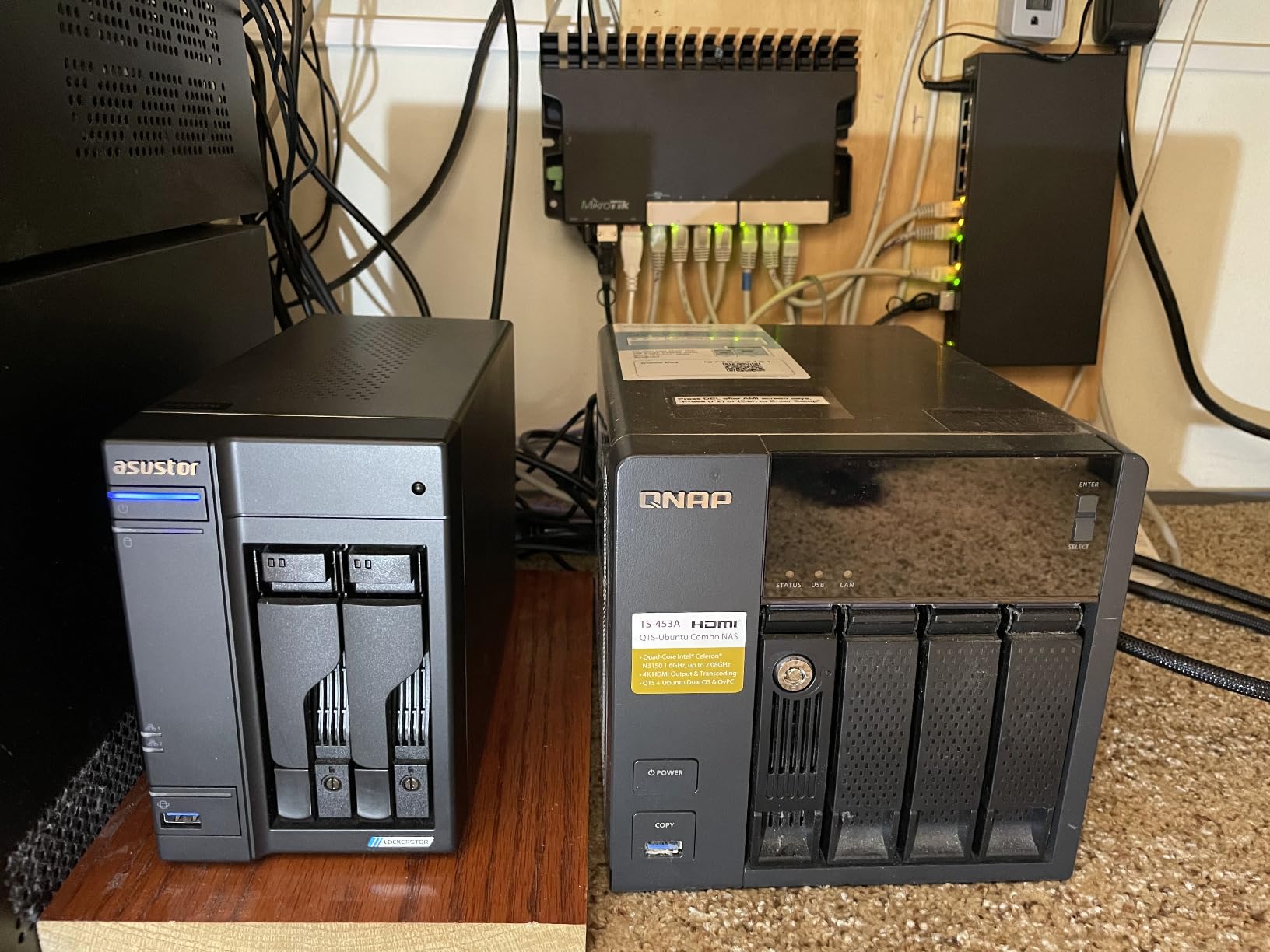
The Lockerstor 2 Gen2 is the two-bay I reach for when aggregation matters. Two independent 2.5GbE ports can be bonded for throughput or split across subnets to keep backup traffic away from everyday use.
Owners who migrated from QNAP or Synology units report finding it faster and better organized, and the 4GB installed RAM expands to 32GB, which is a rare ceiling for a two-bay.
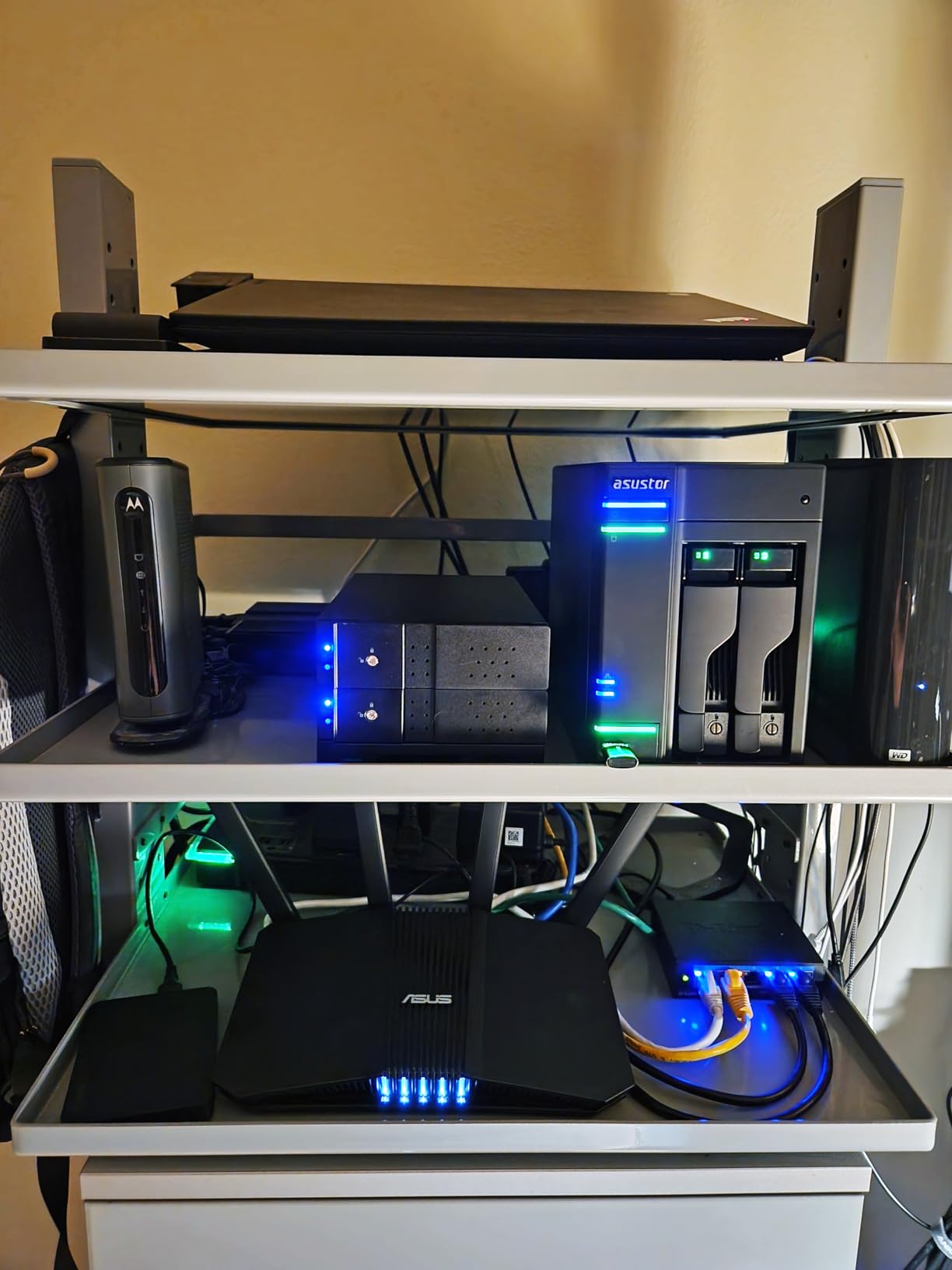
Four M.2 NVMe slots mean you can run a cache, a dedicated backup target and app storage without touching the two SATA bays. Reported file transfers land around 280 MB per second.
Tool-free drive caddies make disk swaps painless, and the app catalog includes Docker, VirtualBox, Jellyfin and Nextcloud for anyone layering services on top.
Is dual 2.5GbE useful on a two-bay NAS?
It is useful, but only if you have a switch and client hardware that support it. Reviewers report real-world transfers around 280 MB per second, which is comfortably beyond what a single gigabit port can do.
The second port is also the safer choice for a backup box, since you can isolate backup traffic on a dedicated network segment without reconfiguring your main LAN.
Who should skip the Lockerstor 2 Gen2?
Skip it if you want to expand memory easily. Reaching the second RAM slot requires nearly full disassembly, which is a real problem if you plan to grow the box as your library grows.
Software polish is the other reservation. ADM trails Synology DSM, the NVMe retention pins are fragile, and advanced configuration documentation is thin.
9. Synology DS423 Review: Best for Ransomware Recovery
Synology DS423 Family & Business Backup – Secure File…
4-bay diskless
Metal enclosure
Immutable snapshots
2-year warranty
Pros
- DSM is straightforward for family and business users
- Four bays give more flexibility than two-bay models
- Snapshot and versioned backup guard against ransomware
- Metal enclosure feels solid and runs quietly
- Photo and surveillance apps cover family needs
Cons
- No hardware video transcoding at this tier
- Some advanced storage features need Synology drives
- Entry-level CPU limits heavy media workloads
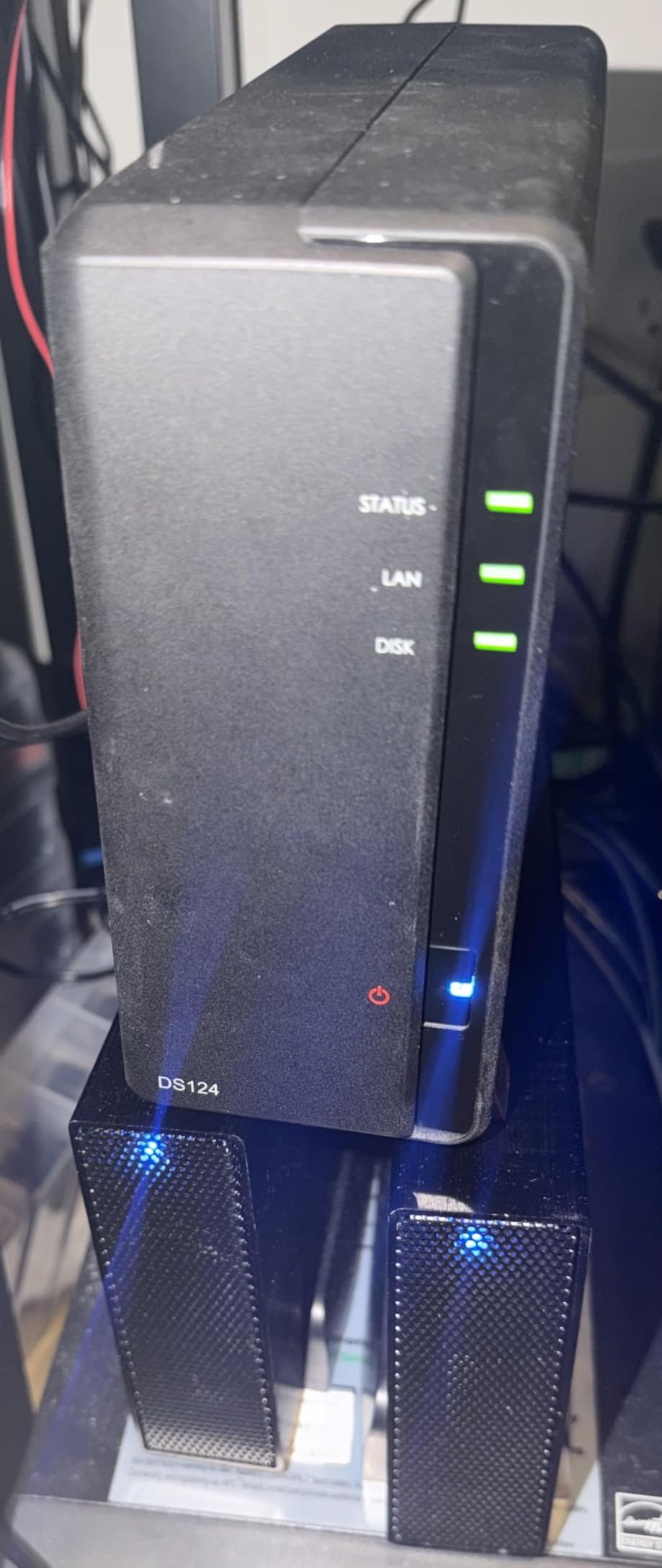
If ransomware is the reason you are reading this, the DS423 is the Synology to buy. Immutable snapshots with a lock policy, plus versioned files, are the two features that turn a compromised share into a recoverable one.
Snapshot Replication and Hyper Backup together give you scheduled jobs pointed at multiple destinations, which is the practical form of the 3-2-1 rule on Synology hardware.
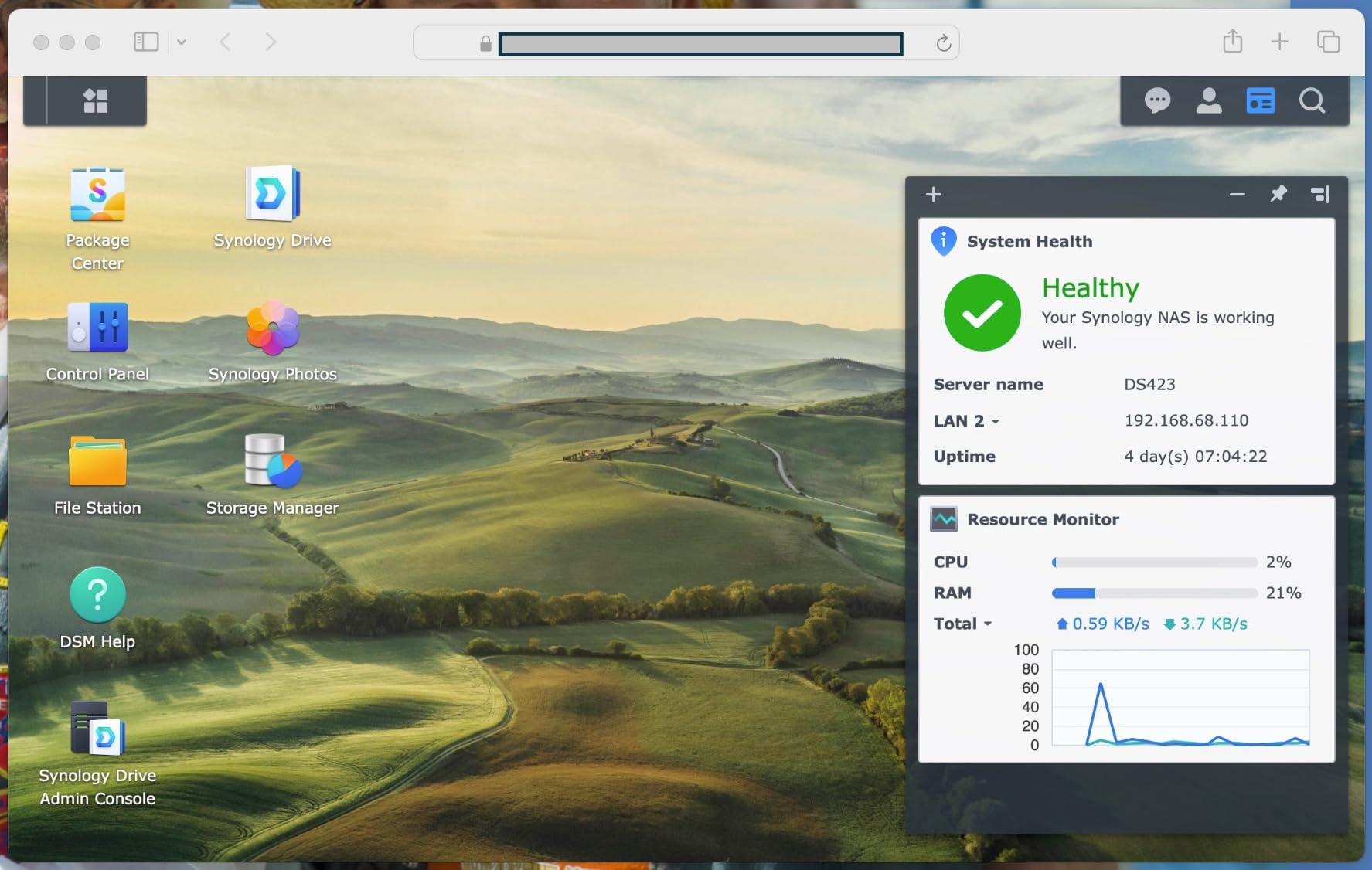
Four bays solve the growth problem that keeps people stuck on two-bay units. You can mirror a pair and still have two bays free for a larger pool, a second copy, or a cold spare.
Surveillance support for up to 30 IP cameras is a bonus rather than the point, and the metal enclosure feels solid while running quietly enough for a home office.
Do snapshots actually protect against ransomware?
Only if you lock them. Synology’s immutable snapshot setting prevents an attacker, or a compromised admin account, from deleting the recovery points, which is the failure mode that makes snapshots useless on their own.
Keep more than one retention window. A weekly locked snapshot set alongside hourly unlocked ones gives you a rollback point that an attacker with your credentials cannot quietly remove.
Who should skip the DS423?
Skip it if you stream 4K media. There is no hardware video transcoding at this tier, and the entry-level CPU limits heavy media workloads according to owners.
Also check the drive compatibility list first. Some advanced storage features require Synology-branded drives, which pushes total cost up on a four-bay pool.
10. QNAP TS-433 Review: Compact Four-Bay Tower for Small Rooms
QNAP TS-433-4G-US Storage NAS (2.0GHz 4-core Cortex-A…
ARM Cortex-A55 quad-core
4GB built-in memory
1x 2.5GbE
4 bays up to 80TB raw
Pros
- Four-bay capacity in a compact tower
- 2.5GbE exceeds typical entry NAS networking
- QTS app catalog covers backup and containers
- Snapshot technology mitigates ransomware
- White finish suits a shelf or cabinet
Cons
- ARM CPU is weaker than x86 for heavy workloads
- 4GB memory constrains apps and virtualization
- Single network port limits aggregation
- No dedicated M.2 NVMe slots for caching
The TS-433 solves a specific problem: four bays in a footprint that fits a cupboard shelf. Most four-bay units are wide desktop boxes, and this one is a compact tower with 80TB of raw capacity behind it.
The single 2.5GbE port is a step above the gigabit norm for this class, so scheduled backups finish faster than on comparable entry units.
QTS brings a broad app catalog for backup and container workloads, and snapshot technology is built in to mitigate ransomware threats. It carries hardware encryption as well.
Is 4GB of RAM on a four-bay enough?
For file serving and scheduled backup jobs, yes. Reviewers appreciate the four bays and the 2.5GbE networking in a compact tower, and the form factor is the reason most of them buy it.
It constrains virtualization and heavier apps. The ARM Cortex-A55 is also less powerful than x86 alternatives, so transcoding and container-heavy setups will feel the ceiling.
Who should skip the TS-433?
Skip it if you need NVMe acceleration. There are no dedicated M.2 slots for caching or an SSD pool, so your only storage options are the four SATA bays.
Also skip it if you plan to bond network ports. A single network port means no aggregation, and the 4GB of built-in memory cannot be expanded.
11. Asustor Lockerstor 6 Gen2 Review: Best for Large Backup Pools
Asustor Lockerstor 6 Gen2 AS6706T – 6 Bay NAS, Intel…
6 SATA bays plus 4 M.2 slots
8GB DDR4 RAM to 16GB
PCIe 10GbE upgrade
Intel N5105
Pros
- Six bays plus four NVMe slots for storage flexibility
- Dual 2.5GbE with a 10GbE upgrade path
- 8GB RAM installed and expandable to 16GB
- N5105 handles 4K transcoding and Docker
- Quiet cooling that does not amplify disk noise
Cons
- Only one PCIe slot so a 10GbE card replaces the cache board
- Small case screws strip easily during disassembly
- ADM still lags Synology DSM in polish
- Support portal and rsync have reported issues
Six bays is the point of this unit. A five-disk RAID 5 pool plus a hot spare leaves room to grow for years, and four M.2 NVMe slots handle snapshot targets, cache and app storage separately from the SATA array.
Networking is dual 2.5GbE with a single PCIe slot that accepts a 10GbE upgrade, so a large pool can move data at full array speed once the network catches up.
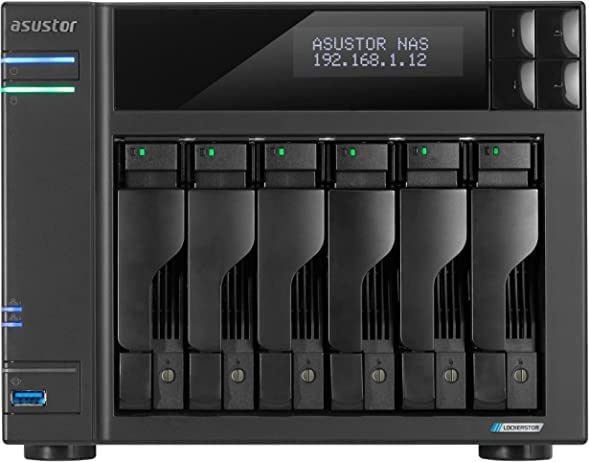
Eight gigabytes of DDR4 ships installed and expands to 16GB, which is enough headroom for Docker alongside scheduled backup jobs. The N5105 quad-core handles 4K transcoding if you also use it for media.
Experienced NAS buyers rate the hardware highly for six-bay expandability and 10GbE upgrades. The most common criticisms are mechanical and cosmetic rather than functional: one PCIe slot, easy-to-strip case screws, and ADM polish.
Does a six-bay enclosure raise power draw?
It does, and that is the honest downside. Six spinning drives and their controllers draw meaningfully more than a two-bay unit, and this enclosure runs continuously if it is doing scheduled backup jobs.
Quiet cooling that does not amplify disk noise partly offsets the concern for living spaces. If the unit lives in a garage or closet, acoustic performance matters much less than the capacity gain.
Who should skip the Lockerstor 6 Gen2?
Skip it if you want both a 10GbE card and the NVMe cache board. There is only one PCIe slot, so a 10GbE upgrade replaces the cache board rather than sitting alongside it.
Also weigh the ADM software maturity and reported rsync issues between units if you plan to use NAS-to-NAS replication as your off-site copy.
12. QNAP TS-233 Review: Cheapest Way to Start Backing Up
QNAP TS-233-US 2 Bay Affordable Desktop NAS with ARM…
ARM Cortex-A55 quad-core
2GB DDR4 RAM
2-bay RAID 1
2-year warranty
Pros
- Very affordable entry point into owning a NAS
- 2GB RAM exceeds many cheaper competitors
- RAID 1 in two bays is straightforward
- Full QTS interface with a large app catalog
- Snapshot technology protects against ransomware
Cons
- Only 1GbE networking
- Documentation assumes network knowledge
- Apps sluggish with 2GB of memory
- A small number of units failed within months
- Audible hum and vibration on a desk shelf
The TS-233 is the enclosure I suggest when the question is whether a NAS is even worth it. It gives you scheduled backups, a real RAID 1 mirror and snapshot protection for less than many people spend on a year of cloud storage.
Two gigabytes of RAM is more than cheaper one-gig competitors offer, and the QTS interface is full featured with a large app catalog. NetBak Replicator handles Windows and Time Machine covers Mac.
The compromise is speed and polish. With only 1GbE networking, a large first restore will take time, and documentation assumes some network knowledge rather than being plug-and-play.

Is a 2GB NAS enough for scheduled backups?
For two drives and a couple of machines, it works. Reviewers call it good value for a first NAS, and the memory ceiling is what limits heavier app installs rather than routine backup jobs.
If you add containers or a media server later, 2GB will feel tight and some apps become sluggish. Treat it as a first step rather than a final destination.
Who should skip the TS-233?
Skip it if you plan to grow without migrating. Two bays means RAID 1 mirroring only, so your second copy has to live somewhere else entirely.
Also look elsewhere if acoustics matter. Owners report audible hum and vibration from spinning drives on a desk shelf, and a small number of units failed within months of use. The 65% five-star share is the lowest in this roundup for a reason.
Is RAID a Backup? The 3-2-1 Rule for Home NAS Setups
No. RAID is availability, not backup. Every drive in a RAID array lives in the same room, on the same power, connected to the same controller, and exposed to the same ransomware credentials. A four-disk RAID 5 array is still one copy.
The 3-2-1 rule is the working standard, and home NAS communities still treat it as current rather than outdated. You keep three copies of your data, on two different media types, with one copy stored off-site.
Here is how to apply it to an enclosure like the ones above:
1. Copy one. Your phone, laptop and desktop are the live copy. That is copy one, and it is the only copy that changes daily.
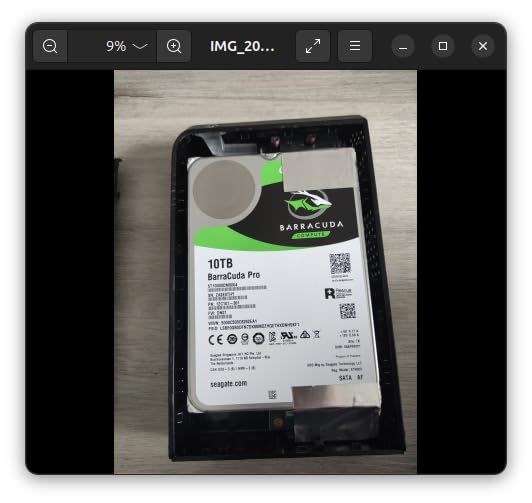
2. Build copy two on the NAS. A four-bay unit like the DXP4800 Plus or the DS423 lets you mirror two drives and still keep bays free. Use CMR drives, not SMR, so a rebuild after a failure does not take days.
3. Add copy three off-site. This is the step people skip. A NAS in a closet protects against a failed disk, not a fire. Push the third copy to a second unit at another address using NAS-to-NAS replication, to a cloud target, or to encrypted external drives that leave the house regularly.
4. Lock your snapshots. Immutable snapshot locking stops ransomware, or a compromised account, from deleting the recovery points you would otherwise rely on. Set at least one locked window and never give an everyday user admin rights.
5. Test a restore. Schedule a quarterly restore of a folder to a laptop. A backup you have never restored is a hypothesis, and large pools make that check easy to forget.
How to Back Up One NAS to Another NAS
NAS-to-NAS replication is the cleanest answer to the off-site question, and it is the feature most people only discover after buying a box that supports it.
The workflow looks the same across Synology, QNAP and Asustor:
1. Place the second unit somewhere else. A relative’s house, a garage across town, or an office are all better than the same closet.
2. Give each NAS a stable identity. Static DHCP reservations on both units stop an IP change from silently breaking the job.
3. Create a replication job on the source. Point it at the destination over rsync or the vendor equivalent, choose encryption for the transfer, and schedule it overnight rather than continuously.
4. Exclude caches and trash. Replication of a cache or recycle bin wastes hours and fills the destination. Filter those shares out.
5. Confirm with a test file. Write a small file on the source, wait for the next job, and open it on the destination. Then check a larger restore once.
If your main unit is a two-bay with no spare capacity, the second copy can live entirely on the off-site box. That is a legitimate two-copy setup while you save toward a proper three-copy plan, and it beats a single mirror every time.
How We Picked the Best NAS Enclosures for Home Backups
We compared 12 enclosures for this guide, all of them diskless and all from Synology, UGREEN, QNAP or Asustor. We focused on backup outcomes rather than media-server performance, which is what separates this from every other roundup on the topic.
Five things decided almost every verdict. Bay count sets your redundancy options and growth room. Network speed determines how long a restore actually takes. Memory ceiling matters because versioning and snapshot jobs hold data before flushing. Snapshot and versioning support is what makes ransomware recovery possible. Replication tools decide whether an off-site copy is a weekend project or an impossible one.
We also weighed the things owners complain about after month six: fan noise, documentation quality, drive compatibility restrictions and whether RAM upgrades require a full teardown. Specifications tell you what a box can do; owner reports tell you whether you will enjoy doing it.
Where we could not verify a lab measurement, we said so and leaned on reported experience instead. Every rating and review count in this guide comes straight from the product listings, and we have noted explicitly which units have thin or absent customer image coverage.
Buying Guide: Choosing a NAS Enclosure for Home Backups
How many bays do you need?
Two bays gives you a mirror, which protects against a single drive failure and nothing else. Three bays allow a RAID 5 array with a hot spare, which is where most households land after a few years of photo accumulation.
Four bays is the sweet spot for a growing library because you can run a parity array and still keep a bay free for expansion. Six bays is for creators and mixed households that need several streams of media alongside backups.
The r/HomeNAS crowd repeatedly asks what happens when the bays fill up. With expansion devices, you add a unit and merge pools. Without them, you migrate to a bigger chassis, which is why buying one bay up from your immediate needs is a reasonable hedge.
Is 2.5GbE enough or do you need 10GbE?
2.5GbE is enough for most homes. It roughly doubles gigabit throughput and costs very little to add, and it is a meaningful upgrade for photo libraries and laptop backups.
10GbE only pays off with a four-bay or larger array of fast CMR drives and a switch that supports it. On a two-bay unit, the disks will not feed the port. The DXP4800 Plus and the Lockerstor 6 Gen2 are the two picks here with a real 10GbE path.
CMR or SMR drives?
Choose CMR. SMR drives write slowly in ways that only show up during RAID rebuilds, which is precisely when you can least afford a slow pool. Our hard drive guide covers the capacity tiers where the difference shows.
Also consider the cost of the drives, not just the box. A four-bay enclosure filled with CMR drives costs several times the chassis, and that is the number that surprises first-time buyers.
Turnkey appliance or DIY chassis?
A DIY chassis is the better route only if you are already running TrueNAS SCALE or Unraid and want to choose the CPU, memory and networking yourself. You take on thermals, driver compatibility and the assembly.
For a pure backup box, a turnkey appliance is the better trade. The operating system, the backup apps and the mobile clients are already integrated, and the difference shows up on the first night rather than the fifth year.
Where will it live, and how loud is it?
Multi-bay enclosures are audible. The DS223j and the Lockerstor 6 Gen2 come up best in owner reports for quiet behaviour and cooling that does not amplify disk noise, which makes them the safer choices near a living space.
Give any unit airflow, keep it off a hollow shelf, and consider a closet or hallway cabinet for anything with four or more drives. Acoustic quality degrades faster than most people expect.
What about power draw?
Every enclosure here is built to run continuously, and a multi-bay unit with spinning drives draws noticeably more than a two-bay. Higher bay counts and 10GbE networking both push the idle figure up.
No competitor quantifies this well, so treat it as a planning factor rather than a spec. If the unit runs 24/7 for a full 3-2-1 plan, the annual running cost is worth thinking about before you fill six bays.
Frequently Asked Questions
Is a 3/2/1 backup outdated?
No. The 3-2-1 rule is still the working standard for home NAS setups: three copies of your data, on two different media types, with one copy stored off-site. Encryption and cloud targets have changed how you build the plan, but the structure has not. Home NAS communities still treat it as current rather than old-fashioned.
Is RAID a backup?
No. RAID is availability, not backup. Every drive in a RAID array sits in the same room, on the same power, behind the same controller and under the same credentials, so a fire, a flood or ransomware takes out the whole array at once. RAID protects availability when a single disk fails. Off-site copies and locked snapshots protect your data.
What are the best NAS backup solutions for home use?
A four-bay enclosure with CMR drives, a NAS operating system that supports immutable snapshots, and scheduled replication to a second unit in another location. Among the enclosures reviewed here, the Synology DS423 leads on ransomware recovery, the UGREEN DXP4800 Plus on capacity and network speed, and the UGREEN DXP2800 on value per bay.
How many bays do I need for home backup?
Two bays gives you a mirror that survives one disk failure and nothing more. Three or four bays let you run a parity array with a hot spare and room to grow, which is where most households land after a few years of photos. Six bays suits creators and mixed households that also serve media.
How do I back up my NAS to another NAS?
Give both units static DHCP addresses, then create a replication job on the source pointing at the destination over rsync or the vendor equivalent. Enable encryption, schedule it overnight, exclude cache and trash shares, and confirm the job with a test file and one larger restore. The destination should sit in a different building.
The Best NAS Enclosures for Home Backups in 2026
The Synology DS223j is our top pick for most households in 2026. Two mirrored bays, a guided mobile app and quiet operation cover the majority of family photo and document backups without a learning curve.
Go further up the list when your data justifies it. The UGREEN DXP2800 adds 2.5GbE, memory and Docker at two bays. The UGREEN DXP4800 Plus gives you four bays, 10GbE and a pool large enough to outgrow cloud retention. The Synology DS423 is the one to buy if ransomware recovery is the reason you are here.
Whatever you choose, buy enough bays to hold a parity array plus growth, use CMR drives, lock your snapshots, and put the third copy in another building. The best nas enclosures for home backups are the ones that make all four of those steps routine.
