
How to Install Hytale Mods (September 2026) Complete Guide
Adding mods to Hytale transforms your gameplay experience with new features, quality-of-life improvements, and community-created content. Whether you want better maps, enhanced combat mechanics, or inventory management tools, installing mods opens up possibilities that the base game does not offer. Our team has tested both installation methods extensively, and this guide walks you through each approach step by step so you can start modding in under 10 minutes.
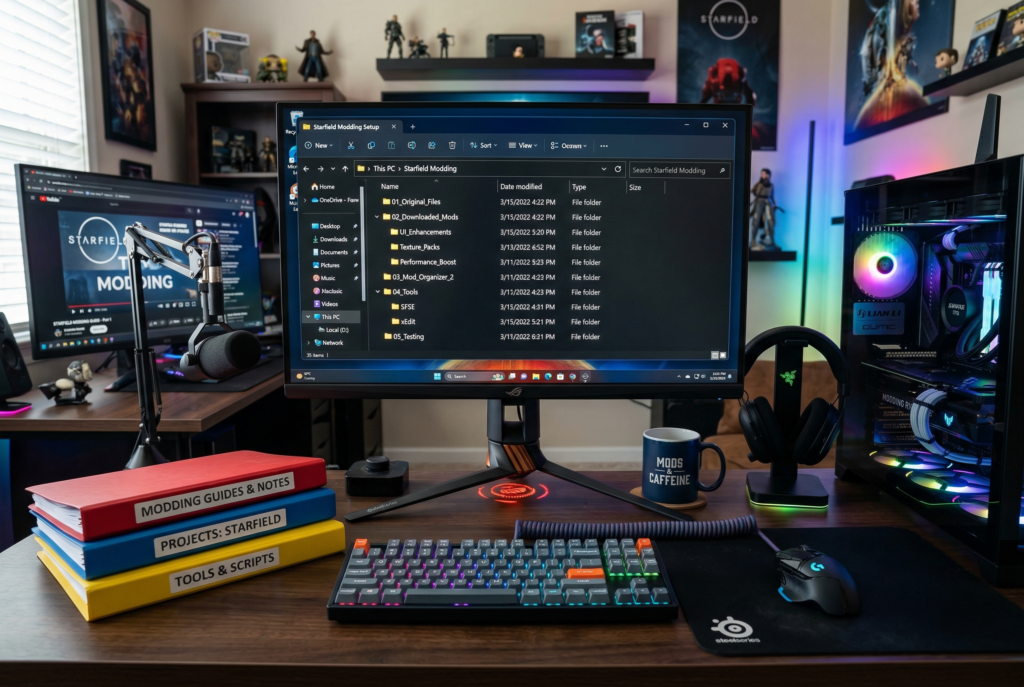
You can install Hytale mods using the CurseForge app for automatic management or manually place files into your game folder. The CurseForge method handles updates and dependencies automatically, while manual installation gives you more control over individual mod files. If you enjoy best cross-platform games with mod support, you will appreciate how Hytale handles modding across different systems.
Contents
What Are Hytale Mods
Hytale mods are user-created modifications that add new features, change existing mechanics, or introduce fresh content to the game. The modding community has created everything from simple quality-of-life tweaks to complete gameplay overhauls. These mods can improve ore visibility, enhance map functionality, add new weapons, or streamline inventory management.
The game supports both client-side mods that only affect your experience and server-side mods that all players need to access. Most quality-of-life mods work in single-player without any additional setup, while content mods may require installation on both your client and any server you join.
Preparing Your Game for Mods
Before you install any mods, take a few minutes to prepare your game and protect your existing worlds. This preparation prevents data loss and makes troubleshooting much easier if problems arise later.
Backup Your Worlds
Copy your existing world saves to a safe location outside your Hytale folder. Navigate to your UserData/Saves folder and copy the entire directory to your desktop or an external drive. If a mod causes issues, you can restore your worlds without losing progress.
Check Game Version Compatibility
Each mod specifies which Hytale version it supports. Installing a mod designed for an older or newer game version can cause crashes or unexpected behavior. Always check the mod description on CurseForge or the download page to verify compatibility with your current game version.
Download from Trusted Sources
CurseForge serves as the official mod hosting partner for Hytale and screens uploads for safety. Avoid downloading mods from random websites or file-sharing services, as these files may contain malware or corrupted data. The CurseForge app also verifies file integrity during installation.
Method 1: Installing Mods via CurseForge App
The CurseForge app provides the easiest way to install Hytale mods with automatic updates, dependency management, and one-click installation. This method works well for beginners and players who want a hassle-free experience.
Step 1: Download and Install CurseForge
Visit the CurseForge website and download the desktop application for your operating system. Run the installer and follow the on-screen prompts. The app requires an account, so create one if you do not have an existing Overwolf or CurseForge account.
Step 2: Add Hytale to Your Games
Open the CurseForge app and click the search bar at the top. Type “Hytale” and select the game from the results. The app will detect your Hytale installation automatically or prompt you to browse for the game executable if it cannot find the folder.
Step 3: Browse and Install Mods
Click the “Browse” tab within the Hytale section to see available mods. You can filter by category, popularity, or recent updates. When you find a mod you want, click the “Install” button. The app downloads the mod file and places it in the correct folder automatically.
Step 4: Manage Your Mods
The “My Mods” tab shows all installed mods with options to enable, disable, update, or uninstall each one. The app also alerts you when mod updates become available and handles dependencies automatically, ensuring compatible mods work together without manual configuration.
How to Install Hytale Mods Manually
Manual installation gives you direct control over mod files and works without additional software. This method suits players who prefer managing files themselves or need to install mods from sources other than CurseForge.
Step 1: Find Your Hytale Mod Folder
On Windows, press Windows Key + R to open the Run dialog, then type %appdata% and press Enter. Navigate to Hytale > UserData > Mods. This folder is where all mod files belong. If the Mods folder does not exist, create it manually.
On Linux, navigate to ~/.local/share/Hytale/UserData/Mods. The path differs from Windows, but the folder structure remains the same once you locate the UserData directory.
Step 2: Download Mod Files
Download your chosen mods from CurseForge or another trusted source. Look for the “Download file manually” option rather than “Install via app.” Most Hytale mods come as .jar or .zip files.
Step 3: Place Files in the Mods Folder
Copy the downloaded mod files directly into your UserData/Mods folder. Do not extract .jar files. Place them in the folder exactly as downloaded. For .zip files, check the mod instructions. Some mods require extraction while others work as compressed archives.
Important: Do not place mods in the UserData/Saves folder. Many players make this mistake and wonder why their mods do not appear. The correct location is always UserData/Mods.
Step 4: Verify Installation
Launch Hytale and check the mods menu to confirm your files appear in the list. If mods do not show up, double-check the folder path and file format. The game scans the Mods folder automatically on startup.
How to Enable and Activate Mods in Your World
Installing mods does not automatically activate them in your gameplay. Hytale requires you to enable mods for each world individually, giving you flexibility to use different mod configurations for different adventures.
Accessing World Settings
From the main menu, select your world from the world list. Right-click the world or look for the settings icon next to its name. This opens the world settings panel where mod management options appear.
Enabling Mods
Within world settings, navigate to the “Mods” section. You will see a list of all installed mods with toggle switches. Enable the mods you want active for that specific world. Disabled mods remain installed but do not affect gameplay.
Understanding Mod Dependencies
Some mods require other mods to function correctly. These dependencies appear in the mod description on CurseForge. If you enable a mod without its required dependencies, the game will warn you. Install missing dependencies before playing to prevent crashes.
Installing Mods on Hytale Servers
Server-side mod installation differs from client installation. When hosting a server, you need to upload mod files to the server and ensure all connecting players have matching client-side mods installed.
Server-Side vs Client-Side Mods
Content mods that add new items, blocks, or mechanics require installation on both the server and every client that connects. Quality-of-life mods that only affect your personal interface often work client-side only. Check each mod documentation to understand its requirements.
Uploading Mods to Your Server
Access your server files through SFTP or your hosting control panel. Navigate to the server’s UserData/Mods folder and upload mod files using the same process as manual client installation. Restart the server after adding new mods.
Players connecting to your server must install the same mods on their clients. Provide download links and installation instructions to ensure everyone has matching mod configurations.
Troubleshooting Common Issues
Even with careful installation, mods can sometimes cause problems. Here are the most common issues and their solutions.
Mods Not Showing Up
If installed mods do not appear in the world settings menu, verify you placed files in the correct folder. The path should be UserData/Mods, not UserData/Saves. Also confirm that file names end with .jar or .zip. The game ignores files with wrong extensions.
Game Crashes After Installing Mods
Crashes often result from mod conflicts or version incompatibilities. Disable all mods, then enable them one at a time to identify the problematic mod. Check that each mod supports your current game version. Remove any mods that cause crashes until the author releases a compatible update.
World Fails to Load
Sometimes worlds refuse to load when certain mods are active. Try disabling all mods, loading the world, then re-enabling mods one by one. This process isolates which mod causes the loading failure. The CurseForge app can also verify mod file integrity.
How to Uninstall Hytale Mods
To remove a mod, navigate to your UserData/Mods folder and delete the corresponding file. You can also uninstall through the CurseForge app by clicking the trash icon next to the mod name. Uninstalling a mod does not affect your world saves, but worlds created with that mod may behave differently after removal.
Performance Issues with Multiple Mods
Running many mods simultaneously can impact game performance. If you experience lag or stuttering, try reducing your active mod count. Disable resource-heavy mods or those you rarely use. The CurseForge app displays mod file sizes to help you identify larger mods.
FAQ’s
How do I manually install Hytale mods?
Download the mod file from CurseForge using the ‘Download file manually’ option. Navigate to your Hytale mod folder at AppData/Roaming/Hytale/UserData/Mods on Windows or ~/.local/share/Hytale/UserData/Mods on Linux. Place the .jar or .zip file directly into this folder without extracting it. Launch Hytale and enable the mod in your world settings.
How do I enable server mods in Hytale?
Upload mod files to your server’s UserData/Mods folder using SFTP or your hosting control panel. Ensure all players who connect to your server install the same mods on their clients. Server-side mods that add content require matching installations on both server and client. Restart the server after adding new mods for changes to take effect.
Are there mods for Hytale?
Yes, Hytale has an active modding community with hundreds of available mods. You can find mods on CurseForge, the official mod hosting partner. Available mods include quality-of-life improvements, new weapons, enhanced maps, ore visibility tools, inventory management systems, and complete gameplay overhauls. The modding scene continues to grow as the game develops.
How do you open the mod menu in Hytale?
Hytale does not have a central mod menu accessible during gameplay. Instead, access mods through world settings. From the main menu, right-click your world or click the settings icon next to its name. Navigate to the Mods section within world settings to see all installed mods and toggle them on or off for that specific world.
Where are the Hytale mods located?
On Windows, Hytale mods are stored in AppData/Roaming/Hytale/UserData/Mods. Press Windows Key + R, type %appdata%, and navigate to Hytale > UserData > Mods. On Linux, the path is ~/.local/share/Hytale/UserData/Mods. If the Mods folder does not exist, create it manually. Do not confuse this with UserData/Saves, which stores world files.
Why are my Hytale mods not working?
Common causes include placing files in the wrong folder (use UserData/Mods, not UserData/Saves), incompatible game versions, missing dependencies, or file corruption. Verify your mod folder path, check that each mod supports your game version, install any required dependency mods, and re-download corrupted files. Try disabling all mods and enabling them one by one to isolate conflicts.
How do I uninstall Hytale mods?
Navigate to your UserData/Mods folder and delete the mod file you want to remove. You can also use the CurseForge app by clicking the trash icon next to the mod in your installed list. Uninstalling does not delete your world saves, but worlds that relied on that mod may behave differently afterward.
What are the best Hytale mods for beginners?
Beginners should start with quality-of-life mods like BetterMap for improved navigation, OreSight for easier resource finding, and Grab From Far for convenient item collection. These mods enhance gameplay without changing core mechanics. Avoid large content packs until you understand how modding works and how to troubleshoot potential conflicts.
Conclusion
Learning how to install Hytale mods opens up endless possibilities for customizing your adventure experience. The CurseForge app offers the simplest approach with automatic updates and dependency management, while manual installation provides more control for experienced users. Both methods place files in the same UserData/Mods folder and activate through world settings.
Start with a few quality-of-life mods to get comfortable with the process, then explore more ambitious content as you gain confidence. Always backup your worlds before adding new mods, download from trusted sources like CurseForge, and check version compatibility to avoid crashes. For more gaming guides and tips, check out our guide to sandbox building games like Hytale and other beginner-friendly content.
The modding community continues to create innovative content that extends Hytale’s replayability for years to come. With this guide, you now have everything needed to join that community and transform your gameplay experience.
